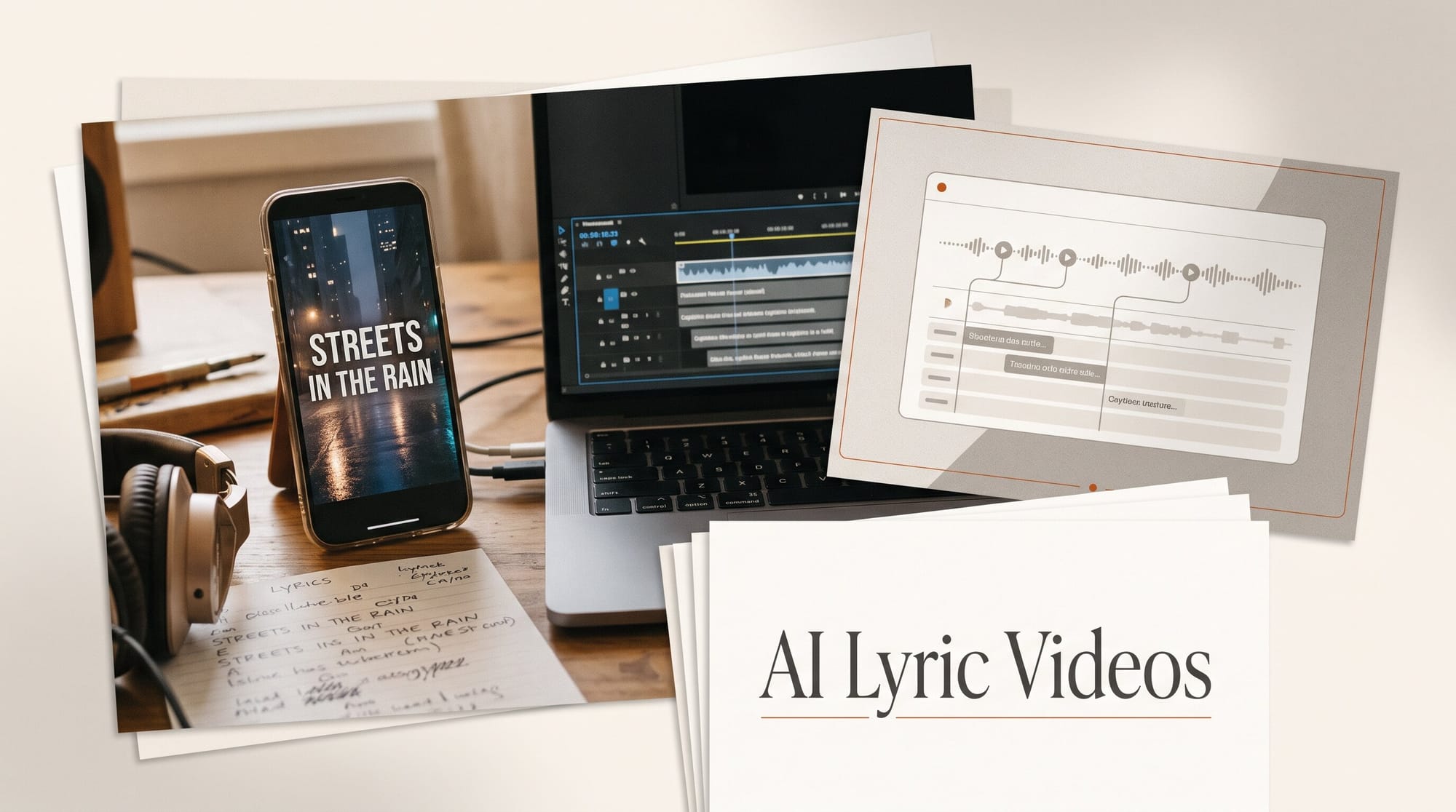
You can make a lyric video with AI in an afternoon, for free, using apps you already have. Make a few background images in the Gemini app or ChatGPT, add slow motion in CapCut or Google Flow (50 free credits a day), then let an AI time your lyrics: CapCut's Auto Lyrics on your phone, or ElevenLabs Scribe on desktop, which saves the timed lines as a subtitle file. One edit gives you three files: a 16:9 video for YouTube, a 9:16 chorus cut for Shorts, Reels and TikTok, and a Spotify Canvas loop.
Below: the steps, the prompts, the cost of each app, and two catches most musicians miss, the AI label and the claim on your own upload. Every feature and price comes from each app's own help or pricing page, checked November 11, 2026. We have not made a test video for this guide, so where an app's own pages disagree, we say so.
What You Need
- The finished song, the mastered file you will release, and the lyrics typed out in plain text. Typed lyrics are your answer key: every AI timing tool mishears some sung words.
- An image generator. The free Gemini app, ChatGPT, Ideogram or Adobe Firefly. If you already made the cover in our album cover art guide, start from that image.
- A video editor. CapCut on your phone is the fastest route. On a computer, any editor that reads subtitle files works: DaVinci Resolve, Premiere Pro or Final Cut Pro.
- Optional: Google Flow for moving backgrounds, an ElevenLabs account for desktop lyric timing, and a vocal-only version of the song if your mix is dense.
Time: two to three hours for a first video, most of it spent fixing lyric lines. Cost: $0 on the free routes. Google AI Plus at $4.99 a month adds Flow credits if you want more moving backgrounds.
Pick Your Route
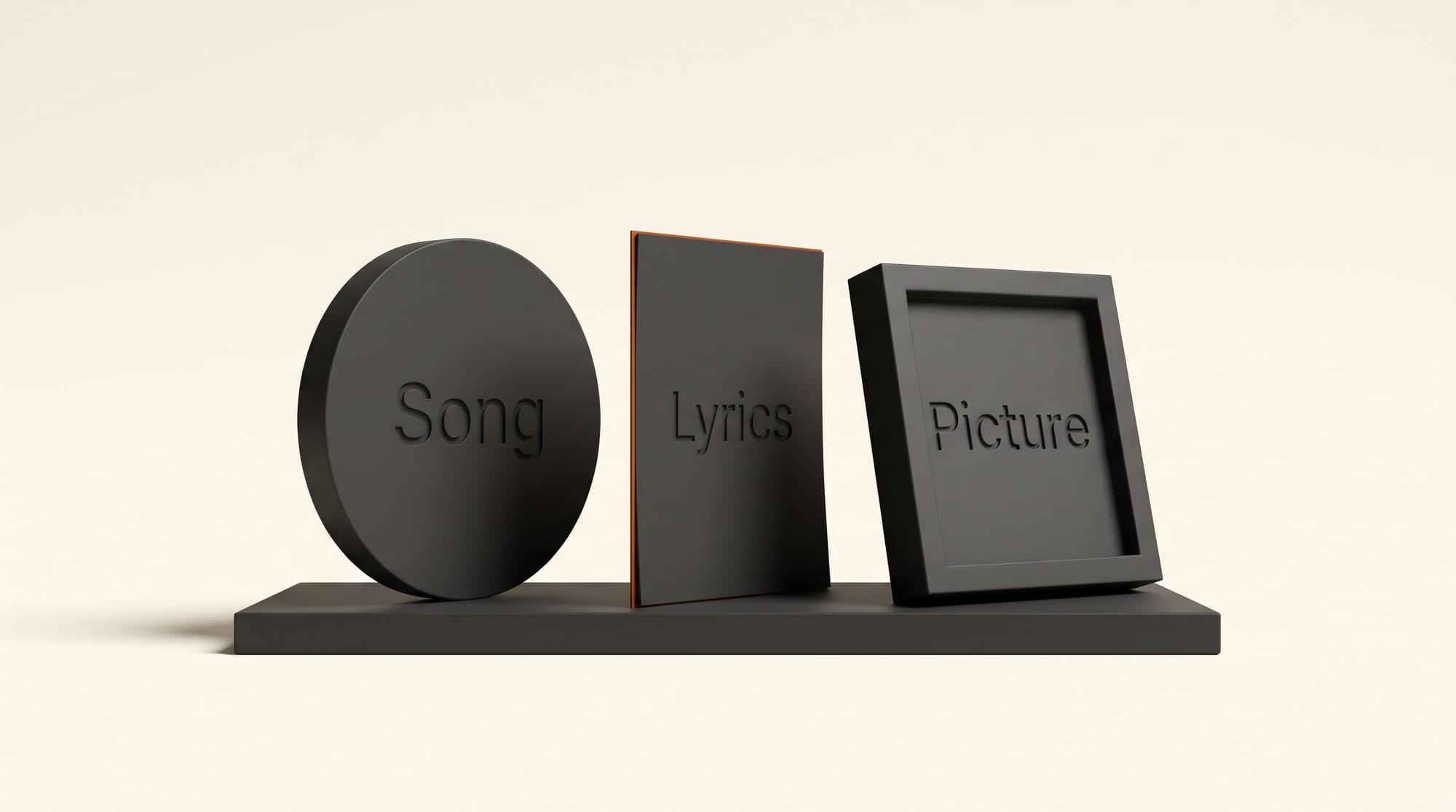
The background is the easy part. The hard part is timing the words to the singing, and that choice decides which app you edit in.
| Route | Who times the lyrics | Where it runs | Cost | Pick it if |
|---|---|---|---|---|
| CapCut Auto Lyrics | CapCut, then you fix it | CapCut phone app only | Free to download | You edit on your phone |
| ElevenLabs Scribe to a subtitle file | Scribe, then you fix it | ElevenLabs web app, then any editor that reads SRT | Free plan: 10,000 credits a month, about eight songs | You edit on a computer |
| Type and time by hand | You | Any editor | Free | Your vocals are buried, whispered or rapped very fast |
| Rotor (done for you) | The service | Web | 4 credits per lyric video: $36 to $39.96, or $14.99 a month billed yearly | You release often and do not want to edit |
CapCut's own pages disagree about where Auto Lyrics lives. Older CapCut tutorials show it under Captions in the desktop editor. CapCut's help article on the missing Auto Lyrics button, written as of January 2026, says it is "fully supported and actively maintained only on the mobile app," that CapCut Web does not have it, and that "the desktop version does not include Auto Lyrics functionality." Plan on the phone app. If you work on a computer, use the Scribe route.
The Scribe figure comes from ElevenLabs' credit rate for speech to text, 330 credits per minute, which we covered in our Scribe v3 cost breakdown. A three-and-a-half-minute song is about 1,155 credits, so the free 10,000 cover about eight songs a month. Rotor's prices are from its pricing page: a lyric video costs 4 credits, a single credit is $9.99 and a 5-credit pack is $44.99, and you can preview for free before you pay to download.
Make the Background
Step 1: Make one look in three to five pictures
A lyric video is words on top of a picture, so the picture must leave room for the words. Ask for no text in the image, a calm area across the middle and darker tones, so white lyrics stay readable. Start from your cover art if you have it, so the video matches the release. A prompt that works in the Gemini app or ChatGPT:
Wide 16:9 background for a lyric video. Night city seen through a rain-streaked window, warm amber street lights, soft focus, deep shadows. Leave the center calm and uncluttered for large text. No text, no letters, no people. Same color palette as the attached cover image.
Make three to five variations of the same scene, one for each part of the song: verse, chorus, bridge. Then ask for the same images at 9:16 for the vertical cut. One catch on the free Gemini app: Google's help says downloads are 1K without a paid plan, which is soft at full HD. That is fine for a background you will blur slightly behind text. If you want it sharp, run it through an upscaler from our upscaler comparison.
Step 2: Add slow motion, free or with credits
You have two ways to make the pictures move.
The free way that stays sharp: in your editor, put each still on the timeline and add a slow zoom or pan with two keyframes, start and end. Over a 20-second verse, a 10% zoom feels alive without distracting from the words.
The generated way: animate the stills in Google Flow. Google's Flow credits page says every account gets 50 credits a day, with or without a subscription, and unused credits do not carry over. Gemini Omni Flash 1.2 costs 3 credits a second at 720p and 1 credit a second at 360p, for clips up to 10 seconds. So a 10-second 720p loop is 30 credits: one a day free. Google AI Plus at $4.99 a month adds 200 credits a month, about six more loops (our Flow credits breakdown has the full plan table). A motion prompt:
Rain runs slowly down the glass, street lights flicker softly, camera completely static, gentle and calm, seamless loop.
"Camera completely static" matters: a moving camera fights the text. If the app lets you set an end frame, use the same still for the first and last frame, so the clip loops back on itself.
Step 3: Lay the backgrounds under the song
Import the song and the backgrounds into your editor. Put one look under each section and change it on the downbeat where the chorus starts. Four to six loops, repeated per section, carry a three-minute song; repetition reads as a choice when the cuts land on the music.
Time the Lyrics
Step 4a: On your phone, use CapCut Auto Lyrics
Open your project in the CapCut app, tap Text in the bottom toolbar and look for Auto Lyrics. CapCut's help page says the label may read Auto Captions in some regions. CapCut's own tutorials then have you pick the song's language and a lyric template, and the words land on the timeline in time with the vocal. If the button is missing, CapCut lists three causes: an old app version, audio without clear vocals (instrumental, silent or "too noisy" tracks will not trigger it), and countries where the feature is unavailable.
Step 4b: On a computer, use ElevenLabs Scribe and a subtitle file
Upload the song to Speech to Text in the ElevenLabs app with "Include subtitles" switched on, or add subtitles to an existing transcript with the + next to Subtitles. ElevenLabs' subtitles guide says the editor flags lines that break its rules on characters per line, lines on screen and cue length, and you can change those rules under Edit rules. For lyrics, set a short line length so each caption holds one sung phrase. Export as SRT and import that file as a caption track in DaVinci Resolve, Premiere Pro or Final Cut Pro, then style it as text.
If the words come out garbled on a busy mix, run the vocal-only version of the song instead. Any splitter in our stem splitter comparison makes one, including the free Ultimate Vocal Remover. The timings still match the full mix, because the vocal stem is the same length.
Step 5: Fix every line against your typed lyrics
Play the song from the top with your typed lyrics open beside the editor. Fix misheard words, ad-libs the AI wrote out, and backing vocals it mixed into the lead line. Split long captions at the breath, so one line equals one sung phrase. Then nudge each line to appear a few frames before the singer starts it: viewers read slightly ahead, and text that lands late feels out of sync even when it is technically right.
Style, Export and Upload
Step 6: Style the words for a phone screen
Use one bold, plain font, large and near-white, with a soft shadow or a dark band behind it when a background gets bright. Split a long line rather than shrinking the text. Keep the words off the bottom of a vertical frame, where Shorts, Reels and TikTok put their buttons and captions. Save the effects for the chorus: a word-by-word highlight template on the hook gives the song a lift, and on every line it gets tiring.
Step 7: Export three files from one edit
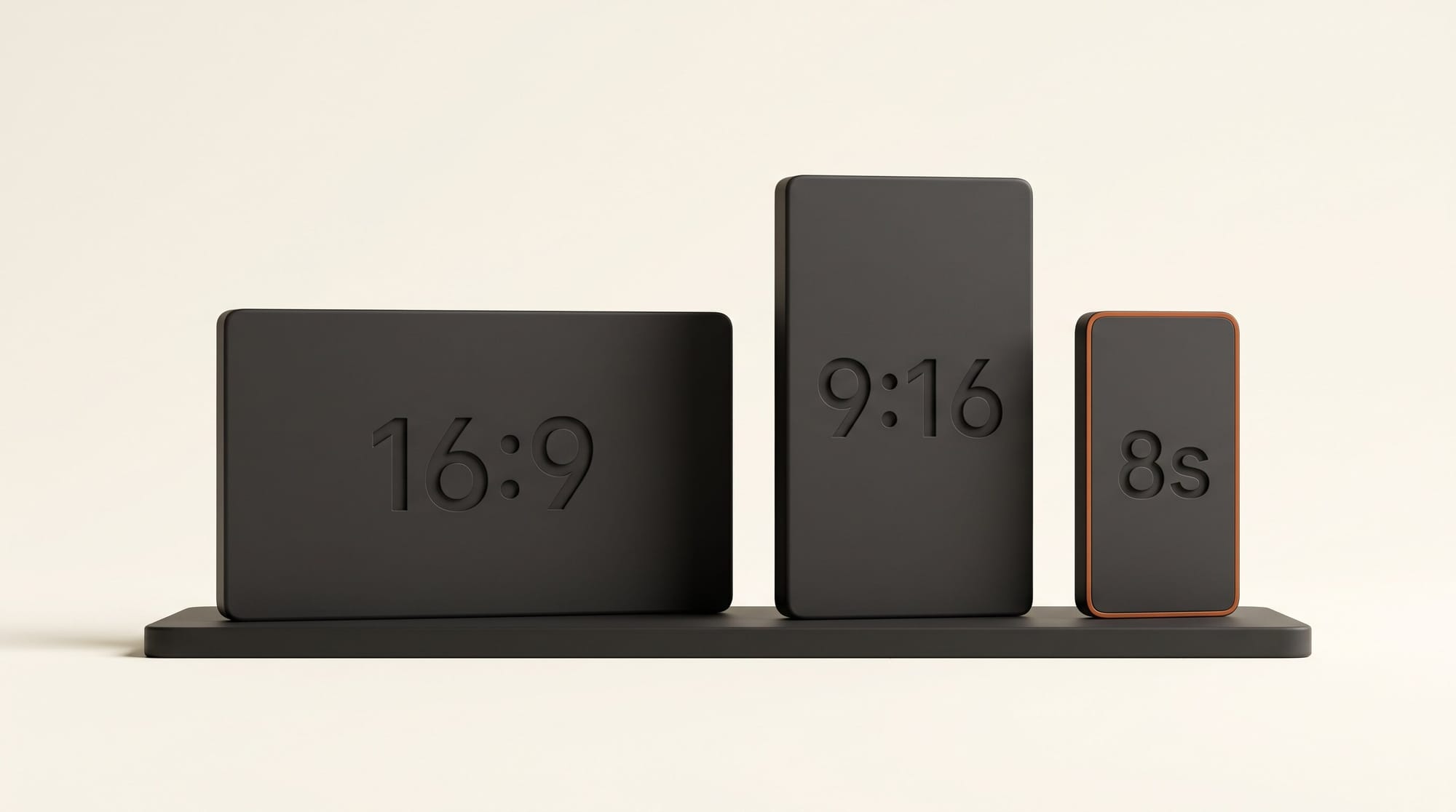
- YouTube: 16:9 at 1920 x 1080, the full song.
- Shorts, Reels and TikTok: the 9:16 version at 1080 x 1920, cut to the chorus or the strongest 30 to 60 seconds.
- Spotify Canvas: one background loop with no lyrics. Spotify's Canvas guidelines ask for 3 to 8 seconds, vertical 9:16, between 720 and 1080 pixels tall, as an MP4 or JPG. Spotify also advises choosing "footage without talking, singing, or rapping" because the loop will not stay in sync with the song, and suggests leaving out the song and artist name, which the app already shows.
Step 8: Upload, and answer the two questions that trip up musicians
The AI label. In YouTube Studio, the upload's Attributes section has an "AI use" question. YouTube's disclosure policy lists content that "creates music that's the main focus of the video" among the things you must disclose. If the song itself was made with Suno, ElevenLabs Music or another generator, answer Yes. If you wrote and recorded the song and only the backgrounds are AI, YouTube's examples point the other way: unrealistic visuals and caption creation are listed as not needing disclosure. A photorealistic scene that never happened would need it.
The claim on your own video. If your distributor registered the song in YouTube's Content ID, your own lyric video can get claimed like anyone else's upload. A claim is not a strike. Ask your distributor to clear your channel before release day, or to release the claim once it appears. AI-generated songs are a separate case: as our Content ID analysis found, several distributors keep them out of Content ID entirely, so there is nothing to claim and nothing to earn from other people's uses.
Troubleshooting
No Auto Lyrics button in CapCut. Check you are in the phone app, not desktop or web, and update it. If the song is quiet or heavily layered, CapCut may not detect vocals: use the vocal-only version, or switch to the Scribe route.
The lyrics drift out of time halfway through. Usually the audio changed after you timed the words, from a trim, a new master or a fade added later. Lock the final audio first, then time. To repair it, select every caption after the first late line and slide them together.
The AI keeps writing the wrong words. Fast rap, heavy reverb and stacked harmonies confuse every transcriber. Fix them by hand from your typed lyrics; it is quicker than rerunning.
Flow says you are out of credits. The 50 daily credits reset each day and do not roll over. Test motion prompts at 360p (10 credits for 10 seconds), make only the keepers at 720p, and fill the rest with free zooms on stills.
What to Try Next
Once the lyric video is live, the same backgrounds can grow into a full music video with recurring scenes and characters; our AI music video workflow starts from the song the same way. A smaller variation: a lyric-only Short for each verse in the week before release, each teasing a different line.
Frequently Asked Questions
Can I make a lyric video with AI for free?
Yes. The Gemini app or ChatGPT can make the backgrounds, CapCut is free to download and its phone app times lyrics automatically, and Google Flow gives every account 50 credits a day for moving clips. ElevenLabs' free plan covers about eight three-and-a-half-minute songs a month if you time lyrics on a computer.
Can AI time lyrics on a computer, not just a phone?
Yes, but not in CapCut: its help page says Auto Lyrics is only in the mobile app. On a computer, transcribe the song in ElevenLabs with subtitles switched on, export an SRT file and import it into DaVinci Resolve, Premiere Pro or Final Cut Pro.
Do I have to label my lyric video as AI on YouTube?
If the song was made with AI, yes: YouTube lists music that is the main focus of the video among the content creators must disclose, under AI use in the upload's Attributes section. If only the visuals are AI and they are clearly not realistic, YouTube's own examples say no disclosure is needed.
What size should a lyric video be?
1920 x 1080 (16:9) for the full YouTube video and 1080 x 1920 (9:16) for Shorts, Reels and TikTok. A Spotify Canvas is separate: 3 to 8 seconds, 9:16, 720 to 1080 pixels tall, with no singing in the footage.
Why did my own lyric video get a copyright claim?
Your distributor likely registered the song in YouTube's Content ID, which scans every upload, including yours. Claims are not strikes. Ask your distributor to clear your channel, ideally before release day, or to release the claim once it appears.