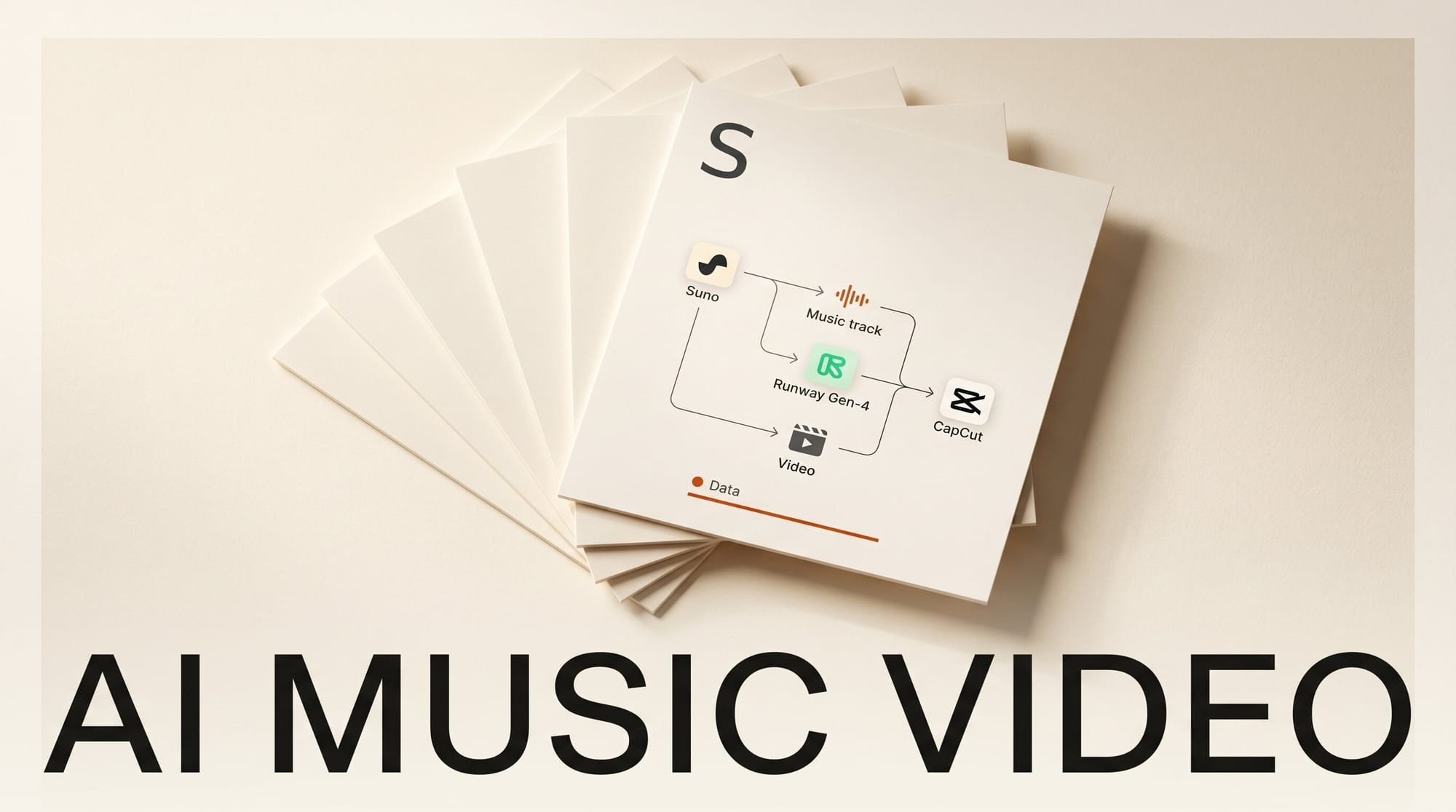
You can take a song from a blank prompt to a finished, beat-synced music video in an afternoon using three tools: Suno for the track, Runway Gen-4 for the visuals, and CapCut for the edit. This guide walks the full pipeline end to end, with the exact prompts and settings that keep characters consistent and cuts locked to the beat. Budget two to three hours for your first run and roughly zero to thirty dollars depending on how much you generate.
The hard part of an AI music video is not generating clips. It is keeping a character, a location, and a mood coherent across a dozen shots while every cut lands on a downbeat. The workflow below solves that with reference images and a beat-mapped shot list, so the result looks directed rather than assembled from random generations.
What You Need
Accounts and tools. A Suno account (free tier works to start; the Pro plan at roughly ten dollars a month unlocks commercial rights and stem separation), a Runway account for image-to-video, and CapCut (free on desktop, web, and mobile). A reference image generator helps for character design, but Runway can build references from a single photo.
Assets. A song concept or finished lyrics, a clear idea of one or two recurring characters or locations, and a moodboard of three to five still images that define your look. That is enough to keep every shot on-style.
Skills. None beyond basic timeline editing. If you can drag a clip and cut it, you can finish this.
The Workflow
Step 1: Write and generate the song in Suno
Start with the music, because the song dictates the edit. In Suno, switch on Custom mode so you control lyrics and structure rather than letting a single prompt decide everything. Paste your lyrics with explicit section tags like [Verse], [Chorus], and [Bridge], and put your genre, tempo, and instrumentation in the Style box (for example, "dream pop, 90 BPM, warm analog synths, female vocal, airy reverb"). Generate two clips, keep the stronger take, and use the Song Editor to extend or trim sections until the arrangement is final.
The current model, Suno v5.5, adds stem separation on paid plans, which matters later: exporting an instrumental-and-vocal split lets you duck visuals to the vocal or cut hard on the drums. If you are still deciding which generator fits your sound, our Suno vs Udio comparison breaks down where each one wins. Export the final track as a WAV, and note the timestamp of every section change. You will map shots to those timestamps next.
Step 2: Build a beat-mapped shot list
Open your audio in any player that shows a waveform and write down the time of each major moment: the first downbeat, where the verse turns into the chorus, the drop, the bridge, the final hit. A three-minute song usually breaks into eight to fourteen shots. Assign one visual idea per section, and keep recurring elements (the same character, the same room, the same color grade) so the video reads as one piece rather than a slideshow.
Write each shot as a one-line direction with a camera move attached: "wide establishing shot of a neon-lit rooftop, slow dolly in," or "close-up on the singer, handheld, rack focus to the city behind." Camera language is not decoration here. Runway Gen-4 responds to directorial instructions like dolly, pan, tilt, and tracking, so naming the move up front gives you usable motion instead of a static drift.
Step 3: Create reference images for consistent characters
Consistency is the whole game. Generate or choose one strong reference image per recurring subject and location before you animate anything. Runway Gen-4 was built around world consistency: feed it a single reference of your character and it can hold that face, wardrobe, and lighting across endless scenes. Lock your three to five references first, then treat them as the visual bible for the rest of the shoot.
Keep references simple and high contrast. A clean, well-lit portrait reproduces far more reliably than a busy, low-light frame. If a character needs to appear in multiple environments, generate the reference on a neutral background so Gen-4 can recompose it without fighting the original scene.
Step 4: Animate each shot in Runway Gen-4
Now animate, shot by shot, using image-to-video. Drop in the reference image, write the shot direction from your list, and add the camera move. Generate clips slightly longer than you need so you have trimming room on both ends. Gen-4 outputs up to 1080p at 24 frames per second in 16:9, 9:16, or 1:1, so pick your aspect ratio before you start: 9:16 for Reels, TikTok, and Shorts, 16:9 for YouTube.
Use Motion Brush to direct movement where it matters, painting motion onto hair, smoke, or water while keeping the face stable. Generate two or three variations per shot and keep the best. Resist the urge to make every clip dynamic; a few held, near-still shots give the eye a rest and make your motion shots hit harder. For heavier editing of existing footage rather than pure generation, Runway's Aleph 2.0 and Edit Studio tools cover that side of the workflow.
Step 5: Sync video to the beat in CapCut
Import your WAV and all your clips into CapCut. Drop the audio first, then use the beat-detection feature to place markers on the timeline (CapCut can auto-generate beat markers from the track). Snap your cuts to those markers. The single biggest upgrade to any music video is cutting on the beat rather than on the action, so let the markers, not your instinct, decide where clips end.
Order your shots to follow the song's energy: held, atmospheric clips under the verses, faster cuts and bigger motion through the chorus and drop. Trim each Gen-4 clip to its strongest second or two. If you exported stems in Step 1, cut harder on the drum hits and let visuals breathe under the vocal lines.
Step 6: Color, captions, and export
Add a single consistent color grade across every clip so the AI-generated shots feel like one camera shot them. CapCut's filters and adjustment layers handle this in a couple of clicks; pick one look and apply it everywhere. Add lyric captions if the song has a strong hook, animate them sparingly, and keep them clear of the lower-third safe zone for vertical platforms. Export at 1080p, 24 or 30 fps, matching the aspect ratio you chose in Step 4.
Troubleshooting
The character's face changes between shots. Your reference image is too complex or too dark. Regenerate it as a clean, evenly lit portrait on a neutral background, then re-run the affected shots from that single reference.
Motion looks like a slow zoom on a photo. You did not specify a camera move. Add explicit direction (dolly in, tracking shot, pan left) and use Motion Brush to mark what should move. Generic prompts produce generic drift.
Cuts feel off even though clips are good. You are cutting on action instead of the beat. Re-snap every cut to the beat markers in CapCut and watch it tighten up immediately.
The video looks like disconnected clips. Two fixes: apply one color grade across all footage, and make sure at least one element (character, location, or palette) recurs across the whole video.
What to Try Next
Once the basic pipeline feels natural, push it further. Try a one-character narrative where the same person moves through every scene, which is exactly what Gen-4's consistency was built for. Swap Runway for another image-to-video model on a few shots to compare motion quality, or experiment with frame-synced generation tools that lock visuals directly to the audio. And revisit your Suno track with custom voice models so the song itself is unmistakably yours before you ever touch the visuals.
FAQ
How long does it take to make an AI music video?
Plan two to three hours for your first full run: roughly thirty minutes for the song, an hour for generating and selecting shots, and an hour for the edit. Once the workflow is familiar, a polished one-minute vertical video takes about an hour.
How much does it cost?
You can start free. Suno's free tier generates songs, CapCut is free, and Runway offers limited free generation. For commercial use and volume, expect roughly ten dollars a month for Suno Pro plus a Runway plan, so most creators land in the ten-to-thirty-dollar range per month.
Can I use an AI music video commercially?
Check each tool's terms. Suno grants commercial rights on paid plans, and Runway and CapCut allow commercial use under their paid tiers. Always confirm the current licensing on each platform's terms page before monetizing, since policies change.
Which tools keep characters consistent across shots?
Runway Gen-4 is built around reference-based world consistency, so a single clean reference image holds a character's face and wardrobe across many scenes. Strong, high-contrast reference images are the most important factor in keeping a subject stable.
What aspect ratio should I use?
Choose before you generate. Use 9:16 for TikTok, Instagram Reels, and YouTube Shorts, and 16:9 for standard YouTube. Generating in the wrong ratio means cropping later and losing composition, so set it in Runway from the first shot.