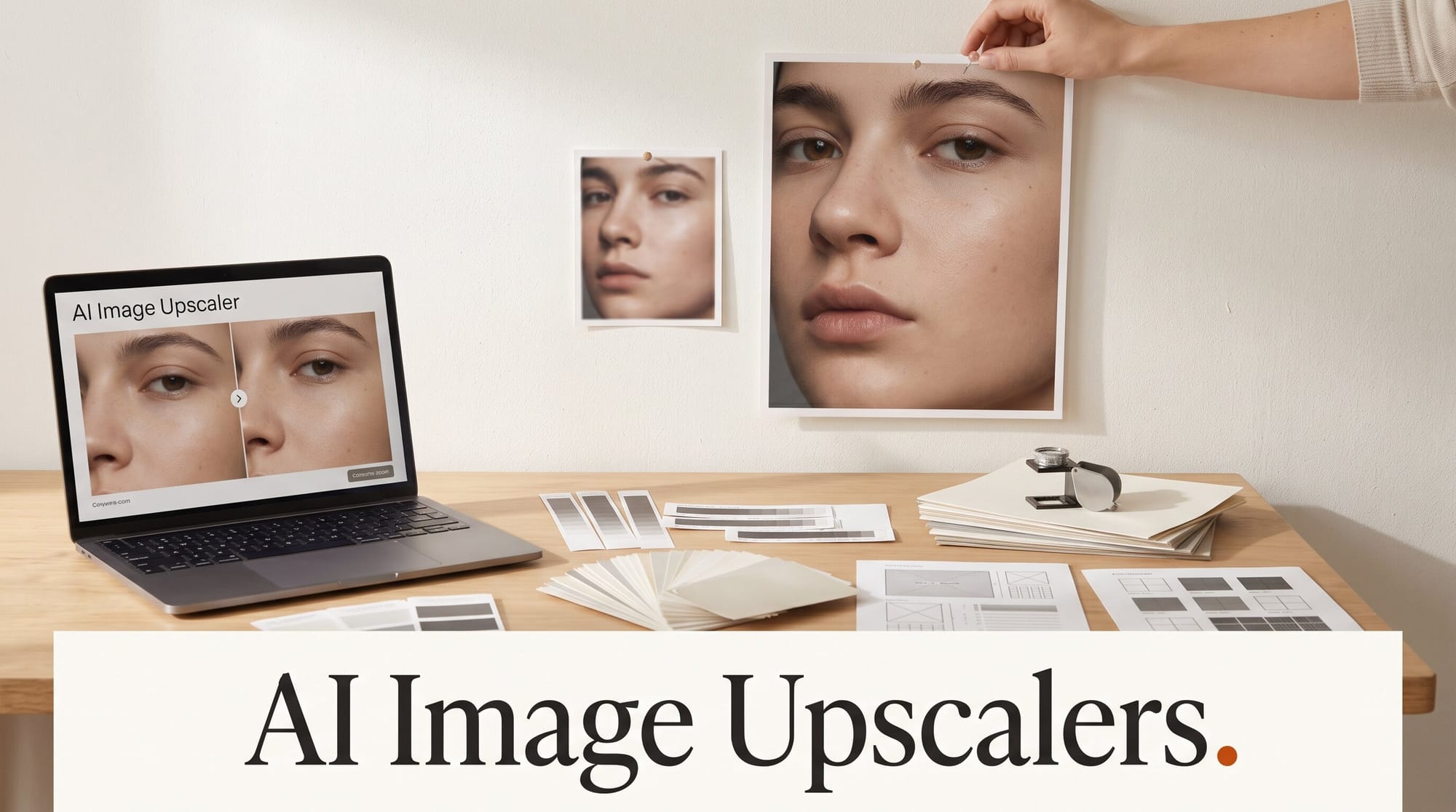
The best AI image upscaler depends on what the picture is for. For prints of your own camera photos, start with Lightroom's Super Resolution: it is already in the Adobe photo plan, it doubles width and height, and it changes nothing that was not there. For AI images headed to a poster, Topaz Gigapixel is the safe pick, inside Photoshop for 10 credits an upscale or as its own app for $149 a year. Upscayl is free and processes batches on your own computer. Magnific and Topaz Bloom add detail that was never in the file, which can save a soft image or quietly change a face. This guide compares the five on five common creator jobs and works out what each upscale costs.
We built it from each company's own product, pricing and help pages, read November 4, 2026, plus Phlearn's published side-by-side upscale test (October 17, 2026) for the image-quality verdicts. We did not run our own paid head-to-head. Every tool here has a free route or a trial, so the best final test is your own image through two of them.
Quick Picks
- Pick Lightroom Super Resolution if you shoot with a camera and pay for the Adobe Photography plan. Twice the width and height (four times the pixels), raw files included, and it is not a generative feature, so it spends no Adobe credits.
- Pick Topaz Gigapixel if you print AI images or old photos and want the result to stay faithful. In Photoshop it costs 10 credits for an output up to 25 megapixels; as its own app it is $149 a year with unlimited upscales.
- Pick Upscayl if you want free and unlimited, need to batch a folder, and have a graphics card it supports.
- Pick Topaz Bloom if an AI image looks plastic and you want real-looking skin and texture, and you will check every face and logo afterwards.
- Pick Magnific if you make concept art, game textures or stylized work where invented detail is the point, and you are fine paying in credits.
How Many Pixels a Print Actually Needs
Before choosing a tool, work out the target. Print shops ask for about 300 pixels per inch for anything viewed up close. Multiply the print size by 300 and you have the pixel count you need.
| Print size | Pixels at 300 DPI | Megapixels |
|---|---|---|
| 8 x 10 in | 2,400 x 3,000 | 7.2 |
| 11 x 14 in | 3,300 x 4,200 | 13.9 |
| 16 x 20 in | 4,800 x 6,000 | 28.8 |
| 18 x 24 in | 5,400 x 7,200 | 38.9 |
Now compare that with what you start from. A 2,048 x 2,048 image, a common 2K output from AI image apps, prints only about 6.8 inches square at 300 DPI. Phlearn's test image from Midjourney was 1,344 x 896, enough for about 4.5 x 3 inches. A 2x upscale doubles both sides and a 4x upscale quadruples them, so a 4x pass on that Midjourney image gives 5,376 x 3,584, about 17.9 x 11.9 inches at 300 DPI.
Large posters seen from across a room are usually fine at 150 DPI, which halves the pixels needed on each side. If you sell through a print-on-demand shop, use the pixel size its upload guide asks for, not a DPI number. Our guide to where to sell AI art lists the shops.
Five Jobs, Five Upscalers Compared
Job 1: Turn an AI image into a poster
This is where the tools differ most, and where Phlearn's test is useful. Aaron Nace took one 1,344 x 896 Midjourney image through eight methods and compared the same crop at 100%. Topaz Gigapixel at 2x was faithful, but the face still looked rendered, and a single 4x pass looked worse: a waxy face, smeared texture and halos along the edges. Topaz Bloom at 2x gave real-looking skin and fabric but invented details, including lettering and red lipstick that were not in the original. His winner was a chain: Bloom 2x, then Gigapixel 2x, for 45 Photoshop credits and three to five minutes per image.
Both Topaz models run inside Photoshop under Image > Generative Upscale, next to Adobe's own Firefly Upscaler. Photoshop Essentials lists the ceilings: about 56 megapixels for Gigapixel, about 9 megapixels for Bloom, and 6,144 x 6,144 pixels for the Firefly Upscaler.
Job 2: Crop in tight on a camera photo
For your own photos, the faithful tool comes first. Adobe's Super Resolution doubles the width and height of a photo, turning a 10-megapixel file into a 40-megapixel one. Adobe's own example was a 2.5-megapixel crop of a bird that became 10 megapixels, enough for a decent print. It works on raw files as well as JPEG, PNG and TIFF, and it writes a new DNG file next to the original, so nothing is overwritten. In Lightroom it sits under Photo > Enhance. It does not invent detail, which is why it is the right first step for a client or a print you sign.
Job 3: Rescue a small or old photo
Low-resolution scans, screenshots and old phone photos need a model trained on damage, not just size. Gigapixel lists dedicated models for this: Low Res, Recover, Face Recovery, Text & Shapes and Art & CG, alongside Standard and High Fidelity. Upscayl's free High Fidelity model is a reasonable first try. For scratched or faded family prints, repair first and enlarge last; our guide on how to restore old photos with AI covers the repair steps.
Job 4: Upscale a whole folder for free
Upscayl is a free, open-source app for Windows 10 and later, macOS 12 and later, and Linux. Its Batch mode processes a folder in one run, which suits shop product shots or a set of thumbnails; our AI product photo guide shows where that fits. It runs on your computer, so files never upload, and Upscayl's site says it goes up to 16x, with a Double Upscayl option that runs an image through twice. The catch is hardware: the project says you need a Vulkan-compatible graphics card and that many built-in laptop graphics chips will not work. In plain terms, a gaming PC or a recent Mac is fine, and an older office laptop may not be.
Job 5: Add detail that was never there
Concept artists and game makers sometimes want an upscaler that invents. That is Magnific's reputation: it reimagines texture as it enlarges, up to 10K resolution. It is part of the Magnific creative platform (the company formerly called Freepik), and it is billed in credits; the pricing page lists Magnific Precision at 90 credits per 2K image and says the credits for an upscale depend on the image's size and resolution. Treat Magnific and Bloom the same way: check every face, hand, logo and line of text at 100% before you send the file anywhere.
| Tool | Where it runs | Adds invented detail? | Biggest output | Free route | Paid price |
|---|---|---|---|---|---|
| Lightroom Super Resolution | Lightroom, Camera Raw (on your computer) | No | 2x width and height | None (Adobe plan) | Photography plan $19.99/mo |
| Topaz Gigapixel | Mac, Windows, cloud; also in Photoshop | Little | About 56 MP in Photoshop | None stated | $149/yr app, or 10 to 20 Photoshop credits |
| Topaz Bloom | Photoshop Generative Upscale, Topaz Studio | Yes | About 9 MP in Photoshop | None stated | 35 Photoshop credits |
| Upscayl | Windows, Mac, Linux (on your computer) | Little | Up to 16x | Free, unlimited | $0 |
| Magnific | Browser | Yes, by design | Up to 10K | No free plan | Credits (90 per 2K Precision upscale) |
When Each One Wins
Lightroom Super Resolution wins for photographers who already pay Adobe. It is faithful, it keeps your raw editing intact, and because it is not a generative feature it spends no credits. Its limit is the 2x step: you cannot apply it twice to the same image.
Topaz Gigapixel wins when you need a bigger, still faithful file from an image that is not a raw photo: AI art, a scan, a crop from a phone. It is the only tool here that is both a standalone app and a model inside Photoshop. Since Adobe completed its purchase of Topaz Labs on September 23, Adobe says the Topaz apps and models stay on sale as standalone products, so you can choose either route.
Upscayl wins on price, privacy and batches. It costs nothing and never uploads a file. It loses on polish and on hardware: no graphics card it supports, no Upscayl.
Topaz Bloom wins on AI images that look too smooth to be photographs. Its job is to make skin and fabric look photographed, and in Phlearn's test it did, at the price of inventing details you have to catch.
Magnific wins when the image is a starting point rather than a record: concept art, fantasy scenes, textures. If accuracy matters, it is the wrong tool.
Pricing and Cost per Upscale
Adobe charges for Topaz models in generative credits. According to Voyager's breakdown of Adobe's plan pages, Gigapixel costs 10 credits for an output up to 25 megapixels and 20 credits above that, and Bloom costs 35. The Firefly Upscaler is a standard feature whose credit cost depends on output size, and Adobe does not publish the exact amount.
How far the credits go depends on your plan:
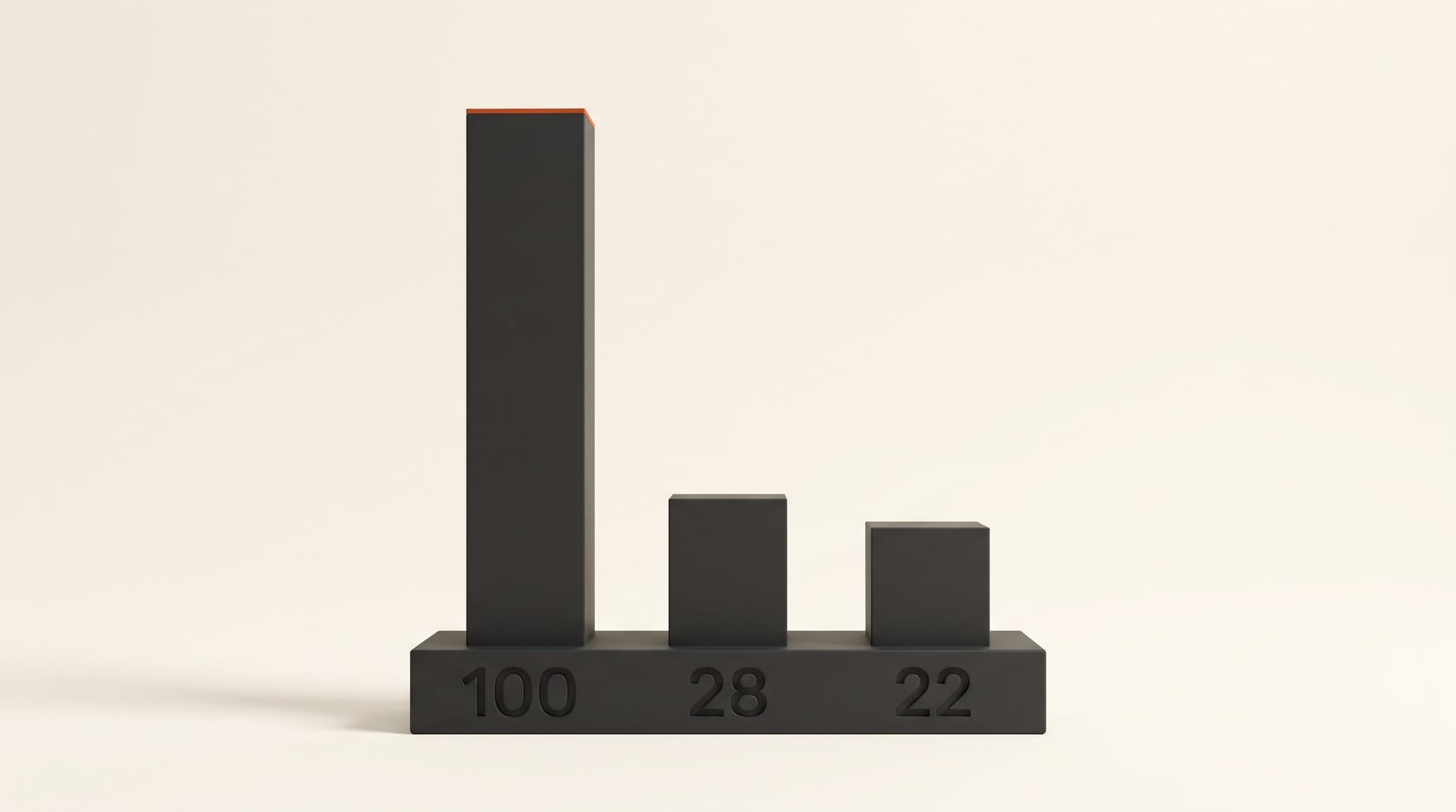
- Photography plan 1TB, $19.99 a month: 1,000 credits, which is 100 Gigapixel upscales up to 25 megapixels, 28 Bloom upscales, or 22 of Phlearn's Bloom-then-Gigapixel chains.
- Photoshop single app, $22.99 a month: 25 credits for subscribers who joined after June 17, 2025, so two Gigapixel upscales a month. Earlier subscribers keep 500.
- Creative Cloud Pro, $69.99 a month: 4,000 credits, or 400 Gigapixel upscales.
The Topaz Gigapixel app is $149 a year, or $29 month to month, with unlimited local and cloud upscaling. Topaz says a business needs the Pro licence ($499 a year) for full commercial rights, so check which one fits how you sell. If you are not already paying Adobe, the $149 app costs less than a year of the Photography plan ($239.88) and has no monthly cap. If you are, the plan's 1,000 credits already cover up to 100 Gigapixel upscales a month. Topaz also sells a browser-only option, Topaz for Web Image, at $12 a month on sale when we checked (normally $19), with unlimited image rendering and exports up to 32 megapixels.
Upscayl is $0. Magnific has no free plan; its Premium plan includes 240,000 credits a year, priced in your local currency on the pricing page, so check the price for your country before you compare.
Verdict
Start with the faithful tool you already have: Lightroom Super Resolution for camera photos, Upscayl if you pay for nothing. Move up to Gigapixel when you need print sizes from AI images or scans, in Photoshop if you have credits to spare, as the $149 app if you upscale every week. Reach for Bloom or Magnific only when you want detail added, and look at every face and line of text before the file goes to a client or a printer. For the same job on footage, see our AI video upscaler comparison, and for what the original image cost to make, our cost per image study.
Frequently Asked Questions
What is the best free AI image upscaler?
Upscayl. It is free and open source, runs on Windows, Mac and Linux, upscales up to 16x, and processes a whole folder in one batch. You need a graphics card that supports Vulkan; many built-in laptop graphics chips do not.
How big can I print an upscaled image?
Divide the pixel width and height by 300 for a close-up print in inches, or by 150 for a large poster seen from a distance. A 2,048 x 2,048 AI image prints about 6.8 inches square at 300 DPI; after a 4x upscale it reaches about 27 inches square.
Do AI upscalers change faces or add things that were not there?
Some do. Lightroom Super Resolution and Gigapixel aim to keep what is in the file. Topaz Bloom and Magnific add detail on purpose, and in Phlearn's test Bloom added lettering and red lipstick that were not in the original. Always compare faces, hands and text at 100% before you use the result.
Do I need a Topaz subscription to use Gigapixel in Photoshop?
No. Gigapixel and Bloom are built into Photoshop's Generative Upscale and are paid for with Adobe generative credits from your plan: 10 or 20 credits for Gigapixel depending on output size, 35 for Bloom.
Can I sell prints of upscaled AI images?
Upscaling does not change who owns an image or what you may do with it. That depends on the terms of the app that generated it and, for Topaz, on whether your licence covers business use. Check both before you list a print for sale.