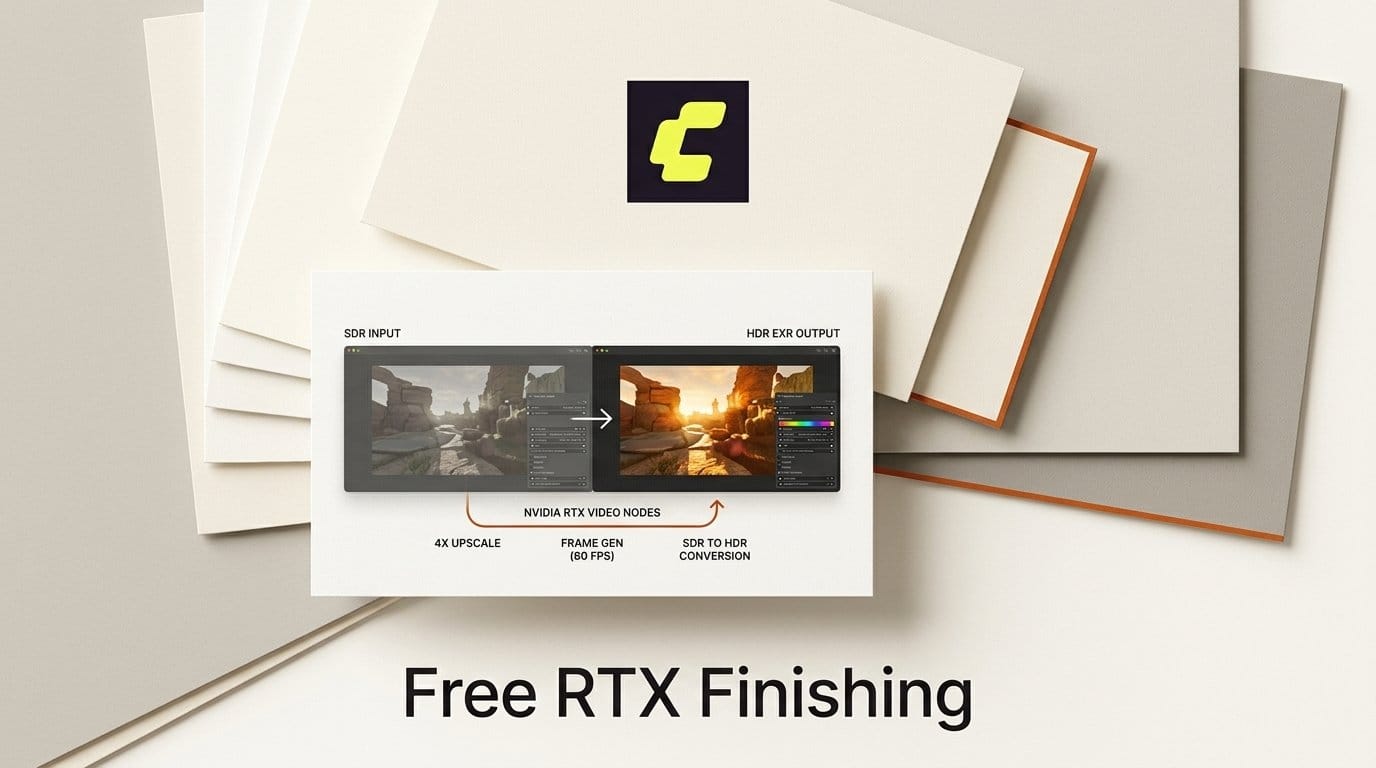
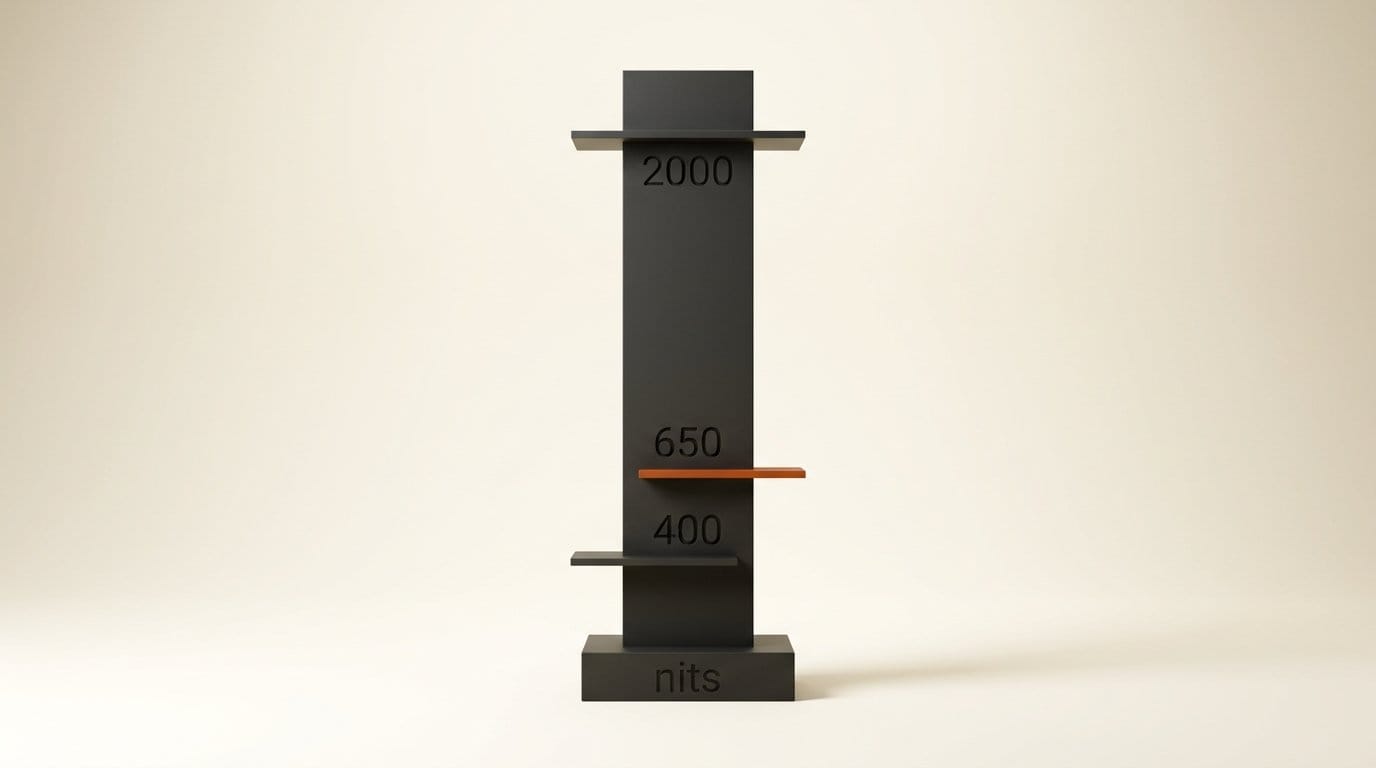
Comfy Org released the NVIDIA VFX Nodes on 13 October 2026. Three free nodes bring NVIDIA's RTX Video effects into ComfyUI: Super Resolution (upscale to 4x, up to 8192 pixels), Frame Generation (2x to 16x, for 60 fps or slow motion) and Video HDR (SDR to BT.2020 HDR at 400 to 2000 nits). They run locally on an RTX card, and the same day ComfyUI v0.40.0 shipped with compressed EXR saves and eight new Partner Node updates.
NVIDIA's own announcement gives the use case in one line: take a 1080p, 30 fps SDR clip from LTX 2.5 and turn it into 60 fps HDR, exported as EXR frames for grading. For an AI video creator, that is the finishing pass that used to mean a paid upscaler, a separate interpolation tool and an HDR conversion in a grading app. A note on method: we did not run these nodes ourselves, because our test machine has no NVIDIA GPU. The speed claims below are NVIDIA's and Comfy's; the numbers we calculated are marked as ours.
What shipped on 13 October
The pack is an update of the Nvidia RTX Nodes that first appeared in March with Super Resolution only. The repository was renamed, Frame Generation and HDR were added on 7 October, and the release went public on 13 October. It is Apache 2.0, and the models ship inside the nodes, so there is nothing extra to download and no per-clip fee.
| Node | What it does | Range | GPU |
|---|---|---|---|
| RTX Video Super Resolution | Upscale, denoise or deblur images and video frames | 1x to 4x, or a target size up to 8192 px; 19 modes | Any NVIDIA RTX |
| RTX Video Frame Generation | Adds frames between existing ones for higher frame rate or slow motion | 2x to 16x, or one frame at a chosen point | RTX 40 Series or newer |
| RTX Video HDR | Converts SDR footage to HDR video data | 400 to 2000 nits peak, HLG or PQ | Any NVIDIA RTX |
Super Resolution's 19 modes fall into five families: standard upscaling (LOW to ULTRA), DENOISE and DEBLUR (both keep the original size), HIGHBITRATE for clean or lossless sources, and two STREAMING modes for webcam and broadcast footage. A plain bicubic option is there too, for comparison.
RTX nodes vs the tools you used before
ComfyUI already had answers for all three jobs. What the RTX pack changes is the price and the setup: one install, no model files to hunt down, no credits.
| Job | RTX node | Existing ComfyUI route | What the existing route costs |
|---|---|---|---|
| Upscale footage | Super Resolution, free, local | FlashVSR, SeedVR2 or Topaz Astra; Clarity AI Crystal Upscale for stills | Free local models, or $0.02288 per output megapixel for Crystal (about $0.19 per 4K frame) |
| Raise frame rate | Frame Generation, free, RTX 40+ | Core RIFE and FILM nodes, 2x to 16x | Free; not tied to an RTX 40 card |
| Make HDR | Video HDR, converts any SDR clip | Generate HDR from the start with LTX HDR | Free locally, but only for clips that model makes |
Upscaling is where the time goes. In ComfyUI's own February benchmark, which we broke down in our upscaler comparison, a ten-second 720p clip took 52 seconds to reach 4K on FlashVSR and 560 seconds on Topaz Astra. Neither Comfy nor NVIDIA has published a matching timing for RTX Super Resolution; Comfy only calls the models "fast, lightweight". Until someone runs the same clip, treat the RTX node as the free option that needs no setup, not as a proven speed winner.
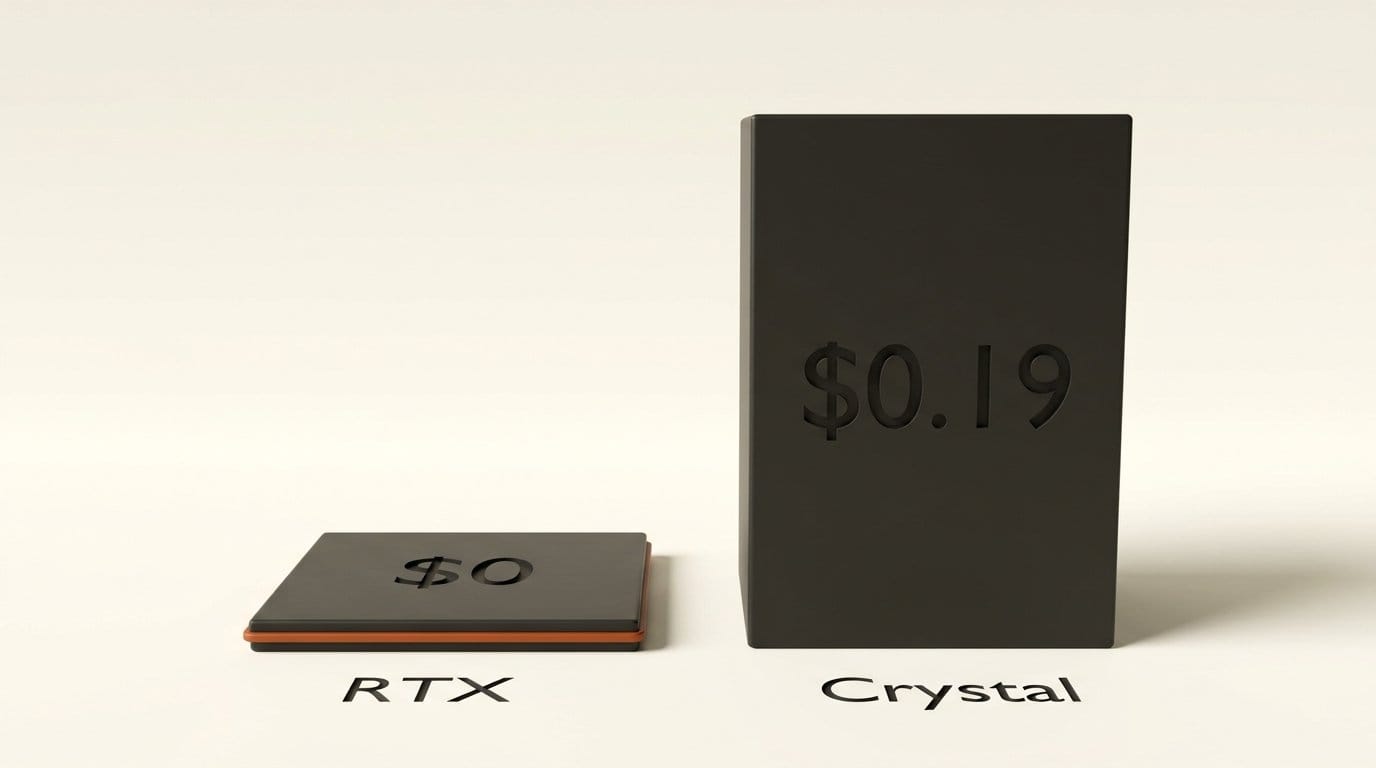
The cloud option is easier to price. v0.40.0 also added Clarity AI's Crystal Upscaler as a Partner Node at $0.02288 per output megapixel. A 4K frame is 8.3 megapixels, so by our math one 4K still costs about $0.19. That is a fair price for a portrait you want restored with care, and far too much for footage: a ten-second, 24 fps clip is 240 frames, about $46 if you sent every frame.
How to run the full chain in ComfyUI
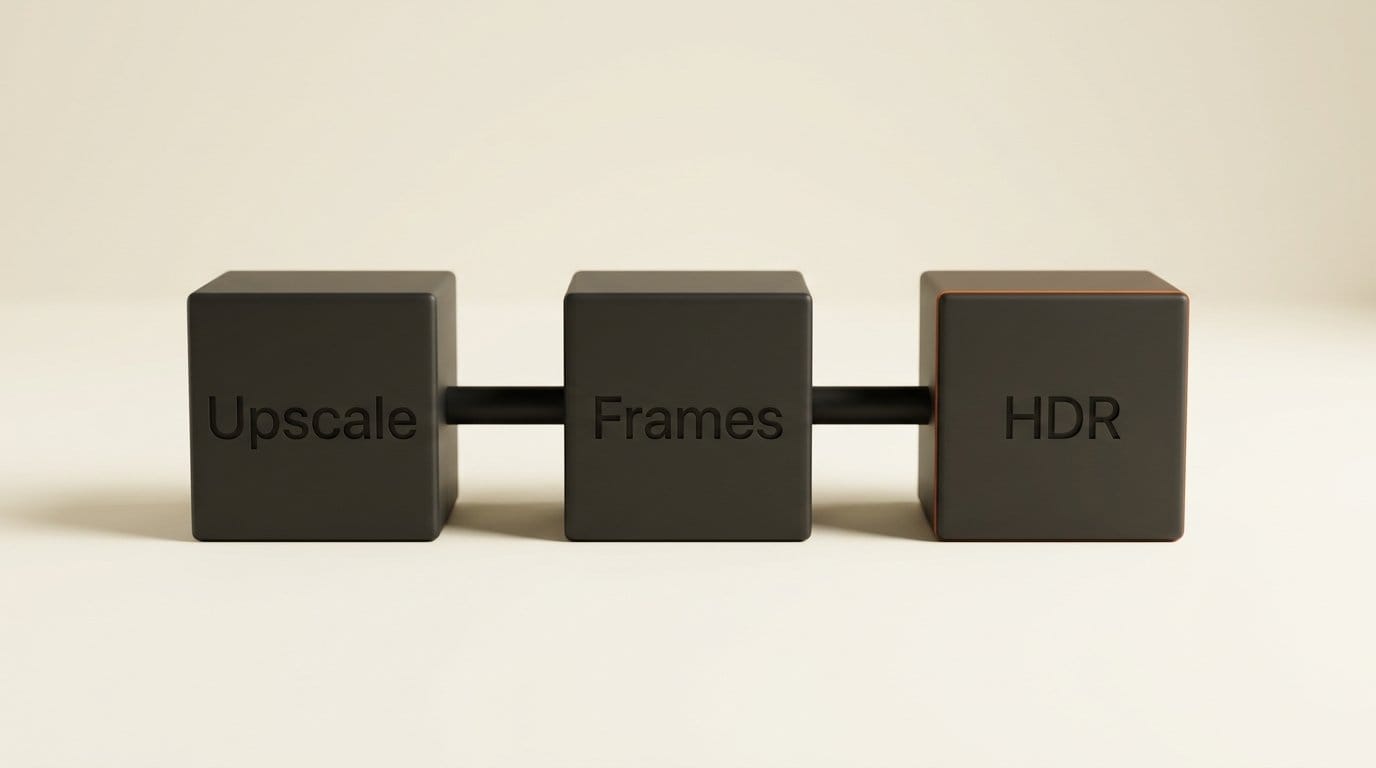
Comfy's example chains the three nodes in one graph: upscale, then add frames, then convert to HDR, then save both EXR frames and a video. Everything below happens inside the ComfyUI app.
- Update ComfyUI. Comfy's post asks for the latest version before installing. On ComfyUI Desktop, accept the update; on the portable build, use the updater that came with it.
- Install the pack. Open ComfyUI Manager, search for "ComfyUI Nvidia VFX Nodes", install it and restart ComfyUI.
- Open the full example. Download rtx_video_full_workflow.json and drag it onto the canvas. It loads a video, upscales it 2x on ULTRA, doubles the frame rate on MEDIUM, converts it to HDR at 650 nits, and saves 16-bit EXR frames plus a video file.
- Load your clip. Point Load Video at your file. A short test clip of a few seconds keeps the first run fast and shows whether your card has the memory for the full chain.
- Set the upscale. Keep ULTRA for the final pass. For clean, high-bitrate source footage, pick a HIGHBITRATE mode instead, which skips the compression clean-up you do not need.
- Set the frame multiplier. The example uses one Multiplier value for both Frame Generation and the output frame rate, so the clip keeps its length. Change it in that one place, not on the node alone.
- Export for grading. Keep the EXR output for your grading app and the video output for a quick review. If you have no HDR screen, judge the result in the grading app, not in a normal video player.
If you only want one effect, the example folder has single-node graphs for image upscaling, video upscaling, frame generation, HDR, and a long-video HDR graph that works through a clip in chunks to save memory. Without an RTX card, Comfy points to a ready-made Comfy Cloud template for the same chain.
The frame rate math that trips people up
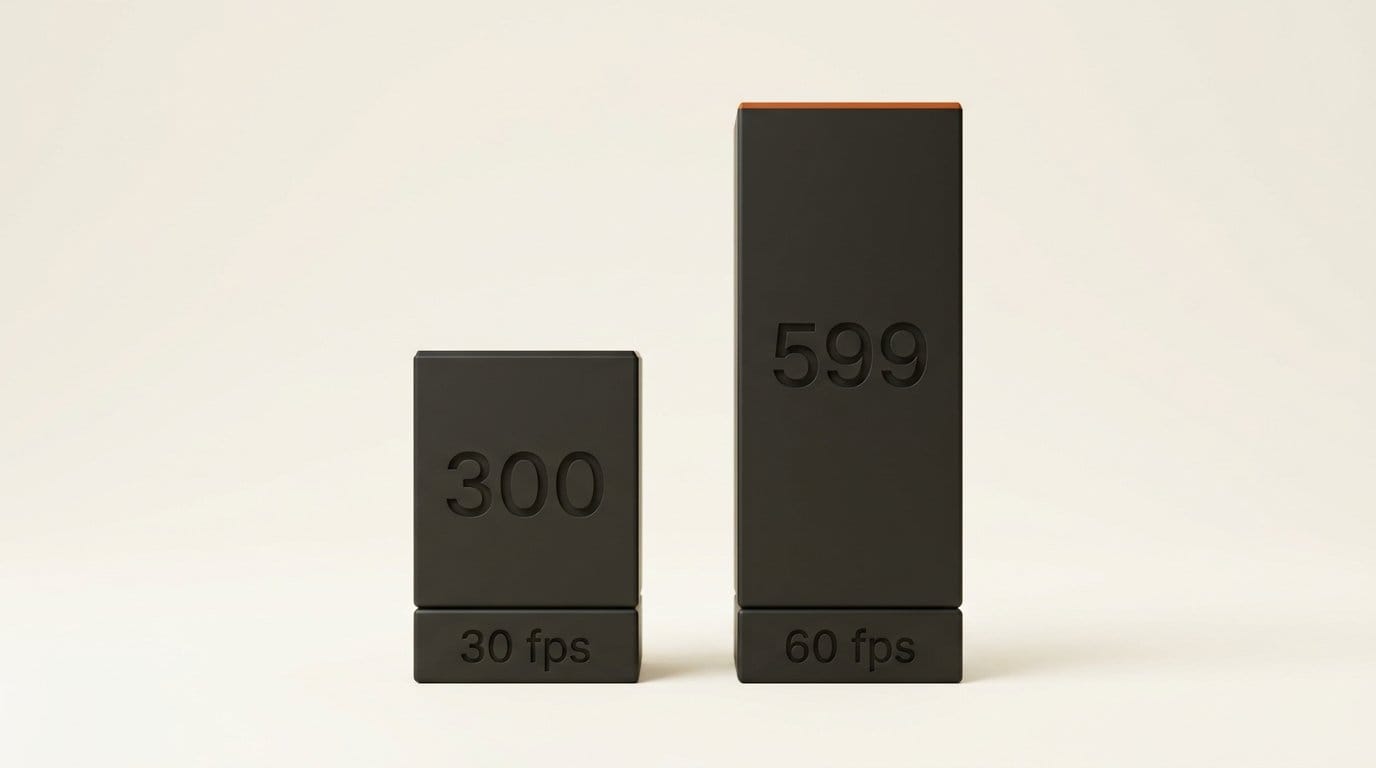
Frame Generation adds frames between each pair, so it never returns an exact multiple. The README gives the formula: N input frames at multiplier M become (N minus 1) times M, plus 1. A ten-second clip at 30 fps is 300 frames. At 2x it becomes 599 frames, by our math, and you have to encode it at 60 fps to keep it ten seconds long. Encode it at 30 fps and you get a 20-second clip at half speed, which is the right result only if you wanted slow motion.
That is why the example graph feeds one Multiplier into both Frame Generation and the Create Video frame rate. If you build your own graph, wire it the same way. The node also watches for cuts: automatic shot change detection is on by default, so it does not blend the last frame of one shot into the first frame of the next.
HDR output is data, not a finished look
The HDR node's output needs care. A ComfyUI image carries no HDR tags, so the node hands back values meant for BT.2020 HLG (the default) or PQ, and the next step has to label them correctly. The README is blunt: save or view them as ordinary SDR, and they will not look the way HDR intends. Expect a flat or washed-out preview inside ComfyUI; that is normal.
The settings are contrast, saturation, middle gray, peak brightness from 400 to 2000 nits (650 by default), and a debanding pass that is on by default. HLG is the safer default for footage headed to YouTube or a phone; PQ suits a colorist who will master to a specific peak. The v0.40.0 release makes the EXR side easier too: saved EXR files are now compressed, and EXR outputs get previews in the assets panel. Comfy's post adds that Load Image now keeps values above 1.0 and below 0 instead of clipping them, which is what lets a colorist pull highlight detail back.
Which GPU you need
Super Resolution and HDR run on any NVIDIA RTX card. Frame Generation needs an RTX 40 Series or newer, which NVIDIA's post confirms. There is no CPU fallback and no support for AMD or Apple GPUs. The README also calls DGX Spark and the new RTX Spark laptops, on sale from 16 October, "very well supported".
If you are on an RTX 30 card, you still get upscaling and HDR; for interpolation, the core RIFE and FILM nodes that arrived with ComfyUI v0.20.1 do the same job at 2x to 16x. On a Mac, the cloud template is the only way to run the RTX chain. If a long clip runs out of memory, lower the scale or quality, or use the long-video graph, which works in chunks.
The rest of ComfyUI v0.40.0
The release around the RTX pack is mostly new Partner Nodes, which run in the cloud and are paid with Comfy credits:
- Kling Virtual Try-On (PR 16844): put a garment on a model photo, for product and fashion work.
- Vidu Q4: nodes for Vidu's newest video model.
- Higgsfield Genjutsu Motion Transfer (PR 16913), the tool we covered at its launch in September.
- Fish Audio Drama 3 (PR 16999) for voice, Nano Banana 2.1 in the Google image node, 2K output for HeyGen Video 1.0, and new Quiver SVG nodes that replace the originals.
Locally, there are new camera info and camera angle nodes that turn a camera setup into shot prompts, a LoRA stack loader, low-VRAM fixes for Qwen 3.5, and a portable build for ARM64 NVIDIA machines. If you set Save Video by hand after v0.39 raised file sizes, nothing in v0.40.0 changes that again.
Should you install it?
If you make AI video on an RTX 40 or 50 Series card, yes. The whole chain is free, it installs from the Manager, and it covers three jobs you were likely doing in three places. Start with the full example on a short clip, and keep your FlashVSR or Topaz graph until you have compared both on your own footage, because nobody has published a fair speed test yet.
On an RTX 30 card, install it for upscaling and HDR, and keep RIFE or FILM for frame rates. If you never deliver in HDR, skip the HDR node: making SDR footage HDR only helps if someone grades it and views it on an HDR screen. And if you upscale single stills for print, Crystal at about $0.19 per 4K image is still worth a try against the free node.
Frequently asked questions
Are the NVIDIA VFX nodes for ComfyUI free?
Yes. The pack is Apache 2.0, the models ship with the nodes, and they run on your own RTX GPU, so there is no per-clip charge. Running the same chain on Comfy Cloud uses that service's normal pricing.
Which GPU do I need for RTX Video Frame Generation?
An NVIDIA RTX 40 Series card or newer. Super Resolution and HDR run on any RTX card. AMD, Apple and CPU-only machines are not supported.
How do I get 60 fps from a 30 fps AI video?
Set Frame Generation to 2x and encode the result at 60 fps. A 300-frame clip becomes 599 frames, which plays for the same ten seconds at 60 fps. The example workflow sets both values from one Multiplier.
Why does my HDR output look washed out?
Because it is HDR data shown as SDR. ComfyUI images carry no HDR tags, so the values must be read as BT.2020 HLG or PQ downstream. Check the result in a grading app or on an HDR screen.
Is RTX Video Super Resolution faster than Topaz or FlashVSR?
Not proven yet. Comfy calls the models fast, but neither Comfy nor NVIDIA has published a timing on the clip ComfyUI used for FlashVSR (52 seconds to 4K) and Topaz Astra (560 seconds). Test both on your own footage.
Can I use these nodes on a Mac?
Not locally. They need an NVIDIA RTX GPU. Comfy offers a ready-made template on Comfy Cloud that runs the same upscale, frame generation and HDR chain in the browser.