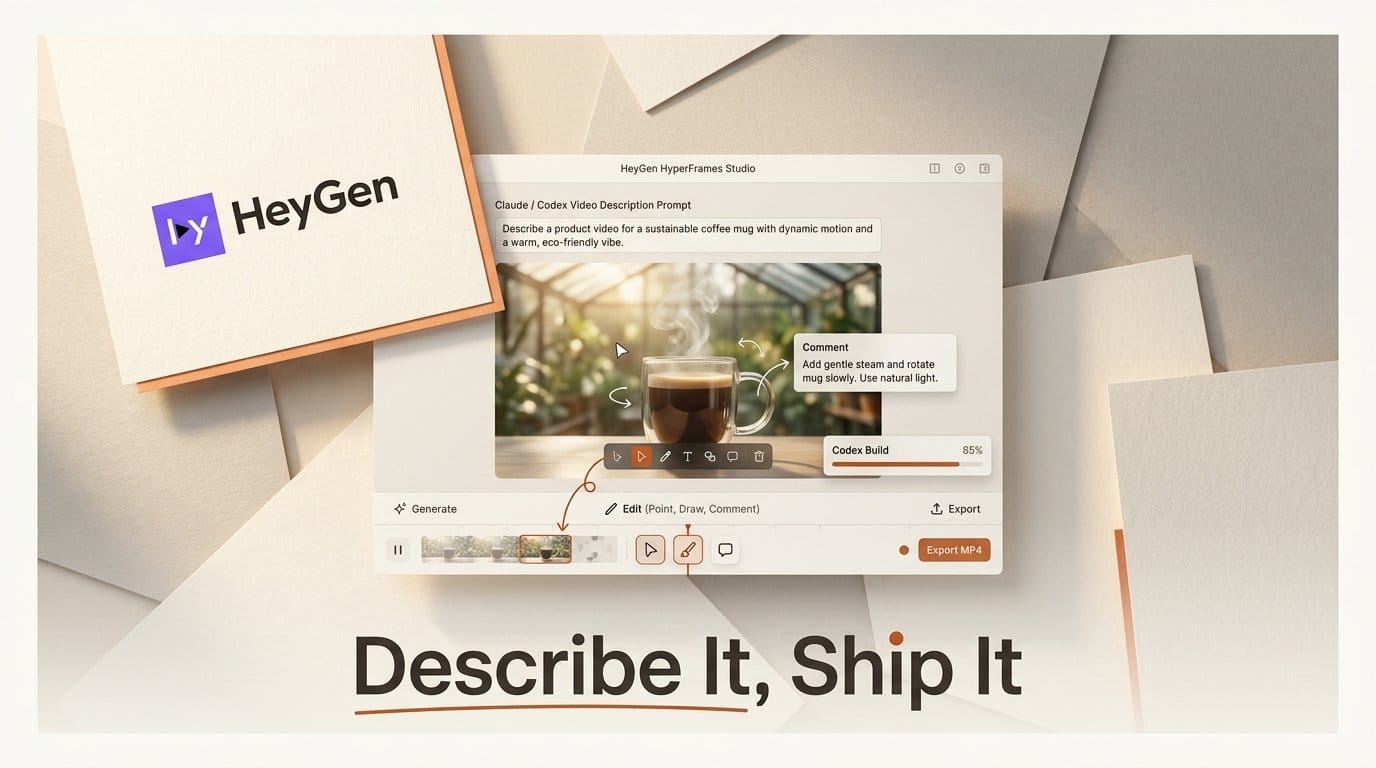
HyperFrames Studio is HeyGen's desktop video editor built for AI agents: you describe a product video, Claude Code or Codex builds it on your computer, and you change it by typing, clicking on the picture, drawing or pinning comments. It runs on Mac and Linux today, with Windows listed as "coming soon." The app is a free download, and the agent work bills to the Claude or ChatGPT plan you already pay for. With Claude Pro that is $20 a month. This guide walks through one launch video from first prompt to a finished 1080p MP4.
We built the steps from HeyGen's own documentation for the app, and we name every button by its real label so you can follow along. HyperFrames started in April as an open-source library that turns a web page into video (our first look). Studio is the part a creator can use without code: a timeline, a preview window and a chat with an agent that does the building.
What You Need
- A Mac or a Linux PC. The download page offers Apple Silicon, Intel and Universal builds for Mac, plus a .deb and an AppImage for Linux. Windows x64 and ARM64 both say "coming soon."
- A HeyGen account. The app asks you to sign in with HeyGen on first launch.
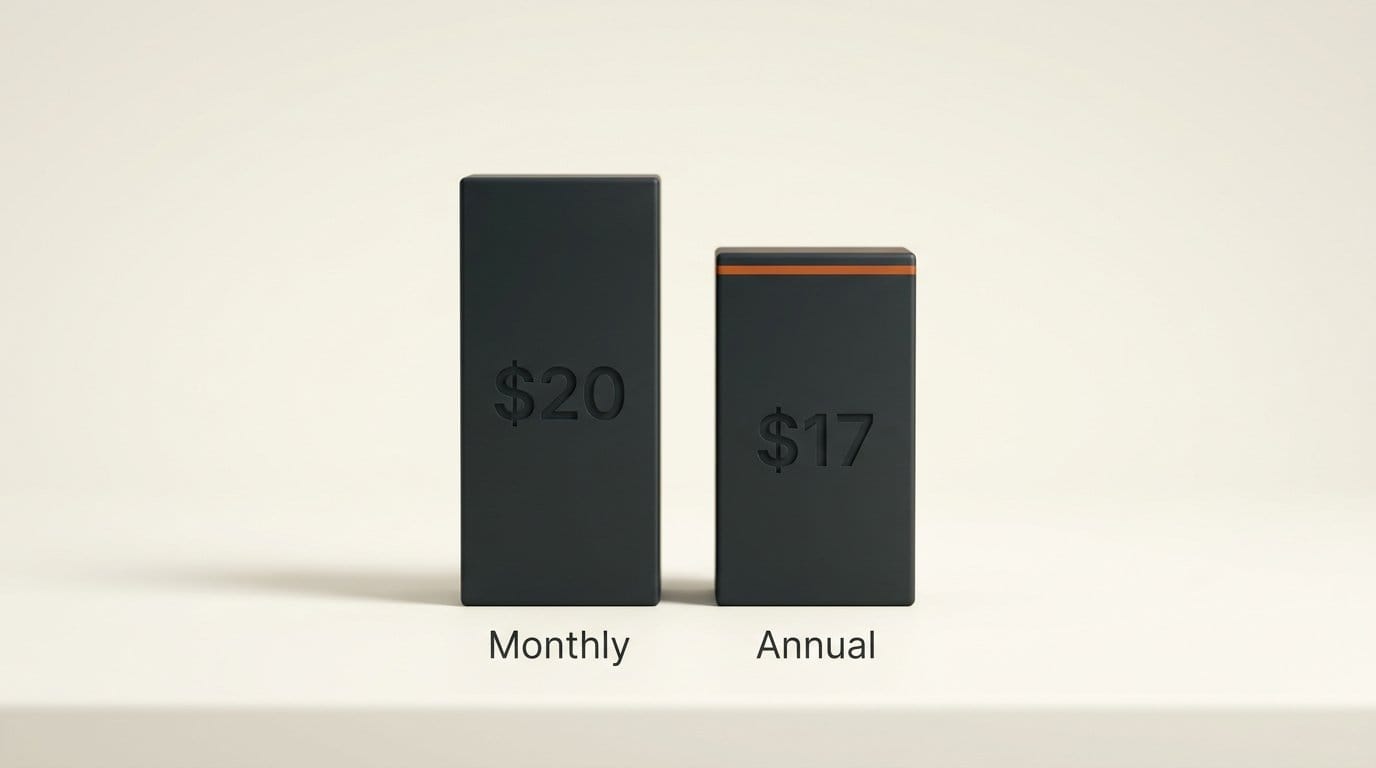
- A paid Claude plan or a ChatGPT account. Claude Code is included in every paid Claude plan: Pro is $20 a month, or $17 a month billed annually ($200 up front), and Max starts at $100 a month (Claude pricing). Codex signs in with a ChatGPT account.
- Your brand material. A website address is enough, because the agent reads your fonts, colors and logo from it. Have a logo file, product screenshots or a short screen recording ready if you want them in the cut.
HeyGen's docs mention no HyperFrames fee or credits, and publish no per-clip price for the app. What you spend is agent time, which counts against your Claude or ChatGPT plan limits the same way a long chat does.
Set Up the App and Your Agent
Step 1: Install HyperFrames Studio
On a Mac, open the download page, choose "Download for macOS," open the disk image and double-click "Install HyperFrames." When the app says "HyperFrames is in Applications," choose "Open HyperFrames." On Linux, the AppImage needs one line in a terminal to mark it as runnable (the steps are on the Studio app page); the .deb opens in your software installer like any other app.
On first launch you get a short optional survey about what you want to make and which agent you use ("Skip all" works), a usage-data notice ("Got it"), then the HeyGen sign-in. Choose "Continue with HeyGen" and finish in your browser within two minutes, or the sign-in expires and you have to choose "Try again."
Step 2: Connect Claude Code without a terminal
This is where Claude Code is the easier pick for creators. According to the Connect your agent guide, the app installs it for you: choose "Install Claude Code," then "Install," and the app runs Anthropic's official installer, which takes about a minute. Choose "Sign in to Claude," sign in in your browser and come back. When the app shows "Claude Code is connected," it sends your first request on its own.
Codex works too, but its setup asks you to copy two commands into a terminal and sign in with ChatGPT there, then choose "Check again" in the app. If both agents are ready and you have not picked one, Studio uses Claude Code. You can switch any time from the agent picker in the chat header, or in Settings > Agent.
Build the First Cut by Describing It
Step 3: Pick the four story parts
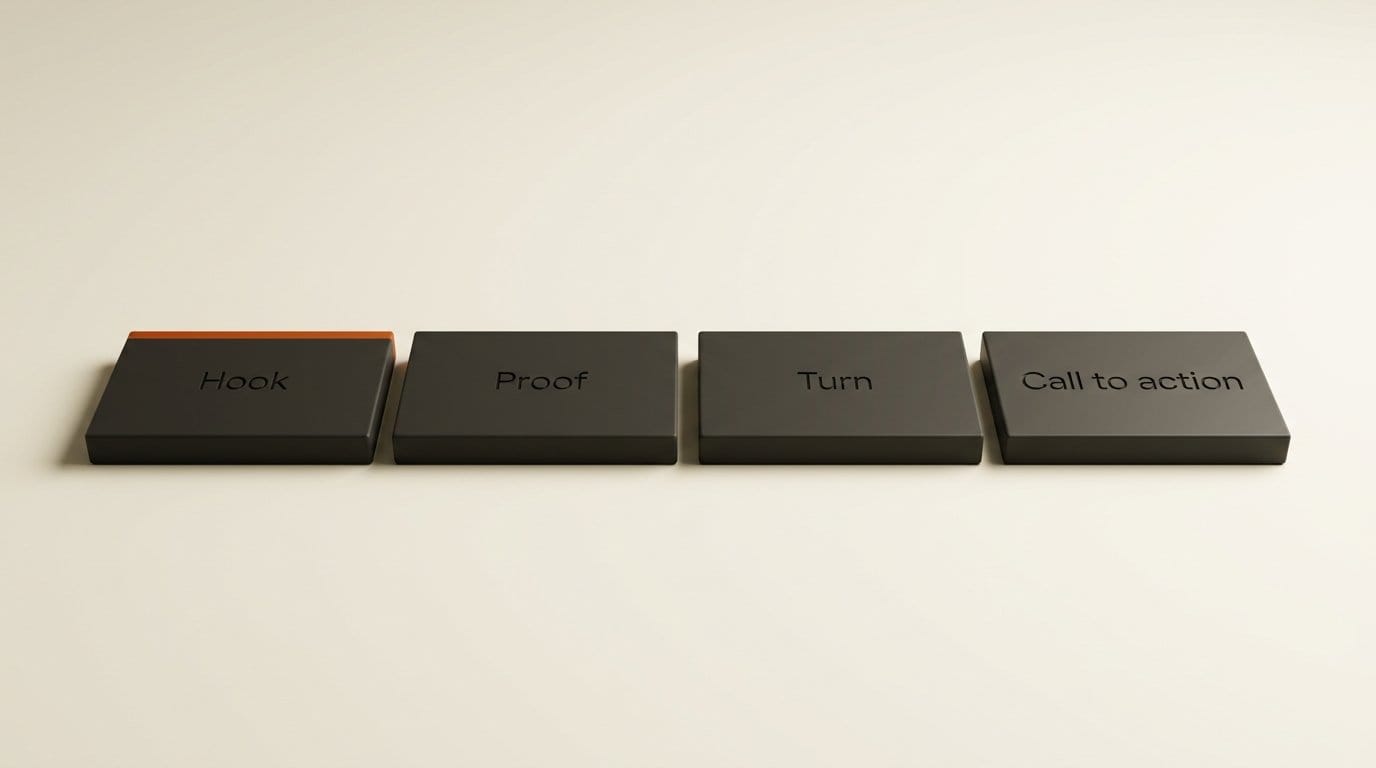
The Home screen opens a "Create your first video" card with a ready-made structure in four parts: Hook (grab attention in the first seconds), Proof (show the product doing its job), Turn (flip from problem to answer) and Call to action (land the brand and the ask). Each part starts with one example clip. Hit shuffle for a new set, or hover one part to swap only that part.
Step 4: Give it your website or your idea
Type your website, for example yourstudio.com, or describe the idea in a sentence. The website route is worth it: the app says it gives the agent your fonts, colors and logo, so the first cut already looks like your brand. A prompt that works well names the product, the audience and the length, for example: "A 20 second launch video for our new preset pack for wedding photographers. Calm, warm, ends on the price and the shop link."
Choose "Use this cut." The app creates a project and the agent starts building. On your first video a short tour plays while it works, and the chat shows what the agent is doing ("Reading files," "Editing files"). When it finishes, the video is ready to play in the preview.
Step 5: Add your own footage and files
To bring in a logo, product shots or a screen recording, open Assets and use "Import media," or drop files into the panel. In the chat, type @ to point the agent at a file, another project or a media clip, then say what to do with it: "Use @demo-recording in the Proof part, cropped to the editor window."
Change It by Pointing, Drawing and Commenting
This is the part that separates Studio from typing prompts into a chat window. The editing guide lists four ways to tell the agent what to change, each with a one-key shortcut.
Step 6: Select and prompt (V, then A)
Press V for the Select tool, click a title or an image in the preview, then press A ("Prompt to edit") and type the change: "make this headline bigger and move it up." Right-click any element for quick actions that need no agent at all: Ask Framey, Hide, Bring to front, Replace with and Delete.
Step 7: Draw (D) and comment (C)
Press D and circle the spot you mean, then say what should change there; several strokes count as one drawing. Press C to pin a comment to a spot and a moment in the video; the box asks "What should change here?" You can also drag across the timeline to mark a stretch of video and write "tighten this part."
Step 8: Batch your notes, then send
Picks, drawings and comments do not run one by one. Each becomes a row in "Pending video edits," up to 10 at a time. Review the list, add one note that applies to all of them, and send them together with the button that reads, for example, "Send 3 edits to Claude Code." Batching also means fewer separate agent runs against your plan limit.
Small fixes do not need the agent. Hover a clip on the timeline for Split, Delete or Quick edit (Speed, Volume and Fade), drag clips to move or trim them, and right-click an empty gap for "Close gap." Cmd+Z undoes on a Mac (Ctrl+Z on Linux), and each agent run in the chat has its own Undo button if a change goes wrong.
Export the Finished File
Step 9: Render the MP4
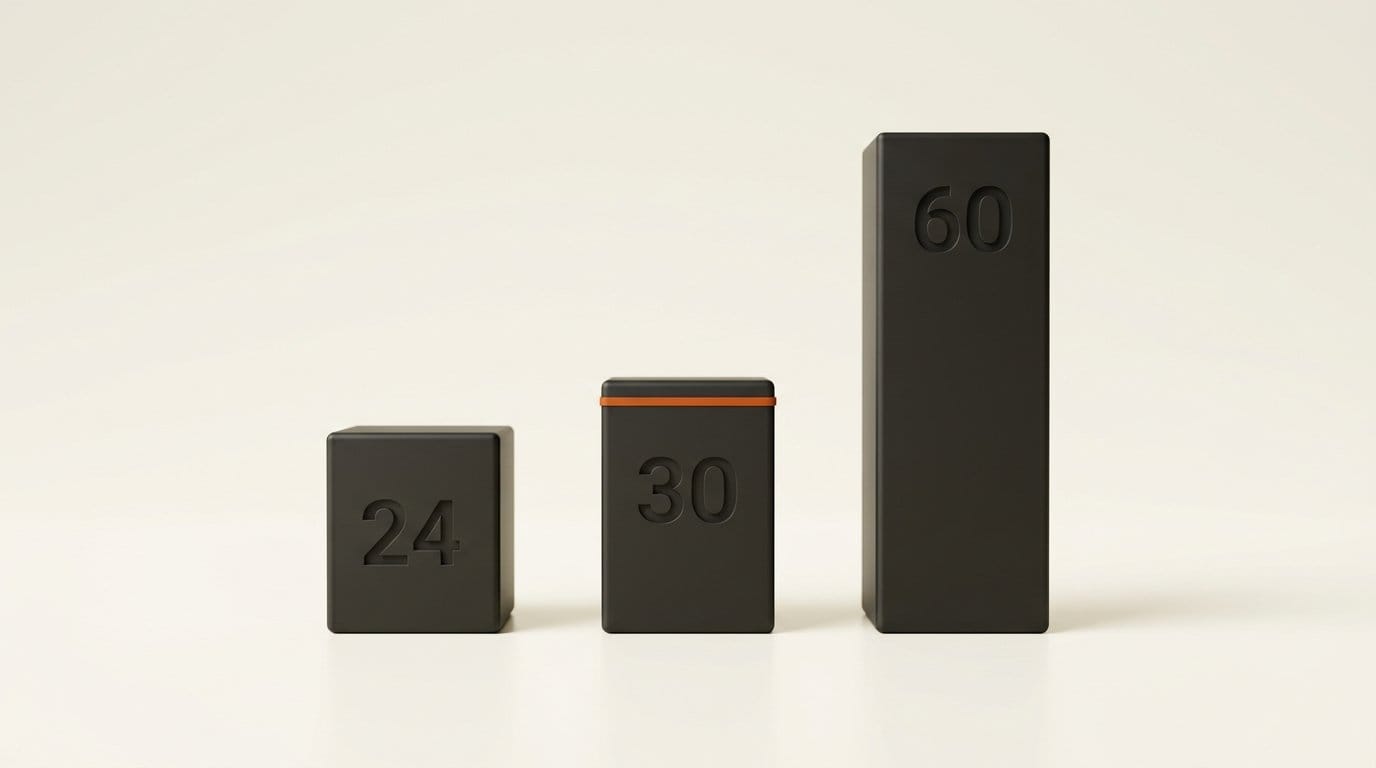
Choose Export in the top bar. The export guide lists three settings: Quality (1080p by default, Project size, or 4K when the project fits it), Format (MP4 by default, WebM or MOV) and Frame rate (24, 30 by default, or 60). The button label follows your choices, for example "Render 1080p MP4."
The render keeps going if you close the panel. When you see "Export ready" with the file size, choose "Open video" or "Show in Finder." Files land in your Downloads folder, named after the project with the date and time. MP4 is the one to pick for YouTube, Instagram, TikTok and client delivery; MOV suits handing the file to an editor in Premiere Pro, Final Cut Pro or DaVinci Resolve.
Troubleshooting
- "Agent hit its usage limit." This is your Claude or ChatGPT plan limit, not HyperFrames. Wait for the reset, or switch to the other agent if you have both.
- Claude Code blocked a step. The default "Auto" access stops some actions. The troubleshooting page says to switch Agent access to Full access in Settings > Agent and resend. Full access lets the agent do more on your computer, so switch back when the project is done.
- "Chat ran out of room." Long editing sessions fill the agent's memory. Choose "Start a fresh session."
- Signed out of Claude Code. Choose "Sign in," finish in the browser, and the message you were sending goes out on its own.
- "Could not finish this change." Retry, or rephrase with a more specific target: select the element first instead of describing where it is.
What to Try Next
Caption a talking-head clip. HeyGen's captions and recuts guide covers adding animated captions, titles, pull-quotes and lower thirds to an interview or vlog while leaving your footage and audio untouched. Ask for the captions, add "Keep the footage and its spoken edit unchanged," and check every name and number before you render. It works best on clear, single-speaker footage; cutting pauses or reordering speech is a different workflow.
Start from a reference. "Get inspired" offers example moments in three groups, Motion graphics, A-roll Cuts and Mobile Ads. Choose "Use" on one and tell the agent what to borrow from it.
Compare the alternatives. If your team is on a Claude Team or Enterprise plan, Claude Motion turns reports into short animated explainers inside Claude itself. If you need a generated presenter rather than motion graphics, HeyGen's own Video 1 model bills per second instead. The engine under Studio stays open source under Apache 2.0 on GitHub, where it has over 61,000 stars and shipped version 0.8.150 on October 12.
FAQ
Is HyperFrames Studio free?
The app is a free download, and HeyGen lists no price for it. You need a HeyGen account to sign in, and the video building runs on your own agent plan: a paid Claude plan (Pro is $20 a month) or a ChatGPT account for Codex.
Does HyperFrames Studio work on Windows?
Not yet. The download page lists Windows x64 and Windows ARM64 as "coming soon." Mac (Apple Silicon and Intel) and Linux are available now.
Do I need to know how to code?
No. The app's own page says you do not need to write code. With Claude Code, the app installs and connects the agent for you. The agent writes the video's code behind the scenes, and you edit by typing, pointing, drawing and commenting.
Should I pick Claude Code or Codex?
If you have never opened a terminal, pick Claude Code: the app installs it and signs you in with buttons. Codex needs two commands pasted into a terminal. If both are ready, Studio defaults to Claude Code, and you can switch per request from the chat header.
What resolution and formats can I export?
1080p by default, the project's own size, or 4K when the project supports it, as MP4, WebM or MOV, at 24, 30 or 60 frames per second. Files save to your Downloads folder.