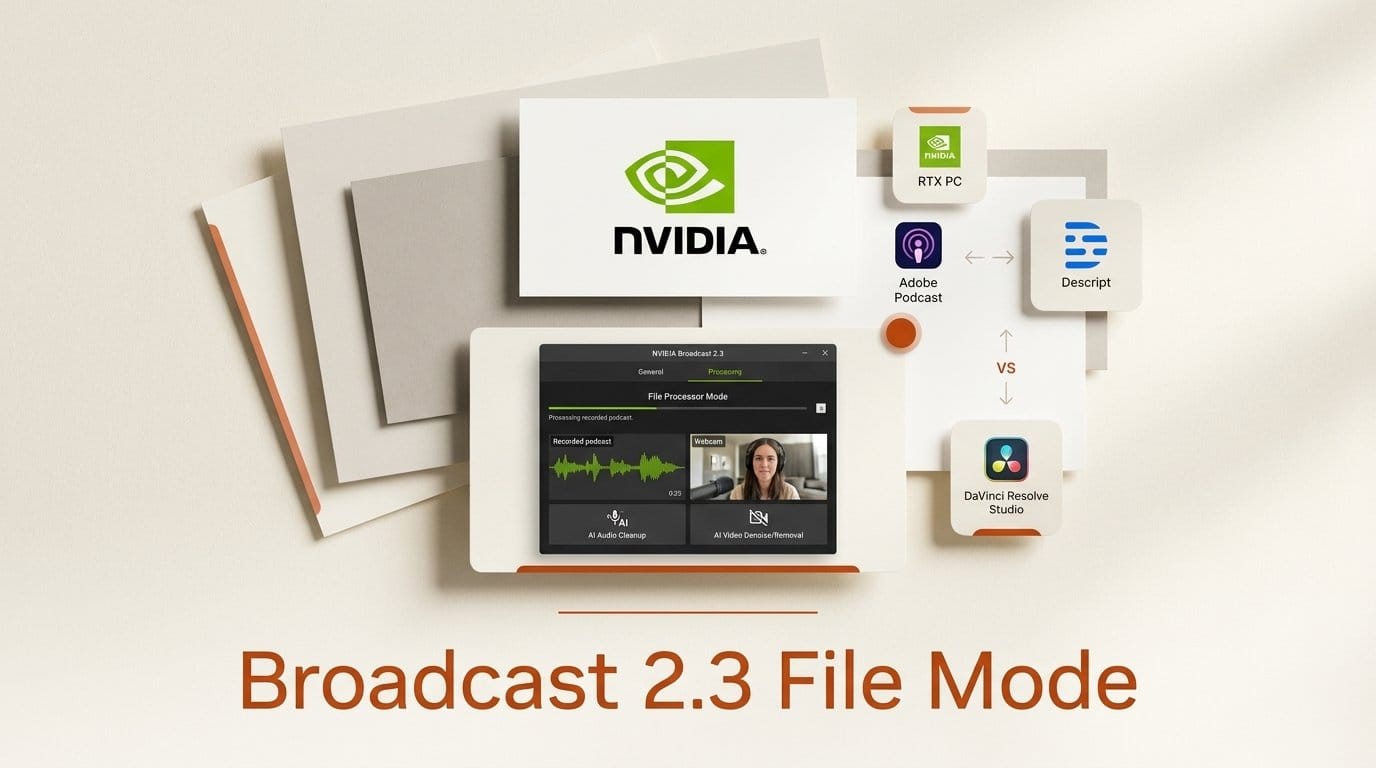
NVIDIA Broadcast, the free RTX app streamers use to clean up their mic and webcam live, can now fix recordings after the fact. NVIDIA announced Broadcast 2.3 on October 13, 2026 as available for download now, with a new File Processor Mode that runs Broadcast's audio and video effects on MP4, M4A, MP3 and WAV files, plus four Studio Voice microphone profiles, AI upscaling to 4K and frame generation for recorded video.
That puts a free, on-your-own-PC option next to the paid cleanup tools podcasters and YouTubers already pay for. Below: what shipped, which graphics card each feature needs, how it compares with Adobe Podcast, Descript and DaVinci Resolve Studio on price, and a step-by-step routine for a recorded episode.
What NVIDIA shipped in Broadcast 2.3
The Broadcast 2.3 release notes list six changes:
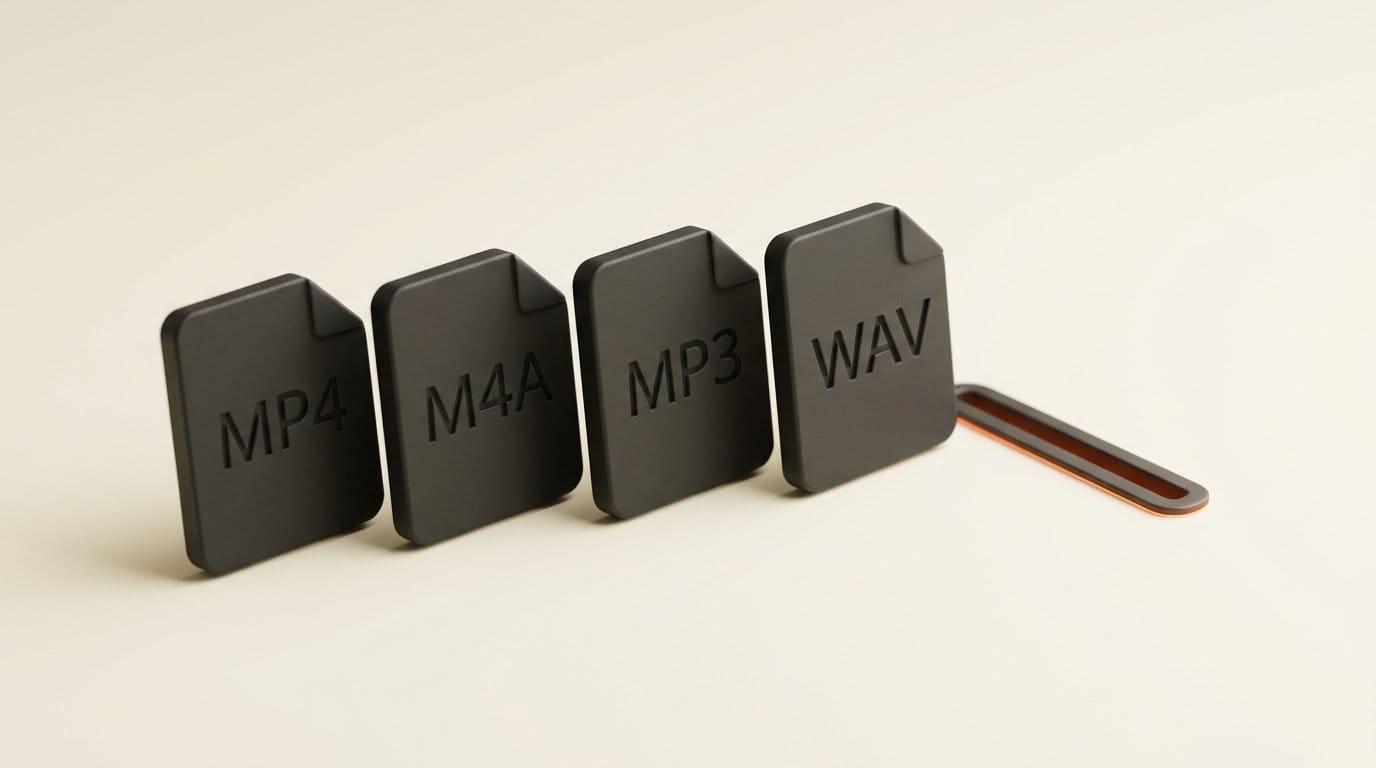
- File Processor Mode. Applies Broadcast's audio and video effects to media files instead of a live mic or webcam. Supported files are .mp4, .m4a, .mp3 and .wav, with H.264 (8-bit) video, AAC audio and up to 2 audio channels. NVIDIA says some effects run at higher quality on files than in live mode.
- RTX Video Super Resolution (beta). Upscales webcam and file video up to 4K.
- RTX Video Frame Generation (beta). Raises webcam video to 60 fps live, or multiplies the frame rate of a file by 2x or 4x.
- Four Studio Voice profiles. Default, Bright, Full and Warm, which change the tone of the studio-mic effect.
- An AI agent connector. A built-in MCP server lets an AI assistant on your computer read and change Broadcast settings or send files through File Processor Mode. NVIDIA says these actions stay on the local computer.
- RTX Spark support. The app runs natively on NVIDIA's new RTX Spark laptops, which go on sale Friday, October 16.
One limit matters for planning: live and file processing cannot run at the same time. Do your file cleanup before or after a stream or call, not during it.
Why file processing changes what Broadcast is for
Until now, Broadcast only worked on the live signal. It sat between your microphone or webcam and apps like OBS, Zoom or Discord, removing background noise and room echo or replacing your background as you talked. If you recorded a podcast with the effects off, or recorded on another machine, Broadcast could not help with the file afterwards.
File Processor Mode turns it into a post-production tool. A creator who records an interview in a noisy room can drop the WAV into Broadcast, run it through the same AI cleanup, and get a cleaner file back, without uploading anything to a cloud service and without a monthly plan. For anyone who works with client audio or unreleased material, that local-only processing is worth as much as the price.
The video side is narrower. Super Resolution and Frame Generation are aimed at webcam-quality footage: a 1080p talking-head clip upscaled to 4K for a YouTube upload, or a choppy screen-and-face recording smoothed out with 2x frame generation. They are not a replacement for a dedicated upscaler on cinematic footage; our AI video upscaler comparison covers those tools.
Which graphics card each feature needs
Broadcast itself is a free download for RTX desktops and laptops, but each feature has its own floor. From the Broadcast app page and the release notes:
| Feature | Minimum GPU | What it does for a creator |
|---|---|---|
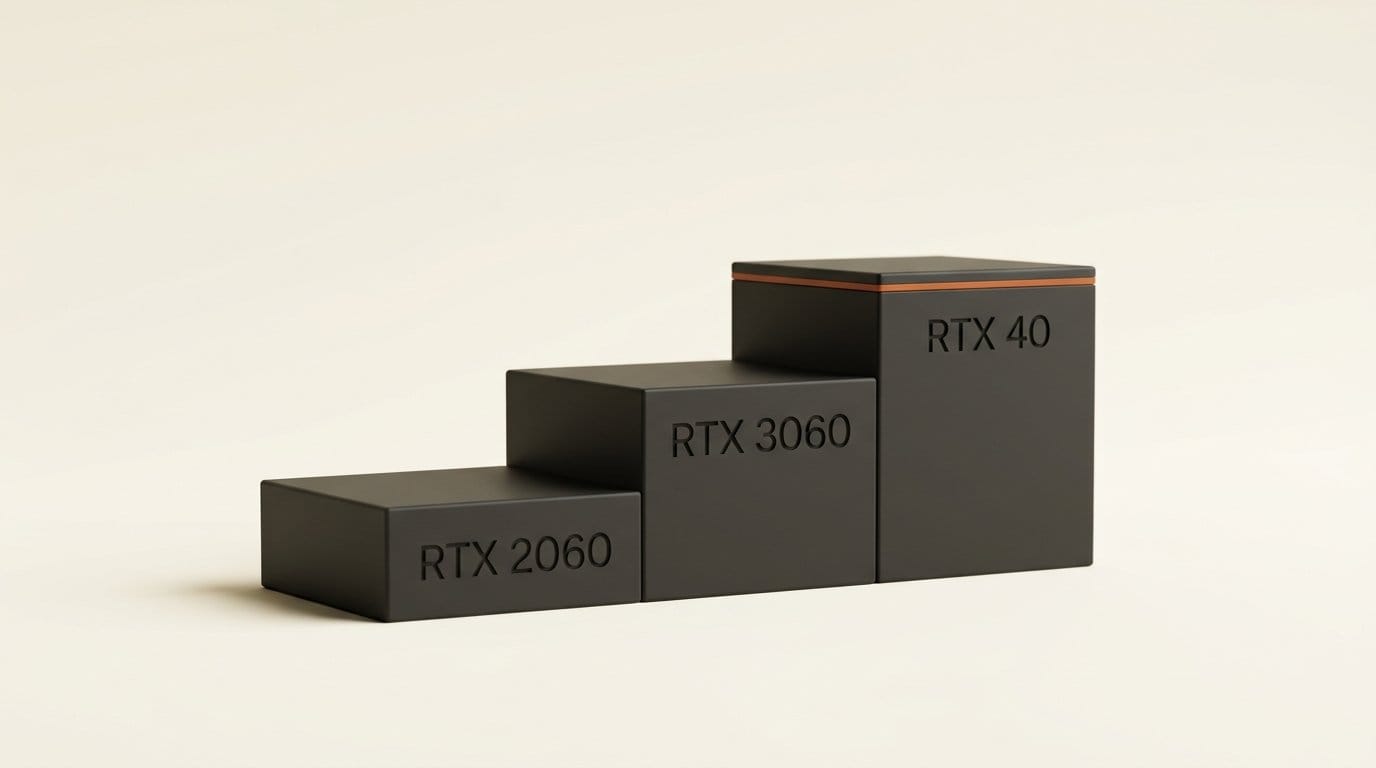
| Broadcast app (noise and echo removal, backgrounds) | GeForce RTX 2060 | Cleans voice and webcam live, and now on files |
| Studio Voice, with 4 new profiles | RTX 3060 desktop | Makes a basic mic sound closer to a studio mic |
| RTX Video Super Resolution (beta) | RTX 3060 | Upscales webcam and file video up to 4K |
| RTX Video Frame Generation (beta) | RTX 40 Series | 60 fps webcam live, 2x or 4x frame rate on files |
In plain terms: any RTX card back to the RTX 2060 runs the basic cleanup. Studio Voice and the 4K upscaler want an RTX 3060 or better. Frame generation needs an RTX 40 Series card or newer. Broadcast is Windows-only (Windows 10 64-bit or Windows 11), so Mac-based editors are not covered. NVIDIA's notes do not list, effect by effect, which ones are available in file mode, so check the effect list in the app after you update.
Broadcast 2.3 vs Adobe Podcast, Descript and DaVinci Resolve
Voice cleanup on recordings is a crowded, mostly paid category. Here is how the free NVIDIA option compares with the three tools creators most often use for it, based on each company's current plans page.
| Tool | What you pay | Usage limit | Runs where | The catch |
|---|---|---|---|---|
| NVIDIA Broadcast 2.3 File Processor | Free | None stated | Your Windows PC with an RTX GPU | MP4, M4A, MP3 and WAV only, 2 audio channels, no Mac |
| Adobe Podcast Enhance Speech | Free tier; Premium comes with Adobe's Firefly Pro plan | Premium: up to 4 hours a day, files up to 1 GB | Adobe's cloud, in a browser | Video files and bulk uploads are Premium features |
| Descript Studio Sound | Free (limited); Hobbyist $16 a month billed yearly, $24 monthly | Free: 1 media hour a month; Hobbyist: 10 hours | Descript app and cloud | Studio Sound draws on monthly AI credits |
| DaVinci Resolve Studio voice isolation | $295 one time | No usage cap | Your PC or Mac | Voice isolation is a Studio feature, not in free Resolve |
Sources: Adobe Podcast plans, Descript pricing and DaVinci Resolve Studio, which lists AI voice isolation, a music remixer and a dialogue separator among its Studio features.
What that means for a typical show: a weekly one-hour podcast is four to five hours of raw audio a month. Descript's free tier covers one hour, so that show needs at least the Hobbyist plan at $16 a month, or $192 a year. DaVinci Resolve Studio costs $295 once and also gives you a full editor. Broadcast costs nothing if you already own an RTX card, and the files never leave your machine.
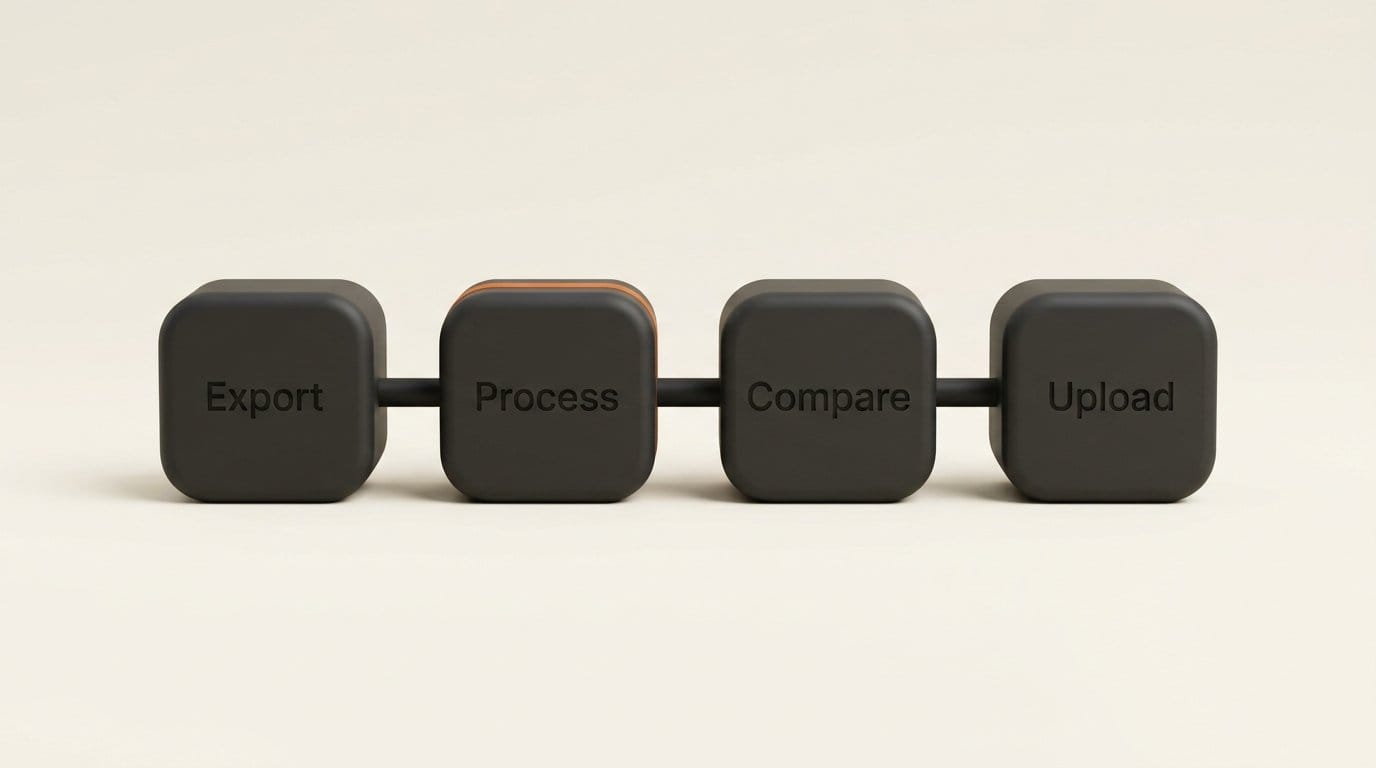
Where the paid tools still win: Descript and Resolve put cleanup inside the editor where you cut the episode, so you skip the export, process and re-import loop. Adobe Podcast runs in a browser on any computer, including a Mac or a Chromebook. And NVIDIA's quality claims for file mode have not been measured independently yet. We have not run Broadcast 2.3 against the others, so A/B a few minutes of your own audio before switching a whole show. Our noise removal comparison shows how much results vary from one recording to the next.
How to clean up a recorded episode with Broadcast 2.3
- Update Broadcast. Download version 2.3 from NVIDIA's Broadcast page and install it over your current version. If you have never used it, check that your PC has an RTX 2060 or newer first.
- Get your file into a supported format. File Processor Mode reads MP4 (H.264, 8-bit video with AAC audio), M4A, MP3 and WAV. Many phones and mirrorless cameras record HEVC or 10-bit video, so export a copy as a standard H.264 MP4 from your editor first. For audio-only work, a WAV export is the safest choice.
- Split multitrack recordings. Files are limited to 2 audio channels. If your recorder or podcast mixer saved one file with a track per guest, export each guest as a separate file and process them one at a time.
- Stop any live session. Live effects and file processing cannot run together, so end your stream or call first.
- Pick your effects and a Studio Voice profile. Choose the cleanup effects you want. On an RTX 3060 or better, run the same 60-second excerpt through Default, Bright, Full and Warm, and keep the one that suits your voice and mic.
- Process, then compare in your editor. Put the processed file on a track above the original in Premiere Pro, DaVinci Resolve or CapCut, and switch between them on headphones before you replace the whole episode.
- Upscale talking-head video last. If you need a 4K upload from a 1080p webcam, run Super Resolution once on the finished edit rather than on every raw clip, so you only upscale what ships.
The AI agent connector, in plain words
The new MCP server is NVIDIA's way of letting AI assistants operate Broadcast for you. MCP is the connection standard that assistants such as Claude use to control other apps. With it, an assistant on your PC could switch Broadcast's effects on before a call, or take a folder of recordings and send each one through File Processor Mode while you do something else. NVIDIA says these actions are limited to the local computer.
For most creators this is a later feature. It needs an assistant app that supports MCP connections, and NVIDIA's updated onboarding now includes AI agent resources for setting it up. The batch angle is the useful one: a podcaster with a backlog of episodes to clean could hand the whole folder to an assistant instead of processing files one by one.
RTX Spark laptops arrive Friday: what else is ready
Broadcast 2.3 is part of a wider software push ahead of the RTX Spark launch. RTX Spark laptops from Acer, ASUS, Dell, HP, Lenovo, Microsoft, MSI and Gigabyte go on sale Friday, October 16, with up to 128GB of unified memory. NVIDIA's October 13 roundup lists the creative apps ready for them:
- Adobe Photoshop and Premiere: Adobe is targeting up to 2x faster AI, editing, color and effects work, including Premiere's own Enhance Speech. The optimized builds are in beta, and you must opt in to the beta to get them. Substance 3D updates are coming later.
- ComfyUI: new RTX Video Frame Generation and RTX Video HDR nodes, plus EXR export, alongside NVIDIA's ComfyUI Nvidia VFX Nodes pack. NVIDIA's example turns a 1080p, 30 fps SDR clip into a 60 fps HDR video.
- Blender: version 5.3 is in beta with RTX Spark compatibility, and DLSS Ray Reconstruction for the viewport is scheduled for November.
If you are weighing one of these laptops, our earlier guide to preparing Adobe apps and Blender for RTX Spark covers what to benchmark before you buy. NVIDIA's announcements have not included laptop prices.
Who should use it, and who should skip it
Use it if you edit on a Windows PC with an RTX card and pay for audio cleanup mainly to rescue the occasional noisy recording. Run your next episode through Broadcast and your paid tool side by side; if you cannot hear the difference, you may not need the subscription.
Use it if you handle client or unreleased audio and do not want it uploaded to a cloud service.
Skip it if you edit on a Mac, if your whole workflow lives inside Descript or Resolve, or if you record multitrack sessions and do not want the extra export step. For a broader shortlist, see our guide to the best AI tools for podcasters.
Frequently asked questions
Is NVIDIA Broadcast 2.3 free?
Yes. NVIDIA offers Broadcast as a free download for RTX desktops and laptops. You need a GeForce RTX 2060 or newer and Windows 10 64-bit or Windows 11.
What file types does File Processor Mode accept?
MP4, M4A, MP3 and WAV, with H.264 8-bit video, AAC audio and up to 2 audio channels. Convert HEVC, 10-bit or multitrack recordings first.
Does NVIDIA Broadcast work on a Mac?
No. Broadcast runs on Windows with an NVIDIA RTX GPU. On a Mac, Adobe Podcast in a browser or DaVinci Resolve Studio's voice isolation are the closest options.
Can I use Broadcast's live effects while it processes a file?
No. NVIDIA's release notes say live and file processing cannot run at the same time.
Which graphics card do I need for frame generation and 4K upscaling?
RTX Video Frame Generation needs an RTX 40 Series GPU or newer. RTX Video Super Resolution needs an RTX 3060 or newer.
Is Broadcast as good as Adobe Podcast or Descript Studio Sound?
No side-by-side test of the new file mode has been published yet, and we have not run one. It is free to try, so test a few minutes of your own audio against your current tool before switching.