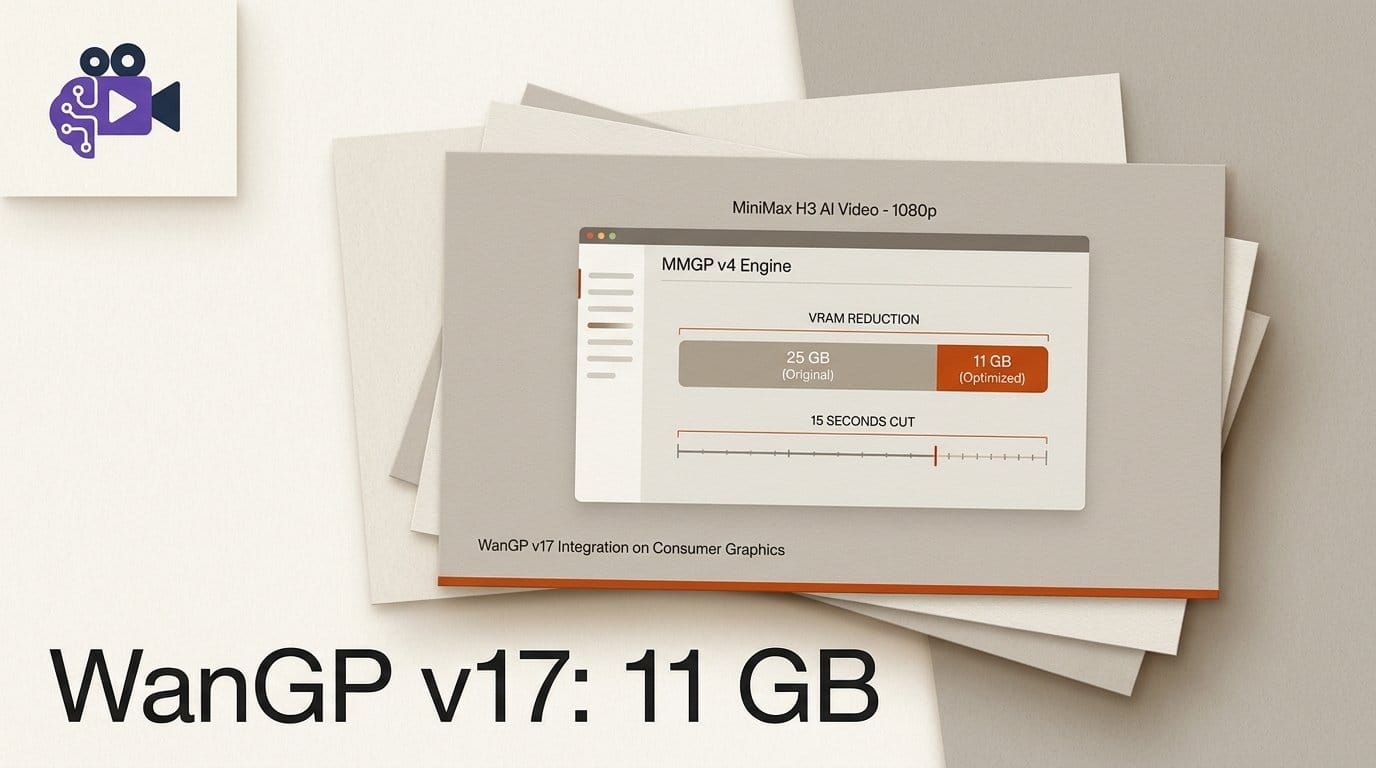
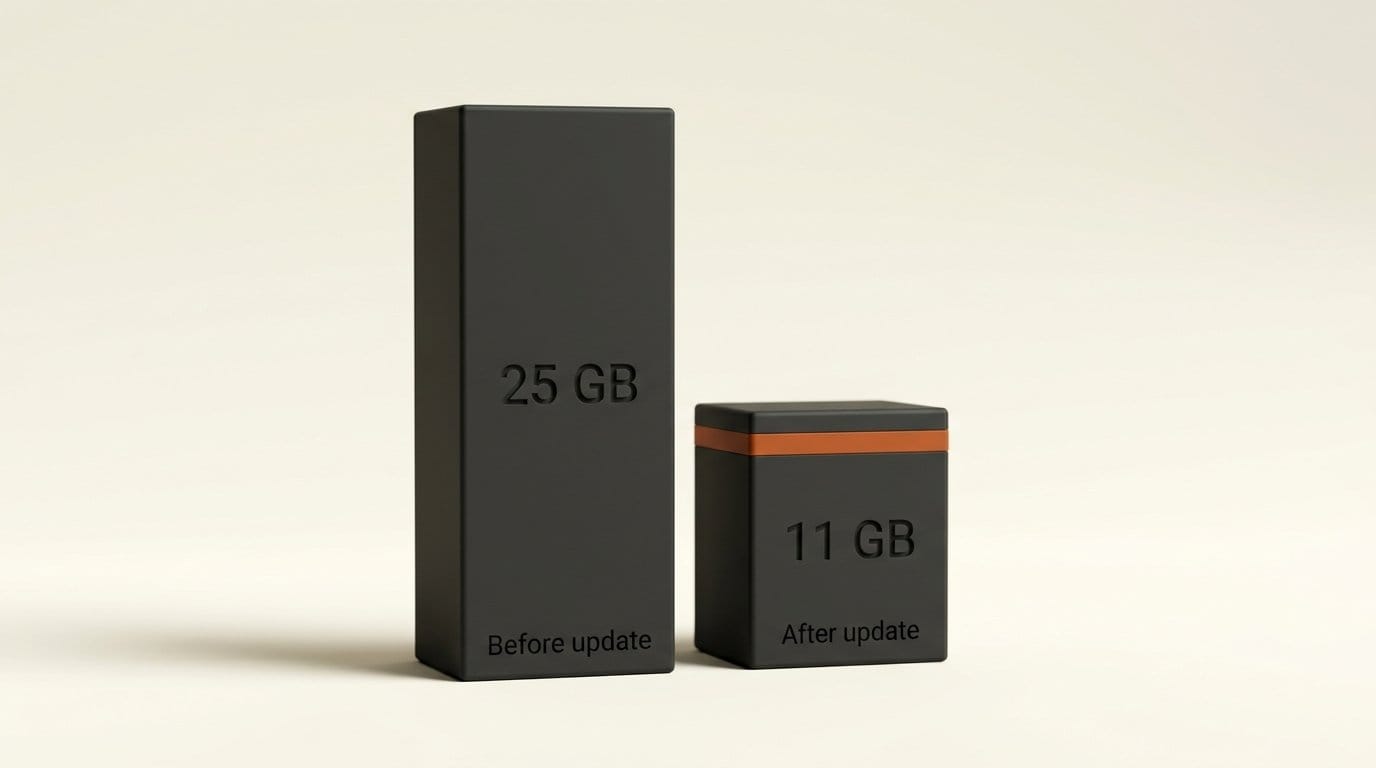
WanGP v17, the free local app that runs open video, image and audio models on consumer GPUs, shipped on October 5, 2026 with a rebuilt memory engine called MMGP v4. Its developer, DeepBeepMeep, says 15 seconds of MiniMax H3 video at 1080p now needs 11 GB of VRAM instead of 25 GB, and that 480p fits in 5-6 GB. A follow-up, v17.10, landed on October 6 with four LTX-2.5 effects tools: SDR to HDR, Layout to Render, Alpha Gen mattes and tiled 4K generation.
We did not have a GPU for this one, so we read the code instead. Two of the big savings switch on by themselves: the new VRAM allocator and Smart Memory Pinning are defaults. Three others do not. Dynamic VRAM Preload, Attention Head Split and 3K/4K resolutions all ship set to off or default, and an existing install is never moved to Dynamic for you. The allocator also only works on NVIDIA cards. Here is what changed, which memory profile to use, and the five settings to check after you update.
What WanGP v17 shipped on October 5 and 6
The v17 commit touched 141 files with 12,736 added lines. The biggest structural change is that MMGP, the offloading library underneath WanGP, used to be a separate pip package pinned at version 3.8.2. It now lives inside the WanGP repository in an mmgp folder, and requirements.txt lists only its dependencies. The developer says this makes updates easier, since the app and its memory engine can no longer drift out of sync.
The README release notes, dated October 6, list these headline claims for v17.00:
- MiniMax H3, 15 seconds at 1080p: 25 GB of VRAM before, 11 GB now.
- H3 at 480p for 15 seconds: 5-6 GB of VRAM.
- Profile 4, the default: up to 25% faster and up to 50% less VRAM on large videos.
- Profile 5, the fail-safe: up to 50% faster.
- Two new upsamplers: LTX 2.5 Detail Refiner x2 (tiled, slow) and H3 VAE Upsampler x2, which doubles width and height during VAE decoding.
The project also passed 10,000 GitHub stars the same week. These are the developer's numbers, measured on the developer's hardware. The CLI documentation warns that actual gains depend on your PCIe bandwidth, SSD speed and spare CPU cores, which MMGP v4 now uses more aggressively.
Where the VRAM savings come from
Three separate mechanisms add up to the headline number. It matters which is which, because they have different defaults and different costs.
The MMGP Optimized VRAM Allocator replaces PyTorch's CUDA allocator and recycles freed VRAM more efficiently. It does not change outputs or speed. The documentation publishes these savings:
| Workload | VRAM saved by the allocator |
|---|---|
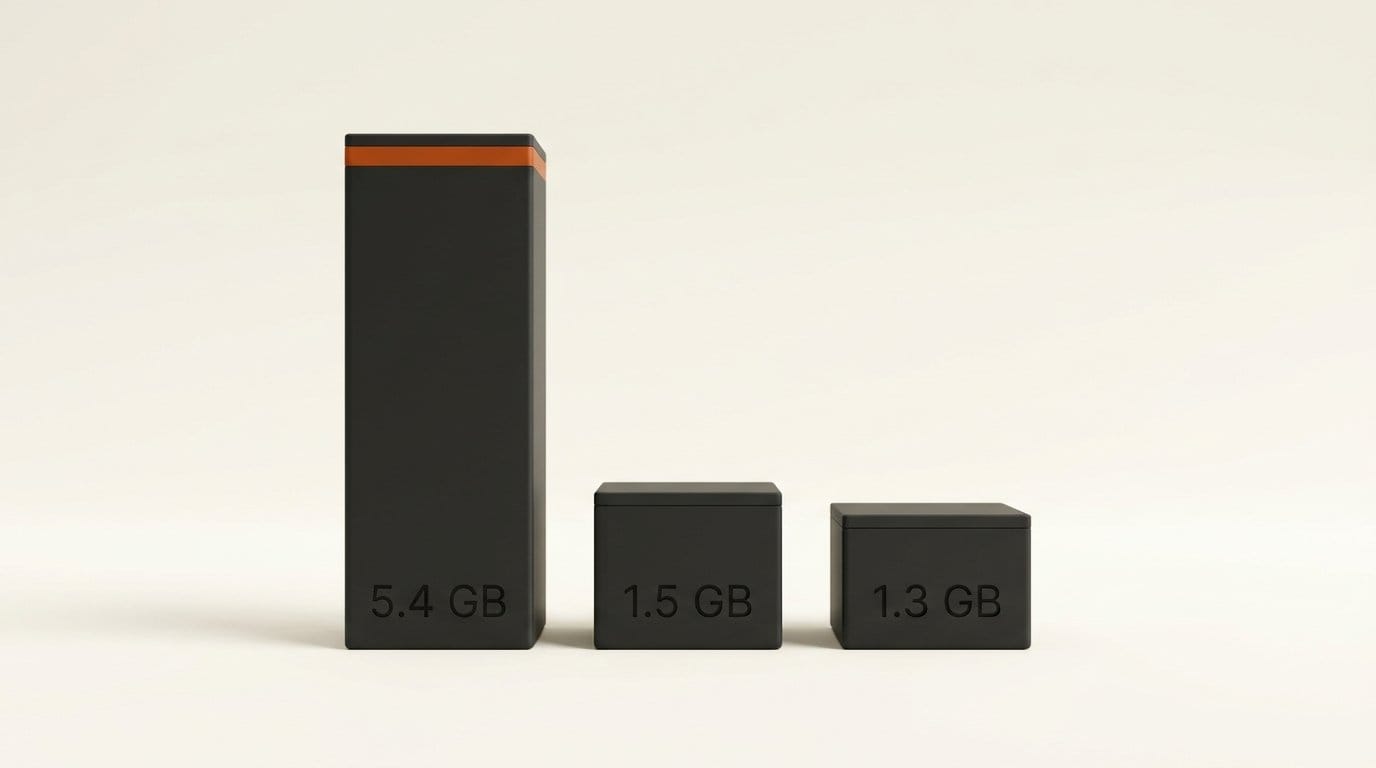
| H3, 1920x1088, 241 frames | About 5.4 GB |
| H3, 1280x720, 241 frames | About 1.5 GB |
| Flux dev, 1024x1024 (image decoding) | About 1.3 GB |
| Deepy agent, Bonsai 2 27B, 20K-token prompt | About 0.2 GB |
The pattern is clear: the gain grows with resolution and length, so long 1080p video benefits most and a single image barely moves. Its default mode also spills to system RAM when VRAM runs out. A generation that is slightly too big for your card finishes slowly instead of crashing.
Attention Head Split computes attention one group of heads at a time on long sequences. According to the troubleshooting guide, with H3 at 1920x1088 and 362 frames it saves about 1 GB on Low and about 2 GB on Medium or High, for up to about 3% slower denoising steps. With H3's Sol sparse attention, Medium saves about 4 GB. The catch: results are the same quality but not identical to Off, and details or motion can differ, so a seed you liked may not reproduce.
Dynamic VRAM Preload measures how much VRAM a generation needs on its first step, then keeps as much of the model in the remaining VRAM as fits. This is a speed feature, not a memory one. It helps most with images and low resolutions, where the time spent moving model blocks to the GPU sets the pace. For Flux dev at 1024x1024, the docs report a manual 6,000 MB preload cut Profile 4 step time by about 22%.
Which memory profile to pick
WanGP has had numbered memory profiles for a long time, but v17 changes the trade-offs, and the developer now says Profile 4 often beats the old Profile 1. The profile decides where each model lives: in VRAM, in reserved (pinned) system RAM, or streamed block by block. The defaults are Profile 4 for video and images and Profile 3+ for audio.
| Profile | What it does | Use it when |
|---|---|---|
| 1 | Each model whole in VRAM, all models in reserved RAM | You have plenty of VRAM and RAM and want the fastest model switches |
| 2 | All models in reserved RAM, sent to the GPU part by part | Big RAM, models larger than your VRAM, frequent model switching |
| 3 | Each model whole in VRAM, only main models in reserved RAM | Your VRAM holds the whole model and RAM is tighter |
| 3+ (3.5) | Profile 3 with no reserved RAM | Audio and TTS models (the audio default) |
| 4 | Main models in reserved RAM, sent to the GPU part by part | Most people, and any 8-16 GB card (the video and image default) |
| 4+ (4.5) | Profile 4, one part at a time | You need about 1 GB more VRAM headroom and accept slightly slower steps |
| 5 | Almost no reserved RAM, everything streamed | Short on both RAM and VRAM; the fail-safe |
Reserved RAM is capped at 40% of system RAM on Windows and 60% on Linux unless you change it. If you run another heavy app alongside WanGP, lower that share and keep Smart Memory Pinning on: the docs say models outside the reserved share still reach the GPU almost as fast. Offloading moves the memory requirement into system RAM; it does not delete it, so a 12 GB card paired with 16 GB of RAM will hit the RAM limit first.
What is on by default, and what you have to switch on
We checked the defaults in WanGP's source at the October 6 commit, both the fresh-install config in wgp.py and the settings migration that runs on an existing install. This is the table that matters if you just ran the updater and expected the headline numbers:
| Setting | Where | Default | Effect |
|---|---|---|---|
| VRAM Allocator | Config, RAM/VRAM Management | On (MMGP with RAM spilling), NVIDIA only | Lower peak VRAM, same output and speed |
| Smart Memory Pinning | Config, RAM/VRAM Management | On | Faster transfers for models outside reserved RAM |
| VRAM Preload | Config, RAM/VRAM Management | Default (not Dynamic) | Dynamic speeds up images and low resolutions |
| Attention Head Split | Config, Performance | Off | About 2 GB less on long H3 video at Medium |
| Read Ahead (Windows) | Config, RAM/VRAM Management | Off | Faster checkpoint loading on Windows |
| 3K/4K+ resolutions | Config, General | Off | Shows 3K/4K resolution choices for all models |
Two details are easy to miss. First, when an existing config is migrated, its preload becomes Default, or Manual if you had set a value, and the code comment says Dynamic is "chosen later", meaning by you. Second, the allocator startup code skips itself entirely when PyTorch is a ROCm build. AMD users get the profile and pinning improvements, but not the allocator savings in the table above. The README also says many v17 optimizations depend on Sage2 or Sage2+ attention, so check that your install has it.
How to update and tune WanGP v17 for a 12 GB card
This is the sequence we would follow on an RTX 3060 12 GB or 4070-class card to get H3 at 1080p within reach. Close WanGP first.
- Update. Run
scripts/update.shon Linux or macOS, orscripts\update.baton Windows, and choose Update. If you installed by hand,git pullthenpip install -r requirements.txt. The oldmmgp==3.8.2pin is gone, so the bundled copy is used when you launch from the WanGP folder. - Check the attention backend. Confirm Sage2 or Sage2+ is selected. If the update script reports an old Triton, run its Upgrade option; the README notes Update alone does not change Triton.
- Confirm the allocator. In Config, RAM/VRAM Management, the VRAM Allocator should read "MMGP Optimized VRAM Allocator with RAM Spilling". The console prints
[VRAM] MMGP Optimized VRAM Allocatorat startup when it is active. Restart WanGP after any change here. - Leave the video profile on 4. Drop to 4+ only if you are a few hundred MB short; use 5 if your PC has 16 GB of RAM or less.
- Set Attention Head Split to Medium under Config, Performance, for long or 1080p video. The README calls it worth an extra 20% of VRAM for up to 10% slower generations. Leave it Off when you need to reproduce an earlier seed exactly.
- Set VRAM Preload to Dynamic for images. For video the docs say Default is about as fast, so this is optional there.
- On Windows, enable Read Ahead for faster checkpoint loading.
- Test small first. Run 480p for a few seconds, then 720p, then 1080p, and watch peak VRAM. If a run spills into system RAM, it gets much slower but still finishes; that is your signal to shorten the clip or enable H3's Two Phases with Tiling.
If you already run H3 in ComfyUI, the comparison worth making is on your own card at your own clip length. Our H3 VAE speed test showed how much a single flag can change the result, so keep the settings identical across both apps.
The LTX-2.5 effects tools in v17.10
The October 6 update brings four LTX-2.5 tools into WanGP's interface, each built as a preset on the 22B distilled model:
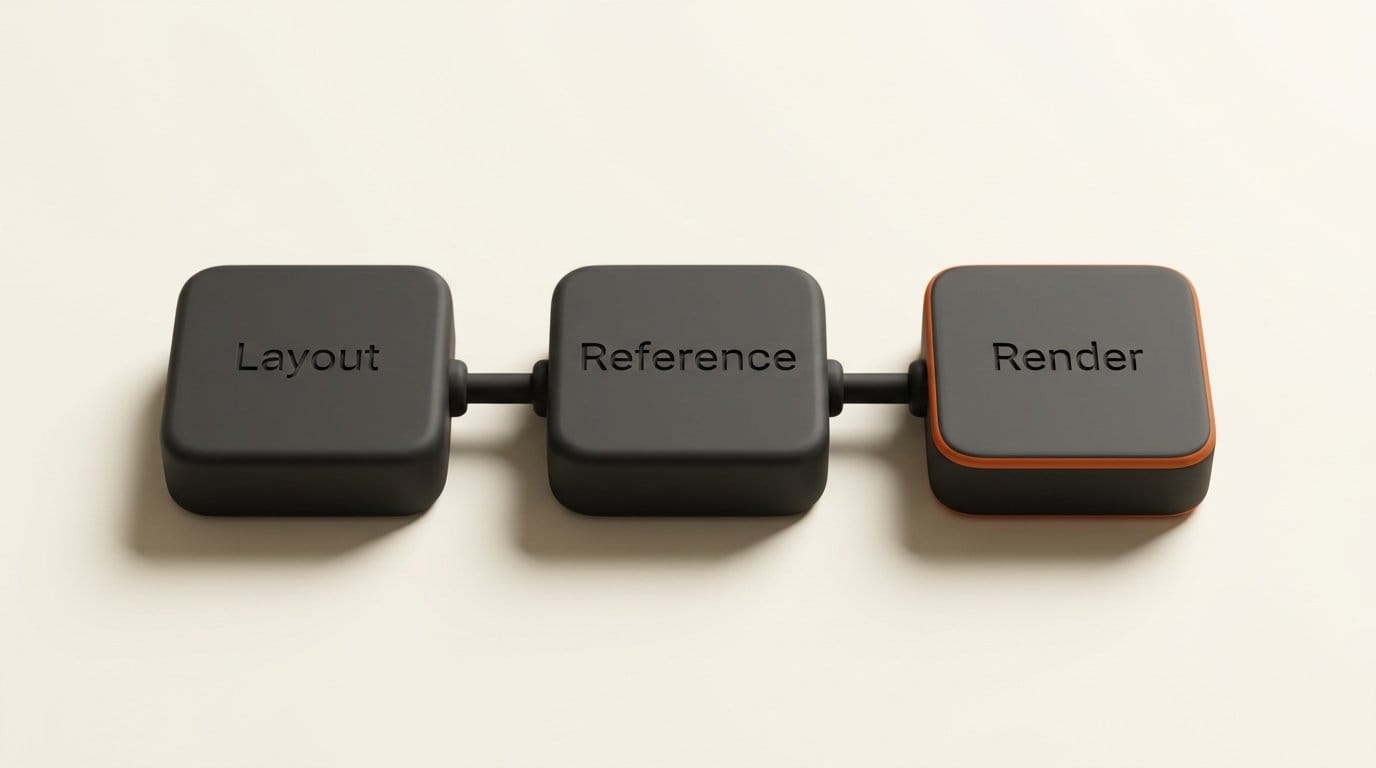
- Layout to Render turns a rough viewport animation or playblast into a finished shot. You give it the layout video plus one finished render of the first frame: the layout drives camera and placement, the reference sets the look. The preset defaults to 1920x1088, 121 frames, 8 steps and two phases, and downloads a 1.31 GB IC-LoRA.
- Alpha Gen pulls a soft alpha matte from any clip, optionally limited by a selection mask, and returns the original footage with transparency as a ZIP of PNG frames or ProRes 4444. Choose the format in Config, Outputs, RGBA Video Output. The preset runs at 1280x704, 121 frames, 8 steps. This is the same Lightricks LoRA we covered in our Alpha Gen deep dive, where the first independent test used about 90 GB of VRAM at full HD; WanGP has not published its own figure yet.
- SDR to HDR converts SDR video to HDR10 with a dedicated LTX-2.5 HDR LoRA. HDR clips now also get an automatic SDR preview in the gallery instead of showing up black.
- Two Phases with Tiling, for LTX-2, 2.3 and 2.5, lays out the scene in phase 1, then refines overlapping tiles in phase 2. At 4K, the model sees at worst 2K tiles. It is slower, since proper tiling needs 50% overlap, and the source warns it can change fine detail.
For Layout to Render, the practical workflow is: export a gray-shaded playblast from Blender or your 3D app, render or paint one finished first frame, and feed both in. LTX-2.5 itself carries Lightricks' license, free for organizations under $10M in annual revenue, as covered in our LTX-2.5 launch article.
The license: free to use, not free to resell
WanGP is not MIT or GPL. Its WanGP Community License 2.0 covers the app and, as of v17, the bundled MMGP engine. The plain-English summary in the license file says:
- You can use it free, including inside a company, and modify it for your own use.
- You can sell or license what you make with it. Credit WanGP only when you directly sell or license an output.
- You cannot sell WanGP itself, white-label it, embed it in a paid product, or offer paid API, SaaS or hosted access without a separate commercial license.
- Models, weights and third-party code keep their own licenses. H3, LTX-2.5 and Flux each carry separate terms.
For a freelancer or studio making client work locally, this is permissive. For anyone planning a paid "WanGP in the cloud" service, it is a hard stop without a deal. The project's official site and README also warn that third-party services using the WanGP name are not affiliated.
Who should update now, and who should wait
Update now if you have an NVIDIA card with 8-16 GB and have been stuck at 480p or 720p with H3 or long LTX clips. The allocator alone is worth about 5.4 GB at 1080p for 241 frames, and it changes nothing about your output.
Update, but expect less on AMD. The ROCm path skips the allocator, so your gains come from the profile and pinning changes only.
Wait a few days if WanGP is in the middle of a client job. The repository pushed two "fixes" commits within hours of v17 and another memory-allocator fix with v17.10. Releases this size tend to get follow-up fixes, and you can keep your current folder as a fallback by cloning v17 into a new directory.
Frequently asked questions
What is WanGP?
WanGP (also called Wan2GP) is a free, browser-based local app by DeepBeepMeep that runs open video, image, audio and text-to-speech models, including Wan 2.1/2.2, MiniMax H3, LTX-2.5, Flux, Qwen Image and Qwen3 TTS, on consumer GPUs with as little as 6 GB of VRAM for some models.
Can MiniMax H3 really run at 1080p on 12 GB of VRAM?
The developer reports 15 seconds of H3 at 1080p in 11 GB of VRAM with v17, down from 25 GB. That figure is the developer's own measurement. Your result depends on the profile, attention backend, Attention Head Split, system RAM and clip length, so test at 480p and 720p first.
Does the new VRAM allocator work on AMD or Mac?
No. The MMGP Optimized VRAM Allocator requires an NVIDIA GPU on Windows or Linux with PyTorch 2.3 or newer. On a ROCm build WanGP skips it and uses PyTorch's allocator.
Which WanGP memory profile should I use?
Profile 4, the default for video and images, is the right starting point for most cards. Use 4+ to save about 1 GB more VRAM, Profile 5 if your PC is short on system RAM, and Profile 1 or 3 only if your VRAM holds the whole model.
Will Attention Head Split change my results?
Slightly. The docs say quality is the same but output is not bit-identical to Off: fine details and sometimes motion can differ. Leave it Off when you need to reproduce an earlier seed.
Can I sell videos I make with WanGP?
Yes. The WanGP Community License 2.0 lets you sell or license outputs, with credit to WanGP when you directly sell or license an output. Check the separate license of the model you used, such as LTX-2.5's revenue threshold.
How do I update WanGP to v17?
Run scripts/update.sh (Linux, macOS) or scripts\update.bat (Windows) and choose Update, or git pull and reinstall requirements in a manual setup. Restart WanGP and confirm the allocator line in the console.