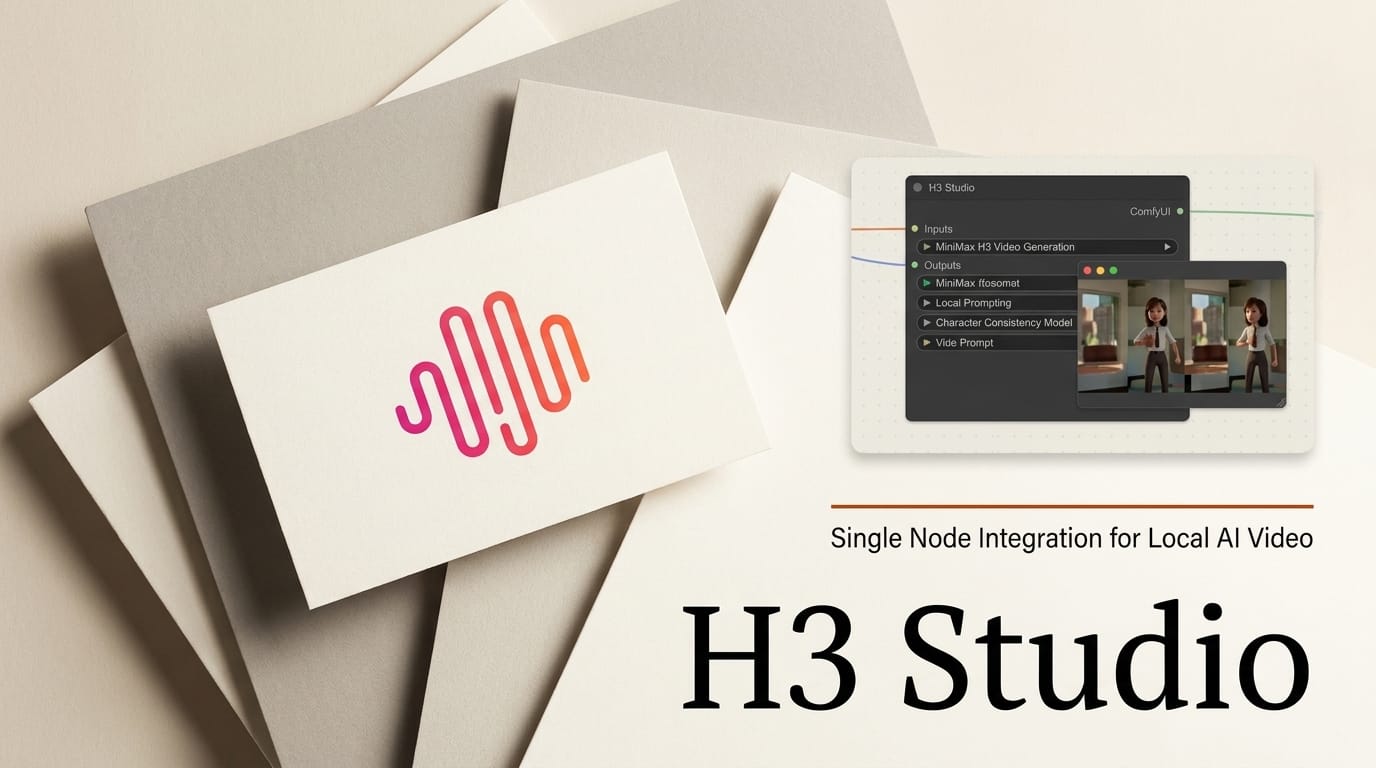
MiniMax H3 (Hailuo 3.0) gave open-weights creators a genuinely omni-modal video model: up to 15 seconds of native 2K footage at 24 fps with synchronised 32 kHz stereo audio, all from one forward pass. The catch was always the wiring. Running H3 locally meant hand-building a ComfyUI graph, memorising its structured prompt schema, and juggling model weights against a text encoder and a prompt-writing LLM on the same card. H3 Studio, released this week, collapses that whole pipeline into a single node and a single page.
The tool is a ComfyUI custom node that serves one self-contained interface with no second service, no CORS setup, and no build step. You install it, open one URL, and drive text-to-video, image-to-video, first-and-last-frame, and reference-to-video generation from there. For anyone who watched the H3 launch on July 31 and bounced off the setup, this is the on-ramp.
What H3 Studio Actually Is
H3 Studio is a front-end, not a new model. It wraps the official MiniMax H3 weights (published by Comfy-Org) in a page that handles the parts creators usually get wrong: prompt structure, memory management, and reference conditioning. The headline feature is convenience. Instead of connecting a dozen loader and sampler nodes, you get one node that exposes generation mode, prompt fields, reference slots, and a live preview.
The "single node" framing matters because H3 is not a simple text-to-video model. It jointly synthesises visuals, voice, sound effects, and music together, and it expects a structured three-field prompt rather than a loose sentence. H3 Studio owns that complexity so you do not have to rebuild the graph every session.
H3 Studio vs the Alternatives
There are now several ways to reach MiniMax H3. The hosted Hailuo app and API are the fastest to start but meter you per second. The raw ComfyUI nodes give full control but demand graph-building. H3 Studio sits in between: local, free to run on your own hardware, and opinionated about workflow. Here is how the three stack up for a creator deciding where to generate.
| Approach | Setup effort | Cost | Prompt handling | Best for |
|---|---|---|---|---|
| Hailuo app / MiniMax API | None | $0.13 per second of 2K | Server-side rewriter (H3-Context-IR) | Fast iteration, no GPU |
| Raw ComfyUI H3 nodes | High (build the graph) | Local GPU only | Manual, raw prompt to model | Custom pipelines, batch jobs |
| H3 Studio | Low (one clone) | Local GPU only | Local LLM writes and self-corrects | Guided local generation |
The distinction that trips people up: in ComfyUI there is normally no prompt rewriter, so whatever you type goes to the model raw. MiniMax's own cloud pipeline runs an LLM called H3-Context-IR that turns a casual request into the structured schema. H3 Studio rebuilds that missing step locally, which is why its output tends to track the hosted app more closely than a bare node graph does. The official ComfyUI H3 tutorial documents the underlying nodes if you want to see what the tool is automating.
The Local Generation Workflow, Step by Step
Getting from a clean ComfyUI install to a finished clip takes five steps. You need ComfyUI 0.30.0 or newer and the H3 weights from Comfy-Org.
- Install the node. From
ComfyUI/custom_nodes, rungit clone https://github.com/CharlesMod/h3-studio.git h3_studio, thencd h3_studioand./scripts/fetch_corpus.shto pull the prompt corpus. - Open the page. Restart ComfyUI and browse to the studio at
/extensions/h3_studio/index.htmlon your local ComfyUI host. Everything happens on that one page. - Pick a mode. Choose text-to-video for a fresh clip, image-to-video to animate a still, first-and-last-frame to interpolate between two images, or reference-to-video to carry a subject across shots.
- Write and refine the prompt. Type a plain description. The built-in local LLM expands it into H3's three structured fields, then runs a self-correction loop before generation.
- Generate. Click Generate and watch the live preview and VRAM meter. Output is up to 15 seconds at 24 fps with baked-in stereo audio.
Frame counts follow H3's grid rule, where the total must satisfy n modulo 17 equals 5, so a request for five seconds at 24 fps (120 frames) rounds up to 125. The tool and the wider ComfyUI H3 pipeline handle that rounding for you.
VRAM Tiers: Which Profile Your Card Gets
H3 Studio's most practical trick is memory management. Clicking Generate unloads the prompt LLM first, then loads the video model, so H3 at roughly 15.5 GB and a 12B assistant LLM can share a 16 GB card through sequential loading rather than fighting for space at once. The broader H3 ComfyUI pipeline picks a weight profile automatically based on how much VRAM it finds.
| Profile | VRAM | Precision | Trade-off |
|---|---|---|---|
| Quality | 70 GB+ | bf16 | Best fidelity, workstation cards |
| Balanced | 38 GB+ | int8 / nvfp4 mixed | Near-quality on prosumer cards |
| Squeeze | 20 GB+ | fp8 scaled | Runs on consumer cards, aggressive memory flags |
Budget for around 45 GB of free disk for the weight download, and expect bf16 hardware support to be required. A Turbo LoRA is available if you want eight-step generation instead of the standard twenty, trading some quality for speed.
Character Consistency and the Prompt Assistant
The reference-to-video path is where H3 Studio earns its place in a real production workflow. Attach a photo of a character and the tool automatically switches to the Ref2VA weights and H3's six-section reference schema, so the same subject carries across separate clips. That is the mechanism behind character-consistent sequences: you generate shot after shot from the same reference and the identity holds.

The prompt assistant is stricter than a typical "enhance my prompt" button. Its self-correction loop only accepts a revision if it removes no structure and strictly reduces the fault count, so it will not quietly drop a soundscape field to make a prompt validate. That discipline is what keeps H3's audio and motion fields intact, and it is the part hardest to replicate by hand. If you want a comparison point, the sibling project ComfyUI-MiniMax-H3-Image-Studio applies the same idea to still images.
What This Enables
For a solo creator, H3 Studio turns a research-grade model into a same-afternoon tool. You can storyboard an ad spot as a series of character-consistent 15-second beats, generate a website hero loop with matched sound design, or previsualise a film sequence with dialogue and score already in the render, all on a single consumer GPU and without paying per second. The workflow is close enough to the hosted Hailuo app that you can prototype locally for free and only reach for the paid API when you need scale or lack a capable card.
If you are building an open-weights video stack, H3 Studio pairs naturally with other recent ComfyUI arrivals. See our breakdown of LTX-2.5 open-weights video in ComfyUI and the ComfyUI v0.32.0 node and memory update for the surrounding toolchain.
What to Do Next
Clone the repo into your ComfyUI custom nodes folder, run the corpus fetch script, and start with a single text-to-video prompt before layering in references. If you are GPU-light, begin on the Squeeze profile and confirm generation completes before chasing higher resolutions. Then attach a reference photo and test whether your character holds across two clips, since that is the capability that separates a demo from a usable production loop.
Frequently Asked Questions
Is H3 Studio free?
Yes. It is an open-source ComfyUI custom node that runs the MiniMax H3 open weights on your own hardware. There is no per-second charge like the hosted Hailuo app, though you supply the GPU and the roughly 45 GB of disk for weights.
What GPU do I need to run MiniMax H3 locally?
The Squeeze profile targets cards with 20 GB or more using fp8 weights, and H3 Studio's memory handoff lets the 15.5 GB model share a 16 GB card with its prompt LLM by loading them one at a time. Larger cards unlock the Balanced (38 GB+) and Quality (70 GB+) profiles.
How long can the videos be?
MiniMax H3 generates up to 15 seconds per clip at 24 fps in native 2K with stereo audio. For longer sequences you chain multiple clips, using the reference-to-video mode to keep the same character across them.
Does it handle audio automatically?
Yes. H3 is omni-modal and produces synchronised 32 kHz stereo audio, including voice, sound effects, and music, in the same pass as the video. The prompt assistant writes a dedicated soundscape and non-diegetic music field so the audio is directed rather than incidental.
How is this different from the raw ComfyUI H3 nodes?
The raw nodes send your prompt to the model verbatim and require you to build the graph yourself. H3 Studio adds a local LLM that rewrites and self-corrects prompts into H3's structured schema, automatic Ref2VA switching for references, and a single-page interface with live preview and VRAM metering.
Which ComfyUI version does it need?
H3 Studio requires ComfyUI 0.30.0 or newer and the MiniMax H3 weights published by Comfy-Org. Install it into ComfyUI/custom_nodes and open the studio page at the extensions path after restarting.