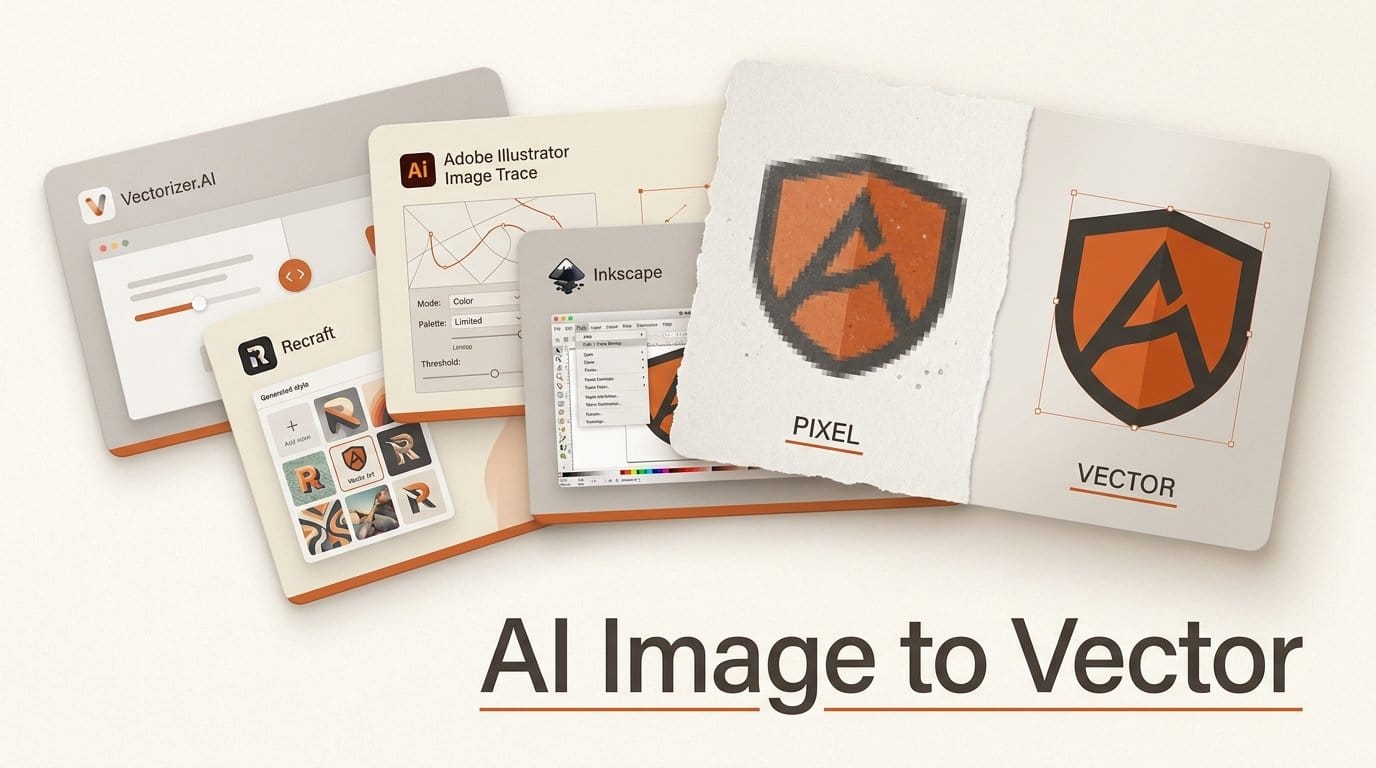
The best way to turn an AI image into a clean vector file depends on the job. For a logo, sticker or t-shirt graphic, Vectorizer.AI gives the most tools for fixing the result. Recraft is the cheapest per file, at one credit per conversion, if you pay for a plan. Illustrator's Image Trace is already in your Creative Cloud apps if you subscribe. Inkscape is free, runs on your own computer and has a dedicated mode that turns a sketch into single-line strokes. AI image generators give you a PNG or JPG made of pixels. Cricut machines, vinyl cutters, laser engravers, embroidery software and screen printers want shapes: an SVG, PDF, EPS or DXF file that stays sharp at any size. This guide compares the four tools on four common jobs, with prices and the ownership rules that matter for client and merch work.
We built this comparison from each company's own product pages, help docs and pricing, checked October 20, 2026. We did not run a paid head-to-head, so the strengths below are what each vendor documents. Vectorizer.AI lets you preview any image free before paying, and that is the test we recommend you run on your own artwork.
Quick Picks
- Pick Vectorizer.AI if you make logos, stickers or merch and want to fix the result before you download: merge colors, sharpen corners, snap shapes to true circles and stars. Unlimited downloads for one monthly price.
- Pick Recraft if you convert a lot of files and want the lowest cost per file, or you work in Figma or Framer. One vectorization costs one credit, and Basic gives you 1,000 credits for $12 a month.
- Pick Inkscape if you want free, private and offline, or you need single-line strokes from a sketch for a pen plotter or engraver.
- Use Illustrator's Image Trace if you already pay for Creative Cloud. It is good enough for most jobs, and you are already in the app where you will finish the file.
What a Vectorizer Does, and Why AI Images Need One
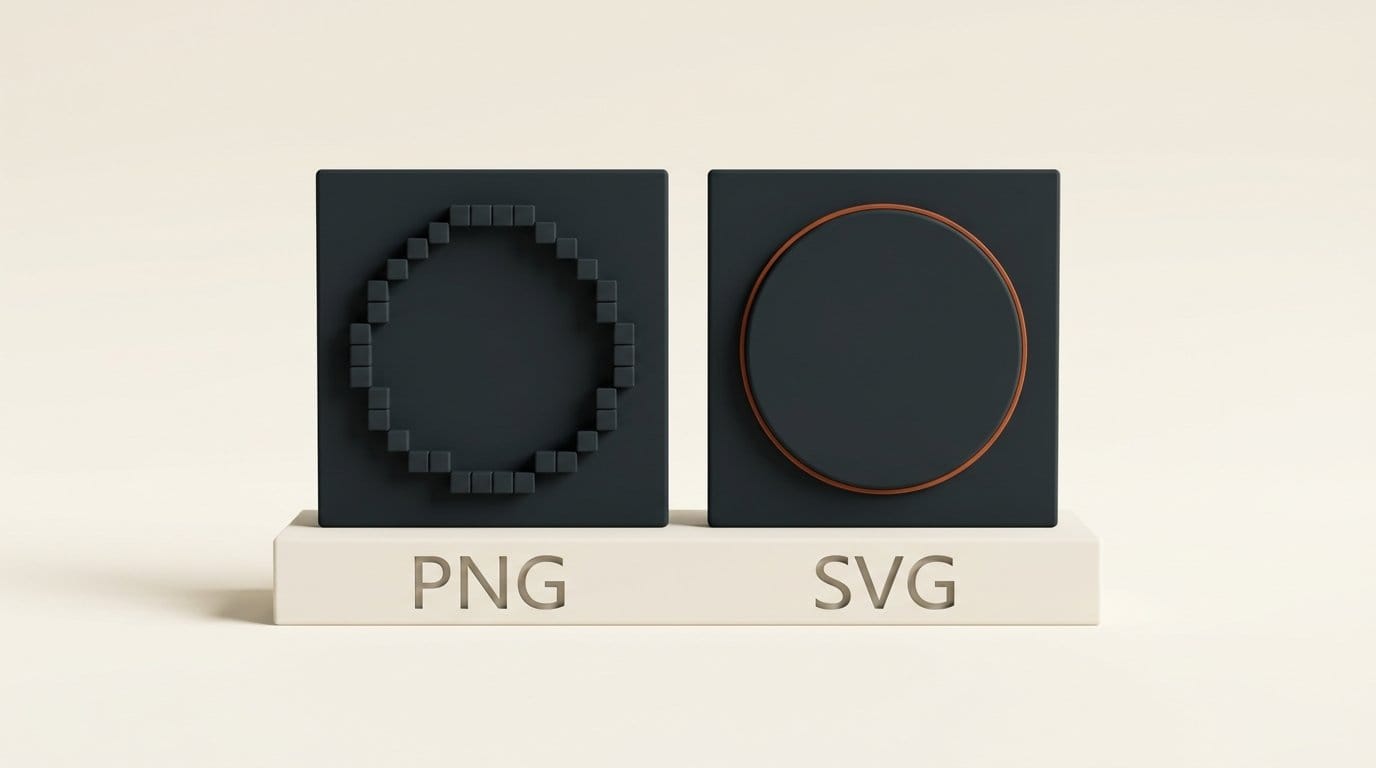
A raster image is a grid of colored squares. Blow it up for a banner and the edges go soft and blocky. A vector file describes shapes instead: this curve, this circle, filled with this color. It scales from a business card to a billboard without losing an edge, and each shape can be recolored or deleted on its own.
That second point is why cutters and printers ask for vectors. A vinyl cutter, a Cricut or a laser needs a path to follow, and a screen printer needs one clean layer per ink color. Vectorizer.AI's own FAQ names laser engraving, vinyl cutting and screen printing as jobs that require vector files.
Watch for one trap. Some free "PNG to SVG" sites just place your pixels inside an SVG file. Vectorizer.AI calls this embedding: the file says SVG, but there are no shapes inside, so it will not cut or scale. All four tools in this guide trace the image into real shapes.
Four Jobs, Compared
Here is how the four tools line up on the details that decide which one you open.
| Vectorizer.AI | Recraft | Illustrator Image Trace | Inkscape Trace Bitmap | |
|---|---|---|---|---|
| Price | CA$12.99/mo for unlimited downloads (US listings: $9.99) | 1 credit per vectorization; Basic $12/mo for 1,000 credits | Included in Illustrator, about $23/mo on its own | Free |
| Free option | Unlimited previews; downloads need a plan | Free plan: 3 uploads a day, public results | Adobe free trial | Everything |
| Runs | In the browser | In the browser, Figma, Framer, Google Docs, Chrome | Desktop app | Desktop app, Windows, Mac, Linux |
| Input limit | 3 megapixels, 30 MB | 5 MB; JPG, PNG, WebP | Any image Illustrator opens | Any image Inkscape opens |
| Output | SVG, PDF, EPS, DXF | SVG, Lottie; PDF via its format converter | SVG, PDF, EPS, DXF and more | SVG, PDF, EPS, DXF and more |
| Fix tools after tracing | Palette, regions, symmetry, shape fitting, corners, background | Adjust colors: reduce count or recolor | Presets and sliders, then full editing | Modes and settings, then full editing |
| Best job | Logos, stickers, merch | High volume, design-app users | Creative Cloud users | Free work, line art, offline |
Job 1: A logo or sticker for a t-shirt
Flat colors and crisp geometry are where these tools differ most. Vectorizer.AI fits whole shapes where it finds them: circles, ellipses, rounded rectangles and stars, not just approximate curves. It also detects mirror and rotational symmetry, so a round badge comes back round. Its Corner Control lets you choose which corners stay sharp and how round the rest are, and Palette lets you merge two near-identical oranges into one ink. For a screen-printed shirt, where every color is a separate screen, that palette step matters.
Recraft's converter is one click: upload, press Vectorize, then use Adjust colors to cut the color count or swap in a brand palette. In Illustrator, open the Image Trace panel (Window, Image Trace) and start with the Black and White or Auto-Color preset. Adobe describes Auto-Color as AI-based; it reads the image and picks settings for you. In Inkscape, use Path, Trace Bitmap, with Brightness cutoff for a one-color mark, or Multiple scans with Colors for a few flat colors.
Job 2: A cut file for a Cricut, a Silhouette or a laser
Cutting software follows every path literally, so tiny specks and doubled edges become tiny cuts. You want few colors, closed shapes and an SVG (or a DXF for software that prefers it). Vectorizer.AI, Illustrator and Inkscape all save DXF. Recraft exports SVG (plus Lottie, and PDF through its format converter), which covers a Cricut but not software that only takes DXF. Before you cut, reduce the image to the colors you will actually cut, delete the background shape, and zoom in to look for stray fragments.
Job 3: A full-color illustration for a poster
Painterly AI art with soft shading is the hardest job for any tracer, because every gradient becomes hundreds of small shapes. Illustrator's enhanced presets add built-in support for gradients and transparency, which helps. Vectorizer.AI says it works on photographs too, and lets you pick the number of palette colors. Inkscape's multiple-scan mode stacks one object per color, and its own manual warns that full-color traces are hard to edit.
Ask whether you need a vector at all. If the print shop accepts a high-resolution PNG or PDF, an upscaled raster usually keeps a painting's texture better than a trace. Vectorize when the output is cut, stitched, engraved or screen printed, or when you need to edit individual shapes.
Job 4: Line art, handwriting and sketches
Inkscape stands out here. Its Centerline tracing mode turns a drawn line into a single open path down the middle of the stroke, instead of an outline around both edges. That is what a pen plotter, a single-line engraving or a handwriting font needs. A normal trace draws a filled outline around each line instead: fine for printing a sketch, wrong for drawing it with one pen. When filled outlines are what you want, Vectorizer.AI says it handles scans and photos of sketches well.
When Each One Wins
Vectorizer.AI wins when the file has to be right, not just close. It is the only one of the four built only for this job, and its editing tools (background removal, palette, regions, symmetry, geometry and corners) fix the usual tracing faults before you download. It previews any image free, so you only pay once a result is worth keeping. Two limits: images over 3 megapixels must be cropped or get scaled down, and there is no pay-per-file option on the web app.
Recraft wins on cost per file and convenience. One credit per vectorization makes it the cheapest paid option at volume, and the same converter works inside Figma, Framer, Google Docs and a Chrome extension. If your logo started in Recraft, skip tracing altogether: its vector models generate SVGs directly from a prompt. Recraft V3 Vector costs 2 credits per image and V4.1 Vector costs 4.
Illustrator wins when you already pay for it. You trace and finish the file in the same app, and custom presets (saved under Manage Presets) let you repeat the same settings across a whole merch line. After tracing, expand the result (Object, Expand) to turn it into editable paths.
Inkscape wins on price, privacy and line art. It costs nothing, files never leave your computer, and its Centerline mode is built for single-line art. Its tracer is Potrace, a classic open-source engine rather than an AI model, so expect to clean up more by hand on messy AI images.
Pricing and Cost per File
Here is what each tool costs, at the prices listed when we checked.
- Inkscape: free, at any volume.
- Recraft: 1 credit per vectorization. Basic is $12 a month, or $10 a month billed yearly, for 1,000 credits, about 1.2 cents per file if you use them all. Paid plans can top up 200 credits for $2, which is 1 cent per file. The developer API also charges $0.01 per vectorization.
- Vectorizer.AI: one Unlimited Web Images plan. Its pricing page showed CA$12.99 a month when we loaded it in Canadian dollars; third-party listings give the US price as $9.99. Preview free, pay to download, cancel any time.
- Illustrator: about $23 a month for the single app on an annual plan, or part of the full Creative Cloud bundle.
At 10 files a month, a flat plan works out to more than a dollar a file, so occasional users should start free with Inkscape or the Vectorizer.AI preview. At 100 files a month, Recraft's credits come to about 12 cents a file and the Vectorizer.AI plan to roughly 13 Canadian cents. The difference matters less than which result needs less cleanup.
Who Owns the File: The Catch on Free Plans
Ownership matters most if you sell the result or hand it to a client. Recraft's pricing FAQ says images made on the Free plan are owned by Recraft, shown publicly in its community gallery and not licensed for commercial use. It gives the example that such images usually cannot be listed on stock sites. The FAQ does not exempt vectorized uploads, so treat Recraft's free tier as a test bench and do client and merch work on a paid plan. Paid plans give you ownership and commercial rights, and those stay with images made while you subscribed, even after you cancel.
Vectorizer.AI says it claims no rights to your results, deletes uploads and results after 24 hours, and does not share your images with third parties unless you allow it. Its terms ban one use: training machine-learning models on its output. Illustrator and Inkscape run on your own computer, so the traced file is as private as the image you started with.
Tracing doesn't change who owns the original image. If the AI image itself came with limits on commercial use, the SVG has the same limits. Check the generator's terms before you sell the shirt.
Before You Vectorize: Four Fixes That Save Cleanup
- Generate for the trace. When you make the image, ask for a flat vector style, solid colors, no gradients, no texture and a plain white background. A tracer turns every shade into a shape, so fewer shades means a cleaner file. Our guide to AI image generators that render text covers which ones keep lettering clean enough to trace.
- Remove the background first. Otherwise the background becomes a big shape your cutter tries to cut around. Vectorizer.AI and Recraft both include a background remover.
- Crop to the artwork. Vectorizer.AI caps input at 3 megapixels, and only the cropped area counts, so cropping keeps more detail in the part you need.
- Check the file at full zoom. Before you send it to a cutter or printer, zoom in on the edges and corners, count the colors and delete stray specks. Open it in the software you will actually cut or print from. Vectorizer.AI lets you download its example results free to test that your software reads the files.
Verdict
For logos and merch, preview your image in Vectorizer.AI first, because it is free to look and its fix tools save the most hand cleanup. If you convert dozens of files a month or work in Figma, Recraft at one credit per file is the cheaper habit, on a paid plan if the work is commercial. If you already pay for Creative Cloud, Image Trace is good enough to try before you buy anything else. If your budget is zero, or you need single-line strokes for a plotter, download Inkscape. To go from a prompt to a finished brand mark, start with our step-by-step guide to designing a logo with AI, then come back here for the vector step. For a wider look at design apps, see our best AI tools for designers.
FAQ
How do I turn an AI image into an SVG?
Upload the PNG or JPG to a vectorizer such as Vectorizer.AI or Recraft, or open it in Illustrator (Image Trace) or Inkscape (Path, Trace Bitmap). The tool traces the pixels into shapes, and you export the result as an SVG. Remove the background and reduce the colors first for a cleaner file.
Is there a free way to vectorize an image?
Yes. Inkscape is free and open source, runs on Windows, Mac and Linux, and its Trace Bitmap tool exports SVG, PDF, EPS and DXF. Recraft's Free plan allows up to three uploads a day, but the results are public and not licensed for commercial use. Vectorizer.AI previews are free; downloads need a plan.
Can I use a vectorized AI image on a Cricut?
Yes, a traced SVG works with a Cricut. Keep the colors few and the shapes closed, delete the background shape, and zoom in to remove stray specks before cutting, because the machine cuts every path in the file.
Why does my traced file look blobby or have thousands of shapes?
The source had gradients, texture or soft edges, and the tracer turned each shade into its own shape. Reduce the color count (Palette in Vectorizer.AI, Adjust colors in Recraft, a lower color preset in Illustrator) or generate the image again in a flat, solid-color style.
Do I own the SVG a vectorizer makes?
It depends on the tool and plan. Vectorizer.AI says it claims no rights to results. Recraft gives ownership and commercial rights on paid plans, but says Free plan images are owned by Recraft and public. Desktop apps like Illustrator and Inkscape keep the file on your computer. Tracing doesn't change any limits that come with the original AI image.