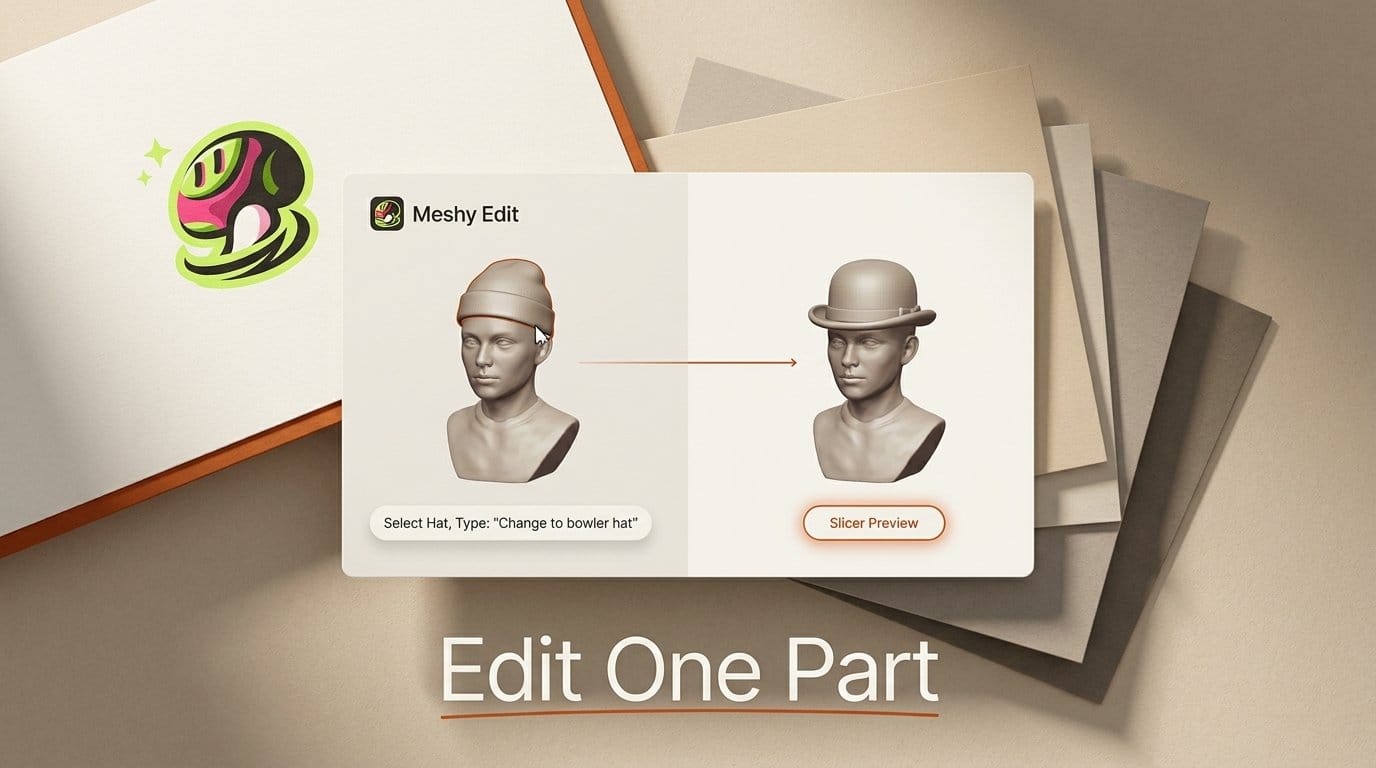
Meshy Edit, launched on October 16, 2026, lets you circle one part of a 3D model in Meshy, describe the change in a sentence such as "remove the hat", and get a new model in about a minute with everything else left as it was. It runs on a new in-house Meshy model, costs 20 credits per edit, and is live now for all registered Meshy users. Failed edits are refunded.
That fixes the most common annoyance in AI 3D: a model that is right except for one detail. Until now the choice was to regenerate the whole thing and hope the parts you liked survive, or open Blender. Below: what Meshy Edit can and cannot touch, what an edit really costs next to regenerating, a step-by-step way to fix a model and send it to your 3D printer, and tips from Meshy's own guide. This is based on Meshy's documentation and price lists as of October 19, 2026, not a hands-on test.
What Meshy Edit does
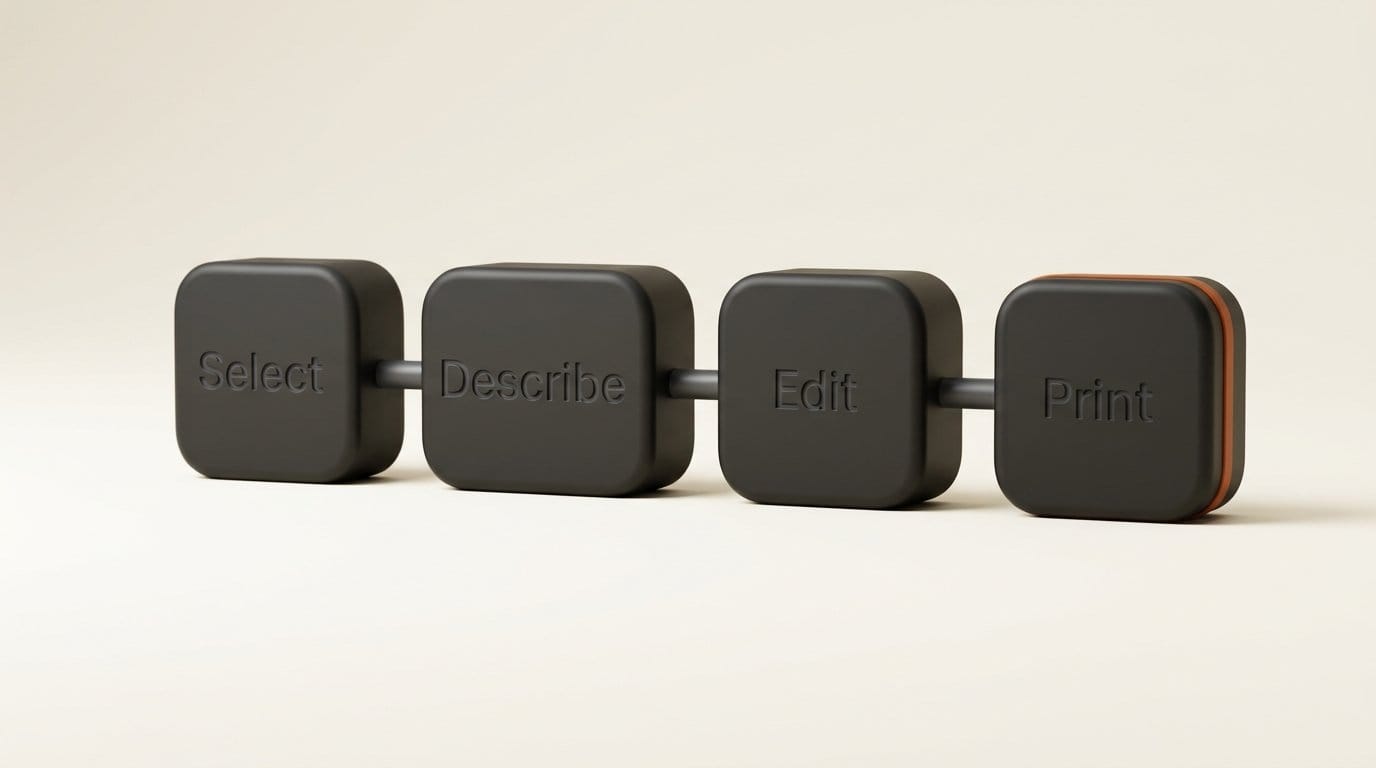
Open a model you generated in Meshy and click Edit, and you enter what Meshy calls Edit Mode. Its first tool is local editing. According to Meshy's launch guide, it "changes only the part you select and keeps the rest of your model unchanged." You can add a part that is missing, remove one that should not be there, or replace one with something else, using a text description, up to five reference images (20 MB each), or both.
Two details matter for how you work. First, every edit creates a new model and keeps the original, so you can go back, branch off a different version, or edit the result again. Second, the edit runs in the background: you can leave the page and Meshy notifies you when it is ready. If you submit without selecting anything, the description applies to the whole model.
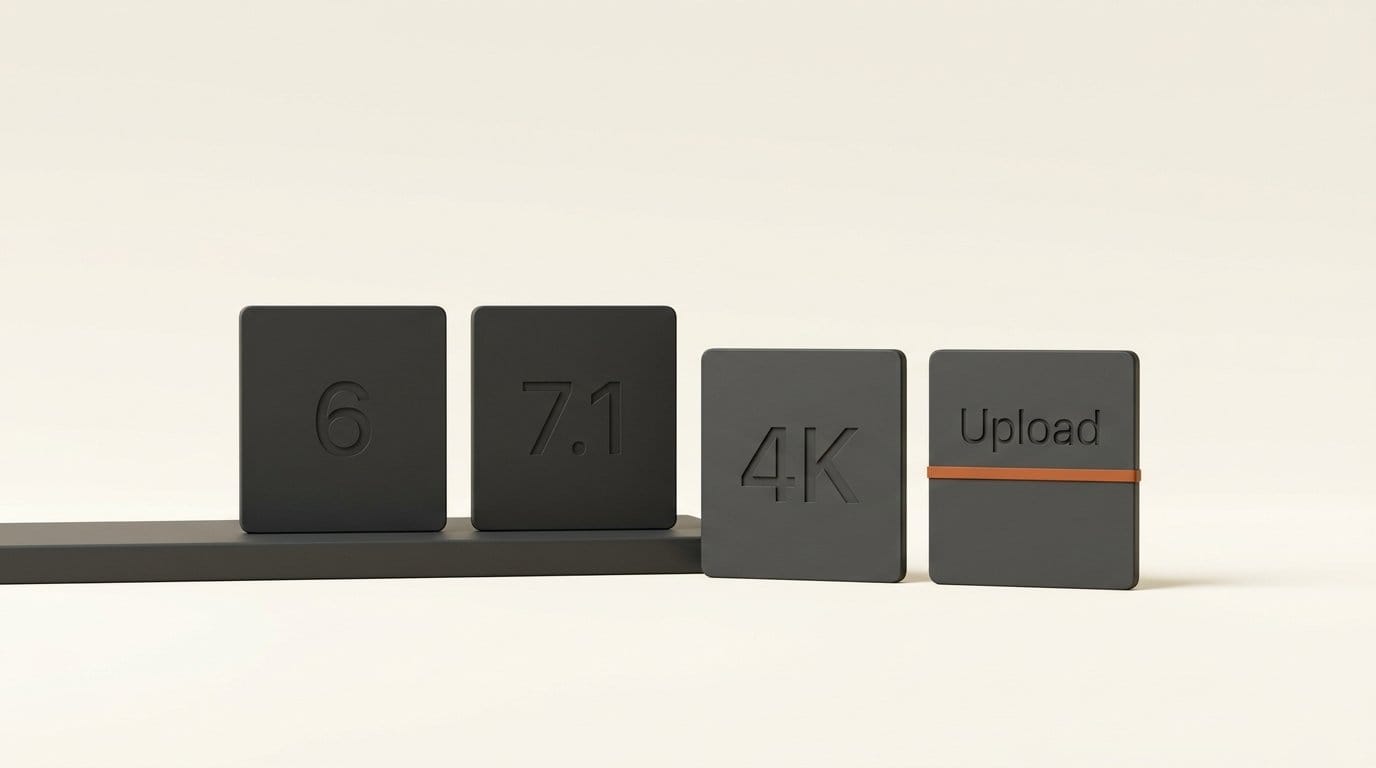
It does not work on everything yet. The release says Meshy Edit supports high-poly models generated with Meshy 6 and Meshy 7.1, including Ultra 2K. Ultra 4K models, low-poly models and models you uploaded yourself are not supported. Textured models switch automatically to their untextured version for editing, which matters for cost (see below).
Meshy is the biggest name in AI 3D for consumers: the company says it has more than 15 million registered users, and it was the only AI 3D company in a16z's latest ranking of the top 50 consumer AI apps by monthly revenue, at 31st.

Edit, regenerate or Blender?
Meshy's own guide frames the choice as three options. Here they are with the cost and the trade-off added.
| Regenerate in Meshy | Fix it in Blender | Meshy Edit | |
|---|---|---|---|
| What changes | The whole model, including parts you liked | Only what you change by hand | Only the part you select |
| Skill needed | None | Modeling experience | None, describe it in words |
| Time for one detail | A new roll each time | Can take hours, per Meshy | About a minute to a few minutes |
| Original model | Replaced by a new result | Kept in your own file | Always kept |
| Credits (Meshy 7.1) | 20 mesh only, 30 with 2K or 4K texture | 0 | 20, refunded if it fails |
The credit row is the surprise. An edit is not cheaper than a fresh untextured generation: both cost 20 credits on Meshy's published credit table. What you are paying for is control. A regeneration starts over, so pose, proportions and small details shift in ways you cannot predict. An edit leaves the approved parts alone. If you have already spent five generations getting a character's face and stance right, one 20-credit edit beats a sixth roll of the dice.
Blender is still the right tool when you need an exact measurement, a precise boolean cut or a change the AI keeps getting wrong. Our guide to controlling Blender with an AI agent covers that route.
What an edit costs
Every edit is 20 credits. For a model you want to 3D print in one color, that is the whole cost. For a textured model it is not, because Meshy edits the untextured version: to get color back you texture the result again, which is 10 credits at 2K or 4K and 15 at 8K on the same credit table. Edit plus re-texture comes to 30 credits, the same as generating a new textured model from scratch.
Here is what that means on each plan, using the US prices on Meshy's pricing page on October 19, billed monthly:
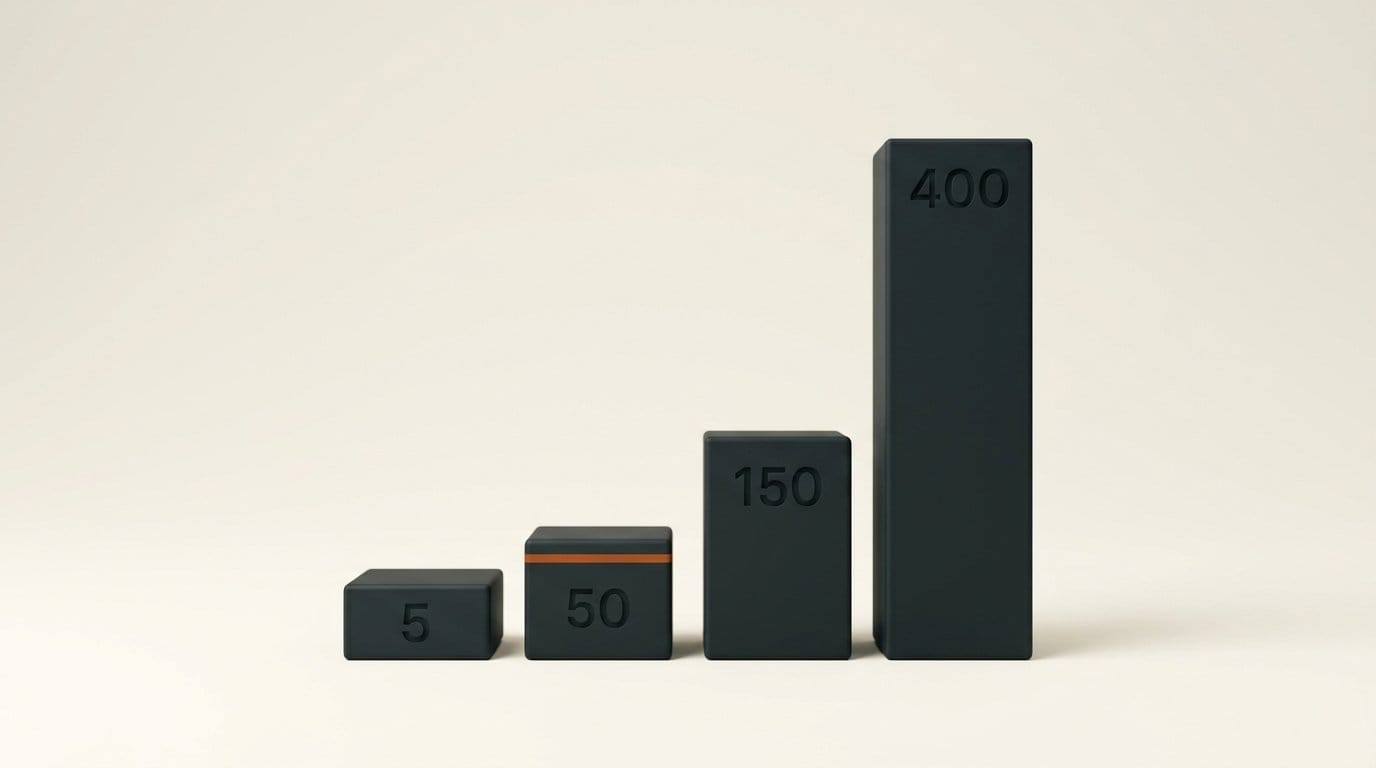
- Free, 100 credits a month: five edits. Free models carry a CC BY 4.0 license (commercial use with attribution), and downloads are limited to 10 Meshy 6 Lite models a month.
- Pro, $20 a month for 1,000 credits: 50 edits, about $0.40 each.
- Premium, $40 a month for 3,000 credits: 150 edits, about $0.27 each.
- Ultra, $100 a month for 8,000 credits: 400 edits, about $0.25 each.
Paid plans also include free retries per task in the web app (4 on Pro, 12 on Premium, 40 on Ultra). Meshy has not said whether those cover edits, but failed edits are refunded automatically, which is the bigger safety net. Meshy's guide warns that removing a part "can take several" tries, so budget two or three edits for a removal and one for swapping an accessory.
How to fix one part of a model and send it to your printer
This is the workflow Meshy designed the feature around: a print-ready model with one wrong detail. It runs entirely in the Meshy website and your slicer app.
- Start from a Meshy 6 or 7.1 model. Generate one with Text to 3D or Image to 3D, or open one you already made. Uploaded and low-poly models will not open in Edit Mode.
- Click Edit. It sits in the toolbar under your model, and also as the first card under Post-Processing in the Print module.
- Select the part. Use Lasso to circle a whole part (it selects the front, sides and back), then Brush to paint the edges more precisely. Lasso Eraser and Eraser remove areas from the selection; Clear All starts again.
- Describe the change. One plain sentence: "remove the hat", "replace the sword with a short spear", "make the base thicker and round". Add up to five reference images if the shape is hard to describe.
- Submit and wait. Click the arrow button at the bottom right of the description box. You can leave the page; Meshy tells you when the new model is ready.
- Check it from every side. Spin the result and compare it with the original, which Meshy keeps. If the edit missed, try again with a slightly larger selection or a clearer shape word.
- Send it to print. From the Print menu, Send to Bambu Studio opens the model directly in Bambu Lab's slicer (this needs Meshy Pro or above). Meshy also names Snapmaker, Flash Studio and xTool Studio as direct slicer targets, or you can download the file for any other slicer.
It is worth checking printability after an edit, since a new part can introduce thin or floating pieces. Meshy's credit table lists a free printability analysis and a 10-credit repair, and its 3D printing hub collects the print tools in one place.
Getting better results
Meshy's guide is unusually frank about where the feature is strong and where it struggles:
- Accessories work best. Swapping or adding things worn on the body, such as hats, glasses or helmets, "gives the most consistent results."
- Select a little extra. Include some of the neighboring area so the new part blends in where it meets the model.
- Use shape words. "Thicker" or "round" works better than vague requests.
- Expect retries on removals. Taking a part away is the hardest case and can take several attempts, all refunded if they fail.
Using it for game characters and variants
The second audience Meshy names is game developers and character artists. The usual problem there is the reverse of printing: the character is final but the weapon or accessory is not, and regenerating changes the character too. With Meshy Edit you keep one approved character and branch it: one version with a sword, one with a staff, one with a helmet. Because each edit is a new model and the original stays, you can build a small set of variants from a single base. Meshy's paid plans include a bridge to Blender, Unity, Unreal, Godot, Roblox, Maya and 3ds Max for taking those variants into a game engine.
For an overview of the other AI 3D tools in this space, our comparison of Meshy, Tripo and Rodin covers how they differ on generation.
What it cannot do yet
- No uploaded models. Only models generated in Meshy can be edited, so you cannot fix a model downloaded from elsewhere.
- No Ultra 4K or low-poly models. Meshy says support for more model types is on the way.
- Textures are dropped for the edit. Plan on re-texturing a colored model afterwards.
- Results vary. Meshy says a change "sometimes takes more than one try", and it has not published success rates.
Local editing is the first tool in Edit Mode, and Meshy says more editing tools will follow. Independent coverage so far, such as RuntimeWire's launch report, describes it as Meshy moving from generation into revision, without tests of its own yet.
Who should use it
Use Meshy Edit if you already generate in Meshy and keep throwing away models over one detail, especially for printing figures, miniatures or props. At about $0.40 an edit on Pro, it is cheaper than the time it takes to learn the Blender steps for the same fix.
Stay in Blender if your change needs exact dimensions, or your model did not come from Meshy.
Try it on Free first if you are new to Meshy: 100 credits a month covers five edits, enough to see whether it handles your kind of model before paying for Pro.
Frequently asked questions
How much does Meshy Edit cost?
20 credits per edit, refunded automatically if the edit fails. On the Pro plan, $20 a month for 1,000 credits, that is about $0.40 an edit. A textured model needs re-texturing afterwards, 10 more credits at 2K or 4K.
Is Meshy Edit free?
It is available to all registered users, including the Free plan, which has 100 credits a month, enough for five edits. Sending a model directly to Bambu Studio needs Pro or above.
Can I edit a 3D model I uploaded to Meshy?
Not yet. Meshy Edit works on high-poly models generated with Meshy 6 and Meshy 7.1, including Ultra 2K. Uploaded models, low-poly models and Ultra 4K models are not supported at launch.
Does the rest of the model change when I edit one part?
Meshy says no: only the selected part changes. Each edit creates a new model, and your original is always kept.
Which slicers can Meshy send edited models to?
Meshy names Bambu Studio, Snapmaker, Flash Studio and xTool Studio. You can also download the model and open it in any slicer.
Is Meshy Edit faster than fixing a model in Blender?
For a single detail, yes. Meshy says a manual fix in Blender can take hours, while an edit takes about a minute to a few minutes. Some changes, especially removals, need more than one try.