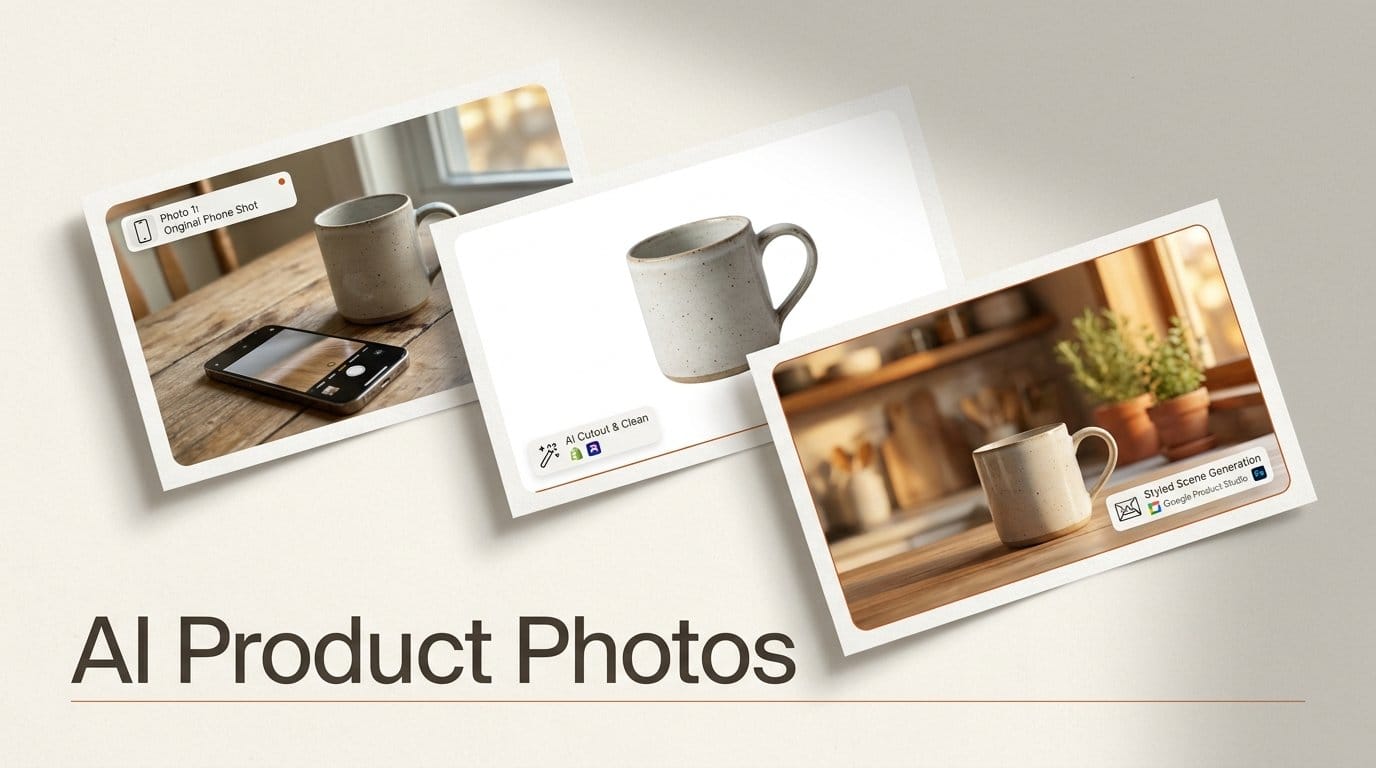
You can turn one phone photo of a product into a clean white-background listing image and a set of styled lifestyle scenes in about an hour with AI, and part of the toolkit is free. Shopify's file editor, Google's Product Studio in Merchant Center and Amazon's ad image generator all generate product scenes at no extra cost. Photoroom does the same job for any shop from US$7.50 a month, and Photoshop on the web adds a background for one generative credit. This guide shows which app fits which shop, the exact clicks in each, and how to check that every image still shows the item your buyer will actually receive.
We built it from each company's own help and pricing pages, checked October 19, 2026. We did not run these apps for this guide, so treat the steps as the vendors describe them. If a menu has moved, look for the image or file editor first.
What You Need
- One good photo of the real product. A recent phone is enough. Every tool below starts from your photo; the AI changes what is around the product, not the product itself.
- A plain spot with soft light: a table near a window, a sheet of white card behind the product.
- If you sell on Shopify: nothing extra. Shopify says media generation in the file editor is, for a limited time, available on all plans at no additional cost.
- If you sell through Google Shopping: a free Merchant Center account, which unlocks Product Studio.
- If you sell on Amazon: the white-background rules in Step 4, and an Amazon Ads account for the free ad image generator.
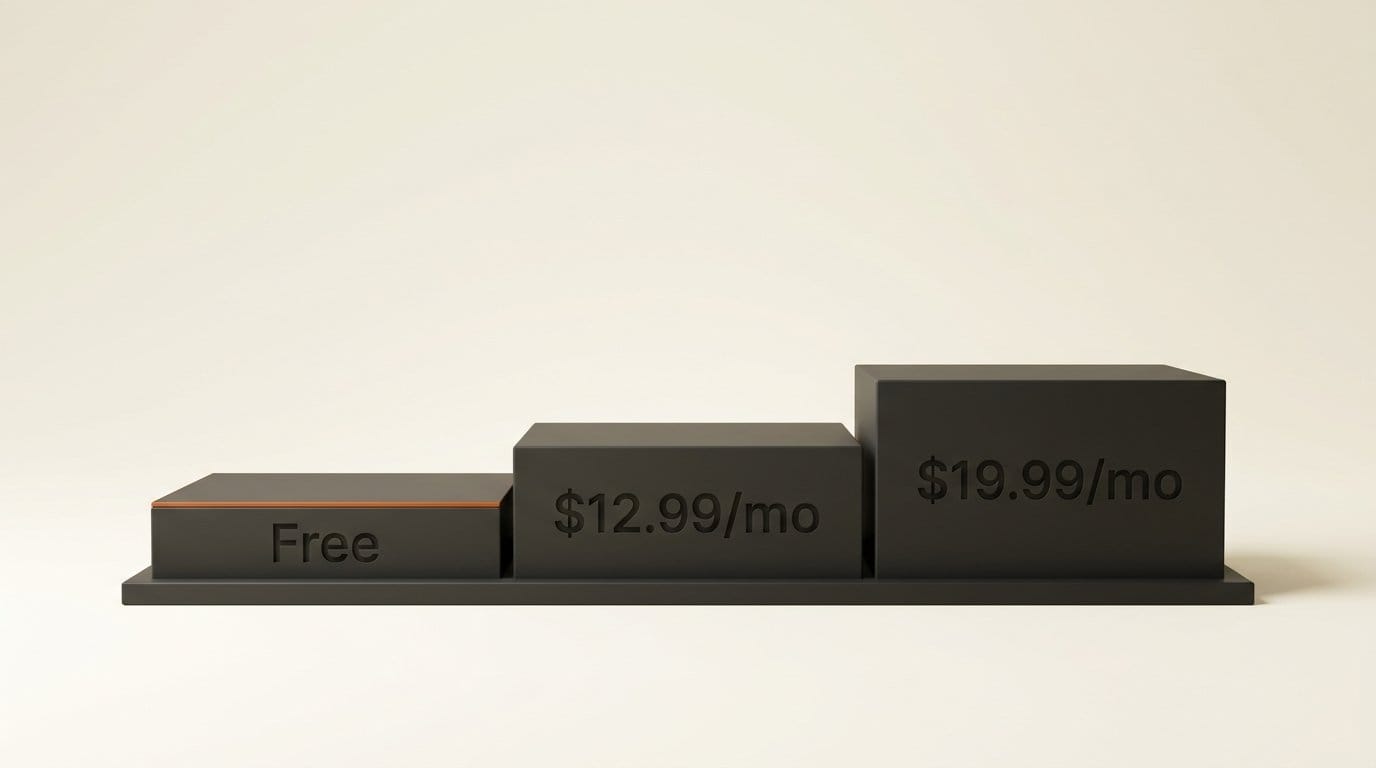
- Optional, for any shop: Photoroom Pro at US$12.99 a month, or US$7.50 a month billed yearly, with 8,000 AI credits and 1,000 exports a month.
- Optional, for designers: Canva Pro at US$144 a year, or Photoshop in Adobe's Photography plan at US$19.99 a month.
Which App for Which Shop
Start with the tool built into the place you already sell, because the edited image lands straight in your product listing with no download and upload. Reach for a standalone app when you sell in several places or need dozens of images at once.
| You sell on | Best tool | Cost | What it makes |
|---|---|---|---|
| Shopify | Shopify file editor: Color background, Generate | Free for a limited time, all plans | Solid backgrounds, prompted scenes, extended frames |
| Google Shopping | Merchant Center Product Studio | Free | 4 scenes per try, white backgrounds, sharper images, short videos |
| Amazon (ads) | Amazon Ads image generator | Free | Lifestyle images for ad campaigns |
| Several shops, or a big catalog | Photoroom | Free plan; Pro US$12.99 a month | Cutouts, shadows, AI backgrounds, batch edits |
| You already design in Adobe | Photoshop on the web: Generate background | 1 generative credit per generation | Backgrounds matched to your product's light |
| You need ads and social posts too | Canva | Canva Pro US$144 a year | Background removal and layouts with text |
Shoot a Photo the AI Can Work With
Step 1: Take the source photo
AI scene tools cut your product out and build new surroundings, so the cleaner the edge of the product, the cleaner the result. Put the product on a plain surface with a plain background, use soft daylight rather than the flash, and fill most of the frame with the product. Shoot straight on for the main image, then a few angles for the gallery.
Google says Product Studio works best with products "front and center", such as packaged goods, and that it does not support images with hands, wall art or light fixtures. Leave your hands out of the shot even if you plan to use another app, because a hand holding the product is the hardest edge for every cutout tool.
Step 2: Keep an untouched master
Export the original at full size and keep it in a folder named for the product. Shopify warns that unused scenes are deleted when you close its editor unless you save them, and Photoroom's free exports are smaller than its paid ones, so the master is what you return to when a scene goes wrong.
Make the White-Background Main Image
Step 3: Remove the background
In Photoroom, add your photo and run the Background Remover. Background removal, AI Shadows presets, Retouch and the Image Enhancer use no AI credits on the paid plans, under fair-use limits. On the free plan, Photoroom caps exports at 25 a week and 100 a month, at up to 2000 by 2000 pixels on the web.
In Shopify, go to the product image in your admin, click the thumbnail to open the file editor, and click Color background. Shopify detects the product, lets you correct the edge by hand, and swaps the background for the color you pick. In Product Studio, choose the Remove background card, pick the image and confirm; Google leaves only the product on a white background.
Step 4: Check it against Amazon's main-image rules
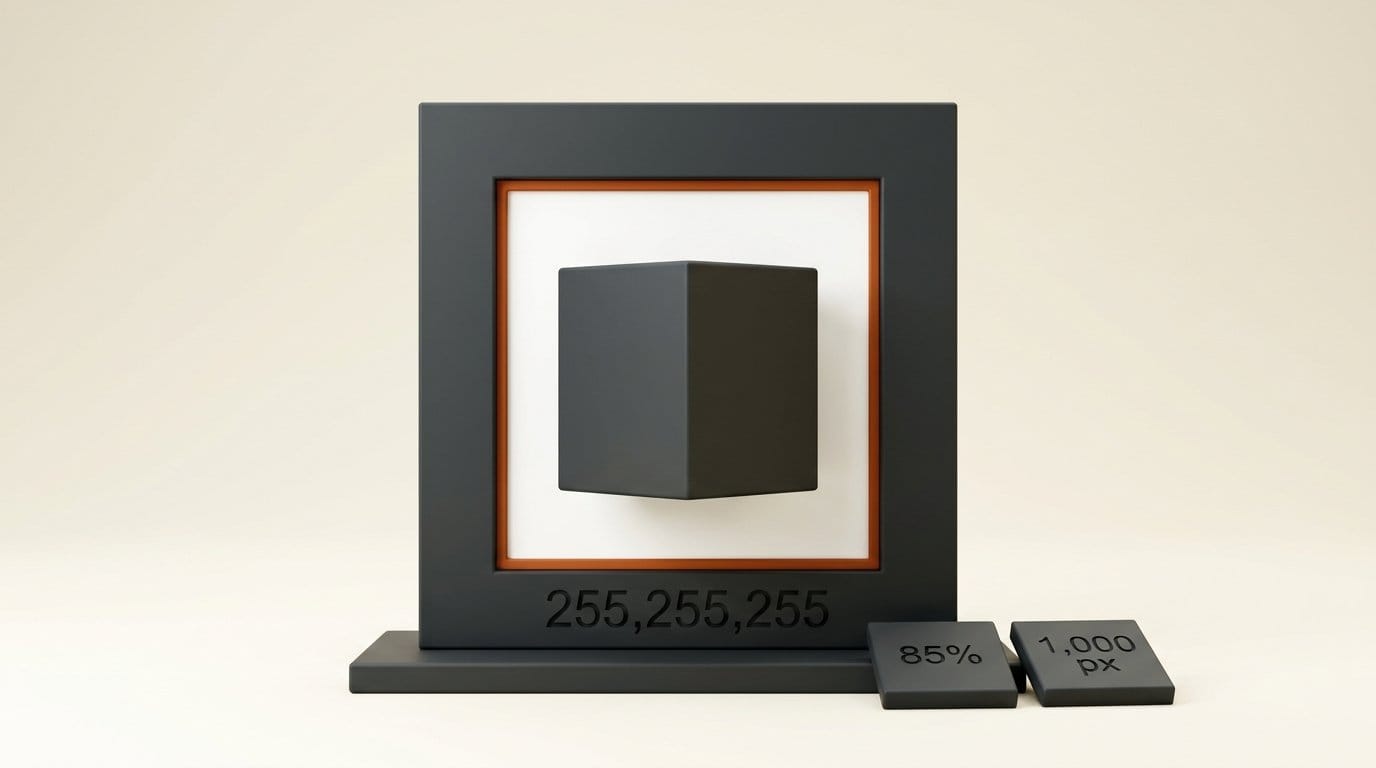
Amazon's are the strictest main-image rules most sellers meet, and a photo that passes them works almost anywhere. Its product image guide asks for a pure white background, RGB 255, 255, 255, and for the product to fill 85% of the image, shown whole, once, with no props that are not included. Images with 1,000 or more pixels on the longest side unlock zoom, and Amazon says not to artificially enlarge small images.
That last line matters with AI upscalers. If your photo is too small, reshoot it at full resolution rather than stretching it, and use a tool like Product Studio's Increase resolution only on photos that are already close.
Generate Lifestyle Scenes
Step 5: Shopify Generate, inside your store
Open the image in the file editor and click Generate. Type the scene in plain words and click Submit, then Save or Save as new. Shopify's media generation guide suggests prompts of at least 3 to 7 words, written as short phrases separated by commas, for example: in a sunny park, grass, bench under a tree, professional ad photography. Add a lighting word (warm even light, studio lights) and a camera angle (front shot, from above).
Three limits to know. Shopify generates one scene at a time, at a default of 1 megapixel, so start from a photo close to that size. An invisible watermark is applied to every generated image; Shopify says it does not restrict commercial use, but it cannot be removed. And to widen a tight crop, use the extend tool, which works on desktop only.
Step 6: Google Product Studio, free for Merchant Center sellers
In Merchant Center, open Creative content in the left menu, then Product Studio. Select Generate image, pick or upload the product photo, describe the product and the scene, or choose one of Google's seasonal themes, then select Generate image again. You get four images to compare; add the ones you like to your products.
Product Studio is free and open to all Merchant Center users except those based in Russia and France. Google calls it experimental, and it refuses regulated goods such as alcohol, tobacco and health devices. Any of the four results can go to Animate image, which turns it into a short product video; video is limited to sellers in Australia, Canada, India, Japan, the UK and the US.
Step 7: Photoroom AI Backgrounds, for any shop and big batches
Photoroom is the tool to use when you sell in several places or have a full catalog to restyle. On the web app, open the product catalog, select the images, choose Background, turn on Remove original backgrounds, then pick AI, type your scene prompt and apply. Its AI Shadows in batch are web-only, so do the batch work on a computer.
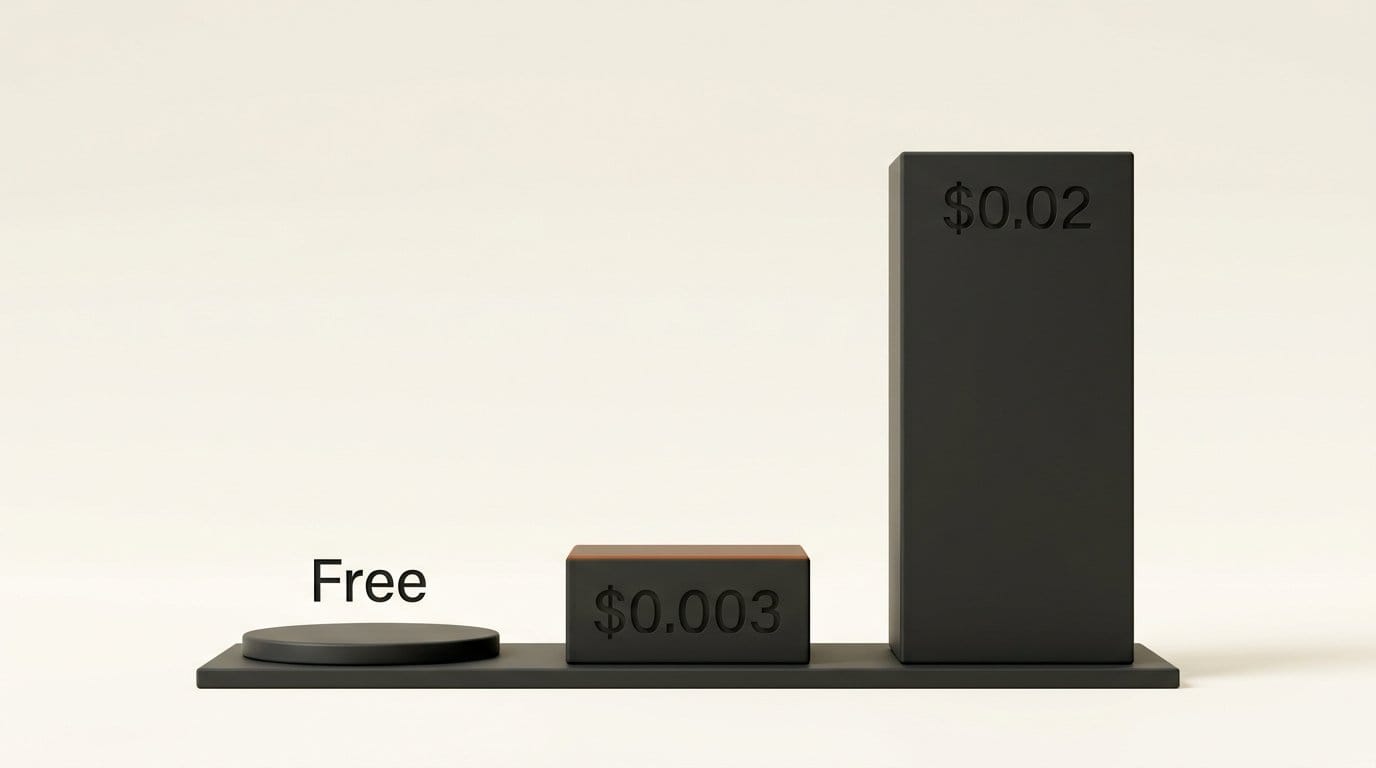
AI Backgrounds use credits. Photoroom says Pro's 8,000 monthly credits cover up to 4,000 basic AI Backgrounds Studio generations if you spend them all on that tool, which works out to about a third of a cent, roughly $0.003, per background at the US$12.99 monthly price. Credits can vary by country or region, and advanced versions of the tool use more of them.
Step 8: Photoshop on the web, when the light has to match
Upload the photo on the Photoshop on the web homepage, select Remove background in the Contextual task bar, then Generate background. Type the scene and select Generate. Adobe says the tool matches the lighting, shadows and perspective of your subject, and that each generation deducts one standard generative credit. Adobe's Photography plan is US$19.99 a month with 1,000 credits, so a background costs about $0.02 if you spend nothing else.
Step 9: Canva and Amazon Ads, for ads and social posts
Once the scenes exist, the job changes from listing photos to ads. Canva Pro, at US$144 a year, includes background removal among its AI tools, and its pricing page lists a Photo Background Generator; it is the quickest place to add a price, a headline and your logo for a sale post.
Amazon sellers who advertise can use Amazon's AI image generator, which Amazon says is free. In Amazon Ads, open the sidebar, go to Creative Tools, then Creative Studio, choose image generation, pick your product, refine the scene with prompts or themes, then save it or add it to a campaign. These images are for ads, not for replacing your listing's white-background main image.
Check Every Image Against the Real Product
A generated scene can quietly change what you are selling: a label redrawn, a color shifted, a mug that looks bigger next to an invented coffee cup. Amazon's guide asks that images accurately represent the real scale, quantity and color of the product, and buyers judge every shop the same way when the parcel arrives. Before you publish, put the scene beside your master photo at full size and check the label text, the color, the size against the props, and anything the AI added to the product itself.
Keep the white-background photo as the first image in every listing, use the scenes further down the gallery and in ads, and never let a scene show an accessory you do not ship.
Troubleshooting
- Jagged or missing edges. The background was too close to the product's color. Reshoot on a contrasting background, or correct the edge by hand in Shopify's Color background tool.
- The product looks pasted on. Add a shadow: Photoroom's AI Shadows presets are free on paid plans, and Photoshop's Generate background matches lighting automatically.
- Product Studio will not generate. Check for hands in the photo and whether your product is a regulated category; both are blocked.
- Shopify scenes look soft. Generation runs at 1 megapixel by default. Use it for gallery and social images, and keep your full-size photo for the main image.
- Amazon rejects the main image. Check for an off-white background, a product under 85% of the frame, a prop, or packaging that is not part of the product.
What to Try Next
Turn your best scene into a short clip with our guide to turning a product photo into an AI video ad. If a cutout keeps failing, our background removal models test shows which kinds of edges trip AI up, and how to remove objects from photos with AI covers the stray cable or crumb that survives the shoot.
FAQ
Is there a free AI product photo generator?
Yes. Google's Product Studio is free for Merchant Center users outside Russia and France, Shopify's file editor generates scenes free on all plans for a limited time, and Amazon's ad image generator is free for advertisers. Photoroom also has a free plan, capped at 100 exports a month.
Can I use AI-generated product photos on Amazon?
For the main image, use your real photo on a pure white background (RGB 255, 255, 255) with the product filling 85% of the frame. AI-made lifestyle scenes belong in the rest of the gallery or in ads, and every image must show the product's real scale, quantity and color.
How much does an AI product background cost?
Nothing inside Shopify, Product Studio or Amazon Ads. In Photoroom Pro, about a third of a cent ($0.003) per basic AI background. In Photoshop on the web, one generative credit, about $0.02 on Adobe's Photography plan.
Do Shopify's AI images have a watermark?
Yes, an invisible one that cannot be removed. Shopify says it does not restrict commercial use, so you can sell with the images.
What photo should I start from?
A sharp, well-lit photo of the real product on a plain background, without hands, with the product filling most of the frame. Keep the full-size original as your master copy.