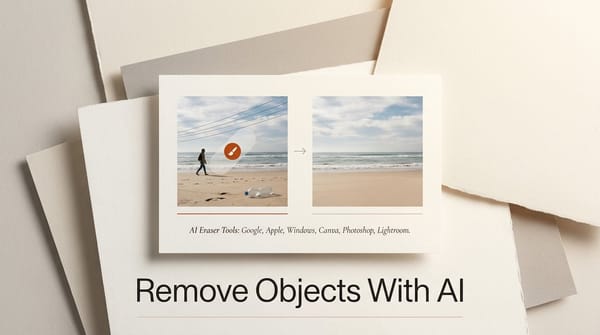
Adobe shipped a broad set of AI editing tools for Photoshop on August 27, 2026, headlined by a new prompt-based AI Assisted Editor and by Firefly Image 5 powering context-aware masked edits. The update pushes Photoshop toward a two-mode future: the familiar layer-and-tool Pro Editor, and a conversational editor where you describe the change in plain language and the model does the pixel work.
For creators, the practical question is not whether Photoshop has AI. It has had Generative Fill for years. The question is whether describing an edit is now faster than building it by hand, and where the new tools fit into a real production workflow. Here is what landed, how the pieces connect, and how to put them to work.
What Adobe Shipped
The August release is a bundle rather than a single feature. It spans generation, retouching, and lighting, and it splits across two editing surfaces. The centerpiece is the AI Assisted Editor, a simplified mode that runs alongside the traditional Pro Editor rather than replacing it. As Computerworld reported, the new mode offers a prompt-based editing option built around a text box and a side panel of generative actions.
Alongside it, Adobe upgraded the model layer. Instruct Edit with Masks now runs on Firefly Image 5 and reads the full lighting and perspective context of an image before it changes anything. A new Markup tool lets you draw directly on the canvas to show the model what you mean, and a Light Adjustment Layer brings non-destructive exposure, contrast, and shadow controls into a single adjustment layer. Prompt to Edit, Generative Fill, Generative Expand, Generative Upscale, Remove Background, and the Remove tool round out the set.

The AI Assisted Editor: A Prompt-First Mode
The AI Assisted Editor is the most visible change, and it is in beta. It presents a stripped-down canvas with a prompt bar and a side panel that surfaces generative actions like Generative Fill, Remove Background, and Markup. Instead of hunting through menus and toolbars, you type what you want and refine from there. As 9to5Mac noted, it is an optional mode, not a forced replacement, so nothing about the Pro Editor changes for people who prefer manual control.
That framing matters. Adobe is not deprecating layers, masks, or the pen tool. It is adding a second door into the same file, aimed at the moments when describing an edit is faster than executing it. A social post crop, a quick background swap, or an object cleanup no longer requires the full Pro Editor surface.
Firefly Image 5 and Instruct Edit With Masks
The quality jump comes from the model. Instruct Edit with Masks, now powered by Adobe Firefly Image 5, lets you mask a region, describe the change, and leave the rest of the image untouched. The upgrade Adobe emphasizes is context: Firefly Image 5 evaluates the lighting and perspective of the whole scene before generating, so a replaced object is more likely to match the shadows and angle already in the frame.
The Markup tool complements this. Rather than writing a paragraph to explain a change, you draw on the image, circling an area to recolor or marking where an element should move, and Firefly interprets the annotation. It is a more direct channel for the kind of spatial instruction that text struggles to carry.
Every New AI Feature at a Glance
| Feature | What it does | Where it lives | Status |
|---|---|---|---|
| AI Assisted Editor | Prompt-first editing mode with a generative side panel | New mode | Beta |
| Instruct Edit with Masks | Masked, context-aware edits on Firefly Image 5 | Both editors | Available |
| Markup | Draw on the image to direct an edit | AI Assisted Editor | Available |
| Prompt to Edit | Change an image with a natural-language prompt | AI Assisted Editor and Pro Editor task bar | Available |
| Light Adjustment Layer | Non-destructive exposure, contrast, and shadow control | Pro Editor | Available |
| Generative Fill and Expand | Add, replace, or extend content by prompt | Both editors | Available |
| Generative Upscale | Raise resolution while preserving detail | Both editors | Available |
| Remove Background and Remove tool | One-click background erase and object cleanup | Both editors | Available |
How to Use the New AI Editing Workflow
A typical prompt-first pass looks like this:
1. Open the image in the AI Assisted Editor. Switch modes from the editor selector. The prompt bar and side panel replace the full Pro Editor chrome.
2. Describe the primary change. Use Prompt to Edit for a whole-image instruction, such as changing a season, a time of day, or a backdrop.
3. Mask what must stay exact. For a targeted swap, mask the region and run Instruct Edit with Masks so Firefly Image 5 matches the surrounding light and perspective.
4. Use Markup for spatial edits. Draw on the canvas to recolor, move, or emphasize an element when words are ambiguous.
5. Finish in the Pro Editor. Jump back to layers for a Light Adjustment Layer pass, a Generative Upscale, or precise masking the prompt could not nail.
Why It Matters for Creators
The strategic move here is model choice plus mode choice. Adobe is positioning Photoshop as a place where the same file can be edited by prompt or by hand, and where the underlying generation runs on its own Firefly models rather than a single third-party engine. For working creators, that lowers the cost of a quick edit without giving up the manual precision that client work demands. Coverage from iTechPost framed the AI Assisted Editor as a major new editing mode, and that is the right lens: it is a second workflow, not a bolt-on button.
The beta label on the AI Assisted Editor is worth respecting. Prompt-based edits are fast for exploration and rough comps, but layer-level control still wins for final delivery where a client will zoom to 200 percent. The realistic pattern is prompt-first for speed, Pro Editor for finish.
How It Compares to Other AI Editors
Photoshop is not alone in pushing instruction-based editing. On the same day, Midjourney moved its own V8.2 generation model toward editing with a dedicated edit model, and standalone tools have been narrowing the gap between generate and edit for months. Our comparison of Ideogram P-Image against GPT-Image and FLUX and the breakdown of FLUX 3 as a single multimodal model both show the same trend: editing is becoming a prompt, not a procedure. Photoshop's advantage is that the prompt and the layer stack now live in one file.
Frequently asked questions
Is the Photoshop AI Assisted Editor free?
It ships inside Photoshop as part of Adobe's Creative Cloud plans. It is in beta, and generative actions consume Adobe's generative credits like other Firefly-powered features.
Does the AI Assisted Editor replace the normal Photoshop editor?
No. It is an optional mode that runs alongside the Pro Editor. Layers, masks, and manual tools are unchanged, and you can move between the two modes on the same file.
What is Firefly Image 5 and what changed?
Firefly Image 5 is Adobe's image model now powering Instruct Edit with Masks. The headline change is context awareness: it reads the full lighting and perspective of a scene before generating, so masked edits blend more naturally.
What is the Markup tool?
Markup lets you draw directly on an image to communicate an edit, such as circling an area to recolor or marking where an element should move, instead of describing it only in text.
When should I still use the Pro Editor?
Use the Pro Editor for final delivery, precise masking, non-destructive Light Adjustment Layer work, and any edit a client will inspect closely. Prompt-first mode is best for speed and exploration.
Can I upscale AI edits in Photoshop?
Yes. Generative Upscale raises resolution while preserving detail, and it is available across both editing surfaces alongside Generative Fill and Generative Expand.
What to Do Next
Open Photoshop, switch into the AI Assisted Editor, and run one real edit you would normally do by hand, a background swap or an object removal, then compare the time against the Pro Editor. If it is faster and the result holds up at full resolution, promote prompt-first editing to your default for comps and social work while keeping the Pro Editor for final delivery.