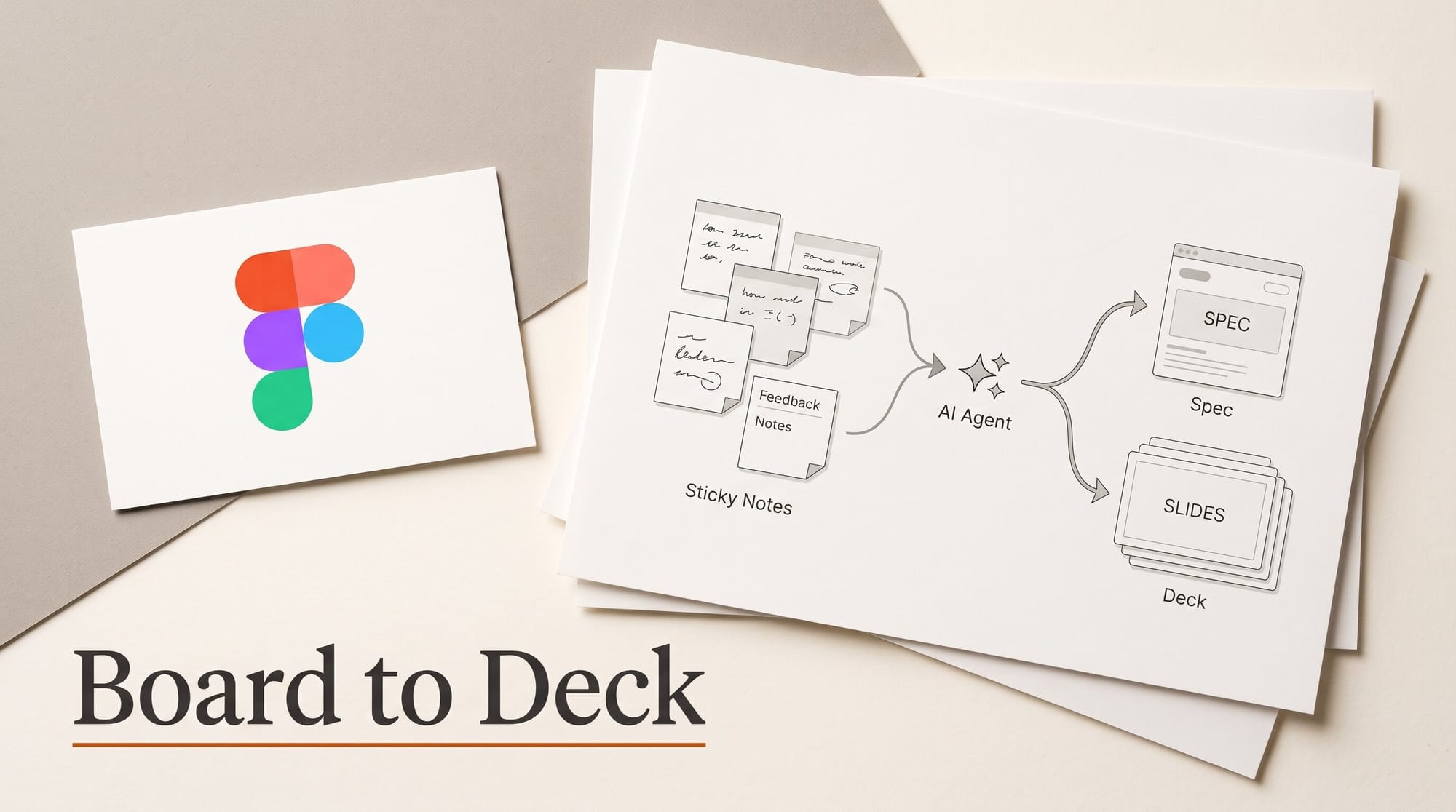
Figma made its agent generally available in FigJam and Figma Slides on November 23, 2026, on all paid plans. In FigJam it sorts sticky notes into themes, builds journey maps and turns a board of feedback into a draft spec. In Slides it turns a spec, a script or attached files into an outline and then a first-pass deck, rewrites a deck for a different audience and builds charts from a CSV or a screenshot of a spreadsheet.
For designers, marketers and anyone who runs workshops or pitches, this puts the messy middle of a project (the sticky notes, the crit feedback, the first deck) in the same app as the design files. Below: what the agent does in each app, which Figma seat you need and what it costs, a step-by-step route from a crit board to a deck, and the limits Figma lists in its Slides help article. Every detail comes from Figma's announcement, help center and pricing page, checked November 23, 2026. We have not run our own test deck yet.
What the Figma agent does in FigJam
FigJam is Figma's whiteboard. You open the agent from the Agents chat at the bottom left of a board, or select some sticky notes and click Ask agent in the toolbar. According to Figma's FigJam help article, it can:
- Set up brainstorming boards and diagrams from a prompt.
- Group sticky notes into themes and summarize what a board says.
- Build journey maps from research notes and data.
- Put action items in a table with owners and due dates.
- Read and act on comments, and give feedback from different points of view.
- Create and edit images, and export all or part of a board as a PDF or image.
- Search the web and your Figma files.
The new part is where it gets its material. The agent can pull from outside apps through verified partner connectors (Figma says there are more than 20, and you can add your own), and you can attach files to a prompt: Figma files, images, text files and PDFs. Interview notes in one place, survey results in another and a stakeholder's PDF in a third can all land on one board.
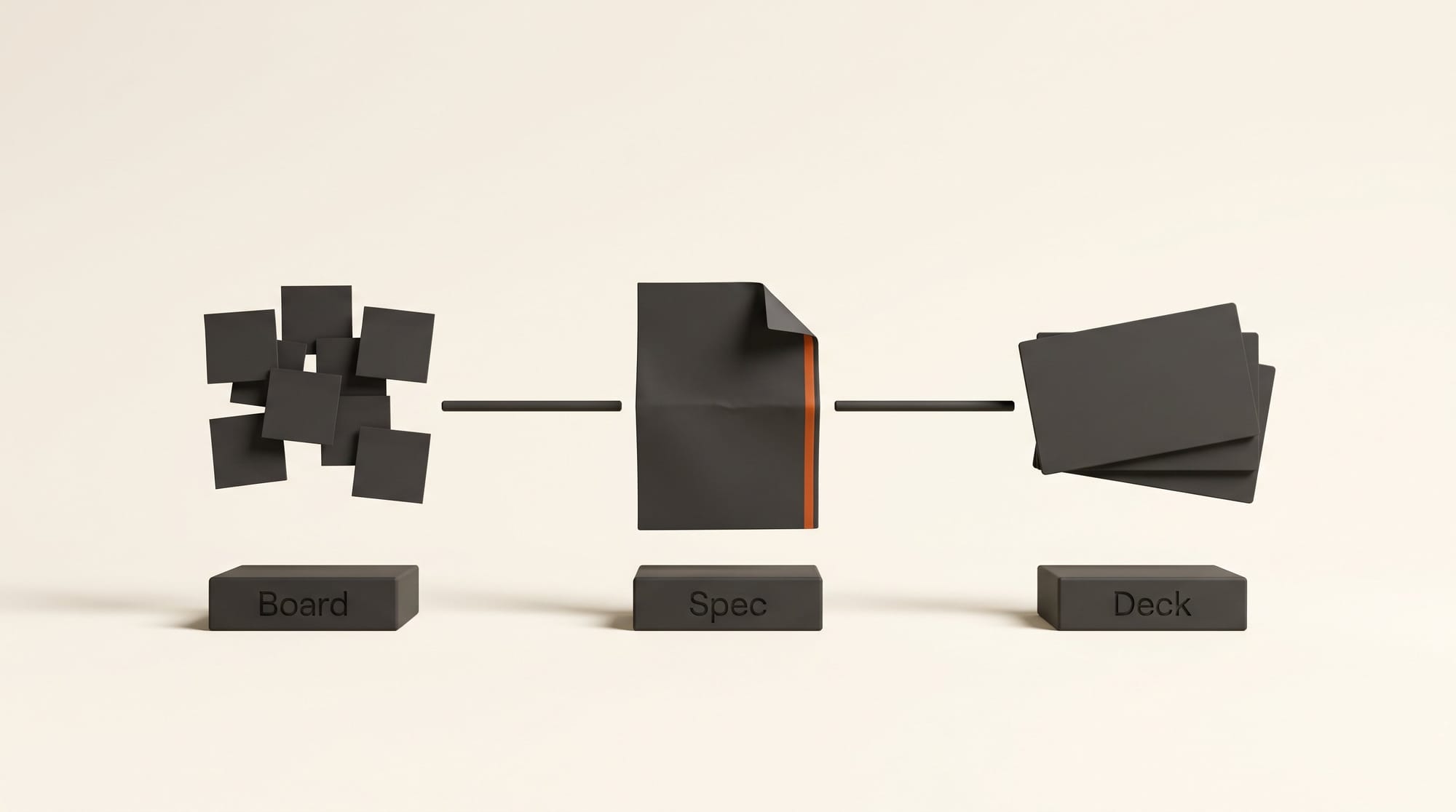
The agent can also turn a board into a draft Spec. Figma Specs, launched October 15, 2026, is a shared document that lives on the canvas next to your frames and boards. In the announcement, Figma Design Manager Megan Bednarczyk uses the agent to prepare for design crits, and engineering lead Johnny Dallas uses it to turn crit feedback into a draft spec with decisions, next steps and open questions.
What the Figma agent does in Figma Slides
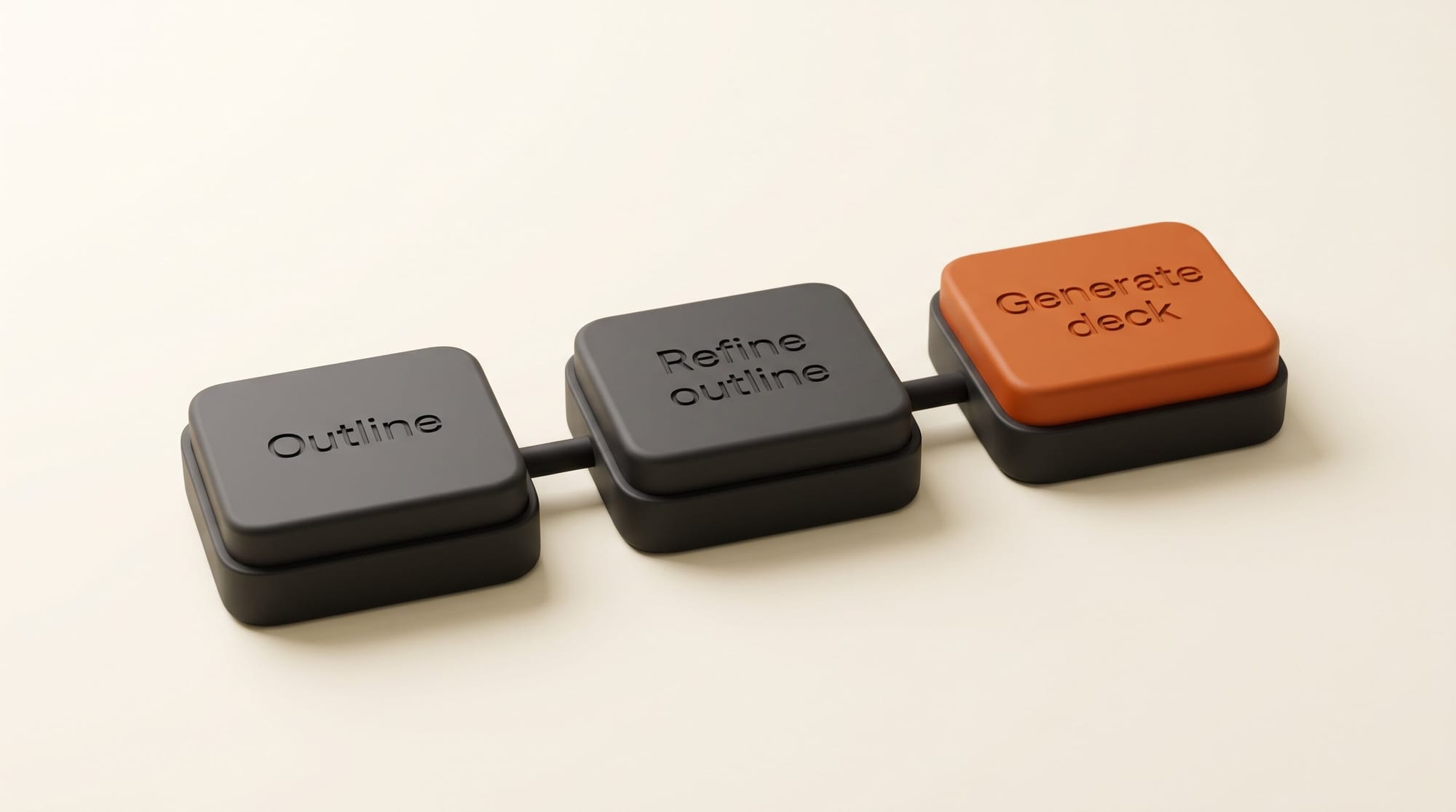
In a new Slides file you describe the presentation (audience, purpose, key points and roughly how many slides) and send it. The agent writes an outline first. You edit the outline directly or choose Refine outline, then click Generate deck. In an existing deck you open Agents in the left sidebar, or select layers on a slide and click Ask agent for a targeted edit.
The Slides help article lists what it handles fully:
- Generate a presentation from a prompt, source material or an outline, including presenter notes.
- Make bulk edits, add, duplicate and reorder slides, and change colors and sizing.
- Summarize a deck and critique your slides.
- Attach Figma files, images, documents, PDFs and data, and fetch public URLs.
- Use connectors, skills and web search.
Figma's announcement adds three jobs that matter for anyone who presents: adapting a deck for a different audience, shortening copy, and estimating how long the talk will run from your speaker notes. Brand designer Jarrod Barretto turns an executive script into a slide outline, then uses Generate deck. On charts he says: "I can be really precise about how I want a chart to look while letting the agent take care of the mathematical accuracy."
There is one catch to keep in mind. The agent uses your template for style guidance, but Figma warns that results may differ from the reference deck. Plan on a styling pass.
Which Figma seat you need, and what it costs
The agent in FigJam and Slides works on the Professional, Organization and Enterprise plans. Unlike the agent in Figma Design, it is not on the free Starter plan. Anyone with access to a board or deck can chat with the agent about its contents, but changes need edit access.
The cheapest way in is a Collab seat. Figma's pricing FAQ says a Collab seat includes full access to FigJam, Figma Slides, Figma Buzz and Figma Specs, but only view and comment access to Figma Design files. Here is what Figma's pricing page lists in US dollars, with the monthly AI credits each seat carries:
| Seat | Professional price | FigJam and Slides | Figma Design | AI credits a month |
|---|---|---|---|---|
| Collab | $3 a month | Full access | View and comment | 500 |
| Dev | $12 a month | Full access | View and comment | 500 |
| Full | $16 a month | Full access | Full access | 3,000 (3,500 on Organization, 4,250 on Enterprise) |
Credits are the real limit. Figma does not publish a fixed price per agent task: the FigJam and Slides help articles both say the credits used depend on how complex the task is. Figma's credits page says seat credits belong to one person, reset every month and do not roll over. When they run out, an admin can add a monthly credit subscription that the whole plan shares or turn on pay-as-you-go with a spending limit. Figma does not list those prices on the page. They appear in the admin's Add credits screen.
So a Collab seat at $3 a month gets you the agent in both apps with 500 credits. Someone who runs a workshop a week can find out whether that is enough. Someone who generates decks daily will probably need a Full seat's 3,000. Check your admin's usage screen after the first week before you upgrade anyone.

How to turn a crit board into a deck
This route follows the examples Figma's own team gave in the announcement. Allow about 30 minutes the first time.
- Collect the feedback on a FigJam board. Paste or type crit notes as sticky notes. Attach the meeting notes as a PDF or text file, or pull them in through a connector if your notes app is one of the verified partners.
- Ask the agent to sort it. Select the sticky notes, click Ask agent and prompt: "Group these into themes and name each theme." Then: "Put every action item in a table with an owner and a due date."
- Draft the spec. Ask: "Turn this board into a draft spec with decisions, next steps and open questions." Read it and fix anything the agent guessed. Undo reverts the most recent change if a step goes wrong.
- Open a new Slides file and add context. Use Add context to attach the spec (and any images or data), then describe the deck: who it is for, what it should argue and roughly how many slides.
- Edit the outline before anything is designed. This is the cheapest point to change the story. Reorder sections directly or use Refine outline, then click Generate deck.
- Finish by hand. Ask for a shorter version for executives or a runtime estimate from your speaker notes, then do a styling pass against your template and check every chart value against the source data.
If you only need a quick deck and have no board, skip to step 4 and attach your script or brief directly. Barretto does exactly that with an executive script.
The limits before you rely on it
Figma's help pages are unusually specific about what the agent cannot do yet. The ones creators will hit:
- Charts are drawings, not data. In Slides, charts are built from editable shapes and text, not native or data-linked charts. Figma's own advice is to verify values, proportions and labels. If the spreadsheet changes, the chart does not.
- No audio or video attachments in either app. A recorded crit has to become a transcript or notes first.
- Desktop and web only. The agent does not run in the mobile apps.
- Template matching is approximate. Reference decks guide the style but results can differ, and complex diagrams need a careful check.
- FigJam gaps. The agent cannot create or edit widgets, embeds or templates, and cannot run timers or voting. Custom fonts, charts and code blocks are partly supported, and bulleted lists may not display correctly.
- No credit price per task. You will not know what a deck costs in credits until you try one and look at usage.
Who should use it now
The agent has been in Figma Design since it became generally available on October 6, 2026, and Figma's November 9 roundup of uses was about design work: annotating frames, layout variations, shaders and motion. FigJam and Slides bring it to the people around the designer: researchers, product managers, marketers and workshop facilitators, most of whom already sit on a Collab seat.
Use it now if your team already lives in FigJam and keeps losing the thread between the board and the deck. The board-to-spec-to-deck route removes a round of copy and paste. Wait if your decks are data-heavy reports that need live charts, or if your brand template is strict enough that a styling pass on every slide erases the time saved. Solo creators on the free Starter plan cannot use the agent in FigJam or Slides at all.
Frequently asked questions
Is the Figma agent free in FigJam and Slides?
No. It needs a Professional, Organization or Enterprise plan. The cheapest seat with full FigJam and Slides access is Collab, listed at $3 a month on Professional with 500 AI credits a month. Agent tasks spend those credits.
How many AI credits does a Figma Slides deck use?
Figma has not published a number. Its help articles say credit use depends on the complexity of the task, so the only way to know is to generate a deck and check usage in the admin settings.
Can the Figma agent make charts from a spreadsheet?
Yes, from data such as a CSV file or a screenshot of a spreadsheet. The charts are built from editable shapes and text, not live data-linked charts, so check every value and they will not update when the data changes.
Can the Figma agent turn FigJam sticky notes into a spec?
Yes. It can group sticky notes into themes, put action items in a table with owners and due dates, and turn a board of feedback into a draft Figma Spec with decisions, next steps and open questions.
Does the Figma agent work on the Figma mobile app?
No. In FigJam and Slides it runs only in the desktop app and the web browser.
Can I attach a video or a voice memo for the agent to use?
No. Audio and video attachments are not supported in FigJam or Slides. Turn the recording into a transcript or notes first, then attach that as a text file or PDF.