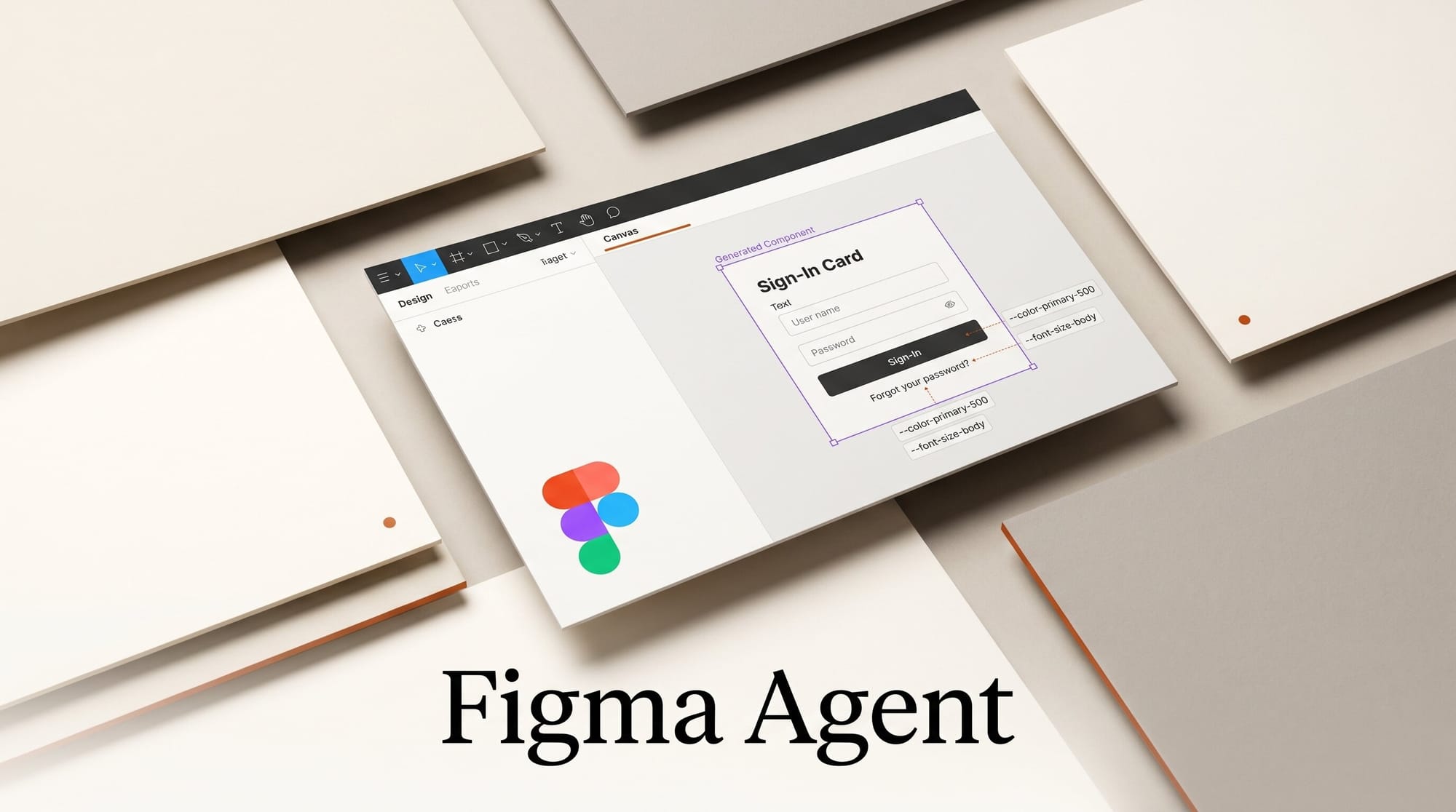
Figma launched its Design Agent on May 20, 2026, an AI assistant embedded natively inside Figma Design that writes frames, components, and tokens directly to your canvas. The beta is free during preview, opens to full seat users on Professional, Organization, and Enterprise plans, and works with the Claude Code and Codex integrations Figma shipped earlier in February. This tutorial walks you through the full 30-minute setup: join the beta, connect Claude Code through Figma's MCP server, write a Skills file that teaches the agent your team's component conventions, and ship your first AI-built screen end-to-end. Cost: free during beta; once general availability hits, standard Figma AI credits apply.
What You Need
- A Figma seat on the Professional, Organization, or Enterprise plan as a full seat user (Collab and Dev seats can use the agent in draft files only).
- An MCP-compatible client: Claude Code, Cursor, GitHub Copilot, Augment, Factory, or Warp.
- A documented Figma component library. The agent reads your components, variables, and auto layout constraints directly, so output quality scales with how well-structured your library already is.
- An API key for whatever LLM your MCP client calls (Anthropic, OpenAI, or Gemini). The agent is harness-agnostic about which model drives the loop.
- A small test file with two or three production components ready to wire in. Do not run the agent on your live design system on day one.
The Workflow
Step 1: Join the Beta Waitlist
Open figma.com/ai and request access. Rollout is gradual; eligible accounts receive an email within a few days. According to The AI Insider, Figma is staging access by plan tier and seat type, so Organization and Enterprise accounts tend to clear the queue first. If you do not see the Agent panel after activation, sign out of the Figma desktop app, sign back in, and reload your file; the feature flag is sticky to the session.
Expected result: a new Agent button in the right-side panel of any Figma Design file. The button only appears when you are on a full seat in a Professional, Organization, or Enterprise team.
Step 2: Connect Your MCP Client to Figma
Figma's canvas-write MCP server shipped in March 2026, then expanded in February with native Claude Code and Codex integrations covering the design-to-development loop, including the Claude Code to Figma code-to-canvas roundtrip. For this tutorial, install the Figma MCP server in Claude Code:
claude mcp add figma --transport sse https://mcp.figma.com/sseAuthenticate when prompted (browser flow, Figma SSO). Verify with claude mcp list; you should see figma with status connected. The same pattern works for Cursor, Copilot, Augment, Factory, and Warp; the MCP transport details are identical, only the client command differs. Reference the MCP spec if your client uses stdio rather than SSE.
Step 3: Write a Skills File for Your Component Library
Skills are markdown files that teach the agent your team's conventions, including which components map to which UI patterns, naming rules, and spacing tokens. Nine community skills shipped at launch covering library generation, accessibility annotations, token sync, and workflow orchestration. To write your own, create figma-use.md in your repo and describe how your library is organized:
# /figma-use
Navigation bars: use Components/Nav/PrimaryBar with the brand color token.
Cards: use Components/Card/Default. Apply Spacing/16 between stacked cards.
Modals: use Components/Modal/Confirm with the destructive variant for delete flows.
Forms: use Components/Form/Field for inputs. Pair with Components/Form/Label.
Install the skill on the file via the agent's command palette (/figma-use). The skill loads at the start of every agent session and is the single largest lever on output quality. A sparse skill file with three components yields generic output; a detailed file with twenty mapped patterns yields production-ready screens.
Step 4: Run Your First Prompt
Open the test file, click the Agent button, and prompt:
Build a user settings page with profile fields, notification toggles,
and a delete account button. Use our component library.
Expected output: the agent assembles the page using your actual components, applies your spacing tokens, places the destructive variant on the delete button, and produces a frame that is immediately editable. Time to first frame is roughly 30 to 60 seconds for a 5 to 7 component page on the current beta infrastructure.
Open the layers panel and confirm the agent used named components from your library rather than generic rectangles. If it produced primitives instead of components, your skill file is not detailed enough; iterate on Step 3 and re-run.
Step 5: Run Multiple Agents in Parallel
One of the Design Agent's most useful features is that multiple agents can operate on the same canvas simultaneously. Open three or four prompt windows and assign each a different surface: one builds the settings page, another generates a dark-mode variant, a third runs an accessibility annotation pass, a fourth pulls FigJam architecture diagrams from your codebase via the FigJam agent skills. This is closer to how product teams actually work than a single sequential prompt-and-wait loop.
According to TechCrunch's launch coverage, Chief Design Officer Loredana Crisan framed this as letting teams "focus on creative direction rather than tedious execution." In practice it means you can scope the agent to a narrow surface, run it concurrently with manual design work, and review output asynchronously.
Step 6: Roundtrip with Claude Code
This is where the February integrations pay off. From Claude Code in your terminal, run:
claude "Generate a React component for the settings page that matches the Figma file at "Claude reads the file via the MCP server, pulls component specs, and produces matching code. Then the reverse: drop the rendered React output back into Figma via the Code to Canvas skill, and the agent converts production code into editable Figma frames. The full design-to-development-to-design loop completes without manual spec copying. The same flow works with Codex; switch the client and the loop is unchanged.
How It Compares to Adobe and Canva
Figma's bet is component-aware design generation tied to a real library. Adobe Firefly in Illustrator focuses on raster and vector asset generation, not screen layouts, and operates outside the design system. Canva Magic Studio sits closer to Figma in intent but works against Canva's own template system rather than a custom library; output looks polished but is harder to align with brand standards encoded in tokens. Our State of AI Design Tools 2026 deep dive covers the full landscape including Framer and Gamma, and the Adobe Firefly workflow guide documents the Firefly-Illustrator pairing if you want a side-by-side.
Troubleshooting
Agent button does not appear. You are on a Collab or Dev seat, or your account is not yet on the access list. Check seat type in team settings; if you are a full seat user, recheck the waitlist confirmation email and reload the file.
Output uses generic rectangles instead of library components. The skill file is too sparse or the component names in your library do not match the patterns referenced in the skill. Open your library, copy the exact component path (for example Components/Nav/PrimaryBar), and paste it into the skill file.
MCP server times out on first connect. Sign out of all Figma sessions, sign back in through the SSO flow, then re-add the MCP server. Token refresh is required after extended inactivity.
Roundtrip from Claude Code drops styling. The Code to Canvas skill needs Code Connect mappings between your React components and Figma components. Without Code Connect the agent can render structure but not the design system bindings.
Multiple agents collide on the same frame. Scope each agent to a distinct frame ID or page; the Design Agent does not yet have a built-in lock around shared regions, and concurrent edits on the same frame can produce conflicting layers.
What to Try Next
Once the basic loop works, expand into FigJam agents for architecture diagrams generated from your codebase, and connect Figma Make for prompt-to-prototype output. Make recently added voice-to-text prompts and a Zapier connector covered in our Figma Make update. For broader context on the agentic design canvas, our Figma canvas opens to agents deep dive documents the March MCP rollout the May agent now builds on.
FAQ
Can I use the Figma Design Agent on the free plan?
No. Beta access requires a full seat on Professional, Organization, or Enterprise plans. Collab and Dev seat holders on those plans can use it in draft files only. The free Starter plan is not eligible during beta and is unlikely to receive access at general availability.
Does the agent work without Claude Code or Codex?
Yes. The Design Agent runs natively inside Figma Design without any MCP client. Claude Code and Codex add the design-to-code roundtrip, but the canvas-side agent works on its own. Most designers will start with the native agent and add MCP integration later when the development handoff becomes a bottleneck.
Is the agent free during beta?
Yes. Figma confirmed at launch that the agent costs no AI credits during the beta period. Once general availability ships, usage-based pricing applies. Figma has not published the per-action rate; expect it to align with existing Figma AI credit consumption.
How is this different from Figma AI image references and Figma Make?
Image references generate raster previews; Make produces functional prototypes from a prompt; the Design Agent writes editable Figma frames using your real components. The three serve different stages of the design process. Image references are for inspiration, Make is for clickable prototypes, and the Design Agent is for production design work tied to your library.
What happens if the agent produces a bad layout?
You edit it like any other Figma frame. The agent's output is editable native Figma content, not a flattened image or a locked block. Component instances stay connected to your library, so future library updates propagate to agent-built frames the same way they would to any human-built frame.
Does Figma train on my files?
Figma's existing content policy applies. Files on Organization and Enterprise plans are excluded from training by default. Professional plan files follow the standard opt-out controls in account settings. The Design Agent does not change this policy; it inherits whatever data setting your team already configured.
When does the agent reach general availability?
Figma has not announced a date. Q1 2026 revenue grew 46% year-on-year to $333.4M with full-year guidance raised to roughly $1.425B, which suggests the agent is a strategic bet rather than a quick experiment. Expect a phased rollout through 2026 with FigJam agent capabilities expanding alongside the Design Agent.