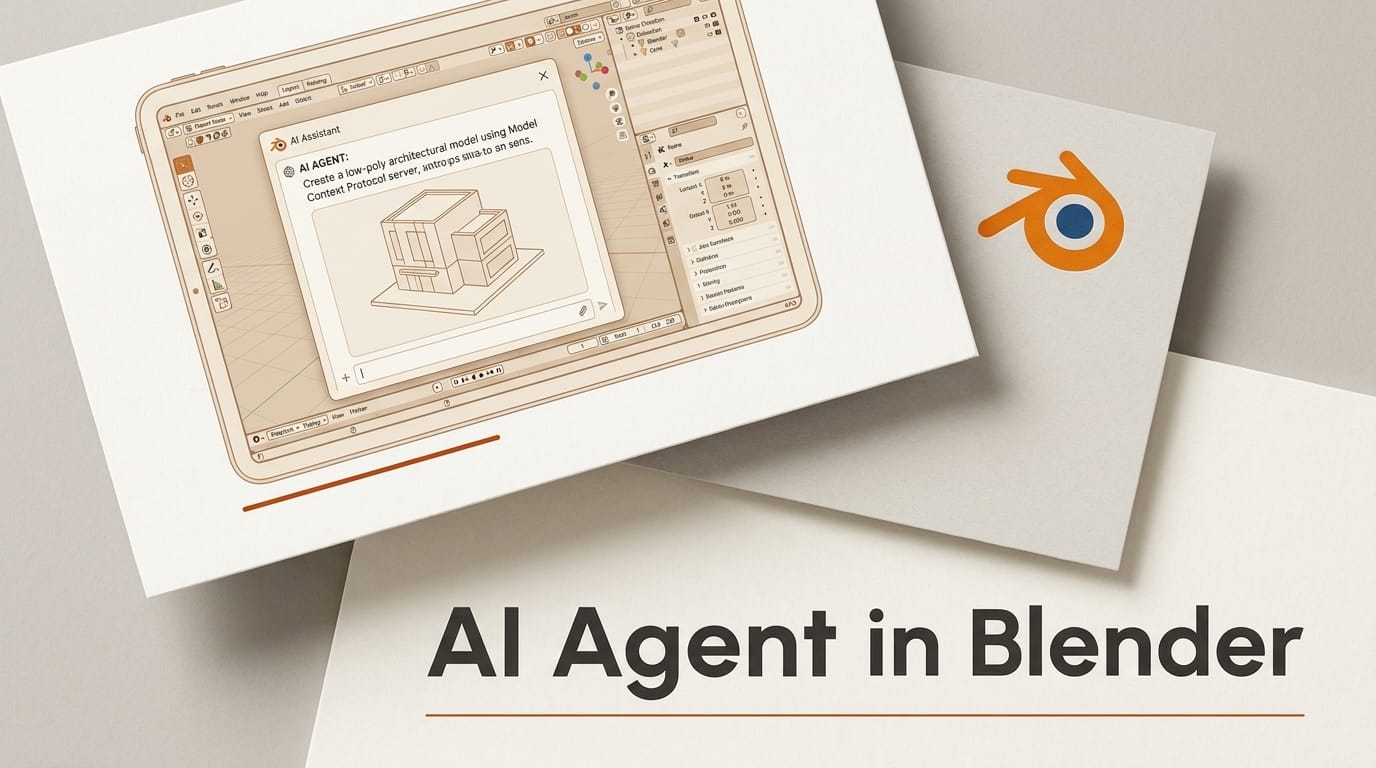
You can hand your 3D scene to an AI agent and build by conversation: describe a shot, and the agent creates the objects, applies materials, drops in real assets, and renders, all inside Blender. The bridge that makes this work is the Model Context Protocol (MCP), and the fastest way to try it is the open-source blender-mcp server. This tutorial walks through the full setup end to end. Budget about 15 minutes, and it costs nothing beyond the model tokens your agent already uses.
What You Need
- Blender 3.0 or newer, installed and open.
- Python 3.10 or newer on your machine.
- The uv package manager from Astral (the server runs through
uvx, not pip). - An MCP-capable agent: Claude Desktop, Cursor, or any client that reads an MCP config file.
- The
addon.pyfile and the config snippet from the blender-mcp repository.
The Workflow: Wire an Agent Into Blender in 15 Minutes
The setup has six steps. The first three install the pieces, the last three connect them and put the agent to work. Save any open Blender project before you start, because the server can run Python inside your session.
Step 1: Install uv and the MCP server
The blender-mcp server ships as a Python package that uvx fetches and runs on demand, so you install uv once and never touch a virtual environment by hand. On macOS run brew install uv. On Linux run curl -LsSf https://astral.sh/uv/install.sh | sh. On Windows, use the PowerShell installer from the uv docs and confirm uv is on your PATH. Expected output: uv --version prints a version number in your terminal.
Step 2: Install the Blender addon
Download addon.py from the repository. In Blender, open Edit, then Preferences, then Add-ons, click Install, and select the file. Enable it by ticking the box next to "Interface: Blender MCP". Expected output: a BlenderMCP panel now appears in the 3D viewport sidebar. Press N inside the viewport if the sidebar is hidden, then look for the BlenderMCP tab.
Step 3: Point your agent at Blender
Tell your MCP client how to launch the server. In Claude Desktop, open Settings, Developer, Edit Config, and add this block to claude_desktop_config.json:
{
    "mcpServers": {
        "blender": {
            "command": "uvx",
            "args": ["blender-mcp"]
        }
    }
}
In Cursor, paste the same block under Settings, MCP, or drop it into a .cursor/mcp.json file in your project. Restart the client. Expected output: the agent lists a "blender" MCP server with a green or connected status.
Step 4: Start the socket connection inside Blender
Switch back to Blender, open the BlenderMCP sidebar tab, and click "Connect to Claude" (or the connect button for your client). This starts a socket connection between the running Blender session and the server. Expected output: the panel shows a listening state. If the agent restarts or Blender closes, you reconnect from this panel, since the link only lives while both are open.
Step 5: Drive Blender with your first prompts
Now talk to your scene. Start with a read, so the agent learns the current state before it changes anything: "Describe the current Blender scene, list every object and its location." The agent calls the scene-inspection tool and returns a summary. Then issue a build instruction: "Create a low-poly wooden table with four legs at the origin, then add a soft area light above it and a camera framing it at a three-quarter angle." Expected output: the objects appear in the viewport as the agent runs each command, and it reports back what it created. Keep prompts specific about position, scale, and materials; vague prompts produce vague geometry. Work in small increments and inspect after each one, the way you would review a coding agent's diff before accepting it. If a step goes wrong, undo in Blender and rephrase, rather than piling more instructions onto a broken scene.
Step 6: Pull in real assets
The server can reach asset libraries so the agent is not modeling everything from primitives. Enable the Poly Haven toggle in the BlenderMCP panel to let the agent search Poly Haven for models, HDRIs, and textures. The server also supports AI-generated meshes through Hyper3D Rodin and model search through Sketchfab. Try: "Set the world lighting to a studio HDRI from Poly Haven, then find a ceramic mug model and place it on the table." Expected output: the agent downloads the asset, imports it, and positions it in your scene.
Troubleshooting Common Failures

- Agent shows no blender server. The config file has a syntax error or the client was not restarted. Validate the JSON and relaunch.
- "Connect" does nothing. uv is not installed or not on PATH. Run
uv --versionin a terminal; if it fails, reinstall uv and restart the client so it inherits the updated PATH. - Connection drops mid-session. Blender crashed or was closed. Reopen Blender and click Connect again; the socket does not survive a restart.
- The agent edits the wrong objects. Ask it to inspect the scene first, then reference objects by exact name. Naming is how MCP tools target geometry.
- A prompt wrecks your file. The server runs arbitrary Python, which is powerful and risky. Always save before a big instruction, and keep incremental versions so you can roll back.
What to Try Next
Once the basic loop works, extend it. Swap in Blender's own official MCP server if you want a first-party option instead of the community build. Feed the agent reference geometry generated elsewhere, such as a mesh from an image using a local image-to-3D tool, then let the agent clean it up and light it. The same connect-an-agent-to-a-creative-app pattern works beyond Blender: it is how teams already drive Unreal Engine from Claude and Gemini. From there, build a repeatable loop: keep a short spec of the scene you want in a text file, paste it as the opening prompt each session, and let the agent rebuild from a known baseline instead of freehanding every time.
Frequently Asked Questions
Do I need to know Python to use blender-mcp?
No. The agent writes and runs the Python for you. Knowing the basics helps you read what it does and catch a bad instruction before it runs, but you drive the whole workflow in plain language.
Is blender-mcp free and open source?
Yes. The server is released under the MIT license, so you can inspect it, modify it, and use it commercially. Your only running cost is the model tokens your agent consumes.
Which agents work with it?
Any MCP-capable client. Claude Desktop and Cursor are the most common, and both use the identical server config. If your client reads an MCP config file, the same "blender" block works.
Is it safe to let an agent run code in my scene?
Treat it like any tool that executes code. The server runs arbitrary Python inside Blender, so save your work first, keep versioned files, and review large instructions before approving them. For untrusted workflows, run it on a scratch project, not your production file.
Can I build my own MCP tools on top of this?
Yes. MCP is an open standard, so once you understand the client-server handshake you can wrap other apps the same way. Our guide on how to deploy your own MCP server to Claude and ChatGPT covers the pattern end to end.