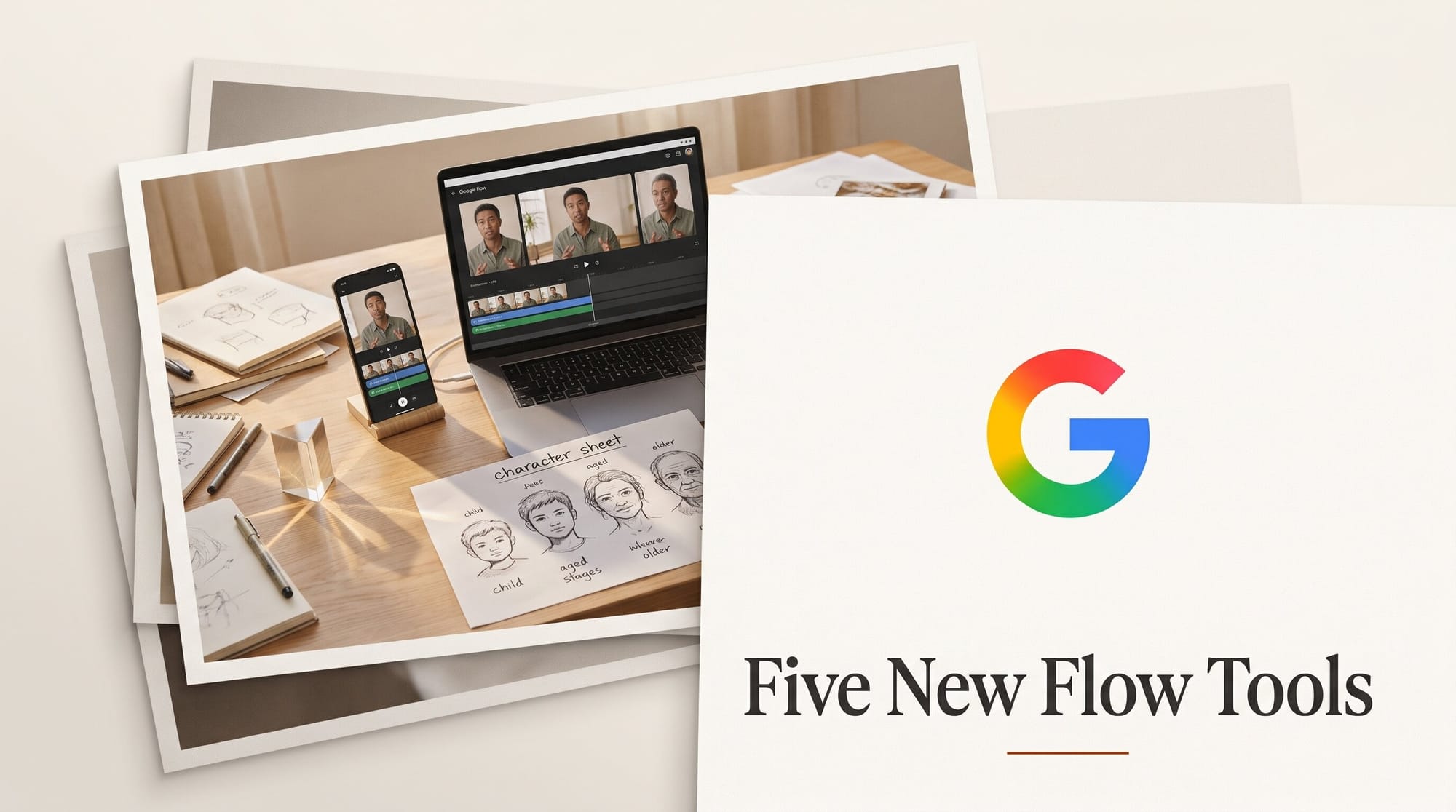
Google added five artist-built tools to Google Flow, its AI creative studio, on November 12, 2026. The set includes Pocket Studio, which turns a single phone take into several camera angles while keeping the actor's performance, plus Character Poster, Character Arc, Pixel Machine and Lucid Glass. All five are free to open from a shared link, and Google's Labs announcement says you can try them in Flow today.
The tools themselves are small. What matters is what they cost to run and what they let you build. Running a tool spends either Flow credits (video) or your daily image allowance (pictures), and the two are counted differently on every Google AI plan. This guide covers what each tool does, what a run costs on each plan, and three workflows you can try this weekend. We have not run the tools ourselves yet; every number below comes from Google's own help pages, and estimates are labelled as ours.
What Google added to Flow on November 12
Each tool was built inside Flow by a working artist for their own projects, then shared. Google's post links each one to its shared page in Flow, which is how you open it:
| Tool | Built by | What it does | Best for |
|---|---|---|---|
| Character Poster | James Gerde, artist and filmmaker | Turns a simple story idea into a styled poster with one consistent look | Social series, cover art |
| Character Arc | Anurag Tiwari, filmmaker | Shows the same character at different ages and life stages without losing the core look | Documentary, story development |
| Pixel Machine | Anurag Tiwari | Converts images into bitmap, ASCII, CRT, pixel art and glitch styles | Title cards, transitions, music videos |
| Lucid Glass | Ezra Paulekas, creative director | Simulates light through glass: prisms, halos, refractions, optical blooms | Photographers, music artwork |
| Pocket Studio | Ryan McCoy, previs and VFX artist | Generates multiple camera angles from one phone take and upgrades the image, keeping the original performance | YouTubers, teachers, talking-head video |
This is the second batch. On September 23, Google released six earlier artist tools, including CaptionCast (transcribes, styles and animates multilingual captions), ThumbnailForge (one image plus a headline into social thumbnails) and Mondo Sónico (ambience and foley on separate, exportable stems). With eleven shared tools, Flow is turning into a shelf of single-job apps rather than one big prompt box.
How Flow Tools work, and who can build one
A Flow Tool is a small app with its own buttons and sliders, written by Flow's agent from a plain-language description. Google's Tools help page sets out the rules:
- Using a tool is open to everyone. Without a plan you can explore and run the pre-built and shared tools.
- Building your own needs a plan. Creating a custom tool requires Google AI Plus, Pro or Ultra.
- Web and PC only. Tools do not run in the Flow phone app yet.
- Building is free, within a daily quota. Agent queries do not cost Flow credits, but there is a daily cap on how many tools you can create.
- Everything a tool makes lands in your open project, next to your other clips and images.
- Sharing exposes the code. Anyone with your link can see the tool's code, name and thumbnail, and the link shares the version from the moment you copied it. The only way to stop sharing is to delete the tool.
That last point matters if you build a tool around a client's look or a private prompt recipe: share the output, not the tool.
What running a tool costs on each plan
Flow counts video and images separately, and a tool can use either. Google's credits help page says every account gets 50 Flow credits a day, and paid plans add a monthly pool. Its image help page says generating and upscaling images does not currently use credits at all; each plan has a daily image limit per model instead. Plan prices are from Google's US subscriptions page:
| Plan (US price) | Flow credits for video | Nano Banana Pro images | Nano Banana 2.1 + 2 Lite images | Can build tools |
|---|---|---|---|---|
| No plan ($0) | 50 a day | Up to 20 a day | Up to 400 a day | No |
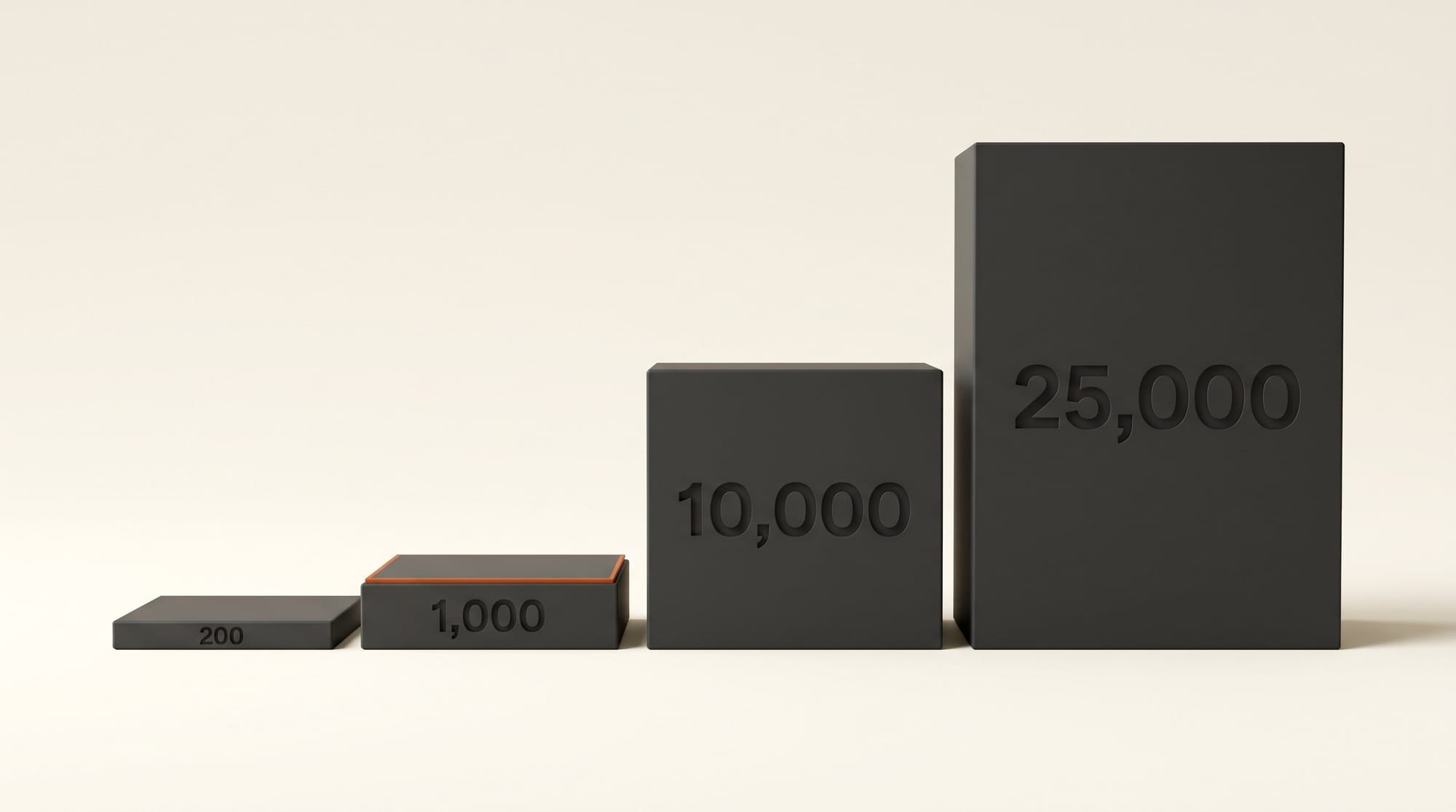
| Google AI Plus ($4.99/month) | 50 a day + 200 a month | Up to 100 a day | Up to 1,000 a day | Yes |
| Google AI Pro ($19.99/month) | 50 a day + 1,000 a month | Up to 100 a day | Up to 1,000 a day | Yes |
| Google AI Ultra ($99.99/month) | 50 a day + 10,000 a month | Up to 500 a day | Up to 1,000 a day | Yes |
| Google AI Ultra ($199.99/month) | 50 a day + 25,000 a month | Up to 500 a day | Up to 1,000 a day | Yes |
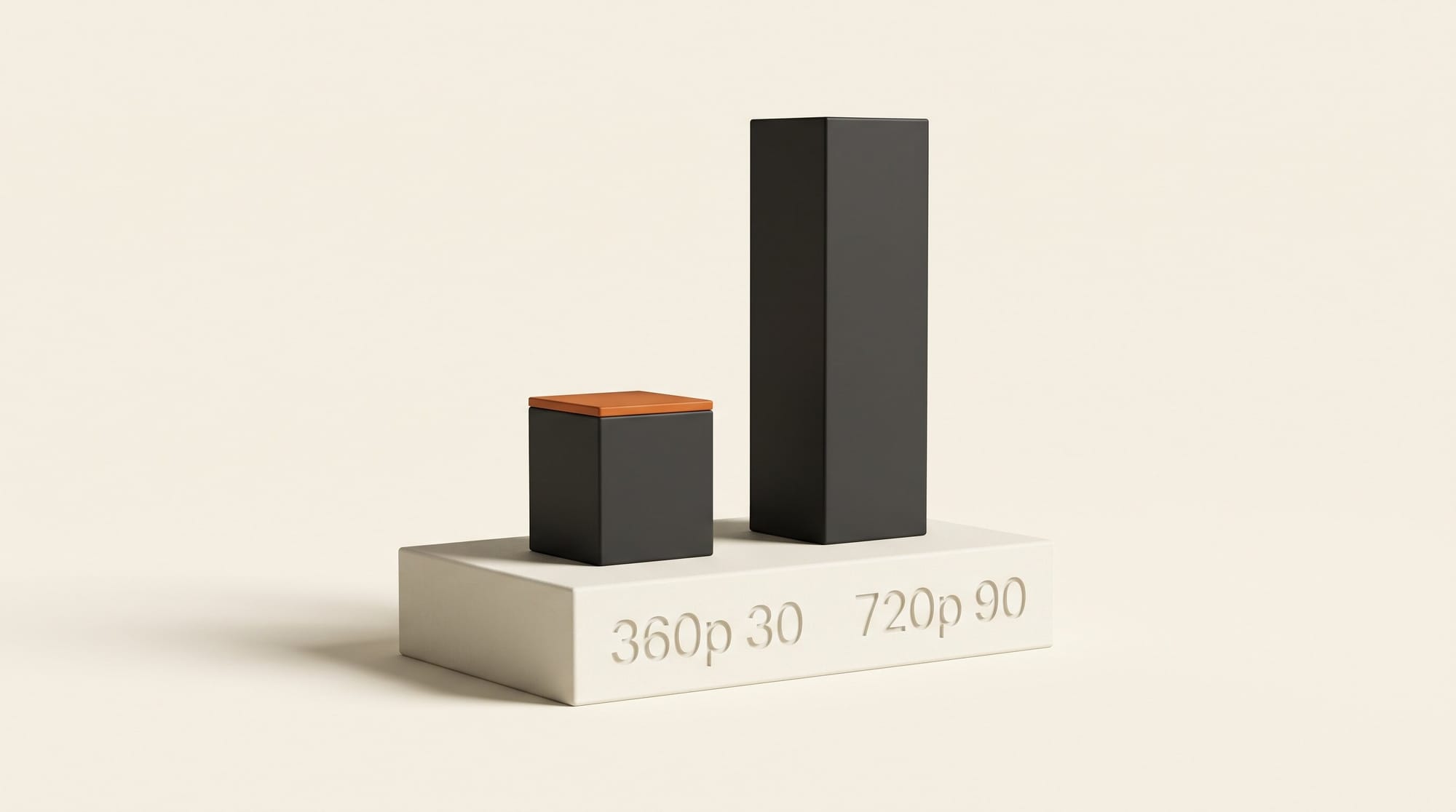
Video is where credits go. Omni Flash 1.2, Flow's main video model, costs 1 credit a second at 360p and 3 credits a second at 720p for clips and edits up to 10 seconds. Subscribers can upscale a video to 1080p for 0 credits up to 10 seconds. Unused daily credits do not roll over, and neither do monthly ones.
One wrinkle: the Tools page says media made through a tool uses your Flow credits, while the image page says images do not. Read together, the safe reading is that the video steps of a tool cost credits and the image steps count against your daily image limit. Flow settles it for each run: if a tool might use credits, it shows a warning banner before you start.
Workflow: one phone take, three camera angles with Pocket Studio
Pocket Studio is the tool most creators will want, because a second camera angle normally means a second camera and someone to run it. Here is how to try it without burning a month of credits:
- Shoot a clean take. Phone on a stand, steady light, one person, 10 seconds or less. Flow's edit tier for all users tops out at 10 seconds, and the cheapest pricing step stops there too.
- Open Flow on a computer in Chrome or Edge, start a project, then open the Pocket Studio link with that project open.
- Upload the take and pick the angles you want. Read the credit banner before you press generate.
- Draft cheap, finish sharp. If the tool lets you choose 360p, draft your angles there, then upscale the keepers to 1080p, which costs subscribers 0 credits for clips up to 10 seconds.
- Cut it like a multicam shoot. Export the angles from your project and lay them on parallel tracks in Premiere Pro, DaVinci Resolve or CapCut against your original audio.
Our estimate of the cost, assuming Pocket Studio renders each angle as a 10-second Omni Flash 1.2 edit (Google has not published a per-tool price): an angle at 720p would be 30 credits, so three angles of one take come to 90 credits. On Pro's 1,000 monthly credits that is about 11 takes a month, roughly $1.80 of a $19.99 plan per take. On Plus's 200 credits it is two takes. At 360p the same three angles would be 30 credits, which fits inside the free 50 daily credits even with no plan.
Google says the tool keeps the actor's original performance intact. That is Google's claim, not a measured result, so check lips and hands closely on the first run before you build an edit around it.
Workflow: keep one character consistent with Character Arc and Character Poster
Character consistency is the oldest problem in AI image work (we covered the manual method in our character consistency guide). These two tools package the fix:
- Lock the look first. Open Character Arc and generate your character at the age your story starts. Anurag Tiwari is using it to trace the protagonist of his documentary "Children of the Sun" from childhood to adulthood.
- Generate the life stages you need: child, teen, adult, older. Keep the ones where the face still reads as the same person.
- Move to Character Poster with your chosen image and a one-line story idea ("let's go to the beach" is Google's example) to make a styled poster in a consistent house look.
- Finish in your usual app. Add titles and sizes in Canva or Photoshop. Pixel Machine can give a title card a CRT or ASCII treatment if the series has a retro feel.
On image limits, Pro allows up to 100 Nano Banana Pro images a day, and Flow's image help says the agent uses Nano Banana Pro by default. A full life-stage sheet plus a handful of posters is a few dozen images, comfortably inside one day on Plus or Pro.
Remix a shared tool into your own
The quickest way to a custom tool is not a blank prompt. It is a remix. Open any shared tool, choose More, then Remix tool, and Flow makes a personal copy you can change by describing the edit. Remixing and building need Plus, Pro or Ultra.
- Remix the closest tool. Want ASCII titles in your brand colors? Remix Pixel Machine.
- Describe one change at a time, for example: "Add a slider for scanline strength and lock the palette to cream, charcoal and orange." Click Generate, review the new interface, then Save.
- Rename it and set an icon from the More menu so you can find it again, then Favorite it to see it in every project.
- Share only if you are happy for the recipe to be public, because the link includes the code.
The Superpower Daily write-up makes the same point: the release hands creators ready-made workflows alongside Flow's existing option to build their own. The five tools are as much templates as finished products.
Which tool to try first
If you make talking-head video, start with Pocket Studio, at 360p, on the free daily credits; it is the only one of the five that could replace gear. If you run a recurring character or series, pair Character Arc with Character Poster; both run on image limits, so they cost nothing extra on a plan you already pay for. Pixel Machine and Lucid Glass are finishing tools: open them when a title card or cover needs a look, not as a reason to subscribe. And if you only want to try, you do not need a plan at all: all five open from their links with the 50 free daily credits.
Frequently asked questions
Are the new Google Flow tools free?
Opening and running them is free with a Google account: you can explore and use pre-built and shared tools without a plan, and every account gets 50 Flow credits a day. Anything a tool generates still draws on those credits (video) or your daily image limit (pictures). Building your own tool needs Google AI Plus, Pro or Ultra.
How many Flow credits does Pocket Studio use?
Google has not published a per-tool price, and Flow shows a banner before any run that may use credits. If each angle is a 10-second Omni Flash 1.2 edit, our estimate is 30 credits per angle at 720p and 10 at 360p, so three angles cost about 90 or 30 credits.
Do images made with Flow tools use credits?
Google's image help page says generating and upscaling images in Flow does not currently use Flow or AI credits. Each plan has a daily image limit per model instead, from up to 20 Nano Banana Pro images a day with no plan to up to 500 on Ultra.
Can I use Google Flow tools on my phone?
Not yet. Google's help page says Tools are available on web and PC only, and recommends a Chromium-based browser such as Chrome or Edge on a computer.
Who can see my custom Flow tool?
Only you, until you share it. Anyone with a shared link can see the tool's code, name and thumbnail, and the link always points to the version from when you copied it. To stop sharing, you have to delete the tool.
Which Google AI plan should I get for Flow tools?
Plus at $4.99 a month is enough to build and remix tools and adds 200 monthly video credits. Pro at $19.99 adds 1,000 credits, which is the practical floor if Pocket Studio becomes part of your weekly edit. Ultra only makes sense for daily video production.