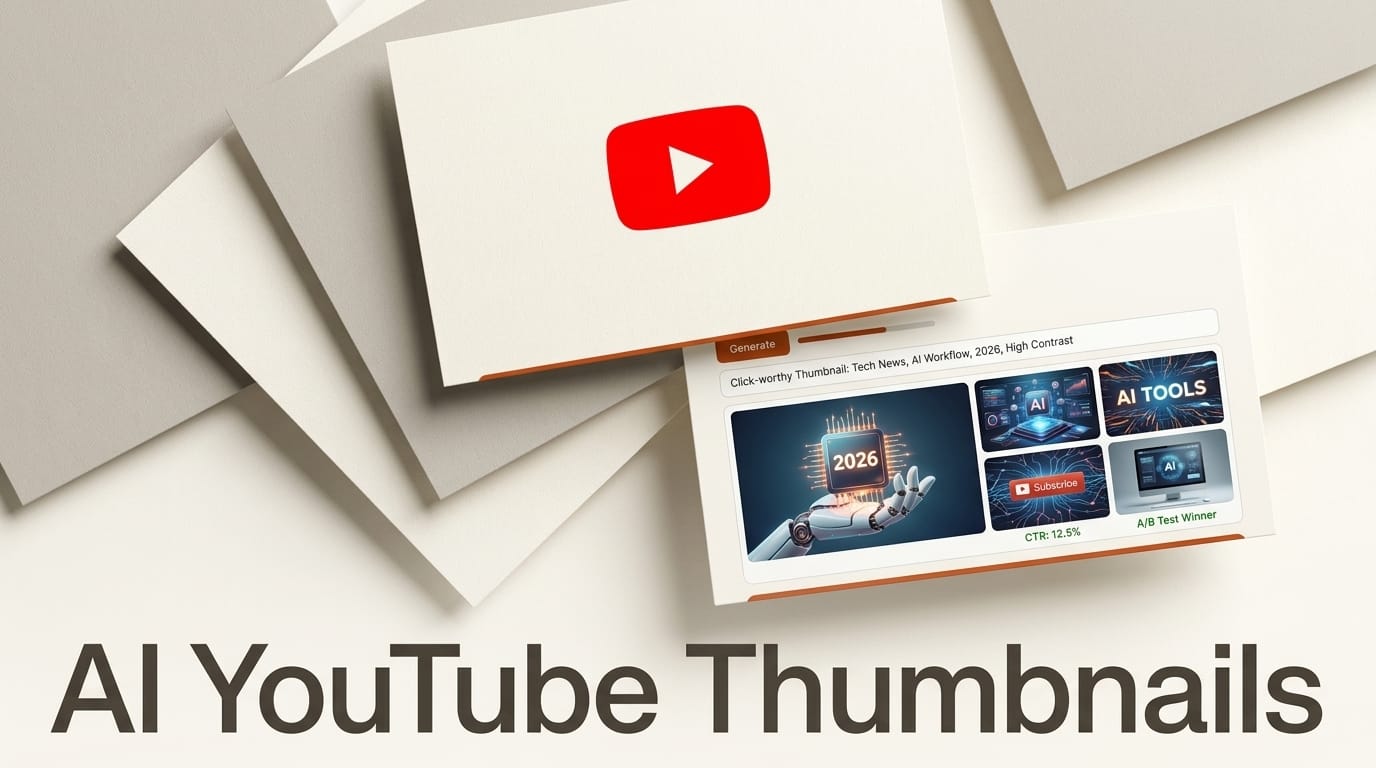
A YouTube thumbnail decides whether your video gets clicked or scrolled past, and you can now design a professional one with AI in under 20 minutes for a few cents. This tutorial walks through a repeatable workflow: generate a bold base image, add legible text, cut out a clean subject, and export at the exact size YouTube wants. You will use a mix of free and low-cost tools, and every step includes the prompt or setting to copy. No design degree required, just a clear idea of what your video promises.
What You Need
You do not need every tool below. Pick one image generator, one text-and-layout tool, and a background remover, and you are set. The whole kit costs nothing to start and under 15 dollars a month if you upgrade.
- An image generator for the base scene. Google's Nano Banana (the Gemini image model) and Recraft both produce sharp, high-contrast art that reads well at small sizes. If you want to generate through code or an automation, the Gemini API image endpoint exposes the same model.
- A tool that renders clean text inside the image. Most generators still mangle words, so use Ideogram for typographic thumbnails or add the text on top afterward in an editor.
- A layout and editing surface. Canva has free 1280x720 YouTube templates, and Adobe Firefly handles generative fill and text effects if you want more control.
- A background remover. remove.bg cuts your face or product out of a photo in one click so you can paste it onto the AI background.
- A source photo of yourself or your subject, shot against any background, with an expressive face or a clear product angle.
The AI Thumbnail Workflow
Follow these steps in order. The first pass takes about 20 minutes; once you build a template, later thumbnails drop to five.
1. Write the promise before you touch a tool
A thumbnail sells one idea, not the whole video. Before generating anything, write the three-to-five word hook that will appear as text, for example "I Tried 100 AI Tools" or "This Broke My Render." The words drive the image, not the other way around. Decide the emotion too: shock, curiosity, or reward. That single choice sets the facial expression, color, and composition for everything that follows.
2. Generate the base image at 16:9
Open your image generator and set the aspect ratio to 16:9 so the output matches YouTube's frame. Prompt for a scene, not a poster, and leave room for text and your subject. A reliable prompt structure is: subject plus setting plus lighting plus mood plus "leave the left third empty for text overlay." For example: "A cluttered desk glowing with monitors and cables, dramatic orange rim lighting, dark moody background, cinematic, leave the left third empty for text overlay." Generate four variations and keep the one with the strongest focal point and the most negative space.
3. Add legible text
Type rendering is where most AI thumbnails fall apart. You have two clean options. Either generate the whole thumbnail in a text-first model like Ideogram by adding "with bold text that reads HOOK in a heavy sans-serif" to your prompt, or generate the background only and set the text yourself in Canva or Firefly. For reliability, the second approach wins: real editors give you exact fonts, outlines, and drop shadows. If you want to compare which models actually spell words correctly, see our breakdown of the best AI image generators for text.
4. Cut out your subject and composite
Faces lift click-through rate because viewers connect with people. Drop your source photo into remove.bg, download the transparent cutout, and paste it onto the AI background in your editor. Place it on the opposite side from your text, scale it so the face fills roughly a quarter of the frame, and add a subtle outline or glow to separate it from the background. Keep the subject and text on opposite thirds so neither crowds the other.
5. Push contrast and color
Thumbnails compete in a crowded grid, so bump saturation and contrast until the image pops on a phone screen. Limit yourself to two or three dominant colors and make the text color the loudest of them. A bright accent on a dark background almost always outperforms a busy, evenly lit scene. If your generator produced muddy midtones, run a generative relight or simply drop a dark gradient behind the text.
6. Export at 1280x720 under 2MB
YouTube recommends a resolution of 1280x720 pixels at a 16:9 aspect ratio, saved as JPG or PNG, and under 2MB. Export at that size or larger, then check the file weight. If a PNG runs heavy, save as JPG at 90 percent quality. Preview the thumbnail at the size of a stamp before you upload; if you cannot read the text or recognize the face at that scale, it will fail in the feed.
Design Rules That Earn the Click
The tools are easy; the judgment is what separates a thumbnail that works from one that blends in. A few rules hold across almost every high-performing channel.
One idea, big. Amateur thumbnails cram three concepts in; winners show one, large. Faces beat objects. An expressive face outperforms a clean product shot in most niches because emotion is contagious. Contrast is king. Dark backgrounds with one bright element read instantly on both light and dark app themes. Text is a headline, not a caption. Three to five words maximum, in a heavy font, that add information the title does not repeat. Leave breathing room. Empty space around your subject makes the whole image feel premium and readable. For deeper tool comparisons across image styles, our guide to the best AI image generators of 2026 covers which models suit which look.
Troubleshooting Common AI Thumbnail Problems
The text comes out as gibberish. Stop asking the generator to write it. Generate a text-free background and set the words yourself in Canva or Firefly, or switch to Ideogram for the typographic pass.
The face looks fake or plastic. Do not generate your own face from scratch. Photograph yourself and composite the real cutout onto the AI background so the human element stays authentic.
Everything looks flat and gray. Your prompt lacked lighting direction. Add "dramatic rim lighting" or "single strong key light" and pick a dark background so a bright subject can pop.
The thumbnail is unreadable on mobile. You packed in too much. Cut the text to three words, enlarge the subject, and delete any secondary element that is not carrying the hook.
What to Try Next
Once the base workflow feels natural, build a reusable template in Canva with your fonts, colors, and text position locked so every video stays on brand and takes minutes. Try A/B testing two thumbnails on the same video using YouTube's built-in test and compare through rate. And explore using the Gemini image model through its API to batch-generate background variations, then pick the strongest by eye rather than generating one at a time.
Frequently Asked Questions
What size should a YouTube thumbnail be?
YouTube recommends 1280x720 pixels at a 16:9 aspect ratio, saved as JPG, PNG, or GIF, and kept under 2MB. That resolution stays sharp on desktop, mobile, and TV.
Which AI tool is best for YouTube thumbnails?
There is no single winner. Use an image model like Nano Banana or Recraft for the base scene, Ideogram or a manual editor for text, and remove.bg to cut out a real face. The layered approach beats relying on one tool to do everything.
Can AI generate readable text on a thumbnail?
Text-focused models like Ideogram render short phrases well, but general image models often garble words. The most reliable method is to generate a text-free background and add the words yourself in a layout tool where you control the font and outline.
Is it against YouTube rules to use AI thumbnails?
No. YouTube allows AI-generated and AI-assisted thumbnails as long as they are not misleading or deceptive about the video's content. Keep the promise honest and you are fine.
How much does an AI thumbnail cost to make?
You can build one for free with Canva templates and free image-generation tiers. If you upgrade, expect a few cents per generated image and roughly 10 to 15 dollars a month for a paid editor or generator plan.