The best AI noise reduction for most photographers is the one already in Lightroom, if you pay for Adobe and shoot raw. DxO PureRAW 6 is the best buy-once option at $139.99 and the strongest pick for Fujifilm shooters. Topaz Photo is the one to add when your noisy files are JPEGs, phone shots or screenshots, and Pixelmator Pro is the cheap Mac answer at $49.99.
How we compared them: we read each vendor's own pages, help guides and price lists on November 9, 2026, then sorted the four tools by five photo jobs creators actually have, from a dark wedding reception to an old phone JPEG. We did not run our own side-by-side test on raw files, so this guide tells you which tool fits which file, what each costs, and how to run a fair test of your own with the free trials before you pay.
Quick Picks
Pick Lightroom Denoise if you already pay for Adobe's Photography plan and shoot raw. It costs nothing extra, it sits in the Detail panel next to your other edits, and since the April update it runs in the background while you keep culling.
Pick DxO PureRAW 6 if you want to pay once, shoot Fujifilm, or clean sensor dust from a whole shoot. It cleans raw files before you edit them and hands Lightroom a cleaner file to start from.
Pick Topaz Photo if your noisy files are not raw. It works on JPEGs, TIFFs and PNGs as well as raw files, and it plugs into Photoshop, Lightroom Classic, Capture One, Apple Photos and Affinity.
Pick Pixelmator Pro if you edit on a Mac and want one slider for $49.99. It removes grain from low-light shots and heavily compressed images, with a before-and-after split view.
Five Photo Jobs, Four Tools Compared
Noise reduction tools split on one question before any other: does the tool see the raw sensor data, or only the finished picture? Tools that read the raw file can separate noise from detail far better, because they work before the camera's colors and sharpening are baked in. That is why three of the four tools below behave differently on raw files and on JPEGs.
Job 1: A dark event or wedding, shot on a regular camera at high ISO
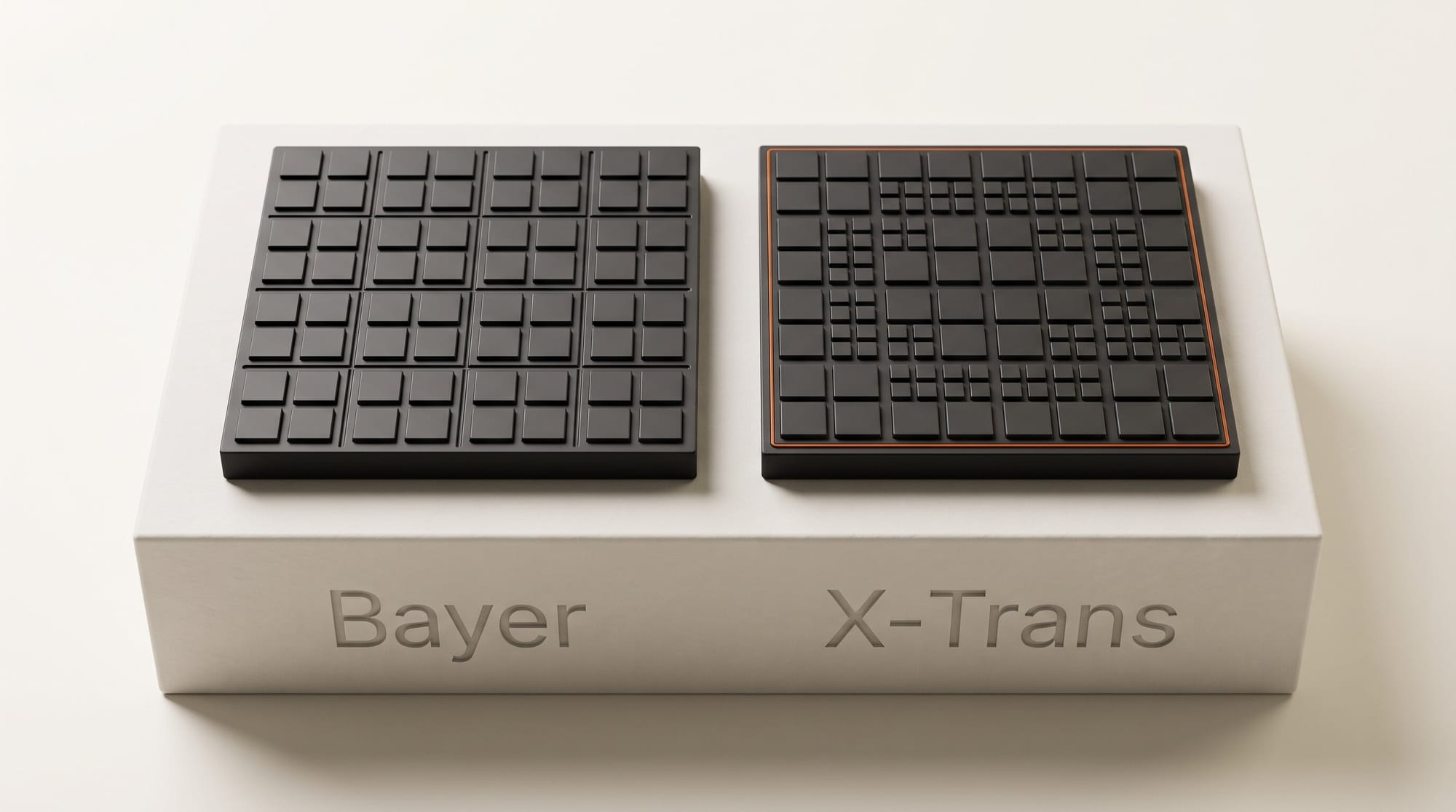
This is the job all four tools were built for. Adobe's Lightroom Denoise works on Bayer and X-Trans raw files, linear DNGs (including HDR and panorama merges made in Lightroom or Camera Raw) and Apple ProRAW. Since Lightroom Classic 14.4 it is a normal Develop setting with an Amount slider: you can copy it to the rest of the set or save it in a preset, and Lightroom no longer makes a separate "Enhanced" copy of each photo.
DxO PureRAW 6 takes the opposite route. You send a batch of raw files from Lightroom through its plugin, it processes them with its DeepPRIME engines, and the cleaned files return to Lightroom with your metadata intact. DxO says its DeepPRIME 3 engine gains "the equivalent of up to two stops of ISO", and version 6 starts the next file before the last one finishes, which shortens a big wedding export.
Topaz Photo also has a raw route. Its editing guide says RAW Denoise is applied automatically to supported raw files, and that in Lightroom Classic you must use the dedicated RAW plugin from the File menu so the original file goes to Topaz and comes back as a DNG. Use "Edit In" instead and Lightroom sends a finished image, so Topaz never sees the raw data.
Job 2: Fujifilm X-Trans raw files
Here the tools stop being interchangeable. Topaz's own guide says RAW Denoise is "designed for supported RAW files from Bayer sensor cameras", and X-Trans files do not get it; Topaz points Fujifilm shooters to its regular Denoise instead, which works on the rendered image. DxO's PureRAW 6 release notes on DxO's forum, posted on launch day, March 3, 2026, say its top engine, DeepPRIME XD3, now covers all sensors, and DxO's product page lists it for both Bayer and X-Trans. Lightroom Denoise reads X-Trans raw natively. For a Fujifilm body, that leaves DxO and Lightroom as the two raw-level options.
Job 3: Phone photos
Lightroom Denoise works on Apple ProRAW, so iPhone shooters who turn ProRAW on get the same raw-level cleanup as camera owners. Ordinary phone photos are HEIC or JPEG, and Adobe's help page lists HEIC, JPEG, TIFF and PSD files as unsupported for Denoise. DxO PureRAW is a raw processor and does not take them either. For a standard phone photo, the realistic picks are Topaz Photo's Denoise or Pixelmator Pro's.
Job 4: Old JPEGs, compressed downloads and screenshots
Apple's Pixelmator Pro guide describes the job plainly: noise means grain from low light or from images "saved with heavy compression", and Denoise removes it. You select the image layer, choose Format, then Denoise, drag the Denoise Intensity slider and compare the two halves of the split view before you click Done.
Topaz Photo handles the same files through its standalone app or its Photoshop plugin. Its guide adds an honest warning that fits this job: Denoise can reduce grain but can also add artifacts, and blur from compression or low resolution is not noise at all. For those files Topaz points you to its Upscale models, such as Wonder, rather than Denoise. If your old photo also has scratches or faded color, our guide to restoring old photos with AI covers that workflow.
Job 5: Hundreds of photos at once, plus sensor dust
Batch work favors the raw tools. Lightroom Classic 15.3, released April 16, 2026, moved Denoise into the background, so syncing it to 200 photos no longer locks the app, and an "AI Updates Required" badge flags any photo still processing when you export (Thomas Fitzgerald's walkthrough shows the new flow; our Lightroom 15.3 report has the rest of that update). DxO PureRAW 6 adds automatic sensor dust removal across the whole batch, with a sensitivity threshold you set and a review step, which is a real time saver for landscape and product shooters who stop down to f/16. Topaz Photo has a Batch Processing mode in the standalone app. Pixelmator Pro's Denoise is a one-image-at-a-time adjustment.
The Comparison Table
| Tool | Raw files | JPEG, HEIC, screenshots | Fujifilm X-Trans raw | Works inside | Price |
|---|---|---|---|---|---|
| Lightroom Denoise | Yes, plus Apple ProRAW and linear DNG | No | Yes | Lightroom, Lightroom Classic, Camera Raw | In the Photography plan, $19.99/mo |
| DxO PureRAW 6 | Yes | No (raw processor) | Yes, DeepPRIME XD3 | Lightroom plugin, Photoshop Smart Filter, standalone | $139.99 once; $89.99 upgrade from v4 or v5 |
| Topaz Photo | Yes, RAW Denoise for Bayer sensors | Yes | Regular Denoise only | Standalone; plugins for Photoshop, Lightroom Classic, Capture One, Apple Photos, Affinity | $199/yr or $39/mo; Pro $599/yr |
| Pixelmator Pro | Opens 750+ raw formats | Yes | Opens them; no raw-level denoise claim | Pixelmator Pro on Mac, iPad via Creator Studio | $49.99 once (Mac) or $129/yr Creator Studio |
Every price above was read on the vendor's own page on November 9, 2026, in US dollars. DxO, Topaz and Pixelmator run on Mac; DxO and Topaz also run on Windows.
When Each One Wins
Lightroom wins on friction. If you live in Lightroom, Denoise is one slider in a panel you already use, it syncs across a set like any other edit, and the background processing added in April means a big set no longer stalls your session. It loses the moment a file is not raw.
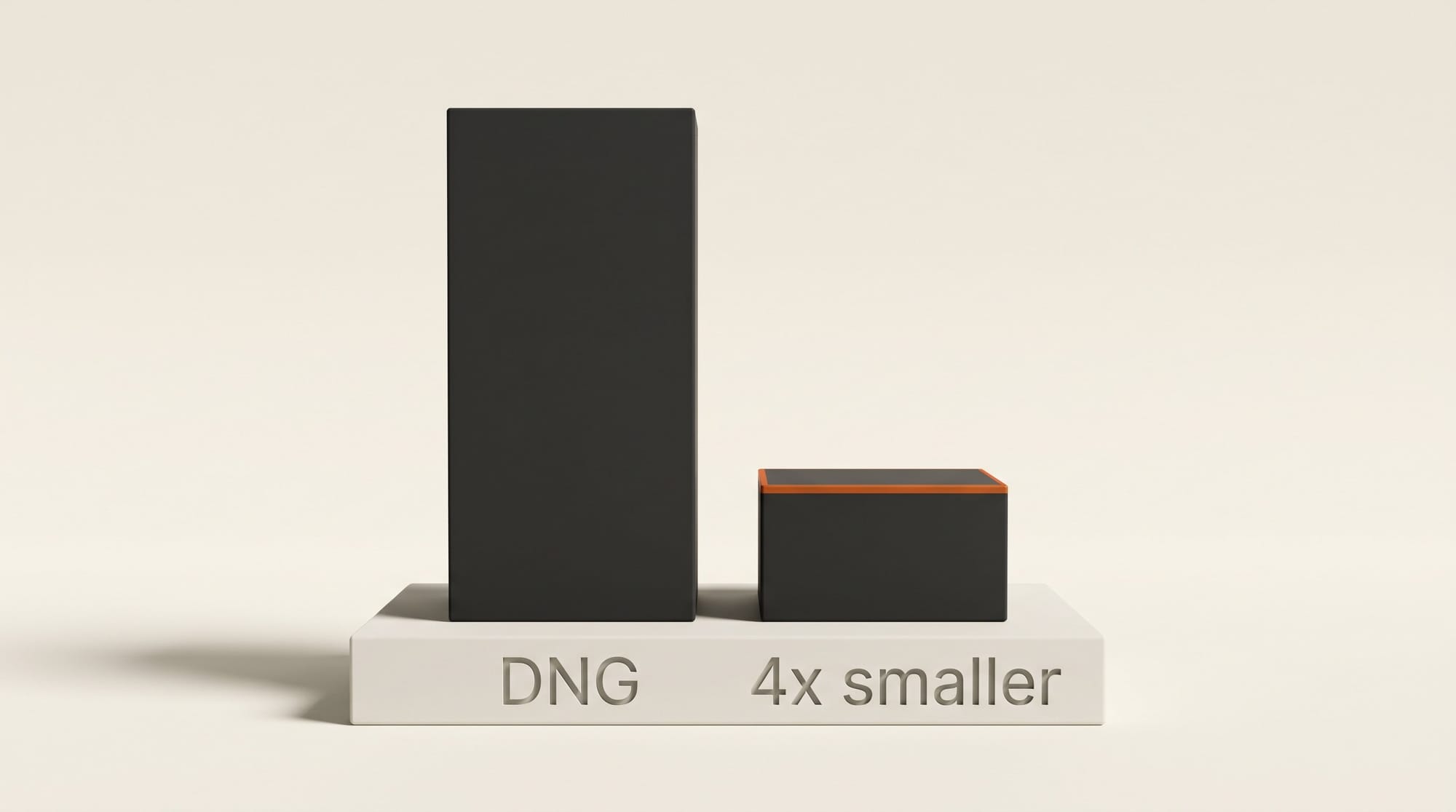
DxO wins on ownership and Fujifilm. $139.99 once, a 14-day trial with every feature and no card, X-Trans support at its top engine, and dust removal for a whole card of photos. Its optional compressed DNG is, by DxO's count, up to four times smaller than a standard DNG; it is a lossy format, so keep your original raw files.
Topaz wins on range. It is the only tool here that does serious work on both raw files and finished images, and it reaches the most host apps. Adobe completed its acquisition of Topaz Labs on September 23, 2026, and Topaz Photo is still sold on its own, so nothing changes for a Topaz subscriber today (our report on the deal covers what Adobe said about keeping the apps standalone). The catch is the subscription: we found no buy-once option and no free trial on its pricing page.
Pixelmator Pro wins on price for Mac users. $49.99 once buys a full image editor with Denoise and Super Resolution built in. It is also part of Apple Creator Studio, which adds Final Cut Pro and Logic Pro for $12.99 a month and comes with a 30-day free trial.
Pricing and Cost per Photo
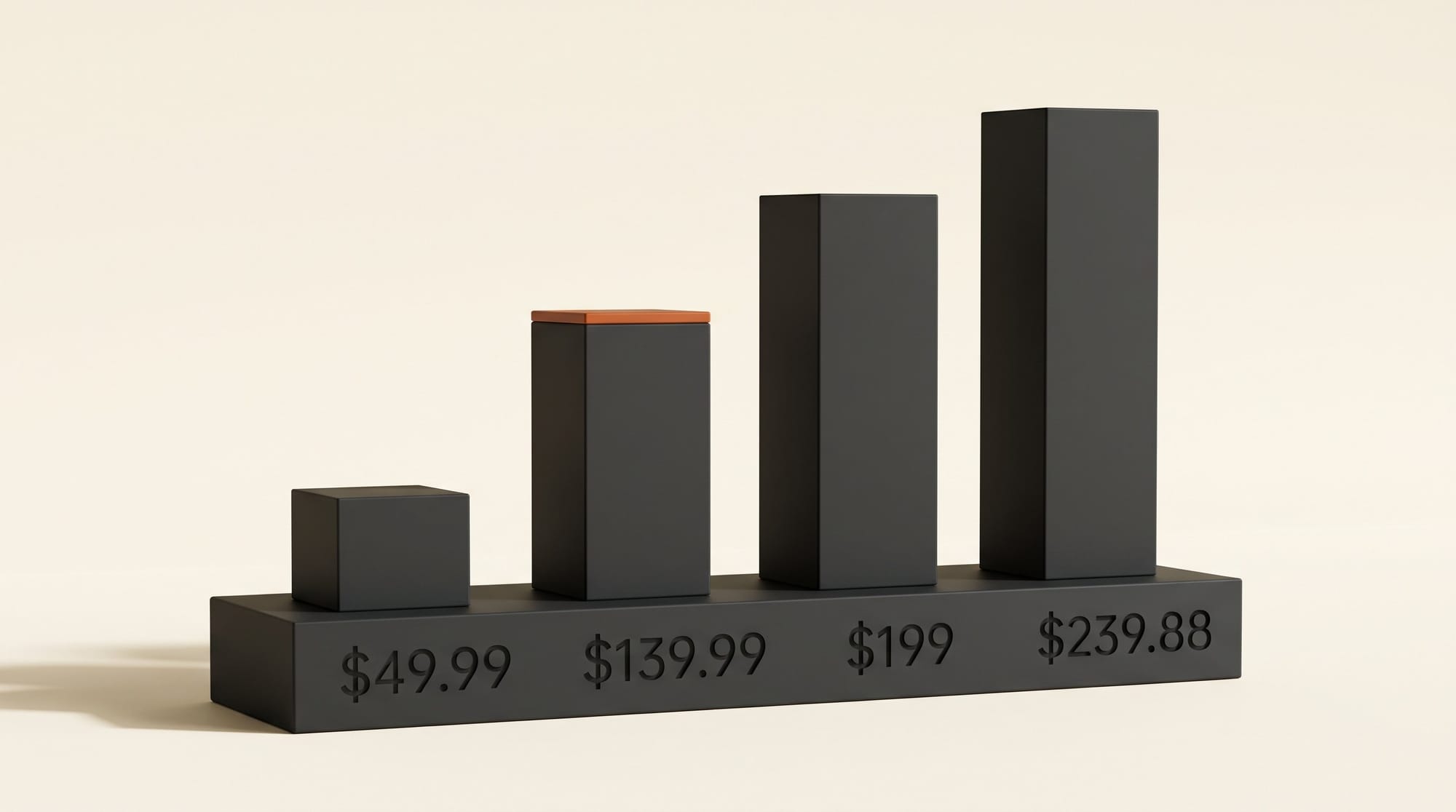
First-year cost, cheapest first: Pixelmator Pro $49.99, DxO PureRAW 6 $139.99, Topaz Photo Personal $199, Adobe Photography plan $239.88 ($19.99 a month for 12 months). Over three years the gap widens: Pixelmator and DxO stay at their one-time price unless you buy a later version (DxO charges $89.99 to upgrade from version 4 or 5), while Topaz reaches $597 and the Adobe plan $719.64.
The Adobe number is not a fair like-for-like figure, because that plan also buys Lightroom, Photoshop and 1TB of storage. If you pay for it anyway, Denoise is free at the margin. Denoise is not one of Adobe's generative features, so it does not spend your monthly generative credits.
Spread across real volume, all four are cheap. A wedding shooter who processes 5,000 noisy photos a year pays about 4 cents a photo with Topaz Personal, and under 1 cent a photo with DxO over three years. Topaz Personal covers commercial use for businesses with under $1 million in annual revenue; above that, Topaz's Pro plan is $599 a year.
Verdict
Start with what you already own. If Lightroom is open on your screen, try its Denoise on your noisiest raw file first. If you shoot Fujifilm, want to own your software, or fight sensor dust, download the DxO trial and run the same file through it. If your problem files are JPEGs or phone shots, Topaz Photo or Pixelmator Pro are the only two of these four that clean them.
Run a fair test: pick three photos (a high-ISO raw file, a Fujifilm or phone file, an old JPEG), run each through two tools at default strength, export both as full-size JPEGs, and compare faces, fabric and text at 100% zoom. Ten minutes of testing beats any review, including this one.
FAQ
Does Lightroom Denoise work on JPEG files?
No. Adobe's help page lists raw files from Bayer and X-Trans sensors, linear DNGs and Apple ProRAW as supported, and JPEG, HEIC, TIFF and PSD files as unsupported. For a noisy JPEG, use Topaz Photo or Pixelmator Pro.
Is DxO PureRAW 6 a subscription?
No. DxO PureRAW 6 is a one-time purchase at $139.99, with a $89.99 upgrade price for owners of version 4 or 5 and a 14-day free trial that includes every feature.
Which AI noise reduction works best for Fujifilm cameras?
DxO PureRAW 6 and Lightroom Denoise both work on Fujifilm X-Trans raw files. Topaz Photo's RAW Denoise is designed for Bayer sensor cameras, so Fujifilm files get its regular Denoise instead.
Can AI noise reduction fix a blurry photo?
Not on its own. Denoise removes grain; it does not restore focus. Topaz notes that blur from compression or low resolution is not noise and points to its Upscale models for those files.
Did Adobe's purchase of Topaz Labs change Topaz Photo?
Not yet. Adobe completed the acquisition on September 23, 2026, and Topaz Photo is still sold on its own, at $199 a year for the Personal plan.