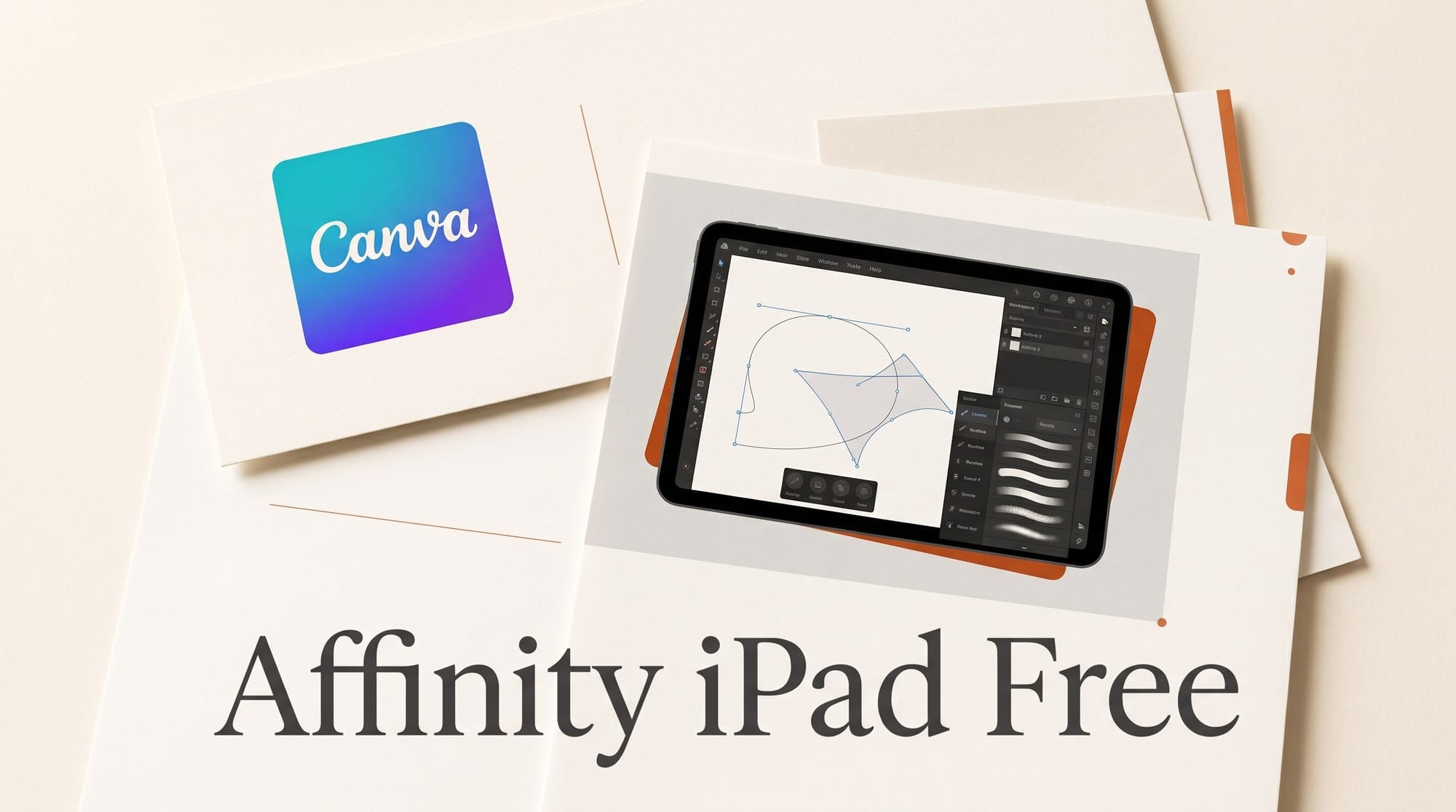
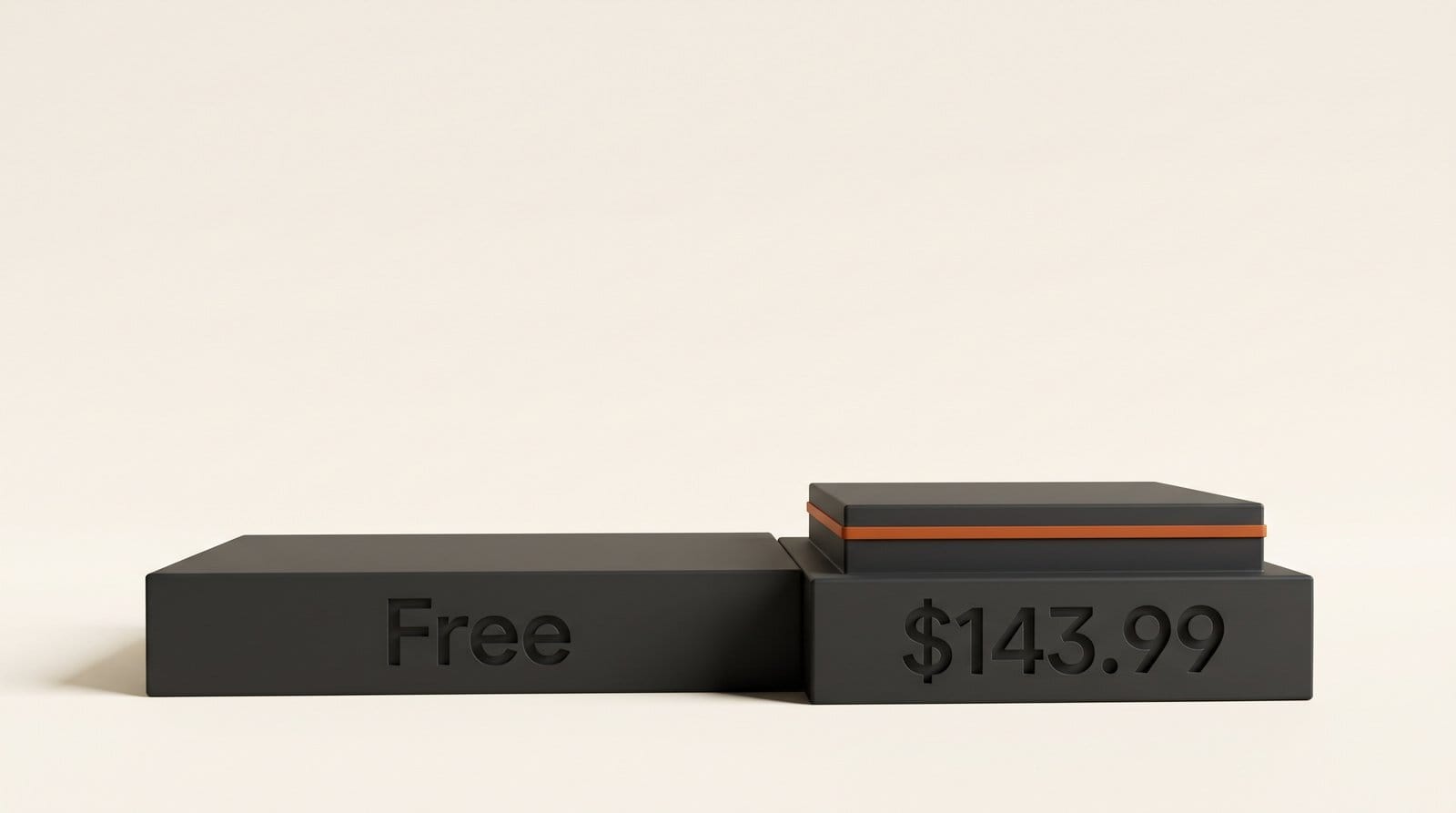
Canva released Affinity for iPad on November 2, 2026, and every drawing, vector, photo and layout tool in it is free for individuals with a free Canva account. The only thing you pay for is AI: Generative Fill, Generative Expand, Remove Background, upscaling and Decompose Layer run through Canva AI Studio and need a Canva premium plan, which the App Store listing prices at $18 a month or $143.99 a year for Canva Pro. The app needs iPadOS 18 or later and is a 1.9 GB download.
That split, free tools and paid AI, makes Affinity the cheapest way to get a full professional design suite on an iPad today. Whether you should pay for the AI part depends on how often you would actually use it. This guide breaks down what is free, what costs money, how it compares with Procreate, Photoshop and Pixelmator Pro on the same tablet, and a workflow you can try this afternoon.
What Canva shipped on November 2
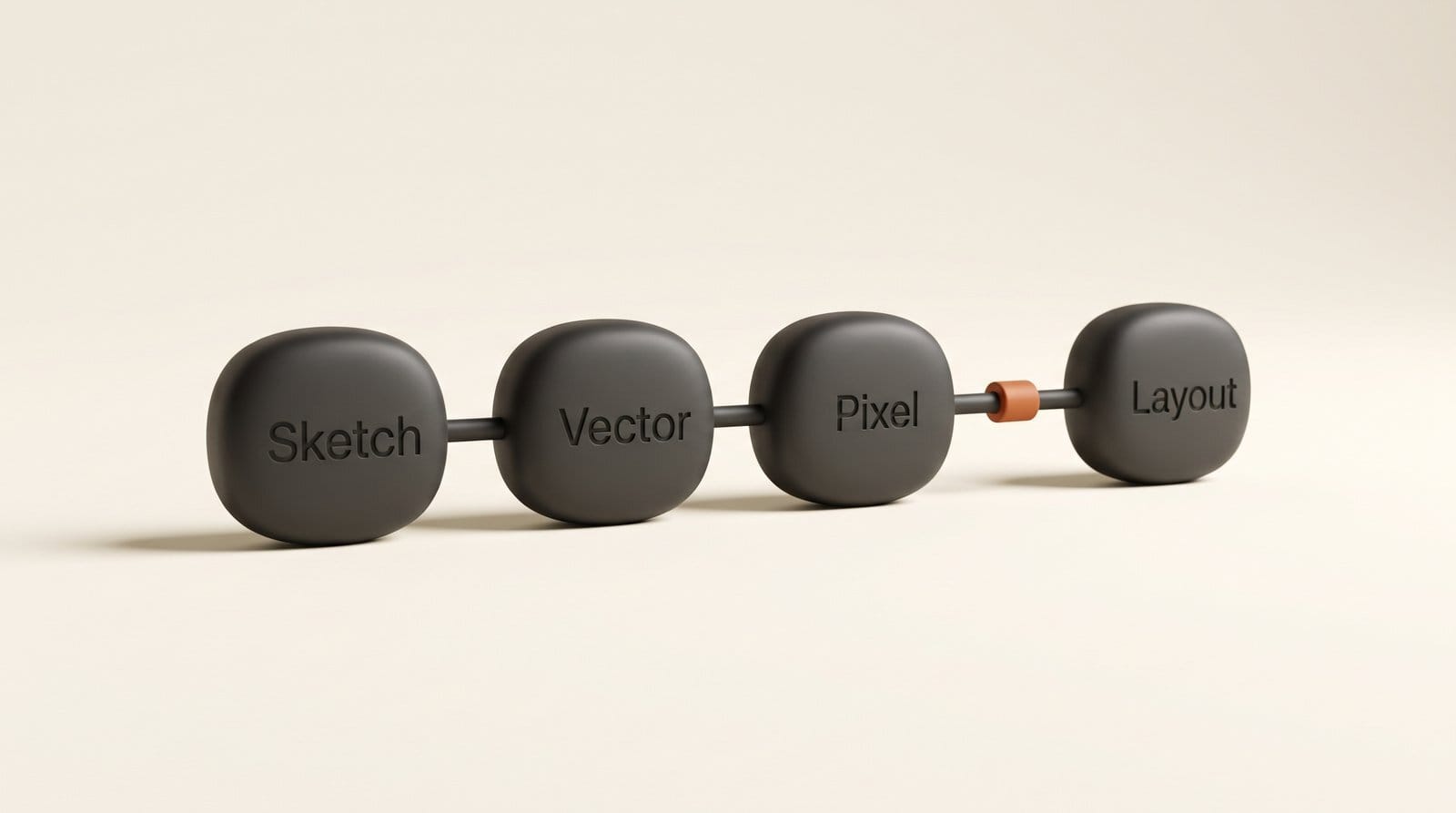
Affinity for iPad is one app with four "studios" that share a single .af file: Sketch, Vector, Pixel and Layout. It replaces the separate Affinity Photo, Designer and Publisher iPad apps, matching what Canva did on Mac and Windows a year ago, when the desktop app became free and, by Canva's count reported by MacRumors, has since drawn more than seven million sign-ups.
Each studio does a distinct job:
- Sketch: freehand drawing with more than 350 editable brushes that respond to Apple Pencil pressure, tilt and barrel roll. Sketches stay live in the file.
- Vector: node-by-node editing for logos and icons, plus Sketch to Shapes, which turns a hand-drawn form into a clean vector shape.
- Pixel: non-destructive photo editing, RAW adjustments, retouching, compositing and a Mask Tool that follows hair and fur.
- Layout: grids, master pages and text that flows across pages, from a brochure up to a 500-page book, exported as a print-ready file.
Canva says the interface was built for touch rather than shrunk from the desktop, and it supports every Apple Pencil Pro gesture: pressure, tilt, barrel roll, squeeze and hover. "Creative work doesn't stay in one discipline, so your tools shouldn't either," Duncan Clark, CEO of Pro Design at Canva, told Creative Boom.
What is free and what costs money
The free part is large. With a free Canva account you get every tool in all four studios, and all export formats, with no restrictions on the tools. The Mask Tool for hair and fur counts as a free tool: heise reports it runs on the iPad itself and is not part of the paid generative features.
The paid part is the cloud AI that Canva calls Canva AI Studio. Inside Affinity it covers:
- Generative Fill and Generative Expand, which add or extend content in a photo
- Remove Background
- Upscaling for low-resolution references and textures
- Noise reduction and instant motion blur
- Decompose Layer, which splits a flat image into separate editable layers
Those features need a Canva premium plan: Pro, Business, Enterprise or Education. The App Store in-app prices are $18 a month or $143.99 a year for Canva Pro, and $25 a month or $250 a year for Canva Business. Affinity's own page says your files are not used to train the AI features.
There is also a ceiling. Canva meters its AI, and heise notes some features carry monthly usage limits. When we priced Canva's Craft image model in October, Canva's plan page listed up to 200 premium AI uses a month on Pro, which works out to about 6 cents per AI edit if you use the full allowance on the yearly plan. Our Canva Craft cost breakdown explains how that allowance is shared across Canva's AI tools.
Affinity vs Procreate vs Photoshop vs Pixelmator on iPad
Four apps now compete for the iPad designer, and they price AI in four different ways. Prices below come from each app's US App Store listing or launch coverage, checked November 2, 2026.
| App | Price for the core app | Generative AI | Best at |
|---|---|---|---|
| Affinity for iPad | Free (Canva account) | Canva Pro, $18/month or $143.99/year | Drawing, vector, photo and print layout in one file |
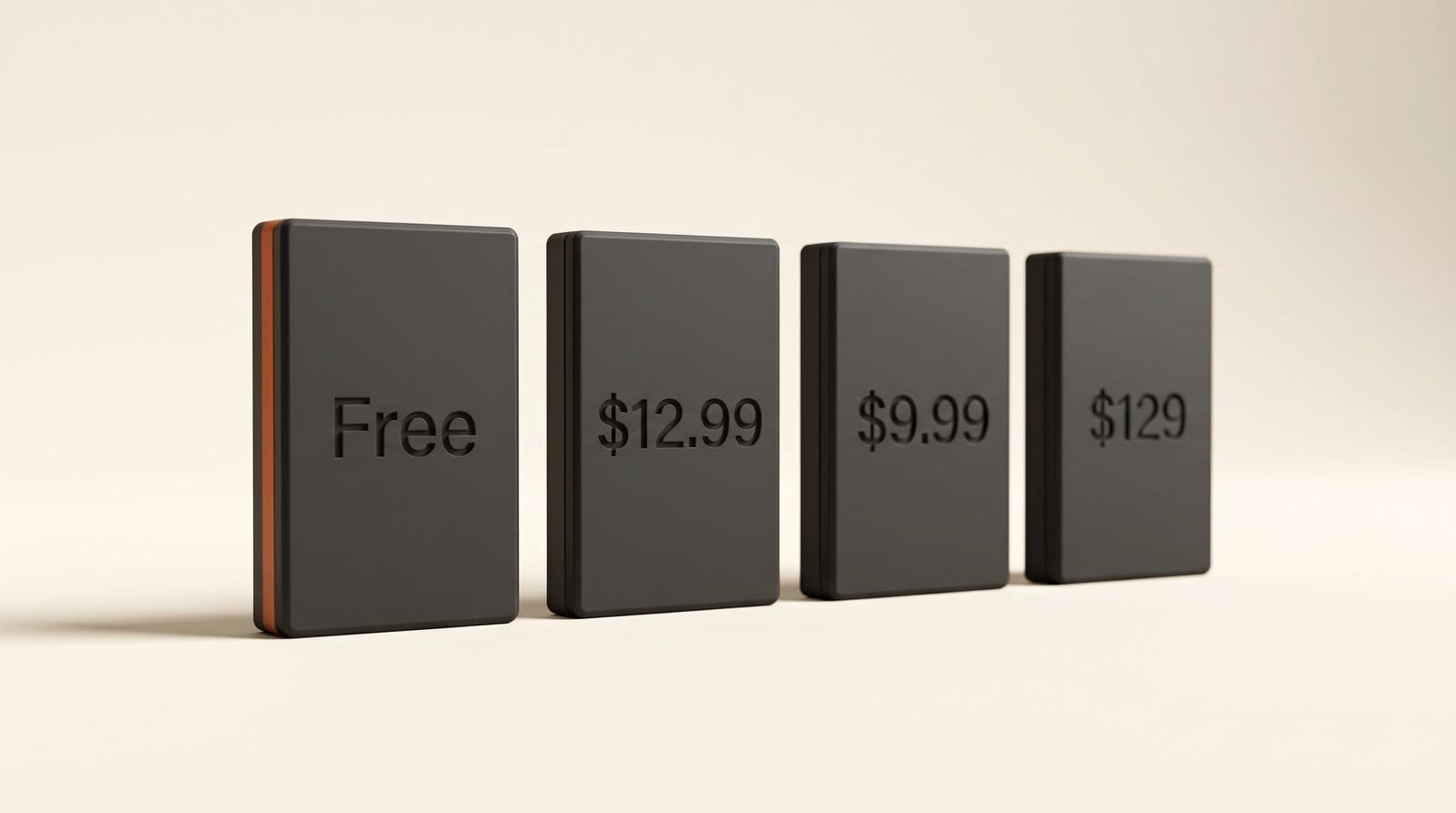
| Procreate | $12.99 one time | None, by policy | Painting and illustration |
| Photoshop on iPad | Free download, plans from $6.99 to $9.99/month | Firefly Generative Fill, credits included with plans | Photo compositing in the Adobe ecosystem |
| Pixelmator Pro on iPad | Apple Creator Studio, $12.99/month or $129/year | Included in Creator Studio | Photo editing alongside Final Cut Pro and Logic Pro |
Procreate stays the painter's choice at a one-time $12.99, and it will not add generative AI: its public statement says "Creativity is made, not generated." If you want no AI anywhere in your tools, that is the only option on this list that promises it.
Photoshop on iPad lists in-app plans from $6.99 to $9.99 a month and markets 100 generative credits for Generative Fill, which runs on Adobe's Firefly models. Our look at Photoshop's AI Assisted Editor and Firefly Image 5 covers what those credits buy on desktop.
Pixelmator Pro reached the iPad through Apple Creator Studio, which Macworld reported at $12.99 a month or $129 a year in January. It makes most sense if you already cut video in Final Cut Pro or make music in Logic Pro, since both come in the same bundle.
Where Affinity wins is range. None of the other three combines vector logos, photo retouching and multi-page print layout in one app, and none of them is free.
Workflow: from sketch to print-ready file on one iPad
This is the job Affinity was built for, and you can test it in about 30 minutes with the free tools only. The example is a one-page event poster.
- Install and sign in. Download Affinity by Canva from the App Store and sign in with a free Canva account. Skip the Canva Pro offer for now.
- Sketch the idea. Open a new document, switch to the Sketch studio and rough out the poster with the Apple Pencil: a headline area, a central illustration and a logo corner.
- Turn the logo into a vector. Draw the logo by hand, then use Sketch to Shapes in the Vector studio to convert it into clean vector shapes you can resize without blur.
- Drop in a photo and cut it out. In the Pixel studio, import a photo and use the Mask Tool to cut out the subject. It handles hair and fur, and it is free.
- Lay out the type. Switch to the Layout studio, add a grid and set the headline and event details. Everything stays in the same
.affile, so there is nothing to export between steps. - Export. Export a print-ready PDF for the printer, a PNG or WebP for social posts, or send the design straight to Canva to resize it for other formats.
Only reach for the paid AI if a step stalls: Generative Expand when a photo is too tight for the poster's shape, or upscaling when a reference image is too small to print. If that happens once a month, the free tier is enough. If it happens every day, Canva Pro starts to pay for itself.
What is missing at launch, and the file-format catch
The iPad app is not a full copy of the desktop app yet. MacRumors lists the features left out at launch: Books, Batch, Data Merge, Quick Adjustments, the Info and Scope panels, macro recording and the Astrophotography Studio. Canva says more will arrive in free updates. If you batch-export product shots or merge spreadsheet data into templates, keep doing that on desktop.
The bigger catch is the file format. The new app opens files from the old Affinity Photo and Affinity Designer apps, but heise reports the reverse does not work: the older standalone apps cannot open the new .af files. If you share files with someone still on Affinity Photo 2 or Designer 2, check before you move a project. Files do move freely between the new iPad app and the free desktop app that launched on Mac and Windows in October 2025.
Moving from Adobe is partly covered. Affinity imports PSD, AI, INDD and IDML files with layers kept, but its own FAQ warns that Photoshop smart objects and advanced filters, Illustrator appearance stacks and InDesign GREP styles, anchored objects and tables may be flattened or need manual fixing.
Who should pay for Canva Pro, and who should not
Stay on the free tier if you mostly draw, design logos or lay out print work. Every one of those tools is free, the hair-and-fur mask included, and nothing in the free tier is time-limited.
Pay for Canva Pro if you already use Canva for social graphics or presentations, because the same $143.99 a year then covers both Canva and the AI inside Affinity, and you can send designs between them. It is also worth it if you extend, clean up or upscale photos every week: at up to 200 premium AI uses a month, that is cheaper per edit than buying separate AI tools.
Pick Procreate instead if you paint and want no AI at all, and Photoshop if your clients send layered PSDs with smart objects that Affinity would flatten. For the many creators who would have bought three separate iPad apps for drawing, photos and layout, Affinity now does all three for nothing.
Frequently asked questions
Is Affinity for iPad really free?
Yes, for individuals. Every tool in the Sketch, Vector, Pixel and Layout studios is free with a free Canva account, with no time limit. Only the Canva AI features need a paid Canva plan.
How much does the AI in Affinity for iPad cost?
The AI features need a Canva premium plan. In the App Store, Canva Pro is $18 a month or $143.99 a year, and Canva Business is $25 a month or $250 a year. Canva meters AI use, and some features have monthly limits.
Which iPads can run Affinity for iPad?
The App Store listing requires iPadOS 18.0 or later and a 1.9 GB download. With Apple Pencil Pro, the app also uses squeeze, barrel roll and hover on top of pressure and tilt.
Can I open my old Affinity Photo or Designer files?
Yes. The new app opens files from Affinity Photo and Affinity Designer. The older standalone apps cannot open the new .af files, so check with collaborators before you switch.
Does Canva train its AI on my Affinity files?
Affinity's product page says content in Affinity is not used to train its AI features.
Is Affinity for iPad better than Procreate?
They do different jobs. Procreate is a painting app for a one-time $12.99 that refuses generative AI. Affinity adds vector, photo editing and page layout in one free app. Illustrators who only paint may prefer Procreate; anyone who also makes logos, retouches photos or prints documents gets more from Affinity.