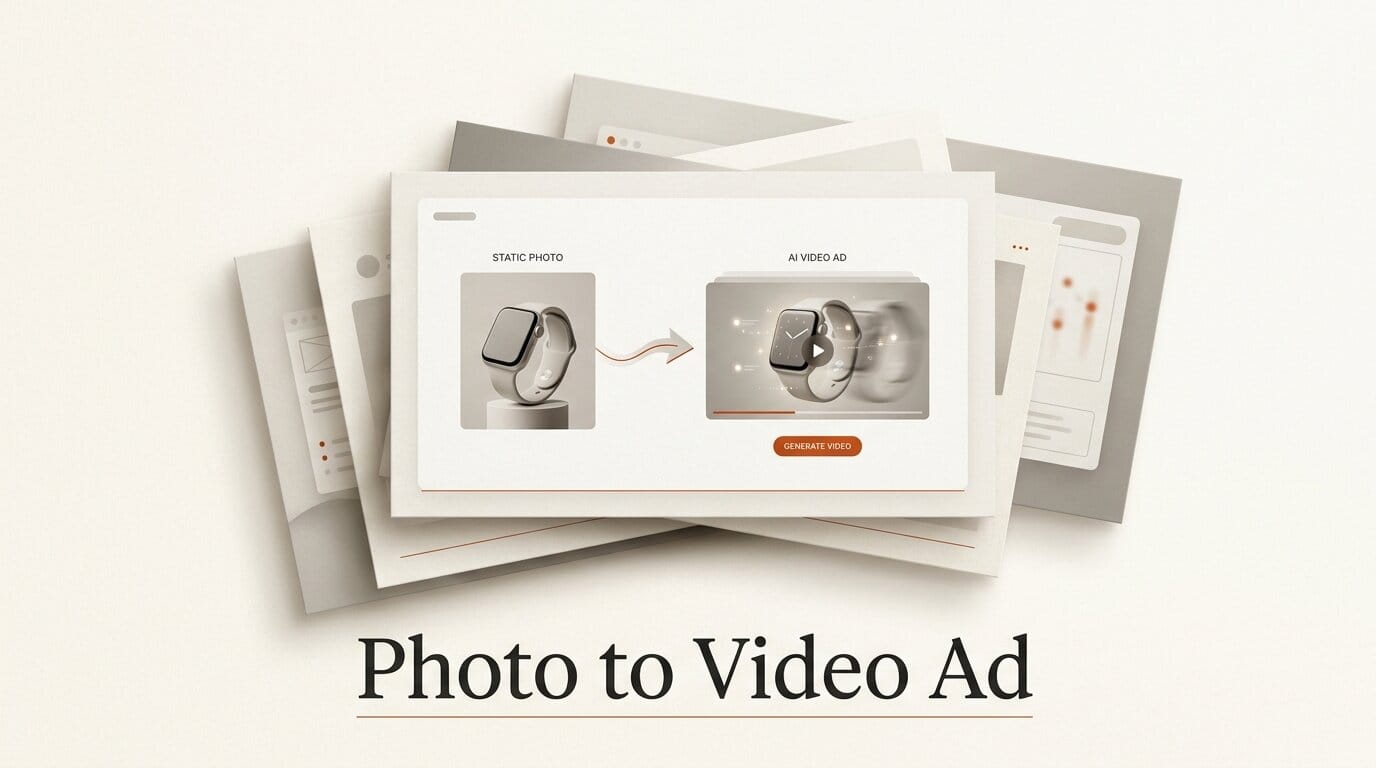
You can turn a single product photo into a short, scroll-stopping video ad in under an hour, without a camera, a studio, or a video editor on staff. The pipeline is four moves: clean up the still, animate it with an image-to-video model, add an AI voiceover, then assemble and caption the clip in a free editor. Each finished ad costs a few dollars in credits, and once the workflow is set you can spin out a new variation in minutes. This guide walks through every step, the exact prompts and settings that matter, and the failure points that trip up most first attempts.
What You Need
- A clean product photo. A phone shot on a plain background works, but a higher-resolution, well-lit image gives the model more detail to hold onto.
- An image-to-video tool. Runway, Kling, and Google's Flow (built on the Veo model) all take a starting frame plus a motion prompt and return a short clip.
- An AI voice tool for narration. ElevenLabs is the common pick for natural text-to-speech, with a library of stock voices.
- A video editor to trim, caption, and export. CapCut is free and runs in a browser or on desktop.
- Ad copy: one short hook, one benefit line, and a call to action. Write these before you touch a tool.
The Workflow: Photo to Finished Ad
The order matters. Get the still right first, because every later step inherits its flaws. Then animate, voice, and assemble. Budget roughly ten minutes for prep, twenty for generation and re-rolls, ten for the voiceover, and fifteen for the edit.
Step 1: Prep the Product Photo
Crop tight so the product fills most of the frame, and remove any background clutter that could confuse the model. A plain or softly gradient backdrop animates far more cleanly than a busy scene. If the lighting is uneven, fix it here rather than hoping the video model corrects it, because it will not. Export the cleaned still at the highest resolution you have. A sharp 1080p or larger frame gives the image-to-video model enough edge detail to keep the product from smearing when it moves.
Step 2: Animate the Still With an Image-to-Video Model
Upload the cleaned still as the first frame, then write a motion prompt that describes two things: the camera move and the subject behavior. Keep it concrete. "Slow push-in on the bottle, soft studio light, gentle rotation, shallow depth of field" beats "make it cinematic." Start with the shortest clip the tool offers, usually 5 seconds, so re-rolls are cheap. Generate three or four variations of the same prompt, because output varies run to run, and pick the one where the product holds its shape. Avoid prompting for fast motion or complex hand interactions in the first pass; those are where morphing artifacts appear. If you are unsure which engine to use, our breakdown of Kling vs Runway vs Sora compares them on real shots.
Step 3: Record an AI Voiceover
Paste your ad copy into a text-to-speech tool and pick a voice that matches the product's tone: warm and unhurried for a wellness brand, crisp and confident for tech. Read your script out loud first and cut it to fit the clip length; a 5 to 10 second ad has room for a hook and a call to action, not a paragraph. Add punctuation and line breaks to control pacing, since a comma buys a natural pause. Generate the line, listen back, and regenerate if the emphasis lands on the wrong word. If you want the ad to sound like a specific person with their permission, ElevenLabs and similar tools also offer voice cloning, but a stock voice is faster and avoids consent questions.
Step 4: Assemble, Caption, and Export
Drop the video clip and the voiceover onto a timeline in your editor, then trim the clip so the visual beat matches the narration. Add on-screen captions, because most feeds autoplay muted and viewers read before they unmute. Layer a short music bed underneath at low volume, add your logo and a text call to action in the final second, and export vertically at 1080 by 1920 for TikTok, Reels, and Shorts. For a deeper look at assembly tools, see our guide to the best AI tools for video editors.

Troubleshooting Common Failures
- The product warps or melts mid-clip. The model lost the object's edges. Feed it a sharper, higher-resolution still, and prompt for slower, simpler motion. A gentle push-in is safer than a spin.
- Text or a logo on the product turns to gibberish. Video models struggle to keep small text stable. Keep motion minimal around any label, or add the logo cleanly in the editor as an overlay instead of relying on the generated frame.
- The voiceover sounds robotic or rushed. Add commas and line breaks for pacing, shorten the script, and try a different stock voice. Emphasis problems usually vanish with a small rewording.
- The clip feels flat and static. You under-prompted the camera. Name a specific move: push-in, orbit, tilt-up, or rack focus. One deliberate camera move reads as intentional; none reads as a slideshow.
- Every generation looks different. That is expected. Lock the seed if your tool exposes one, or generate a batch and select rather than chasing a single perfect run.
How Long It Takes and What It Costs
Once you have run the pipeline a few times, a single ad takes under an hour, and most of that is re-rolling the animation until the product holds. Image-to-video tools are credit-based or subscription, so expect to spend a few dollars of credits per finished ad, mostly on the re-rolls. Text-to-speech and a free editor add little to nothing. If you plan to produce ads at volume, the running cost is worth modeling up front; our analysis of AI video generation cost per second breaks down how the credit math scales. The economics favor batching: write five copy variants, animate one strong hero clip, and swap the voiceover and captions to produce five ads from one generation.
What to Try Next
Once the basic ad works, push on three variations. First, generate two or three different hooks over the same clip and let the platform's own testing tell you which opening holds attention. Second, try a second camera move on the same product, an orbit instead of a push-in, to build a small library of reusable shots. Third, chain two short clips, a product beauty shot into a lifestyle-in-use shot, for a ten-second spot with a narrative arc. Each of these reuses assets you already made, which is the whole point: the first ad is slow, and every one after it is fast.
Frequently Asked Questions
Do I need a paid plan to make an AI video ad?
You can start on free tiers to learn the workflow, but image-to-video tools meter generation with credits, so a polished ad with several re-rolls usually costs a few dollars. The editor and stock text-to-speech voices are free or near-free.
What resolution should my product photo be?
Use the largest, sharpest still you have, ideally 1080p or higher. Image-to-video models keep an object's shape better when the source frame has clean, high-contrast edges, which reduces warping when the product moves.
Why does my product warp or morph in the video?
Warping means the model lost track of the object's boundaries. It is almost always caused by a low-resolution source, a busy background, or a prompt asking for fast or complex motion. Fix the still first, then prompt for slower movement.
Can I use these ads on TikTok, Reels, and YouTube Shorts?
Yes. Export vertically at 1080 by 1920 and keep the clip short, five to fifteen seconds. Add captions, since these feeds autoplay muted, and place your call to action in the final second where retention is highest.
Is it legal to use an AI voice for my ad?
Using a provider's stock voices for commercial ads is generally allowed under their license, but check the specific tool's terms. Cloning a real person's voice requires that person's explicit consent, so stick to stock voices unless you have permission.