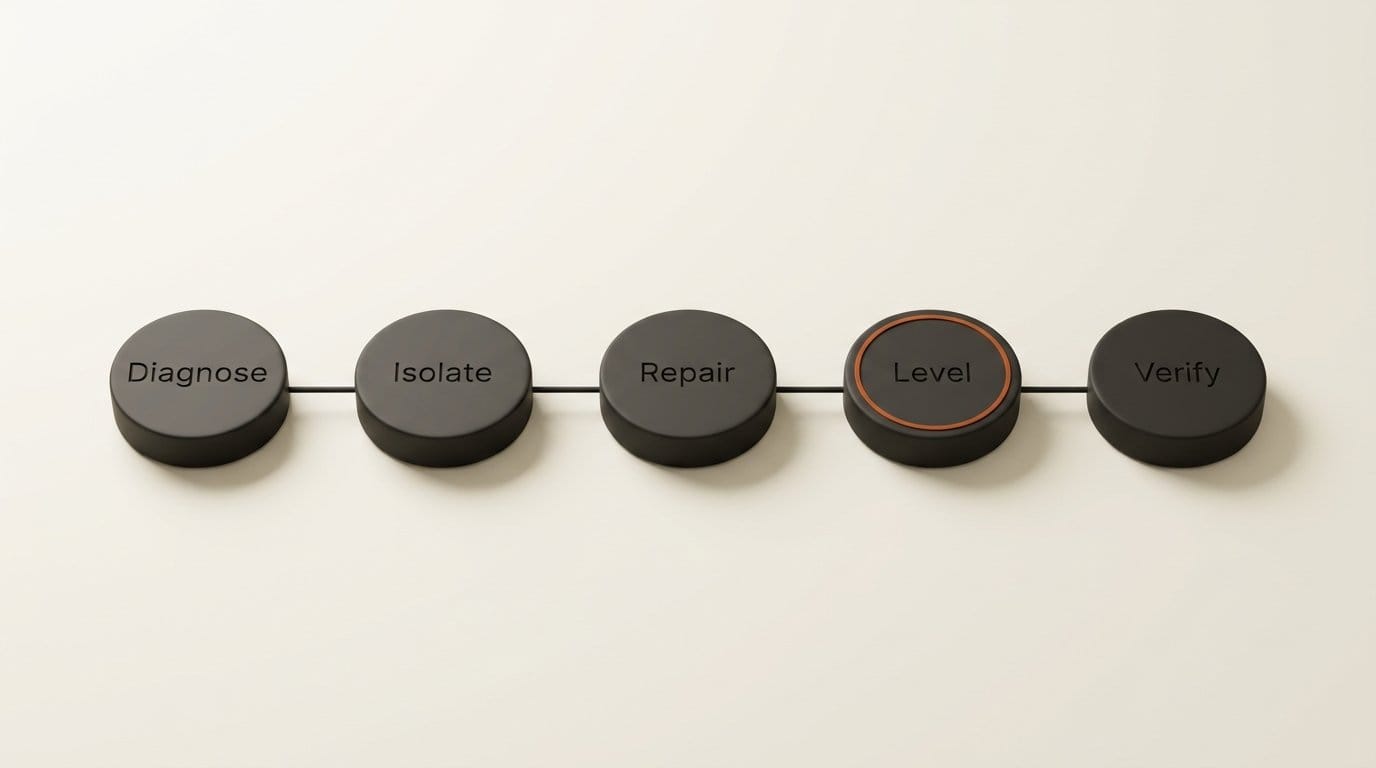
You can rescue a badly recorded interview in about fifteen minutes using free tools, and the hard part is not which tool you pick. It is the order you run them in. AI speech enhancers are destructive, they do not tell you what they changed, and stacking two of them is how a usable take becomes a silent waveform. This guide runs one file through diagnose, isolate, repair, level, and verify, using Adobe Enhance Speech, ElevenLabs Voice Isolator, Auphonic and FFmpeg, and it ends on the one number that every free loudness tool gets wrong for podcasts.
What You Need
Nothing here requires a paid plan, though the free tiers meter differently and that difference decides your stack.
- The original recording. Not an export, not a version you already normalized. Every step below works better on the rawest file you have.
- Adobe Enhance Speech, a free browser filter for cleaning up spoken audio. Adobe publishes no file length cap, no file size cap and no quality tiers on that page, so treat its throughput as unknown rather than unlimited.
- ElevenLabs Voice Isolator, which separates speech from ambient noise, mic feedback, street sound, background music and overlapping conversation. It accepts WAV, MP3, FLAC, OGG and AAC up to 500MB and one hour.
- Auphonic, for leveling and loudness. The free tier processes two hours of audio per month and adds an Auphonic jingle to free productions.
- FFmpeg, if you would rather script the loudness step than upload anything.
- Headphones. Speech enhancement artifacts are close to inaudible on laptop speakers and obvious on anything else.
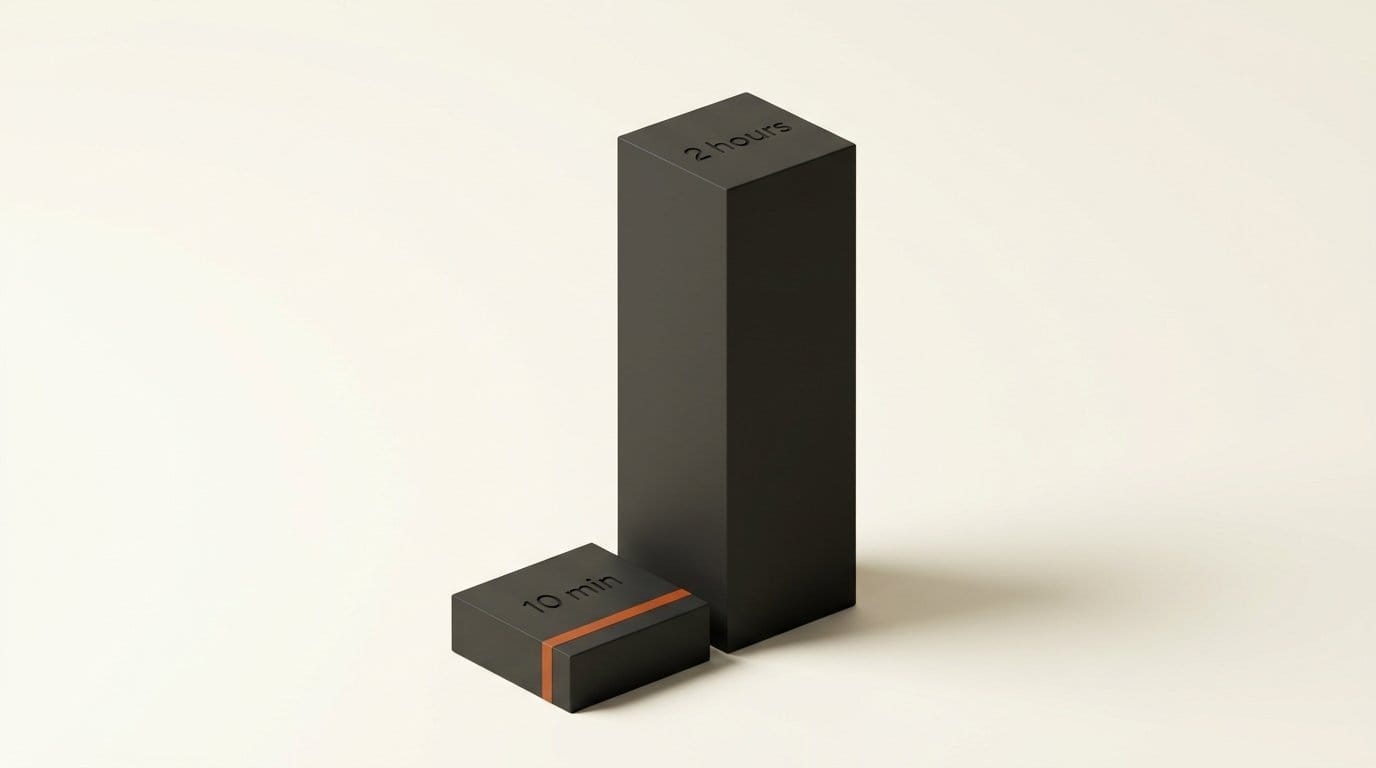
The free-tier math is worth doing before you commit. Voice Isolator costs 1,000 credits per minute of audio, and the ElevenLabs free plan grants 10,000 credits per month, which is ten minutes of isolation. Auphonic's free tier is two hours. If you are cleaning a weekly show, those two numbers put Voice Isolator in the role of a scalpel for the worst ninety seconds of a take, not a tool you run on the whole episode.
Step 1: Diagnose Before You Touch Anything
Listen to sixty seconds on headphones and name the actual defect, because the tools are not interchangeable and each one fails differently on the wrong input.
Steady broadband hiss from a cheap preamp or an air conditioner is the easy case, and a general enhancer handles it. Reverb, meaning the room itself, is the hard case, because the reflections are the same voice arriving late and no filter can cleanly separate a signal from a delayed copy of itself. Intermittent interruptions such as a door, a cough or a passing siren are a cutting problem rather than a filtering problem. Uneven levels between two speakers are neither, and running an enhancer at them will not fix it.
Write down which of those four you have. If you have reverb plus uneven levels, you have two problems that get solved in two different steps, and trying to solve both with one tool is the most common way this goes wrong.
Step 2: Isolate the Voice, Once
If the recording has a competing sound source rather than just noise, isolation comes first, and it runs on the original file. Upload to Voice Isolator, download the result, and stop. Do not then run the isolated file through a second enhancer.
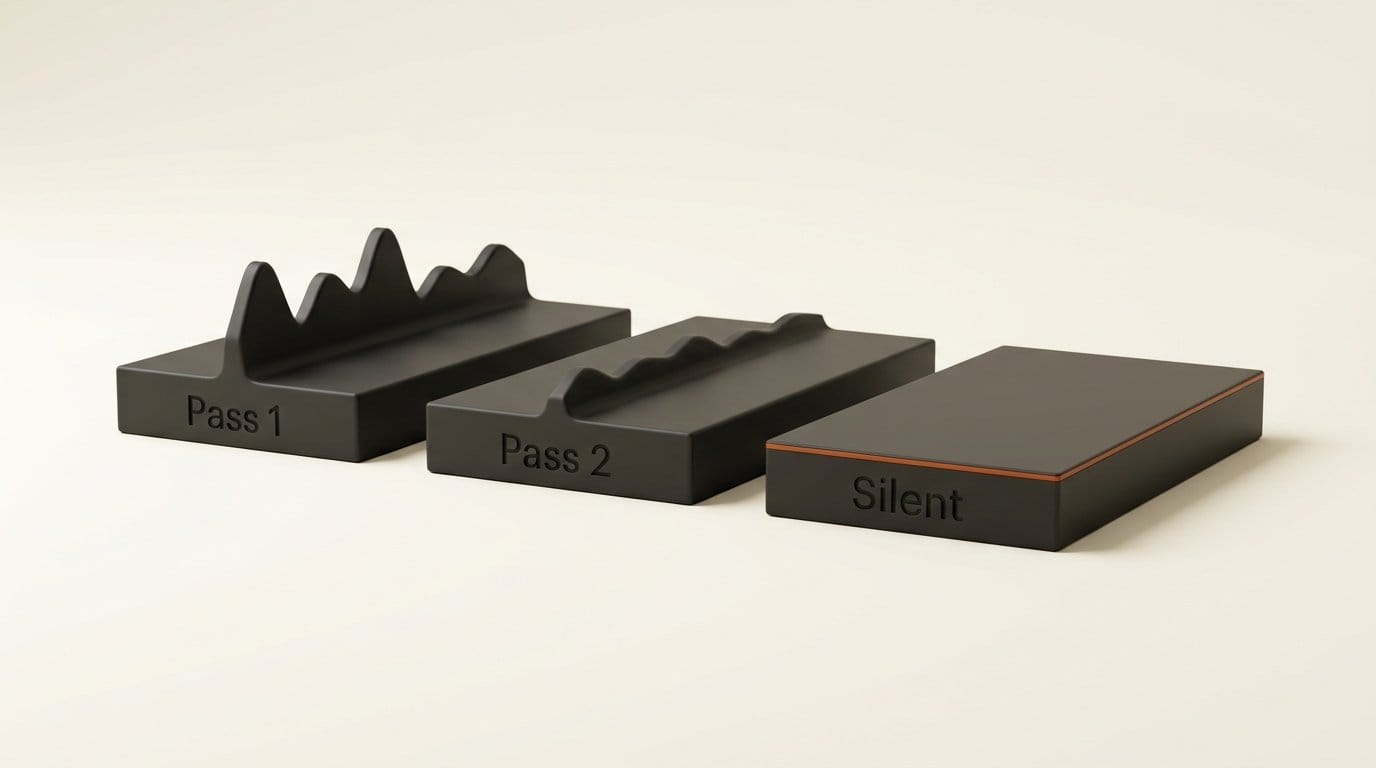
The reason is visible in the failure mode. Descript documents that when background noise is extremely loud, Studio Sound "may not be able to separate the speech from the noise, resulting in a silent waveform." An enhancer decides what is voice and suppresses the rest. Feed it audio from which another model has already stripped everything it judged not to be voice, and the second model's threshold lands on speech, because speech is all that is left. Two passes of separation is how you get silence.
Descript's own tooling is the one to reach for if your defect is a mix of noise and echo and you want a control rather than a verdict. Studio Sound is an AI effect that reduces background noise, echo and other distractions, and it exposes an Intensity slider, so you can back the processing off until the voice stops sounding synthetic. It also has two limits worth knowing before you plan around it: it works only on recorded audio and not on AI-generated speech, and files of six or more hours may be slow to process.
Step 3: Repair, Then Cut
Run the enhancer once, on the file you chose in step 2, and listen to the whole thing before going further. Enhancement is not reversible and it does not report what it removed, so this listen is the only quality gate you get.
Cutting comes after repair, not before. Auphonic's automatic cutting removes silent segments, pauses, coughs and filler words, and it works better on a file where the noise floor has already been pulled down, because silence detection is a level threshold and a noisy floor never crosses it. Auphonic also handles the cases a single-file enhancer cannot: its multitrack processing does ducking, noise gates and mic bleed removal, which is the right tool when you recorded two people on two tracks and each mic picked up the other person.
Step 4: Set Loudness Last, and Set It Explicitly
Loudness is the final step because everything above it changes the loudness. Normalize first and the enhancer will undo it.
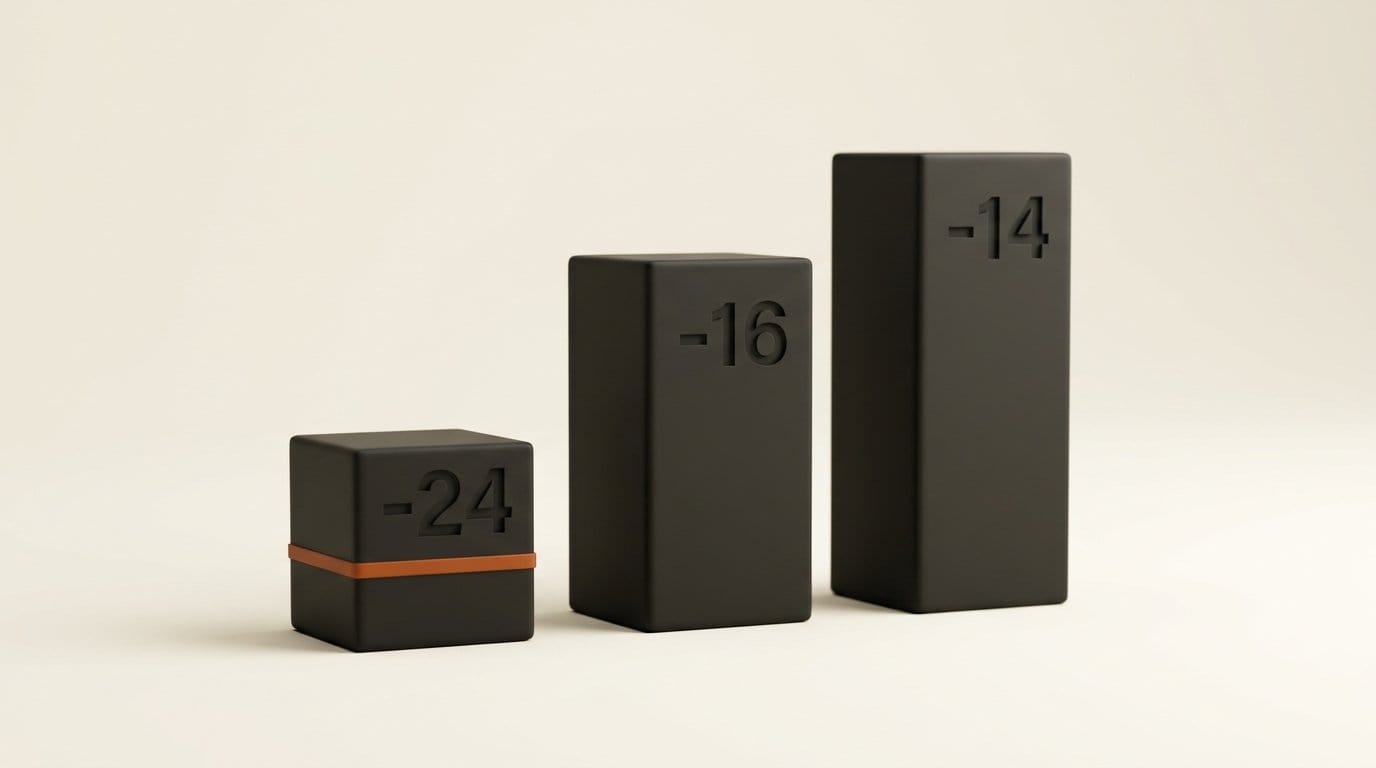
This is also where the free tools quietly disagree with the platforms. Apple Podcasts asks that "the overall loudness remains around -16 dB LKFS, with a +/- 1 dB tolerance" and that "the true-peak value doesn't exceed -1 dB FS," measured to the ITU-R BS.1770-5 recommendation. Spotify normalizes to -14 dB LUFS under ITU 1770 and advises keeping true peak below -1 dB TP for lossy formats.
FFmpeg's loudnorm filter implements EBU R128 and will hit either target, but its source defaults are the broadcast ones: integrated loudness I defaults to -24.0 with a valid range of -70.0 to -5.0. That is 8 dB below Apple's target and 10 dB below Spotify's. Run loudnorm with no arguments and you get a technically correct file that is audibly quiet everywhere your audience listens. The true peak default is the opposite case and needs no fixing: TP defaults to -2.0, which already clears Apple's -1 dB FS ceiling.
So set the target. Measure in one pass, apply in a second:
ffmpeg -i input.wav -af loudnorm=I=-16:TP=-1:LRA=7:print_format=json -f null -That prints measured values and changes no file. Feed them back:
ffmpeg -i input.wav -af loudnorm=I=-16:TP=-1:LRA=7:measured_I=-21.3:measured_LRA=9.4:measured_TP=-4.1:measured_thresh=-31.8 -ar 48000 -c:a pcm_s16le output.wavSubstitute your own measured numbers; the ones above are placeholders. The second pass matters because linear is enabled by default, and linear mode is what applies a single computed gain instead of adapting as the file plays. Without the measurements from pass one it has nothing to compute that gain from. The LRA target of 7 here is loudnorm's own documented default, valid from 1.0 to 50.0. The 48 kHz sample rate sits inside Apple's accepted 44.1 to 48 kHz range.
Auphonic reaches the same place through a form rather than a flag. Its loudness normalization takes a target loudness, a true peak limit and a MaxLRA, and it ships presets for both the -16 LUFS podcast target and the -20 dB RMS with -3 dBTP that audiobook distribution expects. Its Intelligent Leveler is the part worth paying for, because balancing two speakers against each other is the one job in this list that a static gain cannot do.
Step 5: Verify Against the Spec You Are Shipping To
Re-run the measurement pass on the finished file and read the integrated loudness back. It should land within Apple's stated 1 dB tolerance of -16, with true peak under -1.
Then encode to the delivery format rather than shipping the WAV. Apple Podcasts Connect accepts WAV, FLAC or MP3, while RSS feeds take MP3 or AAC, with AAC recommended for better quality at equivalent bit rates. The published bit rate guidance for RSS is 64 to 128 kbps mono and 128 to 256 kbps stereo, both at 44.1 to 48 kHz. Normalize first and encode second, which is the order Apple recommends when it asks for audio to be preconditioned before encoding.
Troubleshooting
The output is silent or nearly silent. You stacked two separators, or the noise genuinely overwhelmed the voice. Go back to the original file and run exactly one enhancement pass. If you are in Descript, reduce the Intensity slider or disable Studio Sound for that file.
The voice sounds underwater or robotic. Over-processing. Lower the intensity where you have that control, or accept a higher noise floor. A slightly hissy human voice is more listenable than a clean synthetic one, and listeners forgive noise far more readily than artifacts.
Reverb is still there after enhancement. It usually is, and this is the defect worth re-recording for rather than repairing. A moving blanket behind the speaker and a mic six inches from the mouth beats every tool on this page.
Music or ambience vanished along with the noise. Isolation is doing what it says. Run it on the dialogue track only, then add the music back underneath at mix time.
Two speakers are still uneven. No enhancer fixes this. It is a leveling job, and it needs Auphonic's Intelligent Leveler or a multitrack session, not another cleanup pass.
What to Try Next
Script the loudness step once and you never think about it again: a two-line shell function wrapping the two loudnorm passes turns the fiddliest part of this into one command.
If you are still choosing a stack rather than fixing one file, our comparison of ten AI podcast tools covers what each tier actually costs per year. If the cleaned file is headed for a transcript, our speech-to-text benchmark measures how much word error rate a cleanup pass actually buys you. And if the destination is spoken-word distribution, the audiobook publishing workflow picks up at the point this guide ends, with the tighter loudness spec that distribution requires.
Frequently Asked Questions
Can AI actually remove echo and reverb from a recording?
Partially, and less well than it removes steady noise. Reverb is the same voice arriving a few milliseconds late off a wall, so a model separating voice from not-voice has no clean boundary to cut on. Descript's Studio Sound explicitly targets echo alongside background noise, and it helps, but a mildly reverberant room stays mildly reverberant. Treat reverb as the defect worth fixing at the source.
What loudness should I export a podcast at?
-16 LUFS integrated with true peak under -1 dB FS covers Apple Podcasts, which states a plus or minus 1 dB tolerance around that figure. Spotify normalizes to -14 LUFS, so a file mastered to -16 will be turned up slightly there rather than distorted. Mastering to -16 and letting each platform normalize is safer than chasing the loudest target.
Why does my audio sound quiet after running FFmpeg loudnorm?
Because the filter's integrated loudness default is -24.0 LUFS, a broadcast target, not a podcast one. If you ran loudnorm without setting I, your file is 8 dB below Apple's spec and 10 dB below Spotify's. Set I=-16 explicitly and run the two-pass workflow.
Should I clean up audio before or after editing?
Clean before you cut, level after. Enhancement works best on the longest continuous take it can see, and silence detection for automatic cutting relies on a low noise floor that enhancement is what creates. Loudness normalization goes last, after every edit is locked, because inserting or removing audio changes the integrated measurement.
Is free AI audio cleanup good enough to publish?
For spoken word, usually yes. Adobe's Enhance Speech is free with no published caps, and Auphonic's two free hours a month covers a weekly show with room left over. The constraint you will hit first is not quality, it is metering: ElevenLabs Voice Isolator at 1,000 credits per minute against a 10,000 credit free plan is ten minutes a month, which makes it a spot-repair tool rather than an episode tool.