The best AI slow motion software for most creators is the one already in their editor: Final Cut Pro's Best (Machine Learning) setting on a Mac, Speed Warp in DaVinci Resolve Studio on Windows, and Smooth slo-mo in CapCut for phone edits. Topaz Video is worth paying for only when you need more than 8x slow motion, or frame rate conversion that has to be perfect. That is the verdict after lining up five editing apps and one free utility against five jobs creators actually do with slow motion.
How we compared them: every setting, limit and price below comes from each company's own help pages, product pages and pricing pages, read on November 25, 2026. We did not run a lab render test. All of these tools invent the frames your camera never captured, and the differences that change your week are how far each one can stretch a clip, where the setting lives, whether it runs on your computer, and what it costs.
Quick Picks
Pick the slow motion inside your editor if you already own Final Cut Pro, DaVinci Resolve Studio or CapCut Pro. Each has an AI or optical flow setting that turns a stuttering slowed clip into smooth motion, and it costs nothing extra.
Pick Topaz Video if you need extreme slow motion (Topaz's Aion model goes to 16x), clean frame rate conversion such as 24 to 60 fps, or the same treatment on hundreds of clips. It is a separate app at $59 a month or $299 a year.
Pick Flowframes if you are on a Windows PC, want to spend nothing, and only need to smooth or slow a few clips. It is a free, name-your-own-price app built around the RIFE interpolation model.
Shoot for Slow Motion Before You Fix It
Every tool in this comparison makes up frames. A camera that recorded real frames always beats a guess, so the first slow motion decision happens before you press record.
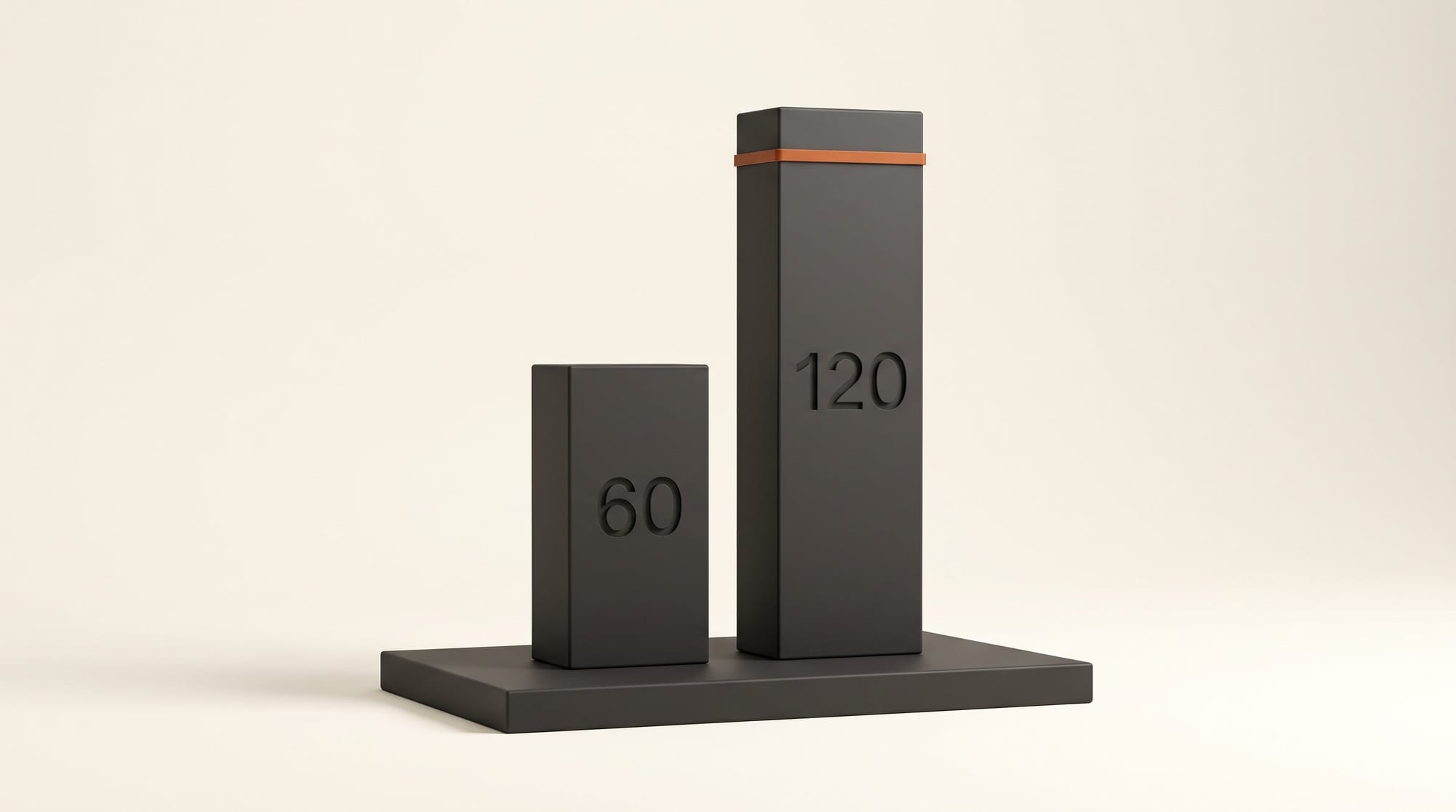
The math is simple. On a 24 fps timeline, a clip shot at 60 fps can be slowed to 40% and every frame you see is a real one. A clip shot at 120 fps can go down to 20%. Only when you slow past that point does the software have to invent anything, which is when the settings below start to matter.
So if your phone or camera has a 60 or 120 fps mode, use it for anything you might slow down: a pour, a jump, a hair flip, a product spin. Phone clips are often recorded at a variable frame rate, which can stutter before you change any speed, so convert them to a constant frame rate first if your editor offers it.
Interpolation also has known weak spots. Topaz's own frame interpolation documentation warns that drastic changes between frames will not produce in-between motion, that reflective water can strobe, and that layered parallax on curves can wobble. Those warnings apply to every tool here, not just Topaz.
The Six Tools at a Glance
| Tool | The setting | Runs on | Price | Furthest slowdown |
|---|---|---|---|---|
| Topaz Video | Frame Interpolation: Apollo, Chronos, Aion | Your computer | $59 a month or $299 a year | 16x with Aion |
| DaVinci Resolve Studio | Optical Flow, Speed Warp Better | Your computer (Windows, Mac, Linux) | $295 once | Any speed you type |
| DaVinci Resolve (free) | Optical Flow, no Speed Warp | Your computer | $0 | Any speed you type |
| Final Cut Pro | Video Quality: Best (Machine Learning) | Mac with Apple silicon | $299.99 once or $12.99 a month | Any retime speed |
| Premiere | Time Interpolation: Optical Flow | Your computer | From $22.99 a month | Any speed you type |
| CapCut | Speed: Smooth slo-mo | Desktop, phone, web | Pro $19.99 a month or $179.99 a year | Limited by the speed slider |
| Flowframes | RIFE interpolation | Windows PC with a recent graphics card | Name your own price | Set per export |
Resolve Studio, Final Cut Pro and Topaz use trained AI models to build the new frames. Premiere's Optical Flow and the free Resolve's Optical Flow estimate how pixels move and draw frames from that, which is older technology and shows more warping on hard shots. CapCut does not say which method Smooth slo-mo uses.
Job 1: Slow a 30 fps Clip to Half or Quarter Speed
This is the everyday job: a clip shot at normal frame rate that you decide, in the edit, should play at 50% or 25%. All six tools handle it, and the right one is whichever you edit in.
In Final Cut Pro, set the speed, then click the Retime pop-up menu below the viewer, choose Video Quality, and pick Best (Machine Learning). Apple's Final Cut Pro guide on clip speed calls it the highest-quality option with reduced artifacts, notes that it takes longer to analyze and render, and says it needs a Mac with Apple silicon. The options below it are Better (Optical Flow), Good (Frame Blending) and the default Fast (Floor), which simply repeats frames.
In DaVinci Resolve Studio, select the clip on the Edit page, open the Inspector, go to Retime and Scaling, set Retime Process to Optical Flow and Motion Estimation to Speed Warp Better. Then right-click the clip, choose Change Clip Speed and type 50%. Blackmagic lists speed warp retiming in DaVinci Resolve Studio as part of its Neural Engine, so the free version can retime with Optical Flow but has no Speed Warp.
In Premiere, open Speed/Duration, set the speed, and choose Time Interpolation, Optical Flow, then render the section before you judge it. In CapCut desktop, select the clip, open Speed at the top right, drag the speed below 1x and click Smooth slo-mo, as CapCut's slow motion guide shows.
At 2x and 4x, expect all of them to do well on simple motion. The difference shows on busy shots: hands, hair and edges are where classic optical flow warps first, which is why the trained models in Final Cut Pro and Resolve Studio are the better default.
Job 2: Extreme Slow Motion, 8x to 16x
Turning one second into eight or sixteen means inventing seven or fifteen frames for every real one. This is where a dedicated app earns its price.
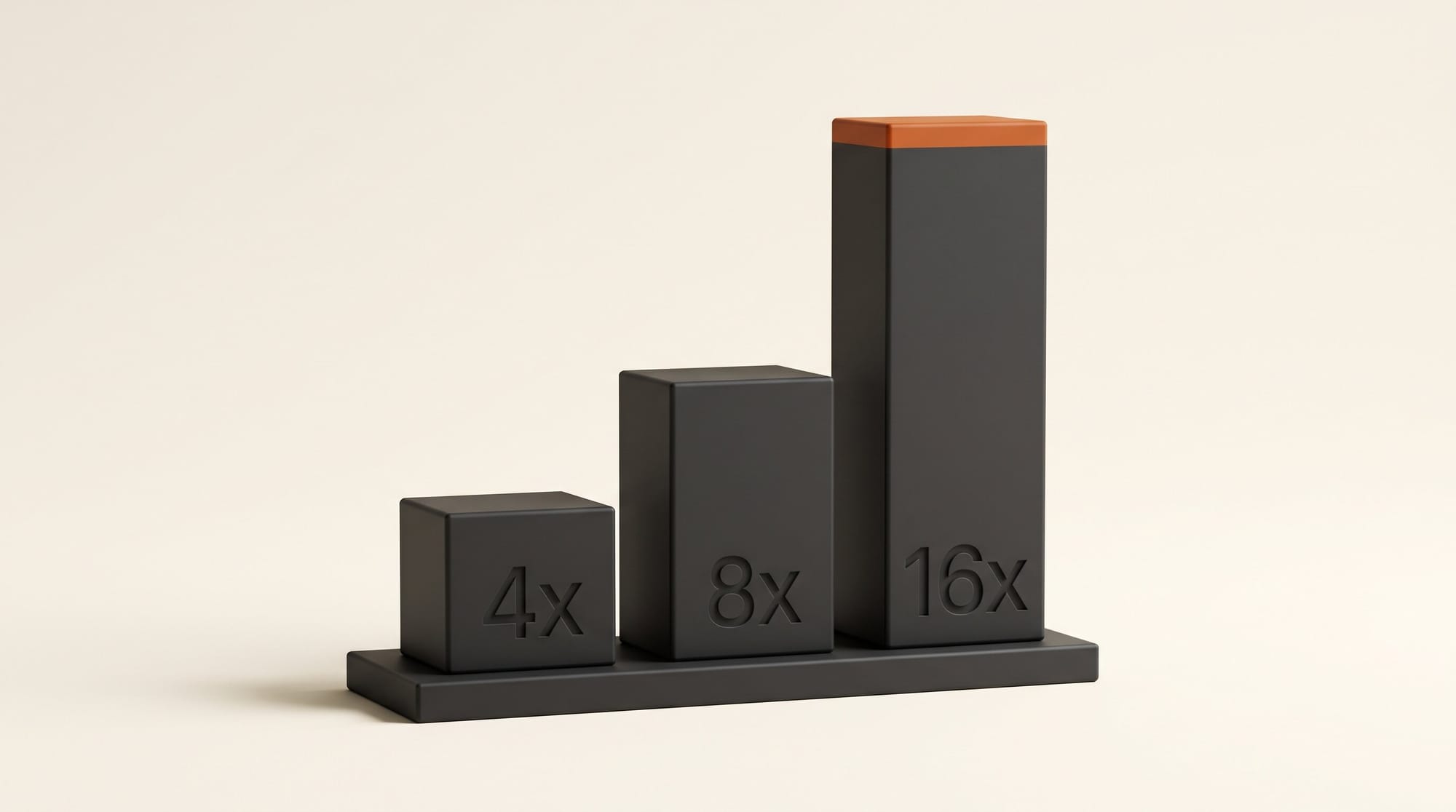
Topaz Video gives you a choice of models in its Frame Interpolation panel, and Topaz is unusually clear about which to use. Its frame interpolation walkthrough recommends Apollo for most slow motion, up to 8x, and Aion for the most extreme jobs, up to 16x, with the warning that Aion needs much more memory and processing power, especially on Macs. The documentation says Chronos gives good results at 4x or less, and that Apollo is the pick when you need exactly 2x, 4x or 8x.
The workflow is short. Drag the clip in, switch on Frame Interpolation, choose the slow motion multiplier and a model, turn on Scene Detection if the clip has cuts, and press Preview. You can open a second tab with another model, preview both, and play them side by side before you export. That side-by-side preview is the most useful feature here, because the right model depends on the footage.
Resolve Studio and Final Cut Pro will also slow a clip to 10% or less. But neither lets you swap models when one fails on a shot, and that is the difference at 8x and beyond.
Job 3: Speed Ramps Inside an Edit
A speed ramp runs a clip at full speed, drops into slow motion for the key moment, and speeds back up. It is a staple of travel, sports and product videos, and it is an editing job, so the app you cut in wins.
Resolve and Premiere handle ramps with keyframes: retime curves in Resolve, Time Remapping in Premiere. Keep the AI or optical flow setting on the clip, because the ramp still needs new frames in the slow part, and in Premiere re-render after every change to the ramp. CapCut has a Curve option in its Speed panel with preset ramps and custom curves, which is the fastest route for a phone edit. In Final Cut Pro, build the ramp with the Retime tools and keep Video Quality on Best (Machine Learning).
One catch: in Resolve, audio under a variable speed change is muted, and slowed sound rarely survives a ramp in any editor. Plan to lay music or sound effects over the ramp rather than keeping the original sound.
Topaz Video does not edit ramps. If you need Topaz quality inside a ramp, slow the whole clip in Topaz first, bring the slowed file into your editor, and ramp it there.
Job 4: Convert 24 fps to 60 fps
Frame rate conversion is the quieter use of the same technology: a 24 fps clip, a screen recording or an AI-generated video that you need at 30 or 60 fps for a platform or a client, without slowing anything down.
Topaz Video does this with the slow motion multiplier set to None and a target frame rate typed in, including custom rates. Its docs suggest Apollo Fast for conversions that are not a clean doubling, such as 24 to 29.97 fps, and a Replace Duplicate Frames switch swaps repeated frames for interpolated ones. That last setting helps with footage that already has stutter baked in.
Flowframes is the free route on Windows. It is a desktop app that runs the RIFE model on your graphics card, with DAIN, FLAVR and XVFI as alternatives. It needs Windows 10 or 11 and a graphics card from roughly the last six years, AMD included, and its maker puts the newest versions on Patreon first, with version 1.36.0 free to download. If you generate AI video in ComfyUI, NVIDIA's free nodes do the same job; our guide to ComfyUI RTX Video nodes for 60 fps and HDR covers them.
Inside an editor, set the timeline to 60 fps, drop the 24 fps clip in, and choose the AI or optical flow setting from Job 1. Each editor then fills the gaps.
Job 5: No Fast Computer
AI slow motion is heavy work. Speed Warp and Topaz's Aion are both slow to render, so plan to cache or render the few slowed clips rather than every shot.
If your laptop cannot keep up, there are two routes. The Topaz pricing page lists a Topaz for Web Video plan at $29 a month or $299 a year that includes frame interpolation and slow motion in the browser with 200 video credits a month, so the work happens on Topaz's computers. The desktop Topaz Video plan includes 25 cloud credits a month on top of unlimited local rendering. CapCut's online editor also offers slow motion, which is enough for social clips.
When Each One Wins
Final Cut Pro wins for Mac editors. Best (Machine Learning) is a menu choice on any clip, it improved in version 10.8, and the app costs $299.99 once or comes with Apple Creator Studio at $12.99 a month.
DaVinci Resolve Studio wins for Windows and Linux editors who want to pay once. Speed Warp sits in the same Inspector where you set the speed, and the $295 license covers every other Studio feature too.
Topaz Video wins when slow motion is the product: sports, music videos, product spins at 8x and beyond, or batches of footage that need frame rate conversion. The model choice and side-by-side preview are worth the price for that work and not for an occasional slowed clip.
CapCut wins for short-form creators who edit on a phone. Smooth slo-mo and speed curves sit in the same Speed panel; check for a Pro badge next to the option before you build an edit around it.
Premiere is the weakest of the paid options for slow motion, because Optical Flow is not a trained AI model. If you already pay for it, use Optical Flow for gentle slow motion and round-trip hard shots through Topaz.
Flowframes wins for anyone on a Windows PC who wants to spend nothing on smoother or slower clips.
Pricing and ROI
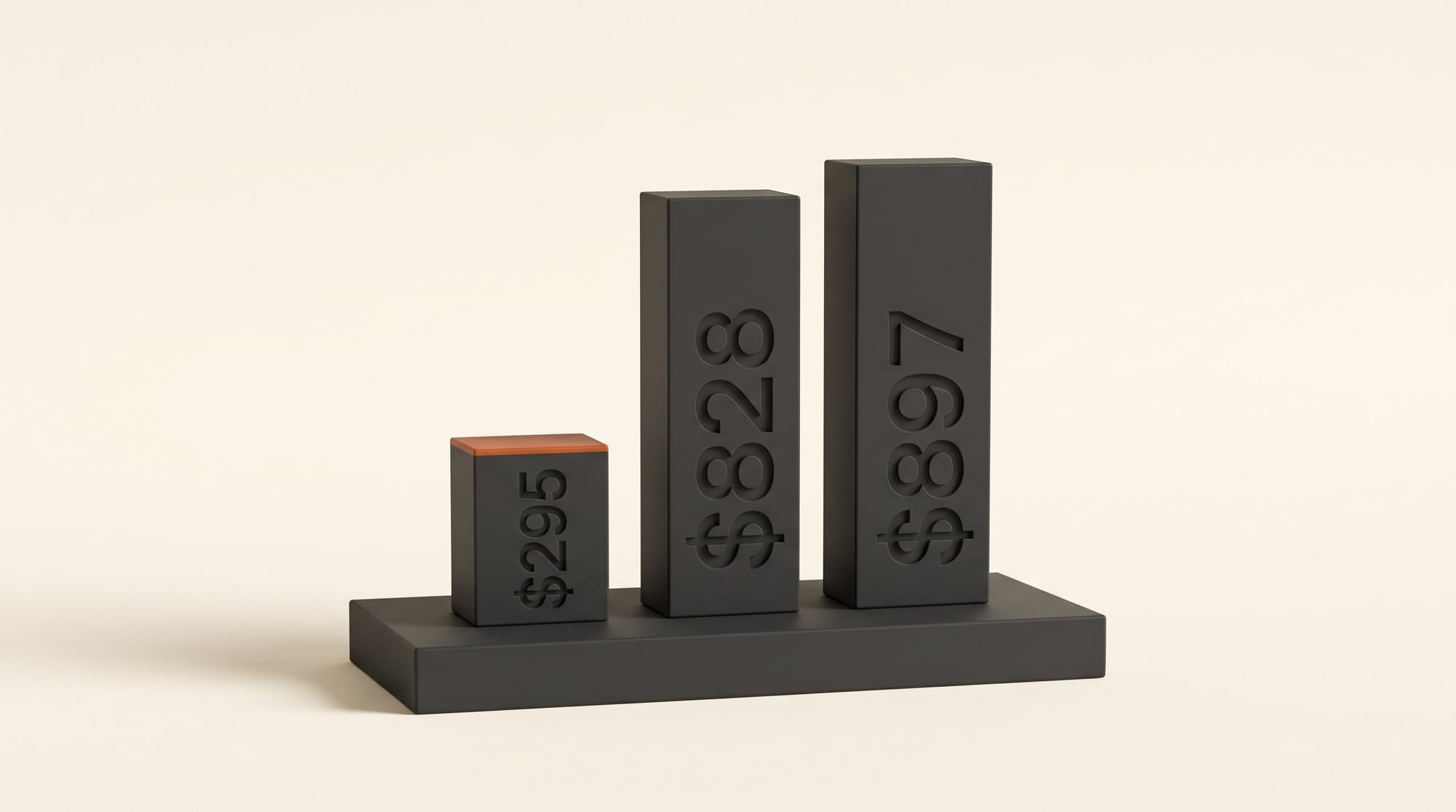
Here is what each route costs over three years, at list prices on November 25, 2026, ignoring sale prices that expire.
| Tool | Plan | List price | Three-year cost |
|---|---|---|---|
| Flowframes | Free download | Name your own price | $0 |
| DaVinci Resolve (free) | Free | $0 | $0 (no Speed Warp) |
| DaVinci Resolve Studio | Perpetual license | $295 once | $295 |
| Final Cut Pro | One-time purchase | $299.99 once | $299.99 |
| Final Cut Pro via Apple Creator Studio | Subscription | $129 a year | $387 |
| CapCut Pro | Yearly | $179.99 a year | $539.97 |
| Premiere | Single app, annual commitment | $22.99 a month | about $828 |
| Topaz Video | Yearly | $299 a year | $897 |
The ROI question is mostly about what else the tool does. Resolve Studio and Final Cut Pro are full editors, so their slow motion is a bonus on software you would buy anyway. Topaz Video also upscales, denoises and stabilizes, which our AI video upscaler comparison covers, so its $299 a year buys a finishing tool rather than just slow motion. Its plan allows commercial use for businesses under $1 million in yearly revenue.
Verdict
Shoot at 60 or 120 fps whenever a moment might end up slowed. For everything else, use the AI setting in the editor you already own: Best (Machine Learning) in Final Cut Pro, Speed Warp Better in Resolve Studio, Smooth slo-mo in CapCut. Add Topaz Video only when you regularly need 8x to 16x or flawless frame rate conversion, and try Flowframes first if you are on Windows and the budget is zero. For the rest of the editing stack, our roundup of the best AI tools for video editors covers what else is worth installing.
FAQ
What is the best AI slow motion software?
For extreme slow motion, Topaz Video: its Aion model goes to 16x and Apollo to 8x, and you can preview models side by side. For slow motion inside an edit, the AI setting in your editor: Best (Machine Learning) in Final Cut Pro or Speed Warp in DaVinci Resolve Studio.
Does the free version of DaVinci Resolve have Speed Warp?
No. Speed Warp runs on the DaVinci Neural Engine, which is part of DaVinci Resolve Studio at $295 once. The free version can still slow clips with Optical Flow, which estimates motion without the trained model.
How do I make smooth slow motion in Final Cut Pro?
Change the clip's speed, click the Retime pop-up menu below the viewer, choose Video Quality, and pick Best (Machine Learning). It needs a Mac with Apple silicon and takes longer to render than Optical Flow or Frame Blending.
Is there a free AI slow motion app?
Flowframes for Windows is free, with a name-your-own-price download, and runs the RIFE model on your graphics card. The free DaVinci Resolve offers Optical Flow retiming on Windows, Mac and Linux, which is not a trained AI model but smooths gentle slow motion.
Why does my AI slow motion look warped?
The tool could not track the motion between two frames: fast hands, spinning wheels, water reflections, or a big jump between frames. Try a different model or setting, slow the clip less, or shoot at 60 or 120 fps next time so the software has real frames to work with.