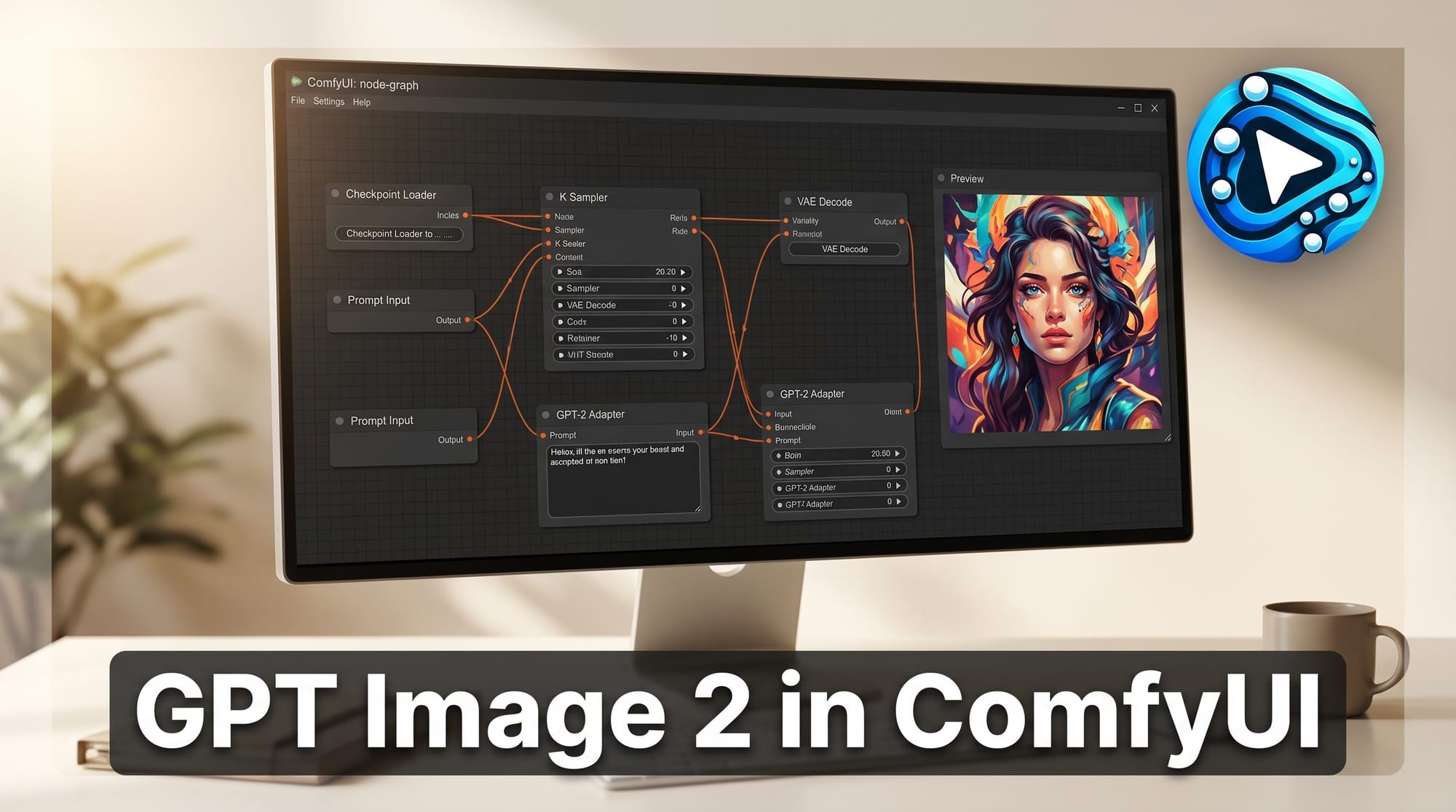
ComfyUI updated to v0.19.4 on April 22, 2026, adding OpenAI GPT Image 2 as a Partner Node, the first OpenAI image model to reason before it generates. The update introduces pixel-stable editing, batch storyboard generation, and clean text layout rendering inside local ComfyUI workflows, available now for users who update to the latest release.
For the broader landscape, see our definitive ComfyUI workflow guide for 2026.
What Happened
GPT Image 2 landed in ComfyUI through the Partner Nodes system. After updating to v0.19.4, users can search for "OpenAI GPT Image 1.5" in the Node Library and select the gpt-image-2 model. The node integrates into hybrid pipelines alongside existing local models for upscaling or stylization steps. OpenAI released gpt-image-2 globally on April 20-21, rolling out to ChatGPT Plus and Pro users and opening commercial API access via fal. The ComfyUI Partner Node integration, shipping two days later, is one of the fastest third-party integrations to date.
Why It Matters
The reasoning step is the meaningful change here. Previous image generation models, including GPT Image 1, generated output in a single forward pass with no self-correction. GPT Image 2 plans composition, checks its work internally, and iterates before producing the final image. For ComfyUI users building complex layouts (infographics, UI mockups, slides, manga panels), this means fewer broken text blocks and less manual correction. The pixel-stable editing is equally significant: changes apply only to the specified region, so adjusting lighting or colorizing a product shot does not rewrite unrelated parts of the image.
Key Details
- Reasoning generation: GPT Image 2 plans composition before rendering and handles dense text, iconography, infographics, and UI elements that consistently broke in earlier models.
- Pixel-stable editing: Targeted edits keep content outside the edit zone unchanged, at up to 2K resolution. Useful for colorizing, relighting, or modifying specific objects without collateral changes.
- Batch consistency: Generates up to eight images from a single prompt while preserving character and object continuity, practical for storyboards, character turnarounds, and product variant sets.
- Hybrid pipelines: The node connects to local models in the same ComfyUI workflow, so you can follow GPT Image 2 generation with a local upscaler or stylization pass.
What to Do Next
Update ComfyUI to v0.19.4. In the Node Library, search "OpenAI GPT Image 1.5" and select the gpt-image-2 model. An OpenAI API key with image generation access is required: this is a cloud API call, not a local model. For teams already using the ComfyUI Partner Nodes system, GPT Image 2 slots in with the same workflow as existing partner integrations. Cloud support is listed as coming soon per Comfy Org.