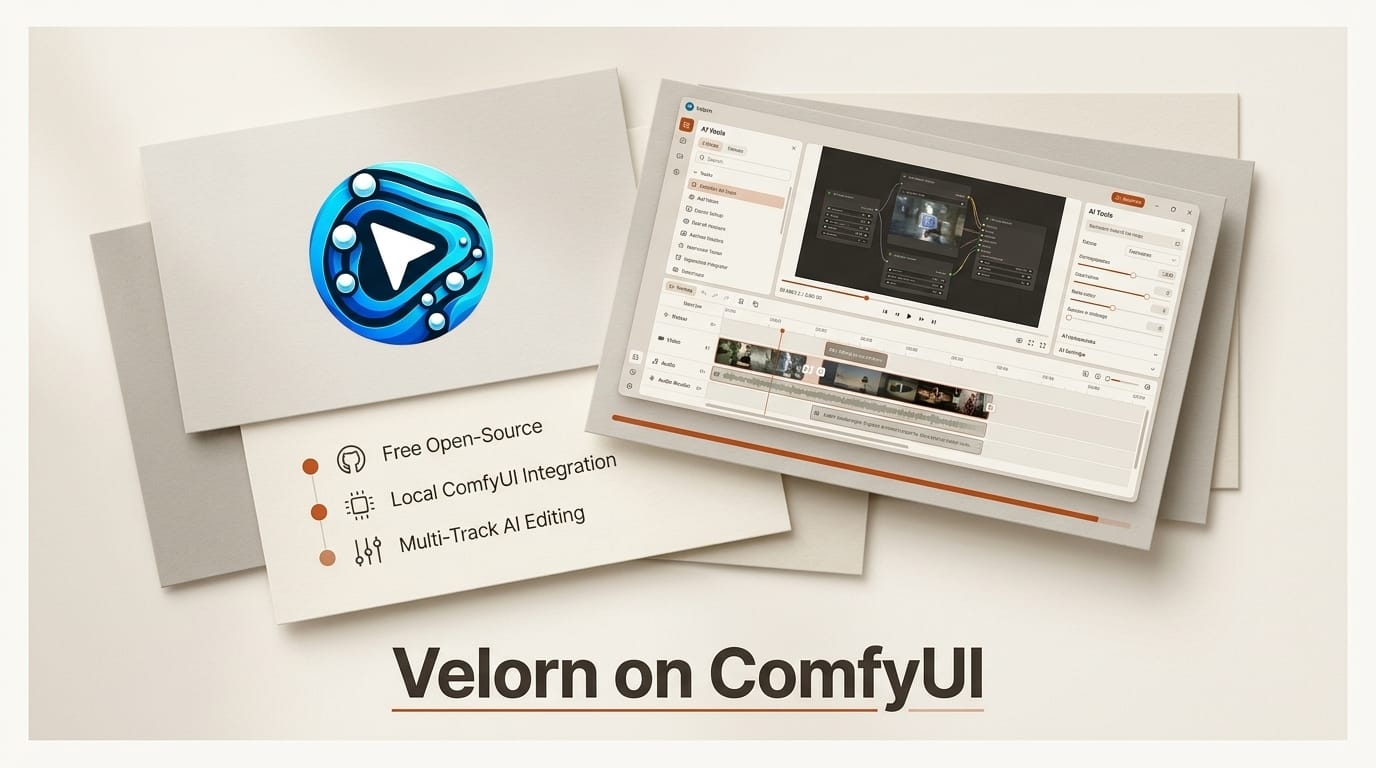
You can generate every clip for a short video, cut them together, add captions, and export a finished file without ever leaving one open-source app. Velorn is a free desktop workstation that wraps a full multi-track editor around a local ComfyUI server, so the same models you already run for image and video generation feed straight into a timeline. This guide walks the whole pipeline end to end, from install to export, and shows how to hand the process to an AI coding agent. Everything below runs locally on Windows, macOS, or Linux, and the software itself costs nothing.
What You Need
Before you start, get these pieces in place. The only hard requirement is a working ComfyUI install, since Velorn uses it as the generation engine rather than shipping its own models.
- A machine that can run ComfyUI. A CUDA GPU is ideal; Apple Silicon and CPU fallback work but generate more slowly.
- A working ComfyUI install. If you do not have one, follow the setup steps on the ComfyUI site and its documentation.
- The latest Velorn build for your operating system from the project releases page.
- At least one image or video model already loaded in ComfyUI, for example ByteDance's Seedream 5.0 Pro.
- Optional: a coding agent such as Claude Code or Cursor if you want to drive the pipeline through the Model Context Protocol.
The Workflow: From Prompt to Finished Short
The core loop is simple. You describe shots, Velorn queues them to ComfyUI, the outputs land on a timeline, and you edit and export in the same window. Here is the full sequence.
Step 1: Install Velorn and start ComfyUI
Download the latest v0.3.3 build for your platform. Velorn ships a Windows installer and a portable build, a macOS package for both Apple Silicon and Intel, and a Linux AppImage or deb. Start ComfyUI first: by default it listens on 127.0.0.1:8188, which is the address Velorn expects.
Step 2: Connect Velorn to your ComfyUI server
Open Velorn and point it at your running ComfyUI instance on the default port 8188. The two apps talk through Velorn Bridge, which also lets you send graphs back from ComfyUI and import custom workflow JSON. An embedded ComfyUI tab inside Velorn means you can edit the underlying graph without switching windows, so a workflow you already trust keeps working exactly as it does standalone.

Step 3: Generate your shots in the Generate workspace
In the Generate workspace, describe a shot and queue it. Velorn sends the job to ComfyUI, waits for the render, collects the output, and drops it into your project. Because the engine is your own ComfyUI, any model or LoRA you have installed is available here, and generation cost is whatever your local hardware and any API nodes already cost you.
Step 4: Manage assets and pick your models
Velorn is project based, so generated clips, imported footage, and audio all live in one asset library per project. A built-in stock photo and video search fills gaps when you need a quick cutaway, and you can mix generated shots with any video models you run in ComfyUI. This is where the single-app pattern pays off: nothing has to be exported and re-imported between generation and editing.
Step 5: Cut the short on the multi-track timeline
Drop your shots onto the multi-track timeline and start cutting. Velorn gives you clip trimming, transitions, and effects, plus text, shape, title, and adjustment layers for on-screen graphics. An inspector panel exposes per-clip controls, and proxy and cache options keep playback smooth on heavier projects. This is the step that separates Velorn from a pure generation front-end: it is a real non-linear editor, not just a render queue.

Step 6: Add captions, transitions, and audio
Velorn can generate captions from the timeline audio and style them, which is the fastest path to social-ready subtitles. For song-driven edits, a dedicated Music Video Creator handles lyric timing and keyframe generation so cuts land on the beat. A UGC Creator and a Business Ad Creator provide templated starting points for social ads, and an experimental Short Film mode targets longer narrative pieces.
Step 7: Export with hardware acceleration
When the edit is done, export from the same project with hardware-accelerated encoding. Because planning, generation, asset management, and editing all happened in one tool, there is no round-trip through a separate NLE, and the finished short leaves Velorn ready to publish.
Automate the Pipeline With the MCP Server
Velorn ships a local MCP server that exposes more than 100 tools at the endpoint 127.0.0.1:19790/mcp. Point a coding agent such as Claude Code or Cursor at that endpoint and it can drive the pipeline programmatically: queuing generations, arranging clips, and editing the timeline through the Model Context Protocol rather than by hand. For creators building repeatable content at volume, this turns Velorn from a manual editor into a scriptable production backend, and it is why the same tool appeals to both editors and agent builders.
Troubleshooting
Most problems trace back to the ComfyUI connection or the local endpoints. Work through these first.
- Velorn cannot find ComfyUI: confirm ComfyUI is running and reachable on 127.0.0.1:8188, and that no firewall rule is blocking the local port.
- Generations never return: open the ComfyUI console and load the same workflow there first. If it fails in ComfyUI, it will fail through Velorn Bridge too.
- An agent cannot connect: verify the MCP endpoint at 127.0.0.1:19790/mcp is running and that your agent config points at that exact address.
- Playback stutters or export is slow: enable proxy and cache on heavy timelines and turn on hardware acceleration in the export settings.

What to Try Next
Once the basic loop works, push it further. Start from the templated UGC and music-video workflows to produce a batch of social cuts quickly, then compare the experience with other ComfyUI-native editors like LTX Director 2.0 to see which fits your style. If you already run agents, wire the MCP server into an existing pipeline, or pair it with a cloud approach like Comfy MCP so shot generation can run end to end without a human in the loop.
Frequently Asked Questions
Is Velorn really free?
Yes. Velorn is released under the GPL-3.0 license, so you can download, run, and self-host it at no cost, and modify the source as long as you honor the license terms.
Do I need ComfyUI to use Velorn?
Yes. Velorn does not generate on its own; it uses your local ComfyUI server as the engine and adds the editor, asset management, and automation layers on top.
What models can I use with Velorn?
Any image or video model you already run in ComfyUI, including releases such as Seedream 5.0 Pro. Velorn inherits whatever your ComfyUI install supports.
Can an AI agent run Velorn for me?
Yes. The built-in MCP server exposes more than 100 tools at 127.0.0.1:19790/mcp, so a coding agent like Claude Code or Cursor can queue generations and edit the timeline programmatically.
What platforms does Velorn support?
Windows, macOS on both Apple Silicon and Intel, and Linux through an AppImage or deb package. Builds are available on the project releases page.