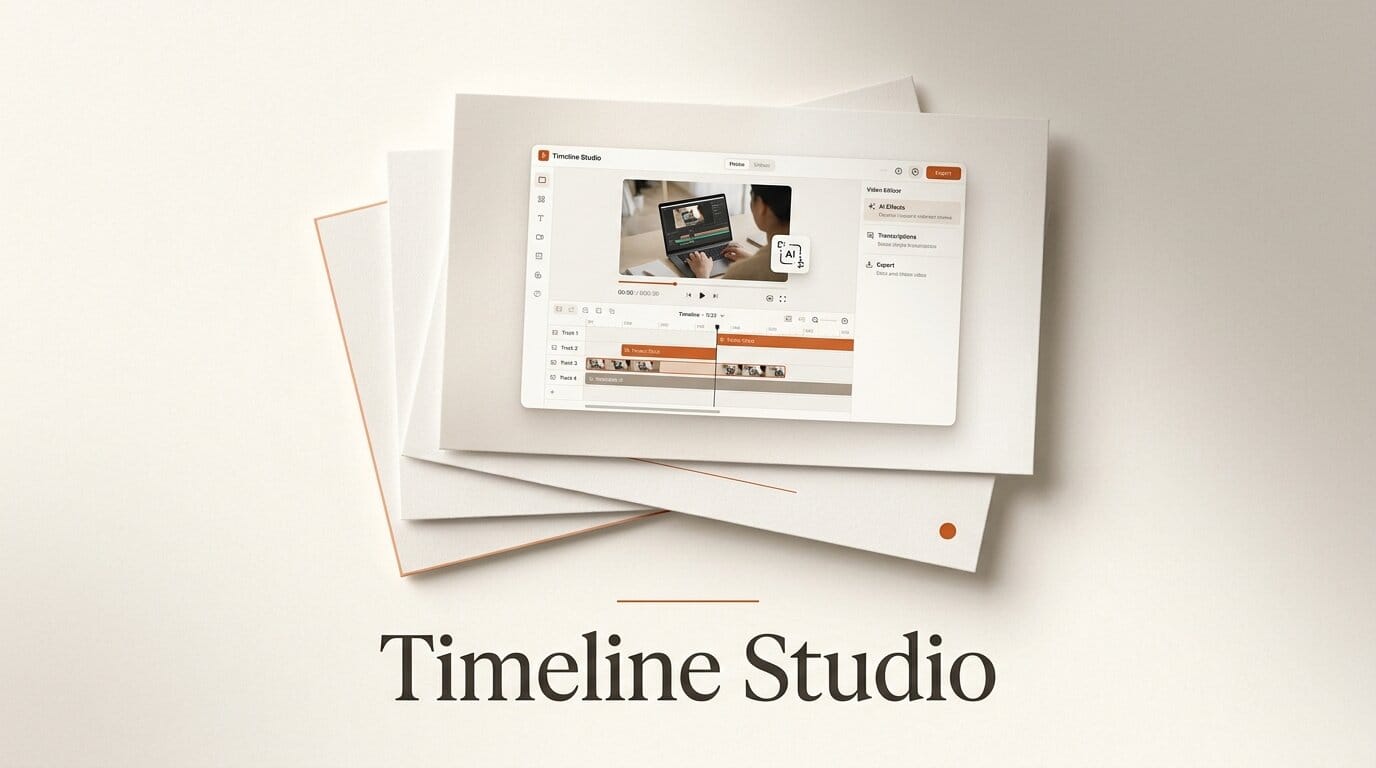
Most AI video editors ask you to upload your footage to a server, wait for a cloud job, and trust that your raw clips are handled responsibly. Timeline Studio takes the opposite approach. It is an open-source, local-first video editor that runs entirely inside a Chromium browser tab, combining a CapCut-style multi-track timeline with browser-side AI voiceovers, automatic captions, subject detection, and talking-avatar generation. Version 0.4.0 landed on July 18, 2026, and nothing you edit leaves your machine.
That combination is unusual. Browser video tools normally lean on a backend for the heavy AI work, while local desktop editors rarely bundle neural models. Timeline Studio pins revisioned models, lazy-loads them through a service worker, and runs inference on WebGPU, so a laptop with a modern GPU can transcribe speech, separate vocals, and drive a talking portrait without a single upload.
What Timeline Studio Actually Is
Timeline Studio is a Progressive Web App you can install from the browser or run from source with Node.js 20 and a modern Chromium build. The interface mirrors the layout most short-form creators already know: a contiguous main visuals track, timed picture-in-picture overlays, and independent lanes for captions, stickers, voiceovers, source audio, and music. You get snapping, alignment guides, clip menus, split and duplicate, timeline zoom, keyframes, masks, filters, and undo or redo. Projects save to a portable .timeline file, so a session is a document you can move between machines.
You can try it without installing anything through the hosted live demo or the project's Hugging Face Space. The code is MIT licensed and sits at 42 stars with an active release cadence, so it is early but real, not a mockup.
How It Runs Everything In Your Browser
The core idea is local-first inference. Large models are lazy-loaded, revision-pinned, and cached by the service worker, so the first time you reach for captions the model downloads once and then runs offline. Speech-to-text uses a quantized Whisper small model exported to ONNX, with waveform-aware timing so caption cues line up with the audio rather than drifting.
All of this leans on two web platform pieces that only recently became dependable. ONNX Runtime executes the neural models in the browser, and the WebGPU API gives those models access to the GPU. WebGPU is recommended for the heavier workflows; without it, avatar generation and matting fall back to slower paths. Because inference is client-side, supported workflows never send your project media to an editing backend, which is the privacy story cloud editors cannot match.
Timeline Studio vs Cloud AI Editors vs CapCut
The trade-offs become clearer in a side-by-side. Cloud AI editors win on raw model size and rendering horsepower. CapCut wins on polish and mobile reach. Timeline Studio wins on privacy, cost, and the fact that it is genuinely yours to fork.
| Capability | Timeline Studio | Cloud AI editors | CapCut |
|---|---|---|---|
| Where AI runs | Your browser (WebGPU) | Vendor servers | Vendor servers |
| Media upload required | No | Yes | Yes |
| Cost | Free, open source | Subscription or credits | Free with paid tiers |
| AI voiceover | Yes, multilingual, on-device | Yes | Limited |
| Auto captions | Yes, Whisper ONNX | Yes | Yes |
| Talking avatars | Yes, JoyVASA and LivePortrait | Some | No |
| Offline export | Yes, deterministic | No | No |
| Self-hostable and forkable | Yes, MIT | No | No |
The AI Toolkit Inside
Timeline Studio bundles a surprising number of models for a browser app. For speech synthesis it ships Piper voices in ONNX for Chinese, German, Spanish, French, Italian, and Portuguese, Kokoro 82M for English, and VITS for Chinese, so a script becomes a multilingual voiceover track without a cloud TTS bill. The Piper voices are compact enough to stream into the tab and cache locally.
Smart framing uses a tiny YOLOS model for subject detection and MODNet for portrait matting, which together let the editor reframe a wide shot to a vertical crop that keeps the speaker centered. Vocal separation isolates a clean voice stem from background music. The most ambitious feature is talking-avatar generation, which pairs JoyVASA for audio-to-motion with LivePortrait for neural rendering, turning a still portrait and an audio clip into a lip-synced digital presenter.

A First Project Workflow
Here is a concrete path from empty timeline to exported clip:
- Open the app in Chromium, confirm WebGPU is available, and create a new project. It saves as a
.timelinedocument. - Drag your footage onto the main visuals track. Split, trim, and reorder clips with the CapCut-style tools.
- Paste your script into the voiceover panel and pick a Piper or Kokoro voice. The narration renders on-device to its own audio lane.
- Run auto-captions. Whisper transcribes the voiceover with waveform-aware timing, and you edit any cues inline.
- Add a talking-avatar overlay from a portrait image if you want an on-camera presenter without filming one.
- Use smart framing to reframe wide clips to vertical, then export to MP4 or WebM. Rendering uses WebCodecs with a MediaRecorder fallback and mixes audio, captions, and overlays deterministically.
What This Enables For Creators
The practical payoff is a private, zero-cost pipeline for narrated short-form video. A solo creator can script, voice, caption, and reframe a video for vertical platforms without a subscription and without handing raw footage to a vendor. Educators and agencies working with sensitive material get an editor where the footage never leaves the device, which sidesteps most data-handling questions. And because the whole thing is MIT licensed and built on FFmpeg and standard web APIs, teams can fork it, add a model, or wire it into an existing agent workflow rather than waiting on a vendor roadmap. For a fuller landscape of options, see our guide to the best AI tools for video editors.
Frequently Asked Questions
Is Timeline Studio really free?
Yes. It is open source under the MIT license, and because the AI runs in your browser there are no per-minute or per-render fees. Your only cost is the hardware you already own.
Does my footage get uploaded anywhere?
No. Supported workflows run entirely client-side. Models download once and are cached by the service worker, and your project media stays on your machine rather than going to an editing backend.
What do I need to run it?
A modern Chromium browser and, for the heavier AI features, a GPU that supports WebGPU. To run from source you need Node.js 20 or newer. There is also a hosted demo if you just want to try it.
How does it compare to CapCut?
The timeline and editing controls are deliberately CapCut-like, so the learning curve is small. The difference is that Timeline Studio is open source, runs its AI locally, and adds features CapCut lacks, such as deterministic offline export and talking-avatar generation.
Can it make talking-head videos from a photo?
Yes. It pairs JoyVASA for audio-to-motion with LivePortrait for rendering, so a single portrait plus an audio track produces a lip-synced presenter clip inside the editor.
Which languages does the voiceover support?
Piper voices cover Chinese, German, Spanish, French, Italian, and Portuguese, Kokoro 82M handles English, and VITS provides an additional Chinese voice, all synthesized on-device.
What formats can it export, and does export work offline?
Export produces MP4 or WebM using the browser WebCodecs pipeline, with a MediaRecorder fallback when WebCodecs is unavailable. Rendering is deterministic and offline, meaning the same project produces the same output without contacting a server, and audio, captions, overlays, and effects are all mixed locally at export time.
Is it stable enough for real work yet?
At version 0.4.0 it is early software, so treat it as a capable preview rather than a production replacement. The editing core and the AI features work today, but you should keep backups of source footage and export test clips before committing to a full project on a deadline.