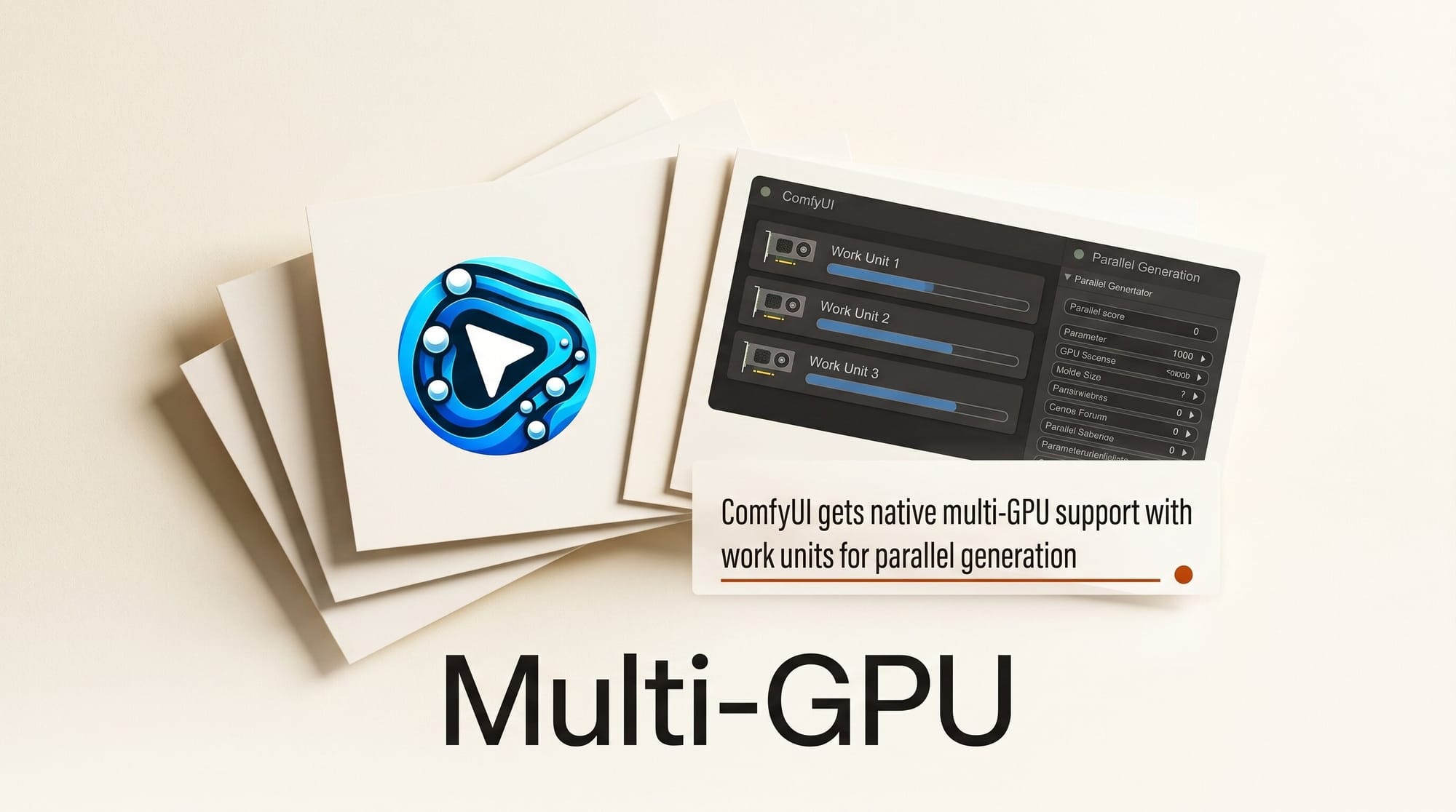
ComfyUI merged native multi-GPU support on May 26, 2026, giving creators with dual or multi-GPU rigs the ability to split image and video generation workloads across all their hardware for the first time. Pull request PR #7063 by Kosinkadink landed five new nodes in the core application, delivering up to 1.89x speedup on Wan 14B video generation with dual RTX 4090s. No external plugins required.
What Was Merged
The ComfyUI multi-GPU feature works by distributing conditioning computations across available GPUs as parallel work units. Rather than processing positive and negative prompts, masked conditioning, and other conditioning operations serially on a single card, the new scheduler farms these out across all detected CUDA devices simultaneously using Python threads. GPU operations run outside the GIL, so threading gives real parallelism for the tasks that matter.
The five nodes added to comfy_extras/nodes_multigpu.py give you granular control over device assignment:
- MultiGPU CFG Split: prepares models for distributed sampling; place it after any model-modifying nodes (compile, attention-switch) in your workflow
- Select Model Device: routes the diffusion model to a specific device:
default,cpu, orgpu:N - Select CLIP Device: pins the CLIP text encoder to a specific device
- Select VAE Device: places the VAE on a chosen GPU (CPU is intentionally excluded)
- MultiGPU Options: reserved for heterogeneous GPU speed ratios (currently disabled pending scheduler updates)
On single-GPU systems, these nodes operate as pass-throughs. You can add MultiGPU CFG Split to any workflow without risk: if only one GPU is present, it changes nothing.
Performance Benchmarks
Testing documented in the PR shows consistent gains when GPUs are the processing bottleneck:
| Model | Hardware | Speedup |
|---|---|---|
| Wan 1.3B text-to-video | Dual RTX 4090 | ~1.85x |
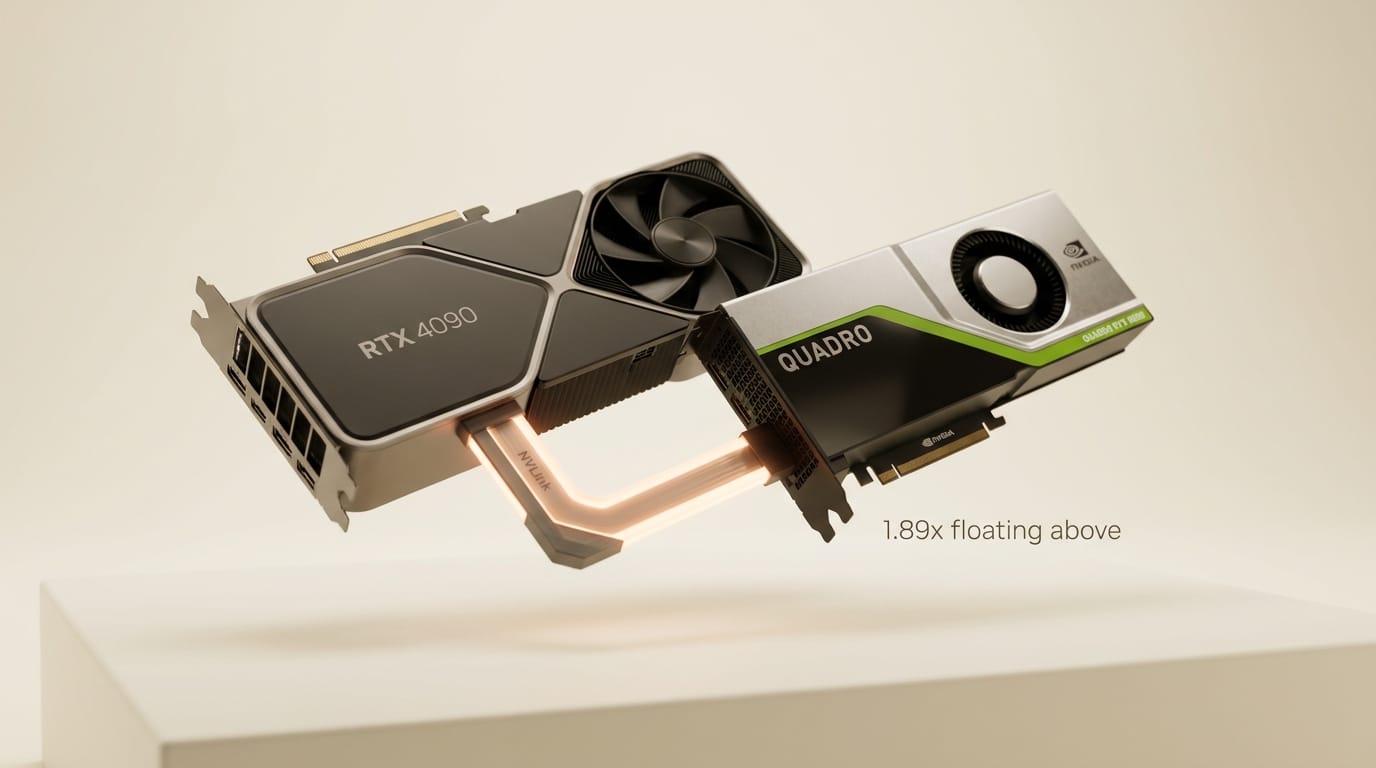
| Wan 14B text-to-video | Dual RTX 4090 | ~1.89x |
These figures assume symmetrical GPU setups. Asymmetric configurations (for example, one RTX 4090 paired with an RTX 3090) will see diminished returns since the faster GPU waits for the slower one to complete its work unit. The MultiGPU Options node will eventually address this by allowing you to specify relative performance ratios, but that scheduler logic is not yet active.
Light workloads where the GPU is idle most of the time: very short denoising steps or heavily quantized sub-1B models: may see overhead costs that cancel out the benefit. The feature is most valuable for large video generation models like Wan2.1 14B and full-resolution image generation with long conditioning chains.
Hardware Compatibility
| Platform | Status | Notes |
|---|---|---|
| NVIDIA CUDA | Tested | Both single-card and multi-card verified |
| Intel Arc XPU (Linux) | Tested | Works on Linux; non-functional on Windows |
| AMD ROCm | Untested | Community reports welcome |
| DirectML (Windows) | Untested | No results documented yet |
NVIDIA hardware with two or more cards is the only fully confirmed multi-GPU configuration at launch. AMD and Intel users should test and report results to the ComfyUI repository.
How to Set Up Multi-GPU in Your Workflow
Updating to get the feature is straightforward if you run ComfyUI from the main branch:
- Pull the latest changes from the main branch (commit
0a2dd86or newer) - Verify ComfyUI detects your GPUs on startup: look for GPU enumeration in the console output
- Open an existing workflow or start a new one
- Add a MultiGPU CFG Split node after your model loader and any model-modifying nodes
- Connect it in the model chain, before the sampler node
- Optionally, add Select Model Device, Select CLIP Device, and Select VAE Device nodes to pin specific components to specific GPUs
- Queue your generation and watch GPU utilization in a monitoring tool like
nvtopor the NVIDIA System Management Interface
For video generation with Wan2.1, adding MultiGPU CFG Split to the model chain is enough to activate the speedup. The scheduler handles work distribution automatically. Both GPUs should show elevated utilization during the conditioning and sampling phases.
This pairs naturally with the workflow improvements covered in PARE efficient video generation with Wan2, since Wan models benefit most from multi-GPU acceleration.
When Multi-GPU Helps Most
The feature delivers the best results in specific scenarios:
- Video generation: Wan 1.3B and 14B text-to-video and image-to-video show close to 2x gains
- High-resolution image generation: models with complex conditioning chains (ControlNet plus IP-Adapter plus standard conditioning) gain from parallel work unit processing
- Long diffusion runs: workloads that keep GPUs saturated throughout the denoising process maximize the throughput benefit
- Any model with multiple conditionings: the PR documentation states any model using more than one conditioning becomes eligible for acceleration
Scenarios where gains are minimal include very fast models (under 5 seconds per generation), small quantized models that barely saturate one GPU, and workflows with heavy CPU-bound pre/post-processing.
Frequently Asked Questions
Do I need to modify my existing workflows?
Yes, but minimally. Add the MultiGPU CFG Split node to your model chain. On systems with one GPU it does nothing, so you can add it to any workflow without breaking single-GPU setups. There is no automatic migration of existing workflows.
Does this work with ComfyUI Manager and custom nodes?

The core multi-GPU scheduler is built into ComfyUI itself, not a plugin. Most custom nodes work unmodified. Nodes that modify the model should be placed before the MultiGPU CFG Split node: attention switch nodes, compilation nodes, and similar modifiers need to run first so the splitter clones the final modified model state across devices.
Can I use GPUs with different VRAM amounts?
Yes, though the current scheduler does not account for asymmetric performance. A 24GB card paired with an 8GB card will both be assigned equal work units. The MultiGPU Options node will eventually allow specifying speed ratios to balance load on heterogeneous setups. Until then, expect diminished returns if the smaller card cannot keep up.
What about model loading: does each GPU load its own copy?
The implementation creates deep-cloned model patches for each GPU with unloaded weights to conserve memory. During sampling, clones synchronize with the primary patcher. VRAM usage increases proportionally to the number of active GPUs, so two 24GB cards do not give 48GB of effective VRAM for a single model: each needs enough headroom to run its assigned work units.
Is this stable enough for production use?
The PR includes fixes for single-GPU regressions and AMD/ROCm unload issues merged through May 26. NVIDIA CUDA on both single and multi-GPU setups is tested. AMD and DirectML users should treat this as early access. Check the ComfyUI releases page and the PR discussion for ongoing stability updates.
Will this work with SDXL, Flux, and other image models?
Any model that uses multiple conditionings is eligible. SDXL with its dual CLIP encoders and Flux with its T5 plus CLIP conditioning chain should see gains. Standard SD 1.5 with a single conditioning may see little benefit. Testing with your specific model and workflow is the best way to confirm.
What to Do Next
If you run ComfyUI from the main branch, pull the latest commit and add MultiGPU CFG Split to your video or image generation workflows. Monitor GPU utilization during a test run to confirm both cards are active. For stable releases, watch the ComfyUI documentation for the version that includes this feature officially.
If you have an AMD or DirectML setup, test the new nodes and report results in the GitHub repository. Community feedback on non-NVIDIA hardware is the fastest path to official support for those platforms.
New to ComfyUI workflows? The MooshieUI beginner guide covers the workflow fundamentals before you start adding multi-GPU nodes.