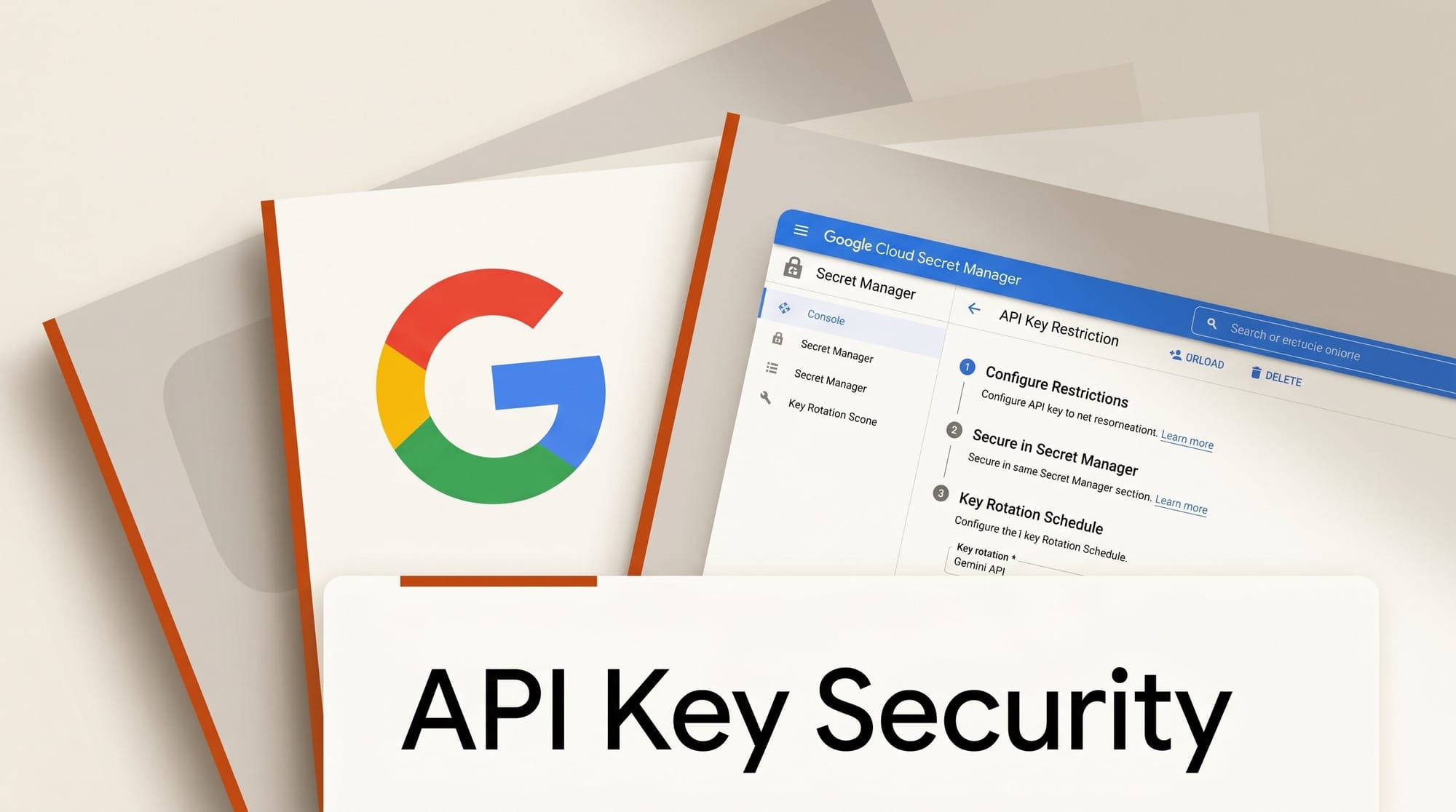
Google published a step-by-step security guide for Gemini and Google API keys on May 21, authored by Leonid Yankulin, Senior Developer Relations Engineer at Google Cloud. The guide came in response to community requests in r/googlecloud, where developers were asking for a practical tutorial on protecting their keys from hijacking and unauthorized billing charges.
What Happened
Yankulin covers a three-step framework that any Gemini API user, from hobbyist to enterprise developer, can implement immediately. A Gemini API key is technically a standard Google Cloud API key, which means the same console, CLI, and monitoring tools apply whether you use Gemini, Google Maps, or any other Google service. The guide focuses on Gemini, but the steps apply broadly to any Google API key.
Why It Matters
API keys carry no identity. Anyone who obtains your Gemini key can run inference and incur charges on your account with no further authentication. Google's official API key best practices have existed for years, but developers experimenting with AI Studio frequently skip the restriction steps during prototyping, then forget to tighten them before going live. Hijacked keys are used to run large inference workloads or resell model access at the original account holder's expense.
Key Details
Step 1: Restrict the key. In the Google Cloud Credentials console, set API restrictions to Gemini API only, not the default no-restriction setting that grants access to any available service. Add application restrictions (website URL, IP range, or app bundle ID) to limit which clients can send requests. Keys created through Firebase may default to 24 enabled APIs; audit and narrow that list.
Step 2: Store it in Secret Manager. Never commit API keys to git or store them in plain environment variable files that get version-controlled. Use Google Secret Manager to inject the key into Cloud Run or GKE workloads at runtime rather than hardcoding it. For client-side integrations, verify keys only travel over TLS. Google AI Studio handles this correctly by default, but custom integrations need to be checked manually.
Step 3: Run key hygiene now. Open Credentials, identify every key you no longer recognize or use, and delete them (deleted keys can be restored within 30 days). Set up Cloud Monitoring on the serviceruntime.googleapis.com/api/request_count metric filtered by credential_id to detect abnormal usage spikes that indicate a compromised key. Rotate keys periodically: create a new restricted key, update all references, then delete the old one.
What to Do Next
Start with an immediate audit: open Google Cloud Credentials, find every unrestricted key, and restrict or delete it today. If you use AI coding tools, check whether any .env files or chat sessions contain live keys. Earlier this year, Sieve launched a scanner that checks Claude and Cursor conversation history for accidentally exposed API keys.
For hands-on practice with Secret Manager and Cloud Run credential injection, Google's team published a 9-minute walkthrough video covering secure storage concepts step by step.