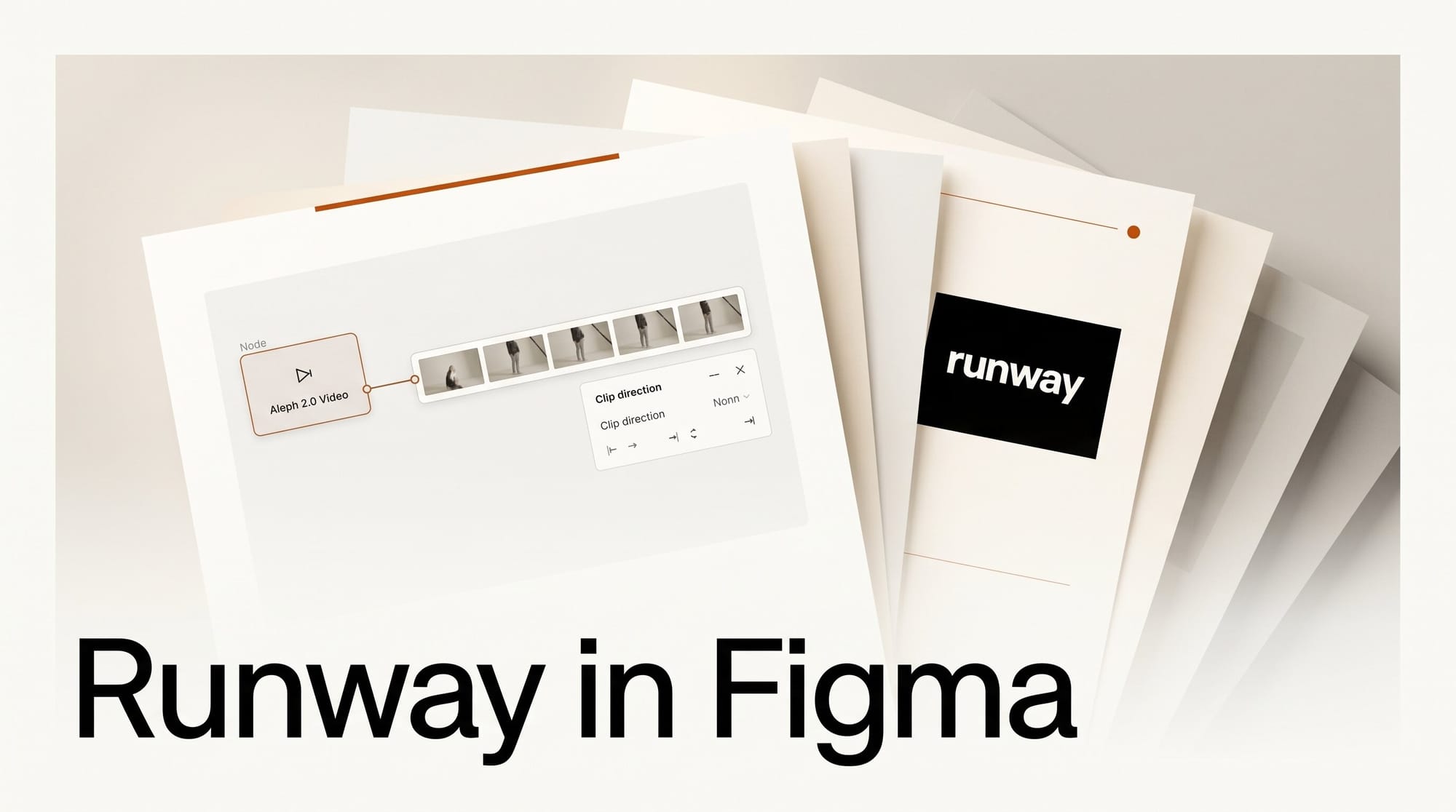
Runway's Aleph 2.0 video model is now available inside Figma Weave, Figma announced on June 18, 2026. Designers and editors can direct video clips up to 30 seconds frame by frame, changing camera angles, swapping characters, or transforming environments without a reshoot, all from within Weave's node-based canvas.
What Happened
Figma added Runway Aleph 2.0 as a node in Figma Weave, its node-graph creative tool. Aleph is an in-context video model: instead of generating clips from scratch, it edits existing footage while keeping objects, lighting, and motion consistent across the shot. Runway describes Aleph in its research announcement as the first model that understands a video well enough to re-light it, re-angle it, or restage it from a single prompt. Bringing it into Weave means those edits happen alongside the rest of a creator's design pipeline rather than in a separate application, with each transformation living as its own node on the canvas.
Why It Matters
Weave already replaced the single prompt box with a visual node graph, as we covered when Figma Weave launched its node-graph approach. Adding Aleph 2.0 turns that graph into a video post-production surface: you can branch a clip, try several creative directions in parallel, and feed reference images to lock an aesthetic before committing. For motion designers and short-form editors, that removes the round trip between a design tool and a separate video editor, and it keeps every version of a shot side by side instead of buried in export folders.
Key Details
Aleph 2.0 in Weave supports clips up to 30 seconds for full-scene direction, uses keyframe-based editing that carries a change across frames where relevant, and accepts reference images to maintain a target look. The node-based setup lets you chain edits, so a camera move, a lighting change, and a new background can each be a separate, adjustable step. Figma says pricing in Weave will scale with input length, which the company expects to lower costs for shorter clips. The model can change camera angles, introduce a new character, or transform an environment entirely without reshooting source footage.
What to Do Next
If you already use Weave, open a new flow and add the Aleph node to test it on a short clip you control. Start with a 5 to 10 second shot and a single instruction, such as a camera move or a lighting change, then branch the node to compare directions before refining the one you like. Check the Figma Weave FAQ for current access requirements. For background on the model itself and its earlier rollout, see our coverage of Aleph 2.0 landing in Runway's own Edit Studio.