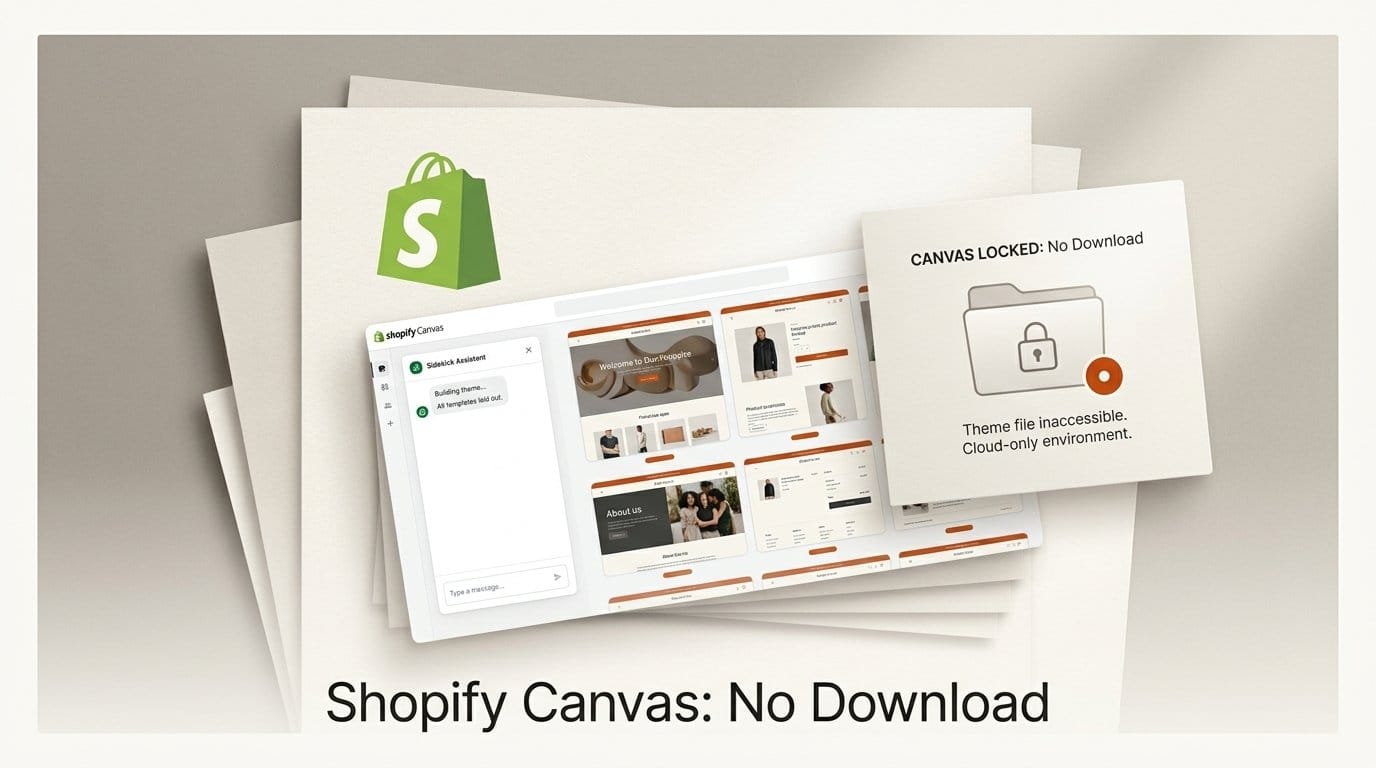
Shopify launched Canvas on October 1, 2026: a new design surface in the Shopify admin where merchants build or restyle a store theme by chatting with Sidekick, Shopify's AI agent, and watch every page re-render as real code. Shopify says a fully custom store now takes about 20 minutes, and that Sidekick made more than 25 million theme edits in the first half of 2026. Canvas is desktop only and is rolling out to stores over the coming days.
The line that matters most for anyone building a store to last sits on Shopify's Canvas requirements page and in its launch changelog: a theme you edit in Canvas does not receive theme updates, and you cannot download its files. Below: what Canvas does, what a Canvas theme gives up, how that compares with the exit doors on Lovable, Webflow, Framer and Wix, and a duplicate-first workflow for trying it without betting your live store.
What Shopify Shipped on October 1
Canvas lays every template of a store out side by side. You pan across the whole site to judge how it feels, zoom into a product page to fix a detail, click an element to edit it directly, or type what you want into a Sidekick chat. Shopify's announcement stresses that the preview is not a mockup: it is the store's real code rendering, so animations, interactions, different products and collections, and screen sizes all behave as they would for a shopper.
Sidekick is meant to act like a designer rather than a command line. According to Shopify, it asks questions, proposes approaches, remembers your preferences and carries design decisions forward across pages. Ben Sehl, Shopify's Director of Product and a co-founder of the apparel brand Kotn, put the pitch this way: "Today, an entrepreneur on Shopify can build a fully custom store in twenty minutes that's head and shoulders above what I built then."
To make that possible, Shopify told TechCrunch it simplified its theme architecture so that a store's structure, logic and design are easier for Sidekick to understand and change. TechCrunch lists the competition Shopify is walking into: Wix, Squarespace, Webflow, Framer, Lovable and Replit.
Availability is worded two ways. The Shopify changelog says Canvas is rolling out to all existing stores over the coming days, while the help center calls it early access for certain stores. If you do not see it under Online Store, Themes yet, your store is not in the rollout. Canvas does not replace the current theme editor; themes you do not open in Canvas stay where they are.
How Canvas Works, Step by Step
There are three ways in, all from the Themes page in the Shopify admin: New starts a theme from a description of your brand, Duplicate in Canvas copies a supported existing theme into Canvas, and Edit theme opens a theme that already carries the Canvas badge. Duplicating is the safe default, because the original keeps living in the classic editor.
- Work with Sidekick: with nothing selected, a request applies to the whole theme. Select a block and a second field appears for changes to that block only. You can keep several Sidekick chats open at once, for example one for the home page and one for product pages.
- Inspector mode: a toggle switches between selecting blocks to edit and browsing the store the way a customer would.
- Preview widths: Desktop, Tablet and Mobile presets, or drag the handles to any width. Templates tied to products or collections let you click the URL path to preview a different item.
- Theme history: review and restore earlier versions of the theme, which is your undo button when a chat goes somewhere you did not want.
- Publish or Update: publish a draft theme, or push changes to a theme that is already live.
Sidekick itself is not new to themes. Since a December 10, 2025 changelog entry, merchants have been able to customize a theme with Sidekick in the regular editor by describing changes such as "make my store feel more premium". What Canvas adds is the whole-store view, the real-code preview, and a surface built around the conversation instead of a settings sidebar.
What a Canvas Theme Gives Up
Shopify's requirements page is unusually blunt. To use Canvas at all, you need a desktop browser, a plan that includes theme customization, and staff access with the Online store, Themes, Edit code permission. It works only with themes developed by Shopify and with custom themes: third-party themes from the Shopify Theme Store are not supported, which rules out any store running a paid Theme Store theme on day one.
Once a theme is in Canvas, these are the trade-offs Shopify lists:
- No theme updates. A theme you edit in Canvas stops receiving the updates Shopify ships for its themes.
- No download. You cannot download the theme files for a theme you edited in Canvas.
- No app blocks or app embeds. You cannot add or configure them in Canvas. These are how many Shopify apps put review widgets, chat bubbles, upsells and tracking scripts on a storefront.
- No per-market customization. You cannot customize the theme for different markets in Canvas.
- No direct translation. Theme content has to be translated with the Translate & Adapt app instead.
- No manual blocks. You cannot add a new block to a template by hand; Sidekick has to add it.
- No Rollouts. Shopify's Rollouts tool cannot be used to edit a theme created in Canvas.
Two smaller notes: metaobject templates are missing from the Jump to menu, and on some older themes you cannot edit text directly in the preview. Shopify's own announcement admits "there are gaps we still need to close", and Shopify told TechCrunch that support for third-party themes, Markets, translations and app blocks is planned over time. Until then, read Canvas as a fast way to make a new design, not as a home for a mature store that runs on apps.
The update freeze is the quieter risk. A Shopify theme normally picks up fixes and new features when Shopify updates it. A Canvas copy stays at the version you started from, so any fix after that point only reaches you if Sidekick, or you, put it in by hand.
Canvas vs the Other AI Builders: Who Lets You Leave
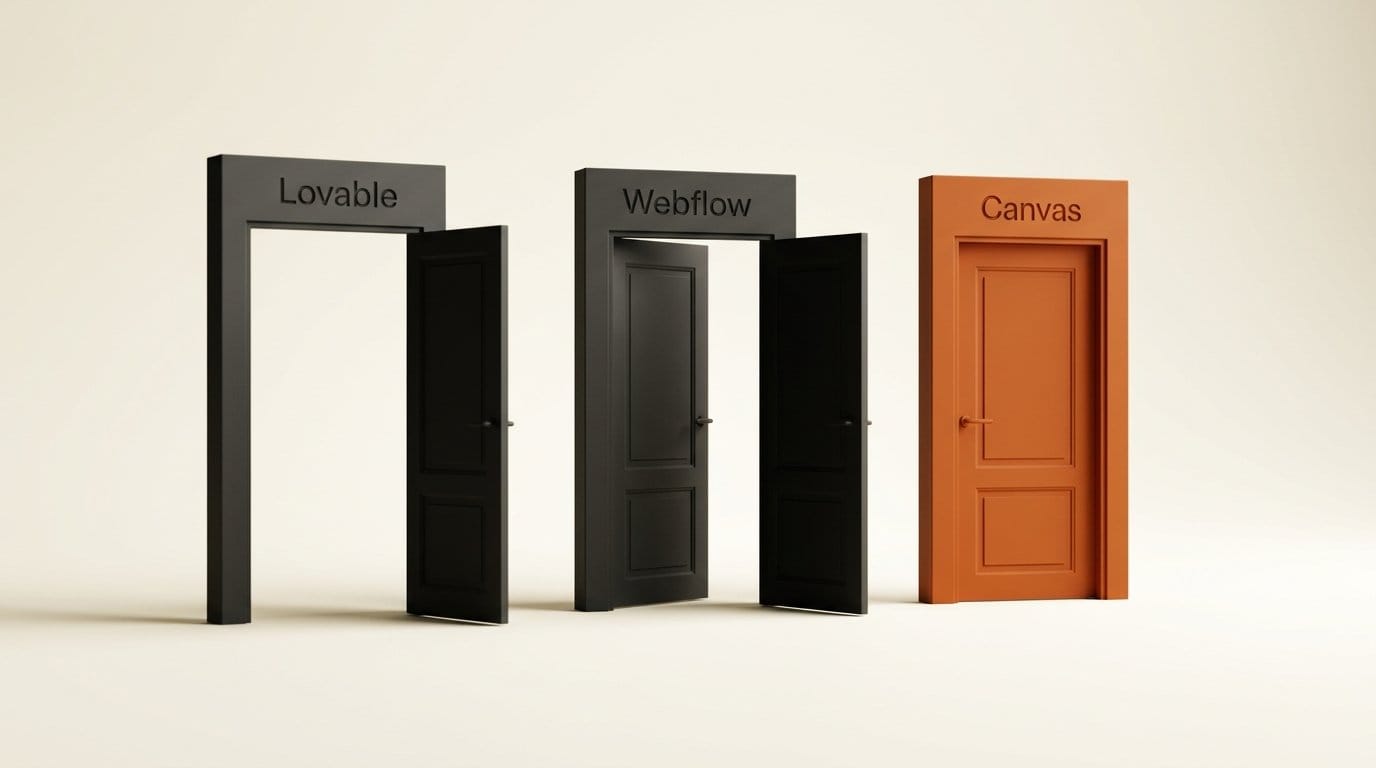
Lock-in is not unique to Shopify; it is the norm for hosted builders. What differs is whether you can take the code with you. Here is where Canvas sits, using each vendor's own documentation or a dated walkthrough where the vendor's page blocks automated checks.
| Builder | Can you take the code out? | What you get, or what stays behind |
|---|---|---|
| Shopify Canvas | No | Theme files cannot be downloaded; the theme also stops receiving updates |
| Shopify theme editor with Sidekick | Yes | Download theme file sends a .zip to the email on your staff login |
| Lovable | Yes | Two-way GitHub sync on all plans; repositories are private by default |
| Webflow | Partly | HTML, CSS, JavaScript and images on paid Workspace plans from $19 a month; CMS content, ecommerce, forms and site search stay behind |
| Framer | No | "Framer does not offer HTML export for self-hosting" |
| Wix | No | "Your site must run on Wix's servers" |
Sources: Shopify's requirements page and theme download help, Lovable's GitHub integration docs, a dated walkthrough of Webflow's code export, Framer's help center and Wix support.
So Canvas moves the design layer of a Shopify store into the same hosted-only camp as Framer, whose own agents now edit live sites (see our look at Framer 3.0 Agents), and Wix. The difference is that a Shopify store's valuable data, its products, orders and customers, never lived in the theme. Losing the theme download does not trap your catalog. It traps the design work, plus every fix Shopify ships after you start.
Lovable is the opposite case: everything it writes lands in a GitHub repository you own. That comes with its own risks, because you also own the security of what was generated; our exposure check for vibe-coded apps shows how that goes wrong.
Which Shopify Path Fits Your Store
Canvas and the classic theme editor both use Sidekick, so the choice is about your store's plumbing, not about AI. A simple rule from Shopify's list of exclusions:
- Canvas fits a new store, a seasonal microsite or a redesign that starts from a Shopify-made or custom theme, sells in one market, needs few storefront app widgets and can live with a frozen theme version.
- The classic editor fits a store on a paid Theme Store theme, one that depends on app blocks or app embeds for reviews, subscriptions or loyalty, one with per-market customization, one that uses Rollouts, or one whose developer wants the theme files. Sidekick there can still restyle the theme, and since December 2025 its AI block generation works on every Theme Store theme.
If you sell through AI agents as well as your storefront, the theme matters less than your checkout and catalog data; we tested that side in Shopify WebMCP checkout on 8 real stores.
Workflow: Try Canvas Without Risking Your Live Store
- Download your live theme first. In Online Store, Themes, open the menu on your current theme and choose Download theme file. Shopify emails a .zip to the address on your staff login. Keep it: it is the one copy you control.
- List your app widgets. Open the regular theme editor and note every app block and app embed your storefront uses. None of them can be added or configured in Canvas, so this list is your go or no-go.
- Duplicate, never edit live. On the Themes page, choose Duplicate in Canvas for a Shopify-made or custom theme, or New to start from a brand description. The original stays in the classic editor.
- Brief Sidekick like a designer. Give it your brand, your customer and what the home page must do, then ask it to propose a direction before it edits anything. Use separate chats for separate templates.
- Check every width and item. Review each template at Desktop, Tablet and Mobile, and click the URL path on product and collection templates to try a product with long titles and several variants.
- Use theme history as your undo. When a chat overshoots, restore the previous version instead of arguing with Sidekick for ten turns.
- Publish with a fallback. Keep the old theme unpublished in your library so you can switch back in one click if conversion drops.
That last step is the real safety net. "We're early here," Sehl told Unite.AI, and things will change quickly, so treat a Canvas theme as a fast first draft you can walk away from.
Frequently asked questions
What is Shopify Canvas?
Canvas is a design surface in the Shopify admin, launched October 1, 2026, where you build or edit a store theme by chatting with Sidekick or clicking elements directly. It shows every template side by side and renders the store's real code as it changes.
Does Shopify Canvas cost extra?
No separate price has been announced. Canvas requires a plan that includes theme customization, and Shopify's Sidekick page says Sidekick is included with your Shopify plan, with features and usage limits that vary by plan.
Can I use Canvas with a theme I bought from the Theme Store?
Not at launch. Canvas works only with themes developed by Shopify and with custom themes. Shopify says third-party theme support is planned over time.
Can I download a theme I built in Canvas?
No. Shopify's requirements page says you cannot download the theme files for a theme you edited in Canvas. Download your existing theme before you start, since that copy remains downloadable.
Will my Canvas theme still get updates from Shopify?
No. A theme you edit in Canvas does not receive theme updates, so later fixes to the original theme do not reach your Canvas copy automatically.
Does Canvas work on a phone or tablet?
No. Canvas is available only on desktop devices, although it can preview your store at tablet and mobile widths.