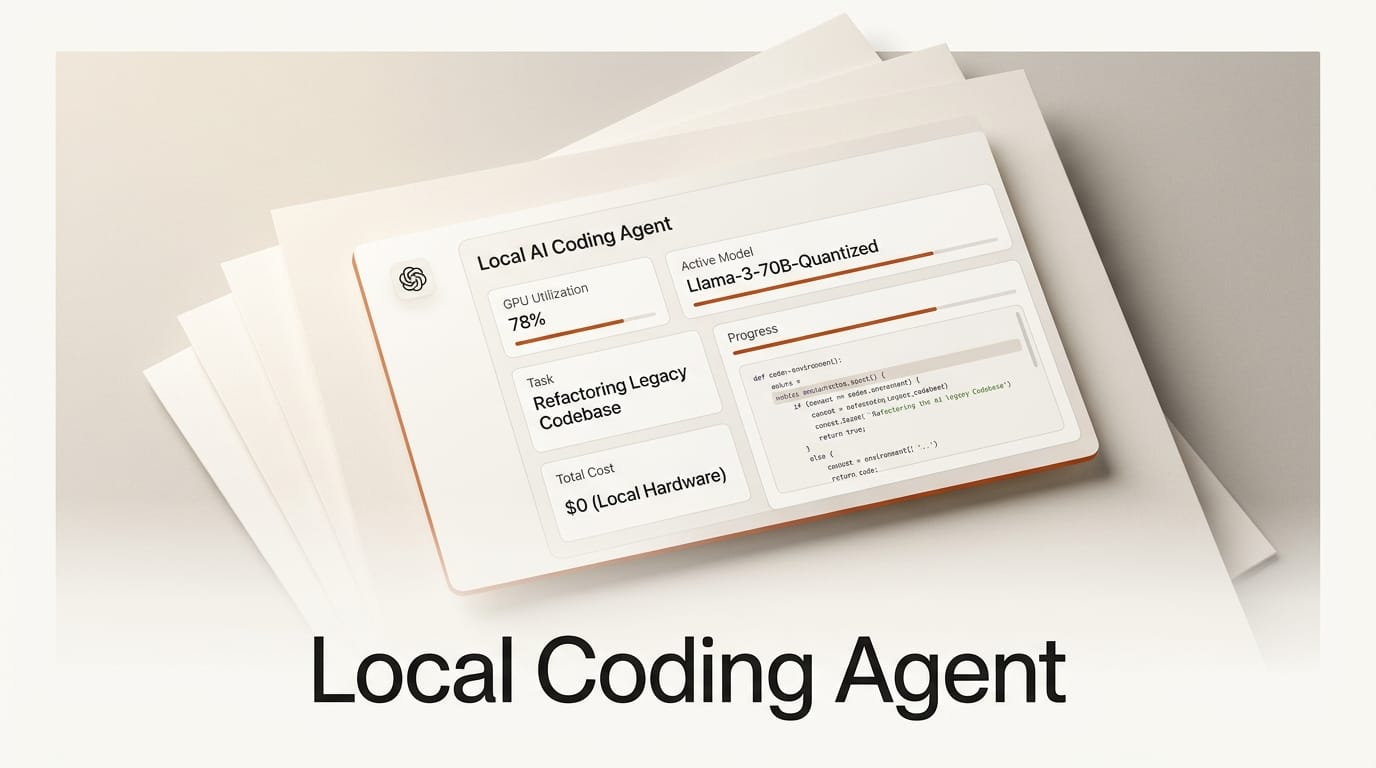
You can run a capable AI coding agent entirely on your own machine: one open-weight model, one GPU, no per-token bill, and no code leaving your network. This tutorial walks through the full setup, using Ollama or vLLM to serve the model, OpenHands or Cline as the agent front-end, and an open coding model such as Ornith 1.0 as the brain. Budget roughly 30 to 45 minutes for a first run, most of which is the model download.
Why Run a Coding Agent on Your Own Hardware
Two reasons: cost and privacy. A cloud coding assistant bills per token, so a long agent session that reads and rewrites a repository can run up real charges, and every file the agent touches leaves your machine. Running the model locally removes both problems. That is the core local versus cloud tradeoff builders weigh every day, and until recently the catch was quality: open-weight models you could host yourself lagged well behind the hosted frontier.
That gap has narrowed. Open-weight agentic coding models now post scores close to the hosted leaders while staying small enough to run on consumer hardware. Ornith 1.0, for example, activates only about 3B parameters per token from a 35B Mixture-of-Experts base, yet scores 64.2% on Terminal-Bench 2.1 and 75.6% on SWE-bench Verified, the agent-focused subset of SWE-bench. The point of this guide is not one specific model, though. It is the repeatable stack that lets you swap any open-weight coding model into the same local pipeline.
What You Need
- A GPU with at least 24GB of VRAM, such as a single RTX 4090, RTX 5090, or workstation equivalent. A CPU-only setup works but is slow enough to frustrate.
- A serving runtime: Ollama or LM Studio for the simplest path, or vLLM or SGLang for a higher-throughput server.
- An open-weight coding model in a format your runtime supports: a GGUF build for Ollama, LM Studio, or llama.cpp, or the full weights for vLLM and SGLang.
- An agent front-end: OpenHands or Cline.
- A real code repository to point the agent at, ideally on a throwaway branch.
Set Up the Local Model Server
The agent never talks to the model directly. It talks to an OpenAI-compatible HTTP endpoint that your runtime exposes, which is the seam that makes the whole stack swappable. Set up that endpoint first, then point an agent at it.
Step 1: Pick a path and download the model
There are two paths. The GGUF path through Ollama or LM Studio is the easiest: download a quantized GGUF build from Hugging Face and the runtime handles the rest. The full-weight path through vLLM or SGLang takes more setup but gives you better throughput and reliable native tool calling, which agents lean on heavily. Because only about 3B parameters are active per token and a 4-bit quantization keeps the memory footprint modest, a 35B Mixture-of-Experts model in GGUF form fits comfortably on a single 24GB GPU.
Step 2: Start an OpenAI-compatible endpoint
With Ollama, load the GGUF and the server listens on localhost with an OpenAI-compatible route under /v1. With vLLM, a single command of the form vllm serve deepreinforce-ai/Ornith-1.0-35B exposes an endpoint at http://localhost:8000/v1 with native tool calling; Ornith specifically expects vLLM 0.19.1 or later, or SGLang 0.5.9 or later. Either way, confirm the server is live by requesting the models list from the /v1/models route before you wire anything else in. If that returns your model name, the hard part is done.
Connect Your Agent and Ship a Feature
Step 3: Point the agent at your local endpoint
In OpenHands, add a custom LLM: set the base URL to your local /v1 address, enter any non-empty string as the API key since the local server does not check it, and set the model name to the one your runtime reported. In Cline, choose the OpenAI Compatible provider and fill in the same base URL and model name. Both front-ends now route every request to your GPU instead of a metered cloud API.
Step 4: Give it a scoped task
Open a throwaway branch and hand the agent a tight, verifiable task rather than a vague one. Something like "add a /health endpoint that returns HTTP 200 with a JSON status body, then run the test suite" gives the model a clear target and a built-in check. With tool calling enabled, the agent reads files, writes the change, and runs commands on its own. Local models reward small, well-scoped tasks far more than sprawling ones.
Step 5: Review, test, and iterate
Treat the agent like a fast junior pair, not an oracle. Read the diff it produced, run the tests yourself, and feed back the exact error if something fails. Because the model is local and free to call, iterating costs nothing but time, so several tight loops on a small feature beat one giant prompt. Once a task lands cleanly, scale up to the next one.

Troubleshooting Common Failures
Out of memory on load. Drop to a smaller quantization, such as 4-bit instead of 8-bit, shrink the context window, or offload a few layers to system RAM. Each step trades a little speed or quality for headroom.
The agent never calls tools. Tool calling depends on the runtime. The full-weight path on vLLM or SGLang exposes native function calling that agents expect; some GGUF setups need the agent put into an explicit OpenAI-compatible function-calling mode. Confirm tool calls appear in the server logs.
Slow first response. The initial request loads the model into VRAM, so it lags; later calls are much faster. If every call is slow, you are likely running partly on CPU and should free VRAM or use a smaller quant.
Wrong or truncated edits. Lower the temperature, shrink the task, and make the success condition explicit. Smaller models drift on broad instructions but stay reliable on narrow ones.
What to Try Next
The real payoff is that the endpoint is the only thing your agent knows about, so you can swap the model underneath without touching the rest of the stack. Try a second open-weight coding model and compare it on the same scoped task. Benchmark your local setup against your usual cloud assistant to see where the gap actually bites, using the framing in our local versus cloud decision guide. If you are still choosing a runtime, our comparison of llama.cpp versus LM Studio covers the tradeoffs, and the broader guide to running AI locally walks through hardware and quantization in more depth.
Frequently Asked Questions
Do I need a 24GB GPU to run a local coding agent?
24GB is a comfortable target for a quantized 30B-class model and leaves room for context. You can run smaller models on 12GB or 16GB cards, and Mixture-of-Experts models help because only a fraction of parameters are active per token. Below that, expect to use heavier quantization or accept slower speeds.
Which open-weight model should I start with?
Start with a model sized for your GPU that publishes agent benchmark scores, not just chat scores. Terminal-Bench and SWE-bench Verified track how well a model actually edits and runs code, which is what an agent needs. A 30B-class Mixture-of-Experts model is a sensible first choice on a 24GB card.
Can a local model really replace a cloud coding assistant?
For scoped, routine work like adding endpoints, writing tests, and refactoring small modules, a strong open-weight model is increasingly viable. For sprawling, cross-repository changes the hosted frontier still has an edge. Many builders run local for everyday tasks and reach for cloud only on the hardest ones.
Is my code private when I run the model locally?
Yes. When the model and the agent both run on your machine, no source code is sent to an external API. That is the main privacy reason teams self-host, especially for proprietary or client work under strict handling rules.
Should I use Ollama or vLLM as the serving runtime?
Use Ollama or LM Studio for the fastest setup and a friendly local install. Use vLLM or SGLang when you want higher throughput and dependable native tool calling, which matters for agent workloads. Both expose the same OpenAI-compatible endpoint, so your agent configuration does not change between them.