XDA Developers writer Mish Boyland switched from LM Studio to llama.cpp on May 23, 2026, and found 5-20% faster inference with no model compatibility loss. The reason is mechanical: LM Studio wraps llama.cpp internally, and running llama.cpp directly removes the GUI layer overhead while unlocking features the wrapper has not shipped yet, including audio input for multimodal models. For creators running local Llama, Mistral, or Qwen models, this is a one-command change.
What LM Studio Gets Right
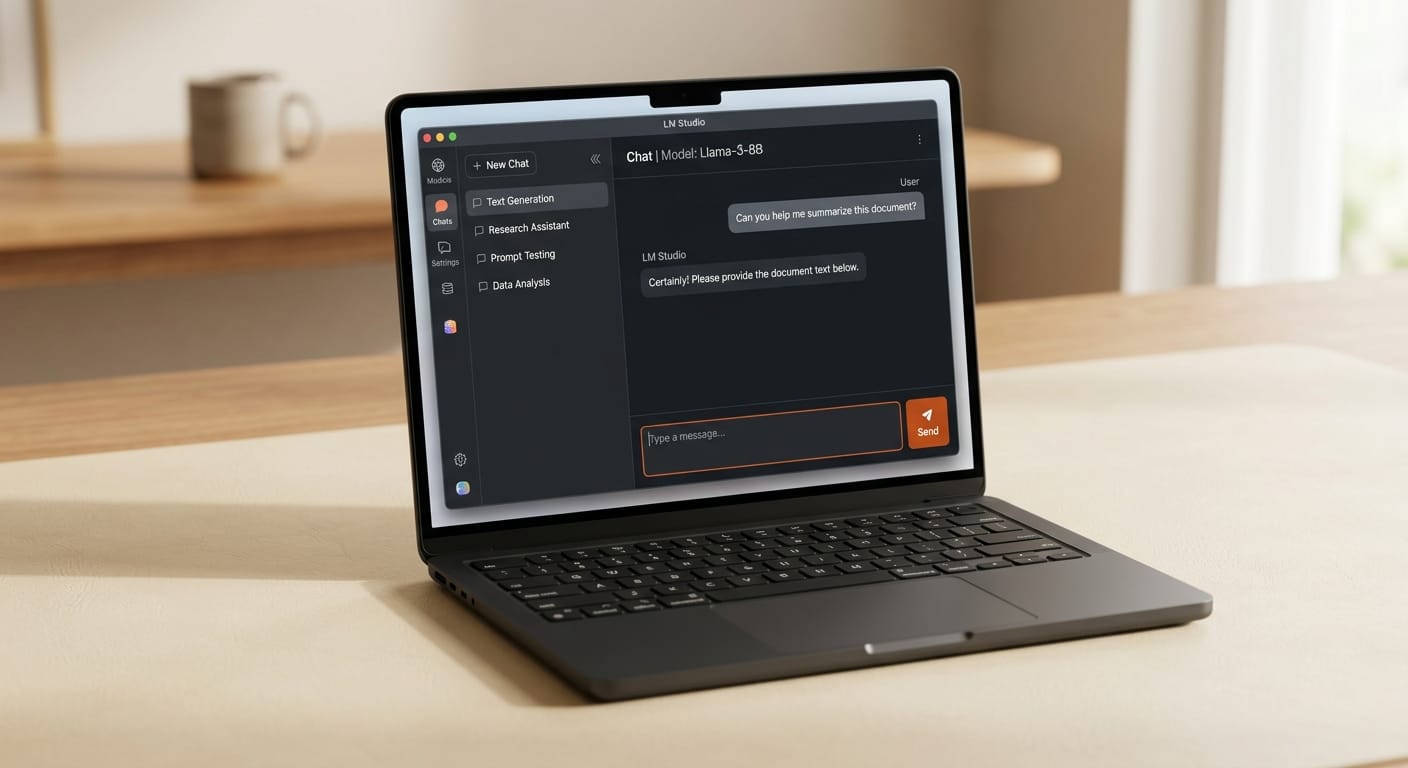
LM Studio built the most accessible entry point for local AI. A graphical model browser lets you find, download, and run models without touching the command line. Hardware detection is automatic across Metal on Apple Silicon, CUDA on NVIDIA, and Vulkan on AMD. The built-in chat interface is clean enough for quick testing and model comparison. For creators who are exploring what local models can do, LM Studio removes every setup barrier and delivers a working environment in minutes.
What Running llama.cpp Directly Adds
llama.cpp is the C++ runtime that LM Studio wraps. Using it directly eliminates abstraction overhead, which is where the 5-20% inference speed gain comes from. Beyond speed, three categories of functionality open up that wrapper applications consistently lag on:
- Audio input for multimodal models. Models with integrated audio processing, such as Qwen2-Audio, work fully in llama.cpp. LM Studio silently disables the audio modality, so you end up using a multimodal model with one capability switched off without knowing it.
- Same-week access to new model architectures. llama.cpp merges support for new architectures within days of a release. GUI wrappers typically take weeks longer because they need to expose controls for new parameters, handle version migration, and test the GUI layer. If you need a model released in the last two to four weeks, llama.cpp is more likely to support it today.
- Scriptable, automation-ready server mode. llama.cpp runs as an OpenAI-compatible API server you can call from Python scripts, agent pipelines, batch processing jobs, or any workflow that needs local inference without a human in the loop.
LM Studio vs llama.cpp: Side by Side

| Feature | LM Studio | llama.cpp |
|---|---|---|
| Setup method | GUI installer | Single terminal command |
| Inference speed | Baseline | 5-20% faster |
| Audio input (multimodal) | Not supported | Supported |
| New model support timeline | Weeks after release | Days after release |
| Scripting and automation | Limited | Full OpenAI-compatible server |
| GPU offload control | Automatic | Per-layer control with -ngl flag |
| Model file format | GGUF | GGUF (same files) |
| Best for | Exploration, beginners | Production workflows, full feature access |
How to Switch: 5-Step Setup

The XDA report specifically noted that the terminal barrier is smaller than expected. Setup takes one download and one command:
- Go to the llama.cpp releases page and download the prebuilt binary for your operating system. Look for
bin-win-cudafor NVIDIA on Windows,bin-macos-arm64for Apple Silicon, orbin-ubuntu-x64for Linux. - Extract the archive to a folder on your machine.
- Open your terminal and navigate to the extracted folder.
- Run the server:
./llama-server -m /path/to/your-model.gguf -ngl 99. The-ngl 99flag offloads all layers to the GPU. Use-ngl 0for pure CPU inference. - Open
localhost:8080for the built-in chat UI, or point any OpenAI-compatible client atlocalhost:8080/v1.
You do not need to uninstall LM Studio. llama.cpp reads the same GGUF files that LM Studio stores locally, so the models you have already downloaded are ready to use without re-downloading anything.
Which Models to Test in Your Creative Workflow
Text-only models such as Llama 3.1 8B, Mistral 7B, and Qwen3-14B run identically in both tools. Start with any GGUF you already have in LM Studio's model directory. For creators doing image analysis or visual workflows, InternVL 2.5 and the MiniCPM5-1B model both support vision input in llama.cpp. For creators doing audio work locally, Qwen2-Audio is the clearest case where LM Studio falls short: the model loads but audio input is silently disabled. Running it in llama.cpp gives you the complete multimodal pipeline.
For local coding assistance inside AI-driven creative pipelines, the Gemma 4 2B model with tool calling is worth testing in llama.cpp server mode. It handles function calling for workflow automation and runs on hardware most creators already have.
When to Keep LM Studio
LM Studio remains the better choice in three specific situations: introducing local AI to collaborators who need a GUI and cannot work with a terminal; staying in the discovery phase using the visual model browser to compare what different models can do; and running text-only models with no immediate need for audio input or scripted automation. The speed and feature gap matters most once you have settled on a production workflow and want to build it into a repeatable pipeline.
Frequently Asked Questions
Do I need command-line experience to use llama.cpp?
Only for the initial launch. The XDA analysis noted that the command-line barrier is lower than expected once you have the prebuilt binary in hand. After the server starts running, you interact with it through a browser UI or API calls, the same as any other local AI tool.
Will llama.cpp run image generation models like FLUX or Stable Diffusion?
No. llama.cpp handles language models and multimodal models in GGUF format. FLUX, Stable Diffusion, and similar image generators use a different pipeline handled by ComfyUI, AUTOMATIC1111, or Forge. They are separate tools for separate tasks and do not overlap with the llama.cpp runtime.
What is the difference between llama.cpp and Ollama?
Ollama wraps llama.cpp in the same way LM Studio does, adding a model registry and background daemon. Running llama.cpp directly gives more control and the same 5-20% speed advantage over any wrapper. Ollama is easier if you switch between many models frequently; llama.cpp direct is faster for a fixed set of production models you use repeatedly.
Are the GGUF files from LM Studio compatible with llama.cpp?
Yes. Both tools read the same GGUF format. Models downloaded in LM Studio are stored locally as GGUF files you can point llama.cpp to directly, with no conversion or re-download required.
How do I enable GPU acceleration in llama.cpp?
Download the CUDA build for NVIDIA or the Metal build for Apple Silicon from the releases page. Then add the -ngl flag when starting the server: -ngl 99 offloads 99 layers to the GPU, covering most model sizes. Lower the number if you run out of VRAM. CPU-only operation requires no extra flags.