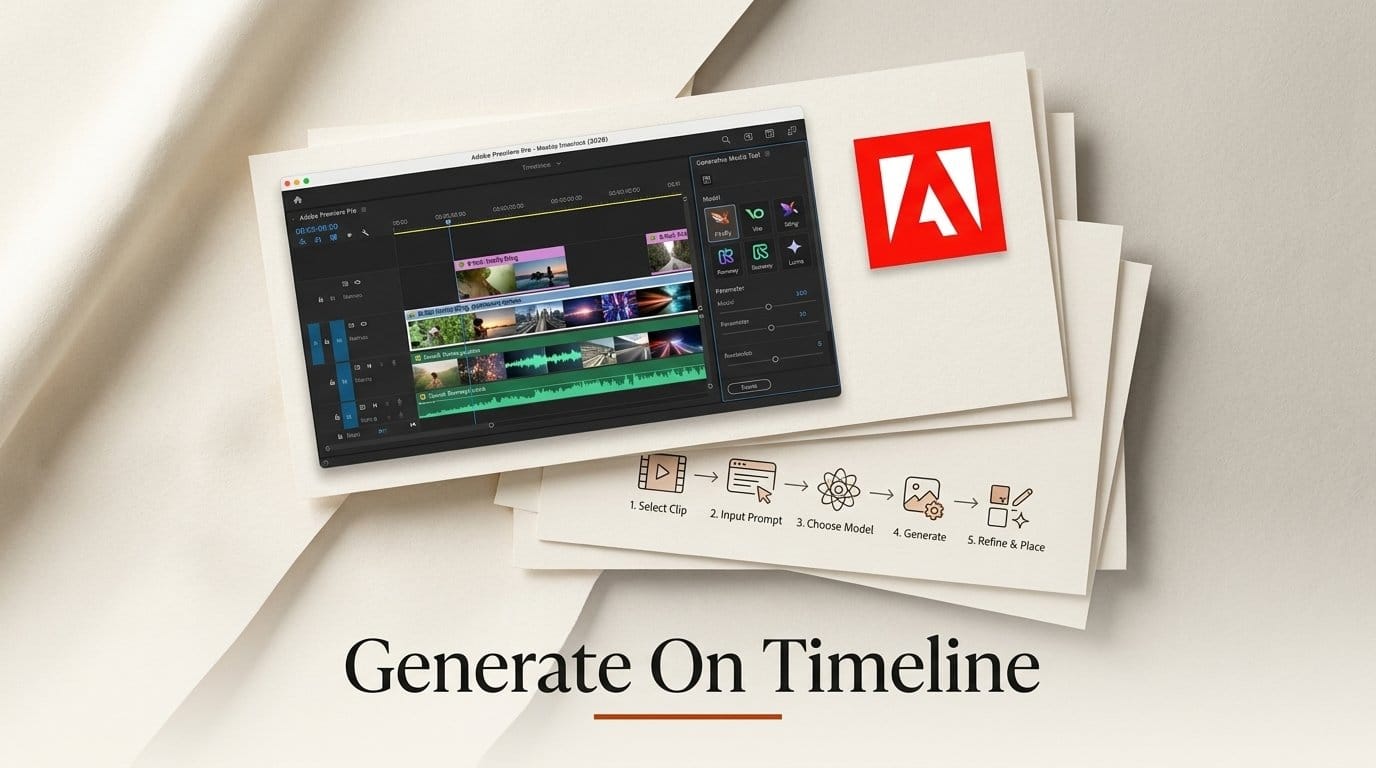
On 8 September 2026 Adobe shipped the Generative Media Tool into the released version of Premiere, which means you can now draw a range on a sequence, type a prompt, and have a usable clip land in that gap as an editable layer. Five models sit behind it: Adobe Firefly plus Google Veo, Kling, Runway and Luma. The workflow below takes about fifteen minutes end to end for a single missing shot with sound under it. The hard part is not the prompt. It is the credit meter.
Everything here is compiled from Adobe's own release post and Premiere documentation plus published hands-on reporting, all verified on 8 September 2026. No controlled test was run in this office, and where the reporting disagrees with the marketing that is called out rather than smoothed over.
What you need before you start
A current release build of Premiere, not the Beta app. The Generative Media Tool moved out of beta and into the shipping release with this update, which is the whole reason this is worth writing down now. You also need an active Firefly generative credit balance on your Creative Cloud plan, a sequence with real footage in it, and roughly two seconds of handle on either side of the gap you want to fill. That last one matters more than people expect, because the tool samples reference frames from the surrounding footage to match what it generates.
You do not need a separate Veo, Kling, Runway or Luma subscription. The partner models are billed through Adobe credits, which is convenient and, as the credit section below explains, also the part worth watching.
Generate the shot: five steps on the timeline
Step 1: Find the tool, and know what it is hiding behind
The Generative Media Tool lives in the Premiere toolbar. It shares a slot with Generative Extend, so a long press on that toolbar button toggles between the two, as Scott Simmons notes in his hands-on walkthrough of the IBC release. If you click and find yourself extending a clip's tail instead of generating a new one, you have the wrong half of the slot selected. This is the single most common first-run confusion.
Step 2: Draw the range you want filled
With the tool active, drag across the timeline on a video track to define the range. Adobe's documentation for generating media with the tool treats the range as the duration request, so the length of the drag is the length of the clip you are asking for. Draw it against the actual hole in your cut rather than a round number, because a four second generation trimmed to two seconds is four seconds of credits spent.
Step 3: Sample reference frames with the eyedropper
This is the step that separates a shot that cuts from a shot that does not. The eyedropper samples frames from elsewhere in your project without making you leave the timeline, and those frames become visual context for the generation. Pull from the shots on either side of the gap. Adobe's overview of the Generative Media Tool describes generated results as fully editable clips, so they behave like footage afterward, but nothing downstream will rescue a shot generated with no reference to the grade, lens or light around it.
Step 4: Write the prompt, then pick the model
Write the prompt as a shot description, not a scene description: subject, camera move, lens feel, light. Then choose from the Model menu. Firefly is the commercially safe default with Adobe's indemnification story attached. The partner models each have their own character, and if you have not compared them recently the differences are real enough that we tested them head to head in our Kling 3 versus Runway versus Sora comparison.
Step 5: Check the settings, then generate
Depending on the model, you get resolution, aspect ratio, frame rate, seed and duration. Premiere matches the sequence resolution and aspect ratio for you, so leave those alone unless you have a reason. Seed is the underrated control: lock it when you have a result that nearly works and want to iterate on the prompt rather than roll the dice again. Then generate, review the clip in place, and adjust the prompt, settings or reference frames if it misses.
Fill the sound underneath it
A generated shot with no audio bed reads as generated. The same tool works on audio tracks, and this is where the release is more interesting than the video half.
Generate Sound Effects, which is shipping
Draw a range on an audio track, write a prompt, and optionally record voice guidance to shape rhythm, timing and intensity. Adobe describes the underlying model as commercially safe, and the tool returns four variations to audition rather than a single take. Voice guidance is the genuinely novel control here: you are conducting the effect rather than describing it.
Generate Soundscape, which is beta and behaves like it
Soundscape reads up to fifteen seconds of the video above your selected range and returns four pre-mixed tracks automatically, two ambience and two sound effects, each with four variations, timed to the action. That is an ambitious feature and it is worth setting expectations honestly: in hands-on use Simmons reports mixed results, with some tracks usable and others out of sync. Treat it as a first pass that saves you a library search, not as a finished bed.
Generate Music, also beta
Music takes a prompt plus a BPM target and asks you to choose an intro and outro structure or a seamless loop. Adobe states it is commercially safe with synchronization rights included, which for anyone who has ever cleared a track is the sentence in the whole announcement with the most money attached to it.
Read the credit meter before you commit
Here is the part no headline carried. Adobe shipped a cost meter, not a price list. The credit cost for the selected model and current settings appears in the taskbar before you commit to a generation, and the amount varies by model, output and file size. Adobe's release post contains no pricing table and no published rate card for the four partner models at all.
That design is defensible, because per-model partner pricing changes constantly and a static table would be wrong within a month. It also means your cost control lives entirely in a number you have to look at every single time. Three habits follow from that.
Block out with the cheapest option that answers the creative question. You are usually asking "does a shot of this type cut here at all", and the answer does not require your most expensive model. Lock the seed before you iterate, so successive generations are variations on one idea rather than five unrelated rolls. And draw the range to the cut, not to a round number, because duration is the input that scales cost most directly. None of this is exotic, but it is the difference between a tool you use daily and a tool you use twice and then avoid.
Troubleshooting the five things that go wrong first
You are extending instead of generating. Long press the toolbar slot and switch off Generative Extend. Same button, different job.
The shot does not cut. You skipped the eyedropper. Sample reference frames from the clips on both sides of the gap and regenerate before touching the prompt.
Credits are draining faster than expected. You are generating at full duration on a premium model during exploration. Move blocking work to a cheaper model and only commit the final pass on the model you actually want.
Soundscape tracks drift out of sync. This is a known rough edge in the beta rather than a mistake on your end. Keep the two ambience tracks, which survive better, and replace the sound effect layers by hand.
Results change every time you regenerate. Lock the seed. Without it you are sampling a different point in the model each pass and cannot tell whether a prompt edit helped.
What this changes for editors
The interesting shift is not that Premiere can generate video. Firefly could already do that in a browser, and Adobe's Firefly video editor has carried partner models since April. The shift is that generation moved to where the timecode is. When the generator is a separate application you have to decide to go there, and that decision has a cost that suppresses casual use. When it is a toolbar tool with a range selection, generation becomes a cut-level decision made at the speed of every other cut-level decision.
That is also the risk. The same friction that suppressed casual use was doing quality control for free. The audio half is where this lands hardest, and the skepticism from sound designers that Simmons reports is not conservatism: a four-track pre-mixed bed generated in fifteen seconds sets a floor that is good enough to ship and hard to argue past on a deadline.
Worth noting what Adobe did not do. There is no open protocol here and no way to point your own assistant at a Premiere project. The generation is inside Adobe's tool, on Adobe's models and partner deals, billed in Adobe's credits. That is a coherent bet, and it is the opposite of the bet the rest of the category is making this month.
What to try next
Three variations worth an afternoon. Run the same prompt and reference frames through all five models at low duration and keep the comparison as your own rate card, since Adobe will not publish one. Try Generate Sound Effects with voice guidance on a footstep or impact pass, which is the use case the conducting control was clearly designed for. And if you are grading in the same session, the Color Mode beta gained Vignette and Midtones style modules plus a one click Auto Color in this release, on top of the Color Mode grading tools Premiere shipped in April.
Frequently asked questions
Is the Generative Media Tool in the release version of Premiere or only the beta?
It is in the shipping release as of 8 September 2026, alongside Generate Video and Generate Sound Effects. Generate Music, Generate Soundscape, the Smarter Audio tools and the Color Mode updates are all still in public beta.
Which AI video models can I use inside Premiere?
Adobe Firefly plus four partner models: Google Veo, Kling, Runway and Luma. You select the model from the Model menu inside the tool, and you do not need a separate subscription with any of the partners.
How much does a generation cost?
It depends on the model, the output and the file size, and Premiere shows the credit cost for your current selection in the taskbar before you commit. Adobe has not published a rate card for the partner models, so the taskbar figure is the only reliable number.
Can I use generated clips in commercial work?
Adobe describes the Firefly video, sound effects and music models as commercially safe, and states that Generate Music includes synchronization rights. The partner models carry their own vendors' terms, so check those before delivering client work generated with Veo, Kling, Runway or Luma.
What happened to the After Effects AI Assistant?
It moved from private to public beta in the same release and now works across an entire project rather than only the open composition. It writes expressions from plain language, builds slider rigs, repairs broken expressions and proposes structure for inherited projects, and every action it takes remains undoable with native After Effects tools. It is a different feature from the Firefly assistant we covered when Adobe's Firefly AI Assistant went agentic in June.
What to watch
Two things over the next quarter. First, whether Adobe publishes partner model credit costs, or whether the just in time meter stays the only signal. A tool whose price you can only discover one generation at a time is difficult to budget around, and budgeting is exactly what a facility running this at volume needs to do. Second, whether the beta audio features graduate on the strength of the ambience layers or get quietly rebuilt after the sound community's response. Soundscape as shipped is a good idea executing unevenly, and which of those two words Adobe optimizes for next will tell you how seriously the audio half is being taken.