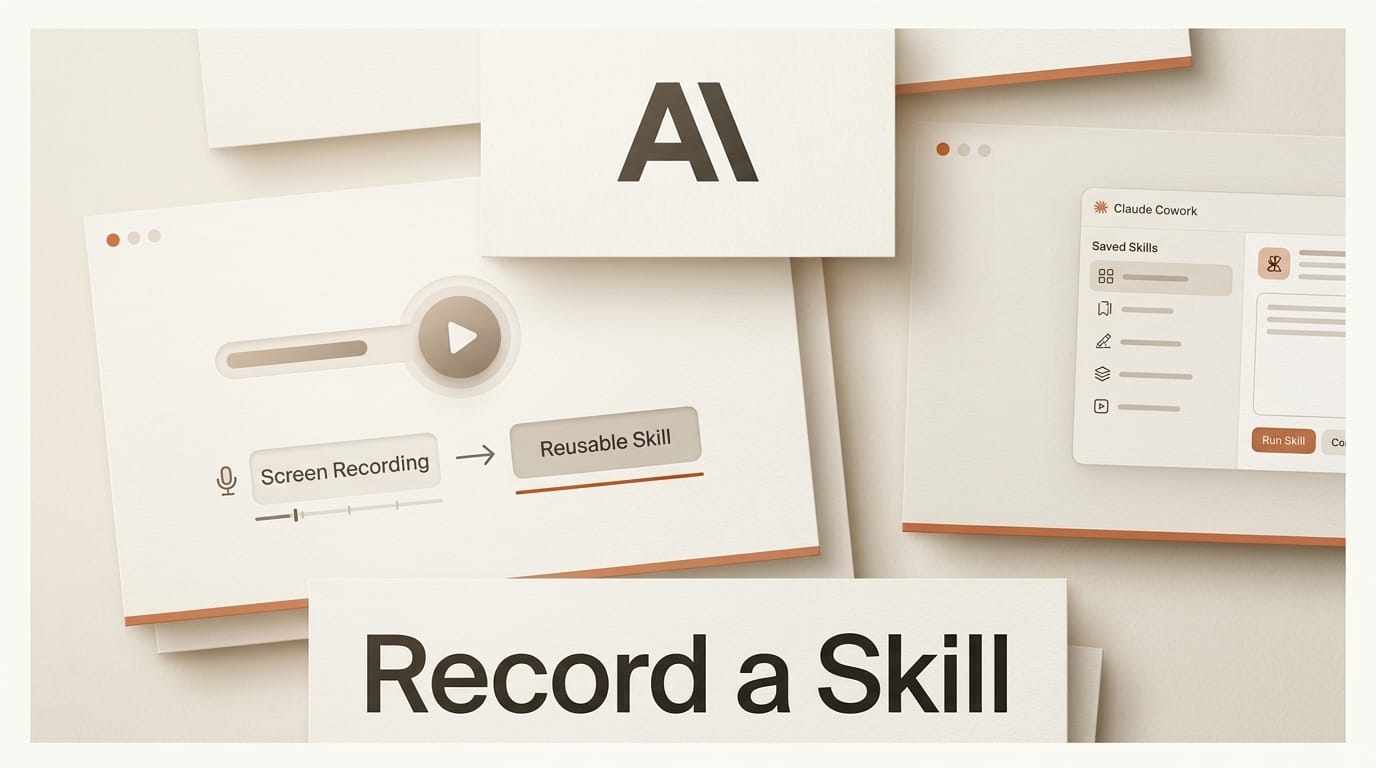
If you run the same multi-step chore every week, exporting assets, formatting a report, renaming and filing a batch of files, you can now teach Claude to do it by showing rather than telling. On July 21, 2026, Anthropic added Record a Skill to Claude Cowork, the task workspace inside the Claude desktop app. You record your screen once while narrating the steps, and Claude turns that demonstration into a reusable skill it can run again on demand. This guide walks through recording your first production skill end to end in about 15 minutes, what to narrate, how to test it, and where teach-by-demonstration beats writing instructions by hand. The feature is live on Claude Pro, Max, and Team plans.
What You Need
Before you start, line up the following so the recording captures a clean, repeatable pass:
- The Claude desktop app on macOS or Windows, updated to the current build, signed in to a Pro, Max, or Team account.
- Screen recording permission granted to the app in your operating system settings, plus a working microphone for voice narration.
- One task you genuinely repeat, with all its inputs ready. A weekly spreadsheet, an export-and-upload chore, or a file-renaming routine works well. Avoid one-off tasks for your first recording.
- A quiet few minutes. The voice-over is part of what Claude learns from, so you want to narrate without interruption.
The Workflow: Record Your First Claude Skill
The whole point of Record a Skill is that you never write a specification. You perform the task the way you always do, explain what you are doing as you go, and let Claude reconstruct the procedure. Here is the sequence.
Step 1: Open Cowork and start a recording
Launch the desktop app and open Cowork. Click the plus button in the chat box and choose Record a skill from the drop-down menu. The app begins capturing your screen activity, cursor movement, clicks, keystrokes, and microphone audio. Keep the first recording short and focused on a single outcome rather than a sprawling session.
Step 2: Perform the task and narrate every decision
Work through the task at a normal pace, but say out loud what you are doing and, more importantly, why. Instead of silently clicking a column header, say that you are sorting the export by date so the newest rows land on top. Narration is where Claude picks up intent, the difference between a step that must happen and an incidental click. State the names of files, folders, and destinations clearly, because those anchors become the reusable parameters of the skill.
Step 3: Handle the inputs the way you always do
Do not clean up your process for the camera. If you normally rename a file to a specific pattern, do it. If you paste into a particular sheet and apply a filter, do it. The recording is a template, so the more faithfully it mirrors your real routine, the more reliably the saved skill reproduces it. Finish the task completely, all the way to the final saved or uploaded output.
Step 4: Stop the recording and let Claude build the skill
End the recording. Claude Cowork converts the capture into a named, reusable skill and saves it. Under the hood this is the same Agent Skills mechanism Anthropic uses across its products, a packaged set of instructions and steps Claude loads on demand, except you authored it by demonstration instead of writing a structured file.
Step 5: Rerun the skill and verify the output
The next time the task comes up, run the saved skill instead of walking through every step. Watch the first rerun closely and compare the result against a pass you did by hand. Confirm the files land in the right place, the formatting matches, and no step was skipped. If the output is clean, you have converted a recurring manual chore into a one-click action.
Troubleshooting Common Recording Failures
Most first recordings that misfire share a few causes. Here is how to fix them.
- The skill skips a step: you probably performed it without narrating. Re-record and say the step out loud so Claude registers it as intentional.
- The skill uses the wrong file or folder: your narration was vague. Name destinations explicitly, and use consistent labels so Claude can treat them as parameters rather than hard-coded values.
- The recording will not start: screen recording or microphone permission is missing. Grant the desktop app both in your operating system privacy settings and relaunch.
- The rerun drifts on a longer task: the recording tried to cover too much. Break a long routine into two or three shorter skills you can chain, which are easier to record cleanly and to debug.
Record a Skill vs Writing a Skill vs OpenAI Codex
Anthropic's Agent Skills were already the mechanism for packaging repeatable expertise, but authoring one meant writing a structured instruction file. That path is still the better choice when a task is precise, text-based, and version-controlled, because a written skill is explicit and easy to edit line by line. Record a Skill trades that precision for speed and accessibility: for a GUI-heavy routine that is tedious to describe in prose but obvious to demonstrate, showing the task is faster than specifying it.
The approach mirrors where agent tooling is heading. As early coverage notes, OpenAI's Codex offers a comparable capability that records workflows and replays them as reusable skills. Both point to teaching by example rather than by specification, the same shift behind Anthropic's own code migration playbook. For creators and small teams, the practical upshot is that the barrier to automating a chore drops from writing code to recording a screen.

What to Try Next
Once your first skill runs cleanly, expand in three directions. Record the two or three chores you repeat most often and keep each one narrow, since small skills are easier to trust and reuse. Chain skills together for a multi-stage routine, such as export, then format, then upload. And pair recorded skills with the desktop app's other agentic features so a single saved skill can pull data, transform it, and post the result without you touching each step.
Frequently Asked Questions
Which Claude plans include Record a Skill?
Record a Skill is available to Claude Pro, Max, and Team subscribers inside Cowork on the desktop app. It launched on July 21, 2026.
What exactly does the recording capture?
It captures your screen activity, cursor movement, clicks, keystrokes, and voice narration. Claude uses all of these together, and the voice-over in particular carries the intent behind each action.
How is a recorded skill different from a written Claude Skill?
Both produce the same kind of reusable skill Claude can run on demand. A written skill is a structured instruction file you edit directly, better for precise, text-based tasks. A recorded skill is built from a demonstration, better for GUI-heavy routines that are hard to describe but easy to show.
Can I edit or re-record a skill after saving it?
If a saved skill misses a step or points at the wrong file, the reliable fix is to record the task again with clearer narration, naming files and destinations explicitly so Claude treats them as parameters rather than fixed values.
Does this work for coding and technical workflows?
Record a Skill suits repeatable desktop chores across creative and technical work. For code specifically, a written Agent Skill or an editor-based agent often gives you more control, while recording shines for the click-heavy setup and export tasks around the code.