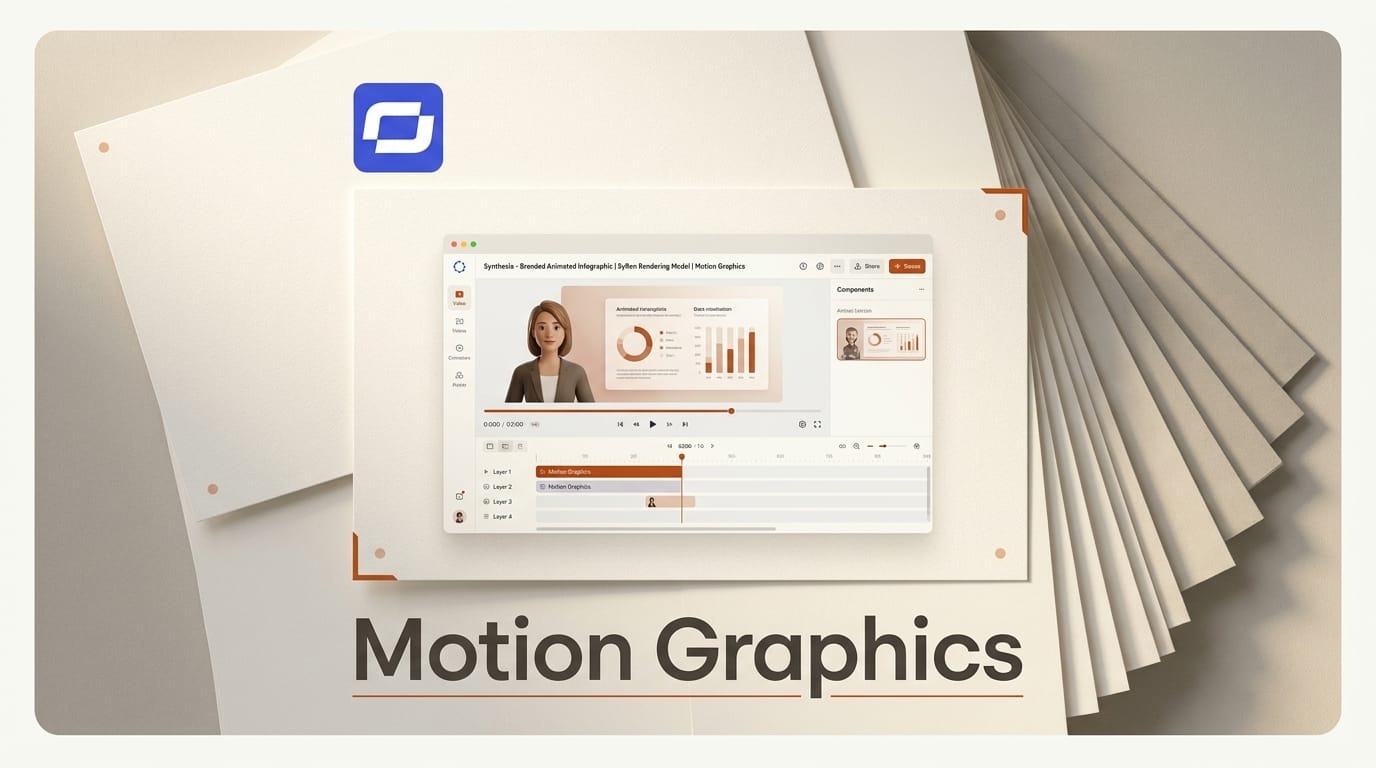
Synthesia Motion Graphics turns a text prompt or a rough sketch into a branded animated infographic without opening After Effects or hiring a motion designer. This tutorial builds one end to end: a stat callout or process flow generated from a prompt, styled with your brand colors automatically, edited in place without re-rendering, and dropped into an avatar-led explainer. Expect about ten minutes for your first graphic. The feature runs on all Synthesia plans, and while it is in beta it does not consume video credits, so you can iterate freely.
What You Need
- A Synthesia account. Motion Graphics is available on every plan.
- A scene open in the Synthesia editor, ideally one that already has a script or an avatar.
- A brand kit (fonts and colors) if you are on an Enterprise plan. Everyone else picks from built-in styles, which still produce clean, consistent output.
- The content you want to visualize: a set of dates for a timeline, ordered steps for a flow, or figures for a chart or stat callout.
- Optional: a rough sketch or an existing diagram to upload. Motion Graphics accepts up to four reference images in PNG, JPG, WEBP, or GIF, at up to 10 MB each.
The Workflow
The Motion Graphics tool lives inside the standard scene editor, so you are never exporting to a separate app. The steps below follow Synthesia's own creation guide.
Step 1: Open Motion Graphics in the editor
Open the scene where the graphic should appear and select "Motion Graphics" from the top navigation bar in the editor. A panel opens with two ways to create a graphic: start from a preset "Template" or write a "Prompt". Templates are faster when your data fits a common shape like a timeline, a checklist, or comparison cards. Prompts give you control when the layout is specific.
Step 2: Choose template or prompt
For a template, select "Template" and choose a style. For a custom graphic, select "Prompt" and you will write a description in a later step. If you already have a hand-drawn sketch or a slide from an old deck, the prompt path is where you attach it as a reference image so the layout follows your intended structure.
Step 3: Set the size and brand kit
Pick a canvas size: "Full" fills the frame for a graphic-only moment, or "Half" sits beside your avatar so the presenter and the visual share the screen. Then select a brand kit to apply your colors and fonts automatically. This is the step that keeps output on brand by default, which is usually where teams lose the most time in a traditional motion-graphics workflow.
Step 4: Write a prompt that maps to a graphic type
If you chose the prompt path, describe the graphic in plain language and name the shape you want. Synthesia's assistant reads intent structurally: numbers become a chart, options become cards, and a process becomes a flow. A prompt like "a four-step onboarding flow: sign up, verify email, connect data, invite team" produces a horizontal process flow, while "quarterly revenue of 1.2M, 1.8M, 2.4M, 3.1M as a bar chart" produces a stat visualization. Attach up to four reference images here if you want the render to follow a sketch.
Step 5: Generate and place the graphic
Click "Generate". SyRen renders the animated graphic and drops it into your scene at the size you selected. Because generation does not spend credits during the beta, you can regenerate as many times as you need to land the composition. Keep each scene at 30 seconds or less, which is the window Synthesia recommends for the cleanest animation quality.
Step 6: Edit the copy without re-rendering
You do not have to regenerate to fix a typo or update a number. Select the graphic on the canvas, turn on "Edit motion graphic" in the design panel, select any text element, and type the new wording. A revert icon undoes individual changes, and switching "Edit motion graphic" back off restores the original. Note the boundary: post-generation editing covers text only. Colors, fonts, and text size come from the brand kit or style you chose in Step 3, so set those before generating.
Step 7: Pair it with an avatar and sound
Matching sound effects are added automatically, so the graphic animates with audio cues and no extra work. Combine a "Half" graphic with an avatar reading the script and you have a presenter-plus-visual explainer in a single scene, the format that drives most training and onboarding video. From here the scene exports like any other Synthesia video.
Troubleshooting
The graphic looks generic or off brand. You likely skipped the brand kit selection in Step 3, or you are on a non-Enterprise plan and need to pick a built-in style. Regenerate after selecting one.
Your text edit broke the layout. Use the revert icon to undo the single change, or toggle "Edit motion graphic" off to reset the graphic to its generated state, then edit more conservatively.
The animation feels rushed or crowded. Trim the scene to under 30 seconds and reduce the amount of data in one graphic. Two simple graphics read better than one dense one.
You need a different language. Motion Graphics does not auto-translate, so write the prompt and any labels in the target language from the start.
You want to change a font or color inline. That is not editable after generation. Adjust the brand kit or choose a different style, then regenerate.
What to Try Next
Rebuild one static slide from a recent video as an animated infographic and time it against your usual process. Then try the assistant-driven path and let Synthesia read a scene's script to generate contextual graphics automatically. If you are pairing these with avatars, our breakdown of real-time video avatars across Runway, HeyGen, and Synthesia shows where each platform fits, and if you still need frame-level control, connecting After Effects to Claude Code over MCP covers the code-driven alternative. Full parameters are in the Motion Graphics documentation.
Frequently Asked Questions
Is Synthesia Motion Graphics free to use?
It is included on all Synthesia plans, and during the beta it does not consume video credits. You still need a Synthesia subscription, and current pricing is on the plans page.
What is SyRen?
SyRen is Synthesia's in-house AI rendering model and the engine behind Motion Graphics. Synthesia describes it as the technology that will, over the next year, power layouts, scenes, and "almost everything you see on screen" in its editor, which makes Motion Graphics the first visible piece of a larger shift. Details are on the Motion Graphics announcement.
Can I edit the text after the graphic is generated?
Yes. Turn on "Edit motion graphic", select a text element, and retype it, with a revert icon for individual undos. Only text is editable, so colors, fonts, and sizing come from your brand kit or chosen style.
What kinds of infographics can it produce?
Timelines, checklists, process flows, charts, stat callouts, and custom designs from a prompt or an uploaded sketch. The assistant maps numbers to charts, options to cards, and processes to flows automatically.
Do I need motion-design skills?
No. The workflow is prompt or template driven, brand styling is automatic, and sound effects are added for you. Basic familiarity with the Synthesia editor is enough to build a usable graphic on your first try.