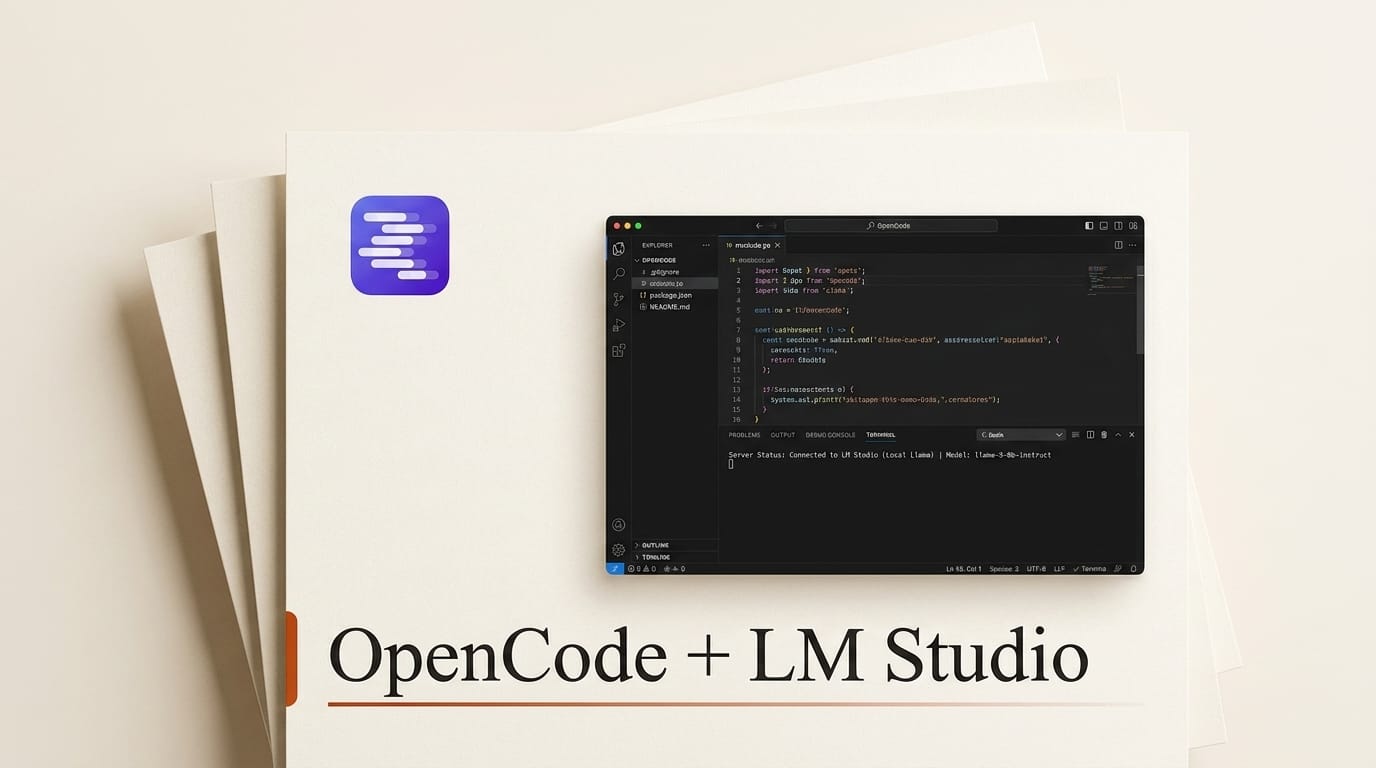
OpenCode, the terminal-native AI coding agent that crossed 160,000 GitHub stars in early 2026, does not have to run on a cloud model. Because its provider layer speaks the OpenAI-compatible API, you can point it at a model running on your own machine and keep every prompt, file, and diff on your local network. The most practical way to do that today is to serve a quantized model from LM Studio and wire OpenCode to that endpoint with a few lines of config.
This guide walks through the full setup: serving a model from LM Studio, writing the custom-provider block in opencode.json, and choosing a model that actually fits your GPU. The pattern is drawn from the official OpenCode and LM Studio documentation, plus a real-world hardware walkthrough by developer Shane Perreault, who ran the agent from a MacBook against an RTX 5070 hosting LM Studio over his home network.
Why run OpenCode on local models
Cloud coding agents are fast and capable, but they bill per token and send your codebase to a third party. A local setup flips both of those. Once the model is downloaded, inference is free and unmetered, so you can let the agent iterate on routine work without watching a meter. Nothing leaves your network, which matters for proprietary or client code under NDA. And it works offline, which is useful on a plane or a locked-down corporate network.
The trade-off is capability. A 4-bit 8B model will not match a frontier cloud model on complex, multi-file reasoning. But for scaffolding, boilerplate, test generation, refactors, and quick edits, mid-sized local models are more than good enough, and you can keep a cloud provider configured in the same opencode.json for the hard tasks. The point is not to replace the cloud entirely; it is to stop paying for the 80 percent of work that a local model handles fine.
Step 1: Serve a model from LM Studio
Install LM Studio from the official download page (Windows, macOS, and Linux builds are available), then download a model from inside the app. Once a model is loaded, open the Developer tab and start the local server. LM Studio exposes an OpenAI-compatible REST API, documented in the LM Studio server docs, that defaults to http://127.0.0.1:1234/v1.
If OpenCode runs on the same machine as LM Studio, that localhost address is all you need. If you want to run the agent from a laptop while a desktop GPU does the inference, enable "Serve on Local Network" in the Developer settings, note the machine's LAN IP, and open the server port (1234 by default) in the host firewall. On Windows that is a single PowerShell rule; on macOS and Linux the port is usually open to the LAN already. Verify the endpoint answers with a quick request to /v1/models before touching OpenCode.

Step 2: Point OpenCode at your local server
OpenCode reads a JSON config file where you can register any number of providers. Local servers use the @ai-sdk/openai-compatible package, and you declare the model IDs you want to expose. Per the official OpenCode providers documentation, a custom LM Studio provider looks like this:
{
  "$schema": "https://opencode.ai/config.json",
  "provider": {
    "lmstudio": {
      "npm": "@ai-sdk/openai-compatible",
      "name": "LM Studio",
      "options": {
        "baseURL": "http://127.0.0.1:1234/v1"
      },
      "models": {
        "qwen3-8b": { "name": "Qwen3 8B (local)" }
      }
    }
  }
}
Swap the baseURL for your host's LAN IP (for example http://10.0.0.30:1234/v1) if the server runs on a different machine, and set the model key to match the identifier LM Studio shows for your loaded model. The @ai-sdk/openai-compatible package works because LM Studio implements the same request shape as the OpenAI chat completions endpoint. Save the file, restart OpenCode, and the local model appears in the model picker alongside any cloud providers you already use.
Step 3: Pick a model that fits your VRAM
The single biggest factor in whether this feels good is picking a model that fits in your GPU memory at a 4-bit quantization. If the model spills into system RAM, tokens-per-second collapses and the agent feels sluggish. Use the table below as a starting point; actual footprint varies with context length and quantization level.
| Model class | Params | Approx VRAM (4-bit) | Best for |
|---|---|---|---|
| Small (Qwen3 4B, Phi-class mini) | 3-4B | ~3-4 GB | Fast edits, autocomplete, simple scaffolds |
| Mid (Qwen3 8B, Llama 3.1 8B) | 7-8B | ~5-6 GB | Routine coding, tests, small refactors |
| Large (Gemma 3 12B, Phi-4 14B) | 12-14B | ~8-10 GB | Multi-step tasks, longer context reasoning |
| XL (Gemma 3 27B, Qwen3 32B) | 27-32B | ~18-22 GB | Closest local approximation to frontier quality |
Also cap the context window to something your card can hold. A 32K context with 8K max output is a sane default for a mid-sized model on a consumer GPU; push it higher only if you have headroom. Perreault's RTX 5070 walkthrough found that 4B-to-15B models handled a full todo-app API build competently, which tracks with the guidance above: you do not need a data-center GPU to get real work done.
Ollama as an alternative endpoint
LM Studio is the easiest on-ramp because of its GUI model browser, but it is not the only option. Ollama exposes the same OpenAI-compatible surface on port 11434, so the OpenCode config is identical apart from the baseURL: change it to http://localhost:11434/v1 and update the model key to an Ollama model name. If you already run Ollama for other tools, you can register both providers in the same config and switch between them from the model picker. The abstraction is the point: OpenCode does not care what serves the endpoint, only that it speaks the standard API.
What this enables
With this wired up, your daily loop changes in a concrete way. You keep a fast local model as the default for the constant stream of small asks (rename this, write a test for that, stub out this handler) and reserve a cloud model for the genuinely hard, cross-cutting changes. Your token bill drops to near zero for the bulk of the work, your code never leaves the building, and you can keep working when the network is down. Because everything lives in one opencode.json, switching models is a keystroke, not a reconfiguration. For solo builders and small teams shipping every day, that is the difference between rationing an AI agent and using it freely.
Frequently asked questions
Do I need a powerful GPU to run OpenCode locally?
No. A card with 6-8 GB of VRAM runs an 8B model at a usable speed, which handles most routine coding. More VRAM lets you run larger, more capable models, but you can start small and upgrade the model later without changing the OpenCode config.
Can I keep using cloud models alongside a local one?
Yes. OpenCode supports multiple providers in the same config file. Register your local LM Studio or Ollama provider next to any cloud provider and switch between them from the model picker per task.
Why use LM Studio instead of calling the model directly?
LM Studio handles model download, quantization selection, GPU offloading, and exposes a standard OpenAI-compatible server with almost no setup. That server is what makes OpenCode's generic openai-compatible provider work without custom code.
Does the local server need to be on the same computer as OpenCode?
No. Enable network serving in LM Studio, open the server port on the host, and point OpenCode's baseURL at the host's LAN IP. This lets a laptop drive an agent whose inference runs on a desktop GPU.
Is a local model good enough for real work?
For scaffolding, tests, boilerplate, and small refactors, mid-sized local models are reliable. For complex multi-file reasoning they still trail frontier cloud models, which is why keeping a cloud provider configured for the hard tasks is the recommended hybrid setup.
Where do I put the OpenCode config file?
OpenCode reads a global config in your home directory and an optional per-project config. Add the provider block to the global file to make the local model available everywhere, or to a project file to scope it to one repository.