Figma Make, the prompt-to-app builder inside Figma, just closed the gap that has frustrated designers since AI code tools arrived: you can now edit a generated app visually instead of describing every tweak in a chat box. On July 30, 2026, Figma shipped a properties panel and annotations that bring familiar design controls, spacing, typography, layout, colors, and layer selection, directly into the generated output. For anyone who has watched an AI rebuild an entire screen just to nudge one button, this is the change that makes Make feel like a design tool again rather than a slot machine.
What Figma Make Just Shipped
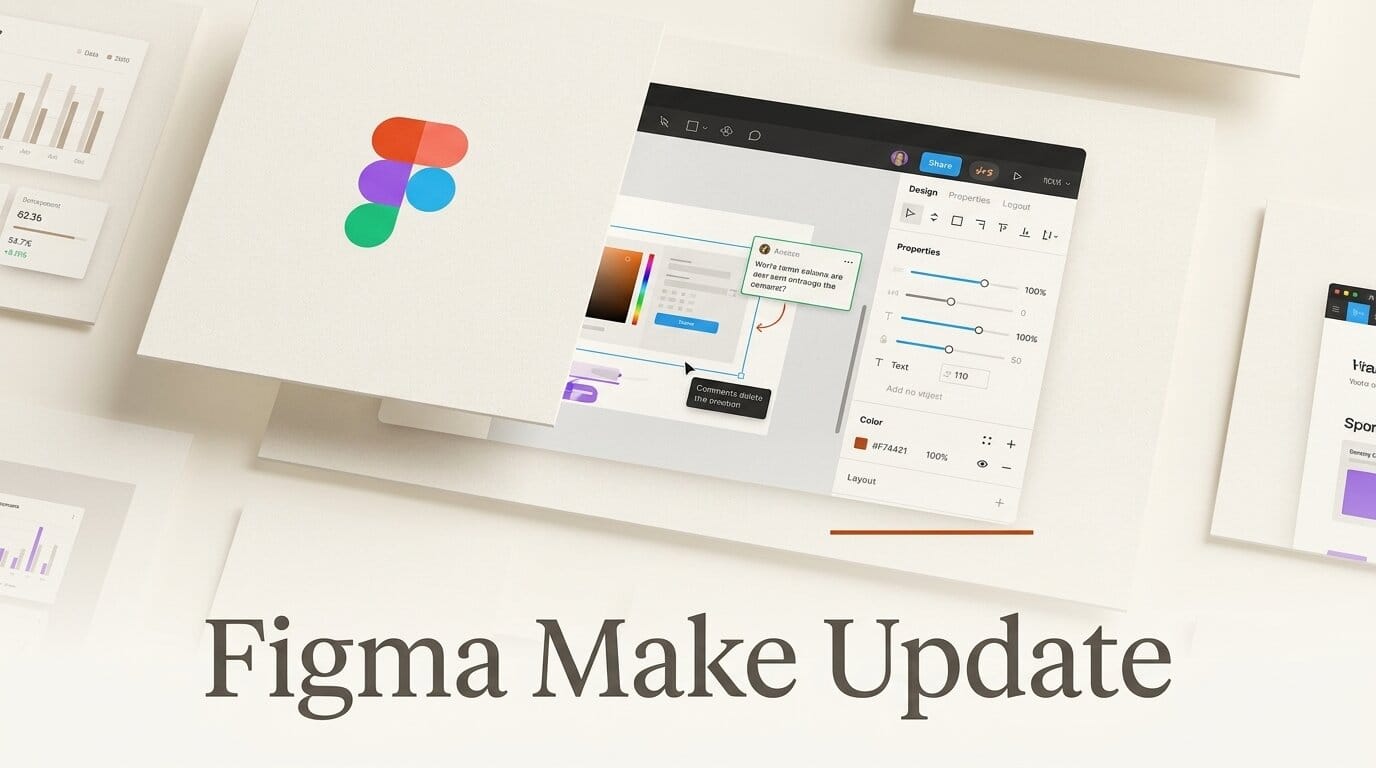
Two features landed together. The first is a properties panel: select any element in your generated preview and adjust its spacing, padding, margins, typography, corner radius, opacity, and border styling through the same controls you already know from Figma Design. The second is annotations: drop notes directly onto the rendered interface to describe changes in plain language, stack several at once, and send them to the AI agent as a single instruction. Both features live inside Figma Make and both currently require a new Make file rather than an existing one.
The distinction matters because it reframes what Make is for. Until now, every change, however small, went through a text prompt. Want tighter line spacing? Type it. Want a heavier font weight on one heading? Type it, and hope the model does not repaint the whole component in the process. The properties panel removes the model from small, deterministic edits entirely.
Why Editing, Not Re-Prompting, Is the Real Unlock
Re-prompting is expensive in three ways. It burns AI credits, it is slow, and it is non-deterministic: the same prompt can yield a different layout twice in a row. Designers accepted this because there was no alternative. The new properties panel makes precise edits direct manipulation again. You click, you drag a value, you see the result, and the AI is not involved until you decide it should be.
Annotations solve the opposite problem. Some changes genuinely need the agent, for example describing an interaction, an animation timing, or a multi-element behavior. Instead of writing a paragraph that says "the third card, the one on the right, when hovered," you drop an annotation on that exact card and describe the behavior in a sentence. Location comes from the pin; intent comes from your words. That split is what makes the instruction reliable.

How the Properties Panel and Annotations Work
The workflow is deliberately close to Figma Design, which is the point. Here is the end-to-end path from generation to a polished edit:
- Generate the app. Start a new Make file and prompt your app or prototype into existence as usual.
- Enter edit mode. Click the Edit button, then select elements in the preview by dragging a marquee or shift-clicking multiple items.
- Adjust properties directly. Use the panel to change spacing, typography, layout, color, corner radius, and more. Multiple instances of the same element can be updated at once.
- Stage and review. Your pending edits appear above the prompt box in the agent chat so you can review them before anything is committed.
- Annotate for behavior. For interactions or animations, enable annotate mode, pin notes onto the exact UI locations, optionally attach a reference image, and send them to the agent as one prompt.
- Apply. Nothing is final until you click Apply, which keeps every change explicit and reversible in your head before it touches the file.
Figma frames this as bringing "familiar Figma Design controls" into Make, and it slots naturally into the broader shift toward AI app builders that generate real, editable front-end code rather than static mockups.
Figma Make vs Lovable, Bolt, v0, and Replit
Make is not the only prompt-to-app tool, and it is not trying to be a full-stack backend generator. Its bet is design fidelity and a native editing surface. Here is how the design-editing angle compares to the other tools creators reach for in 2026:
| Tool | Core strength | Visual, non-prompt editing | Best for |
|---|---|---|---|
| Figma Make | Design-first prototypes with a native properties panel | Yes, direct manipulation plus annotations | Designers polishing UI without re-prompting |
| Lovable | Full-stack apps with UI, backend, auth, and database | Mostly prompt-driven | Rapid full-stack MVPs from a single tab |
| Bolt | Browser-based prompt-to-deploy with hosting | Code editor, limited visual editing | Shipping a running app fast |
| v0 | Design-to-code inside the Vercel ecosystem | Code-centric | React components for Vercel projects |
| Replit | Agent that builds and runs full apps in the cloud IDE | Code-centric | End-to-end builds with a real runtime |
The pattern is clear: Lovable, Bolt, and Replit compete on how much of the stack they generate, while Make competes on how precisely you can shape what was generated. The properties panel is Figma leaning into the thing it has always owned, which is the last mile of visual craft.

What This Enables for Creators
The practical payoff is a tighter loop. A designer can now generate a first draft with a prompt, then spend their time on the parts that need human taste, spacing rhythm, type scale, contrast, alignment, without spending credits or waiting on the model for each nudge. Annotations, meanwhile, let non-developers specify interaction behavior in the exact place it should happen, which is far more reliable than describing screen regions in prose.
For teams, this makes Make a plausible handoff surface rather than a throwaway. A generated prototype that can be hand-tuned to real design-system values is closer to something a developer can trust. The staging step, where edits sit above the prompt box until you Apply, also means you can build a batch of changes and review them as a set instead of firing off one risky prompt at a time.
What to Do Next
If you already use Figma Make, start a new file to get the edit tool, properties panel, and annotations, since existing files keep the old interface. Generate something small, enter edit mode, and try changing spacing and type through the panel before you reach for the prompt box. Then pick one interaction and specify it with an annotation instead of a paragraph. The muscle memory to build is simple: direct manipulation for anything deterministic, annotations for anything behavioral, and prompts only for genuinely new structure.
Frequently Asked Questions
Do the properties panel and annotations work in my existing Make files?
No. Figma states the edit tool, properties panel, and annotations are only available in new Make files. Existing files retain the previous interface, so you need to start a fresh Make file to use them.
Do these edits use AI credits?
Yes. Both properties panel edits and annotation prompts consume AI credits when applied, though direct property changes are far cheaper in time and predictability than repeatedly re-prompting a full regeneration.
What can I change with the properties panel?
Spacing, padding, margins, typography, layout, color, corner radius, opacity, and border styling, depending on the element and how it was generated. You can also select multiple instances of the same element and update them together.
How are annotations different from just prompting?
Annotations pin your instruction to an exact location on the rendered UI, so the agent knows precisely which element you mean. You supply the intent in a sentence and the position with the pin, which removes the ambiguity of describing screen regions in text.
Are my changes applied immediately?
No. Edits and annotations stage above the prompt box in the agent chat, and nothing is committed until you click Apply. This lets you review a batch of changes before they touch your file.
Is Figma Make a full-stack app builder like Lovable or Replit?
Not primarily. Make focuses on design-first prototypes and now on precise visual editing, whereas tools like Lovable and Replit lean toward generating full-stack apps with backends, auth, and databases. They optimize for different parts of the build.