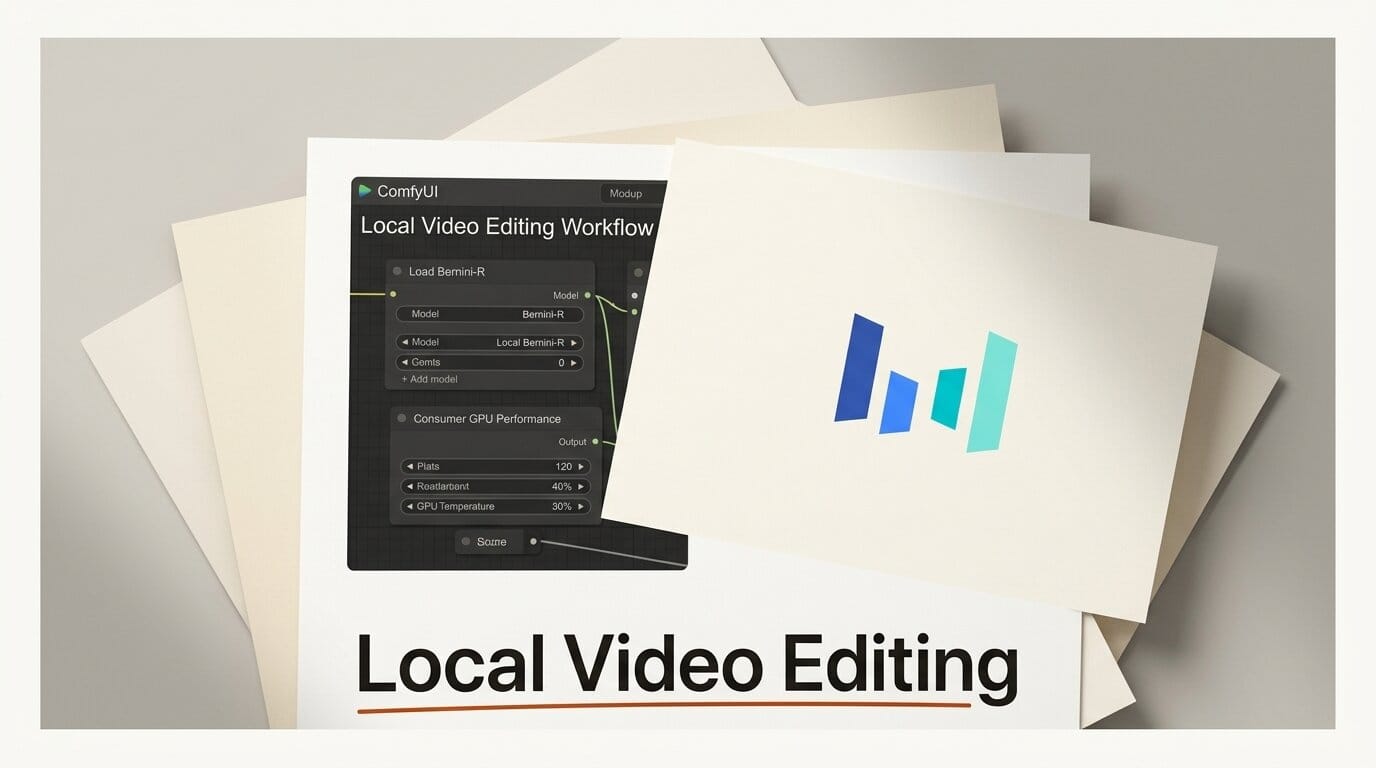
You can run ByteDance's Bernini-R video and image editing model entirely on your own machine in ComfyUI, no cloud render fees and no upload queue. The lightweight 1.3B build is about 2.6GB, ships under Apache 2.0, and handles style transfer, watermark and subtitle removal, and frame-accurate local edits on a single consumer GPU. This guide walks through the full setup using the community ComfyUI node pack and GGUF weights, then shows how to scale up to full clip-to-clip editing when you have more VRAM. Budget about 30 minutes for the first install and a few minutes per edit after that.
What You Need to Edit Video Locally
Bernini-R is the renderer half of ByteDance's Bernini framework, which pairs a multimodal language-model semantic planner with a diffusion transformer renderer. The open Bernini-R-1.3B model is fine-tuned from Wan2.1-T2V-1.3B, so if you have ever run a Wan workflow in ComfyUI the file layout will feel familiar.
Here is the checklist before you start:
- GPU: An NVIDIA card with 8GB of VRAM or more runs the 1.3B image-editing graph with block swapping. 12GB to 16GB is comfortable. A Hopper card (H100, H200, H800) unlocks FlashAttention-3, but other CUDA GPUs fall back to FlashAttention-2 or PyTorch SDPA, so a 3060, 4070, or 4090 works fine for the lightweight path.
- ComfyUI: A current install with Python 3.11, CUDA 12.4, and PyTorch 2.5.1 or newer.
- Two custom nodes: The ComfyUI-BerniniR node pack and city96's ComfyUI-GGUF loader.
- Model files: A quantized Bernini-R GGUF, the UMT5 text encoder, and the VAE. All three are linked in the install steps below.
- A test clip and a reference image if you plan to do reference-guided edits, or a single frame if you are starting with style transfer.
Why Edit Locally Instead of Renting Cloud Renders
Open-weights video editing has lagged image and text generation for a long time. Until recently the only credible Apache 2.0 options for video-to-video work leaned toward generation rather than precision editing. Bernini-R targets the editing arena directly, and the companion paper, "Bernini: Latent Semantic Planning for Video Diffusion", describes a positional-embedding scheme purpose-built for keeping edited regions coherent across frames.
For a creator, the practical payoff is cost and control. A self-hosted editing backbone changes the math on shot fixes, B-roll cleanup, and motion retargeting, because every iteration is free once the weights are on disk. There is no per-second metering, no content moderation gate, and nothing leaves your drive. That is the same argument we made in our breakdown of local AI versus cloud AI for creators, and video editing is where the gap has finally started to close.
The Local Editing Workflow, Step by Step
The shipped 1.3B graph is an image-to-image editing pipeline, which covers the model's strongest tasks: style transfer, object and watermark removal, and localized edits on a frame or keyframe. Full clip-to-clip video editing graphs target the larger 14B build, covered at the end. Here is the modest-GPU path.
Step 1: Install the two node packs
From your ComfyUI root, clone both repositories into the custom nodes folder and install requirements:
cd ComfyUI/custom_nodes
git clone https://github.com/neuregex/ComfyUI-BerniniR
pip install -r ComfyUI-BerniniR/requirements.txt
Install city96's ComfyUI-GGUF the same way. It is a hard requirement because the graph loads the text encoder through a CLIPLoaderGGUF node. Restart ComfyUI afterward so the new nodes register.
Step 2: Download the weights, encoder, and VAE
Pull a quantized model from the Bernini-R GGUF repository and drop it in ComfyUI/models/unet/. Place the umt5-xxl-encoder GGUF in ComfyUI/models/text_encoders/. The VAE ships inside the Bernini-1.3B ComfyUI bundle. Start with the Q5_K_M files for a balance of quality and footprint.
Step 3: Load the i2i graph and check the wiring
Open bernini_i2i_1.3B.json from the node pack's workflows/ui/ folder. The core chain is UnetLoaderGGUF, then Bernini-R Apply Patches, then Bernini-R Source Stream, then Bernini-R Guider. A separate CLIPLoaderGGUF node loads the text encoder with its type set to wan. Because the 1.3B is a single-expert model, leave the model_low slot empty. There is no high and low expert switching here, which is exactly why this build is so light.
Step 4: Set your edit instruction and source
Load your source frame into the input node and write a plain-language edit instruction in the positive prompt, for example "remove the watermark in the lower right corner" or "restyle this shot as a watercolor painting." The semantic planner interprets the instruction and steers the renderer toward the edited region while preserving the rest of the frame.
Step 5: Tune VRAM with block swapping and quant choice
If you are on a smaller card, set blocks_to_swap higher to offload transformer blocks to system RAM. An image edit at 640 by 640 peaks around 6.28GB of VRAM with blocks_to_swap at 40, which is what keeps the 1.3B comfortably inside 8GB to 12GB cards. Drop to a Q4_K_M quant if you are still tight, or move up to Q8_0 if you have headroom.
Step 6: Render, review, and iterate
Queue the prompt. First runs are slower while models load into memory; subsequent edits are quick because the weights stay cached. Review the output, adjust the instruction or the denoise strength, and re-queue. Since every render is local and free, iterating five or ten times to nail an edit costs nothing but time.
Picking the Right Quant for Your VRAM
The GGUF format lets you trade precision for memory. All three common quant levels are available for Bernini-R, and the right one depends entirely on your card.
| Quant | Best for | Trade-off |
|---|---|---|
| Q4_K_M | 8GB cards, fastest loads | Lowest VRAM, slight quality loss on fine detail |
| Q5_K_M | 12GB to 16GB cards, default pick | Balanced quality and footprint |
| Q8_0 | 16GB and up | Best fidelity, largest memory use |
Match the text encoder quant to roughly the same tier. Pairing a Q5_K_M model with a Q5_K_M UMT5 encoder keeps total memory predictable and avoids surprise out-of-memory errors mid-render.
Troubleshooting Common Failures
Nodes do not appear after install. You almost certainly skipped the ComfyUI-GGUF dependency or forgot to restart. Both node packs must be present, and ComfyUI reads custom nodes only at startup.
Out-of-memory at sampling. Raise blocks_to_swap, drop to a lower quant, or reduce the edit resolution. Activation memory scales with resolution and frame count, so a smaller canvas is the fastest fix.
The edit changes the whole frame instead of one region. Tighten the instruction to name the specific area and object, and lower the denoise strength so the renderer respects more of the source.
Text encoder errors. Confirm the CLIPLoaderGGUF type is set to wan and that the UMT5 encoder file sits in models/text_encoders/, not the unet folder.
What to Try Next
Once the image-editing path works, there are two natural next steps. The first is full video editing: the 14B dual-expert build ships GGUF graphs for video-to-video and reference-guided video editing, hitting 81 frames at 480p on a 24GB card with fp8 offload. If you have a 4090 or an A100 rental, that is the path to clip-level retargeting and subject swaps. The second is combining Bernini-R edits with other local nodes in a single graph, the same modular approach we covered in the ComfyUI v0.25 bundled nodes walkthrough. Chain a Bernini style pass into an upscaler and you have a complete local finishing pipeline.
Frequently Asked Questions
Can Bernini-R 1.3B really run on a consumer GPU?
Yes. The 1.3B build is about 2.6GB and an image edit at 640 by 640 peaks near 6.28GB of VRAM with block swapping enabled, so 8GB to 12GB cards handle it. Higher resolutions and full video need more.
Is Bernini-R free to use commercially?
The released Bernini-R weights and inference code ship under Apache 2.0, which permits commercial use. Always review the license text on the model card before shipping client work.
What can the 1.3B model actually do well?
It performs close to the 14B variant on simpler tasks like style transfer, subtitle and watermark removal, and localized edits, while lagging on complex tasks such as full human generation.
Do I need a Hopper GPU?
No. Hopper cards enable FlashAttention-3 for speed, but the model falls back to FlashAttention-2 or PyTorch SDPA on other CUDA GPUs, so non-Hopper consumer cards run the editing graph fine.
What is the difference between the 1.3B and 14B builds?
The 1.3B is a single-expert renderer tuned for lightweight editing on modest hardware. The 14B is a dual-expert renderer with stronger results across benchmarks and the full video-editing graphs, at a much higher VRAM cost.