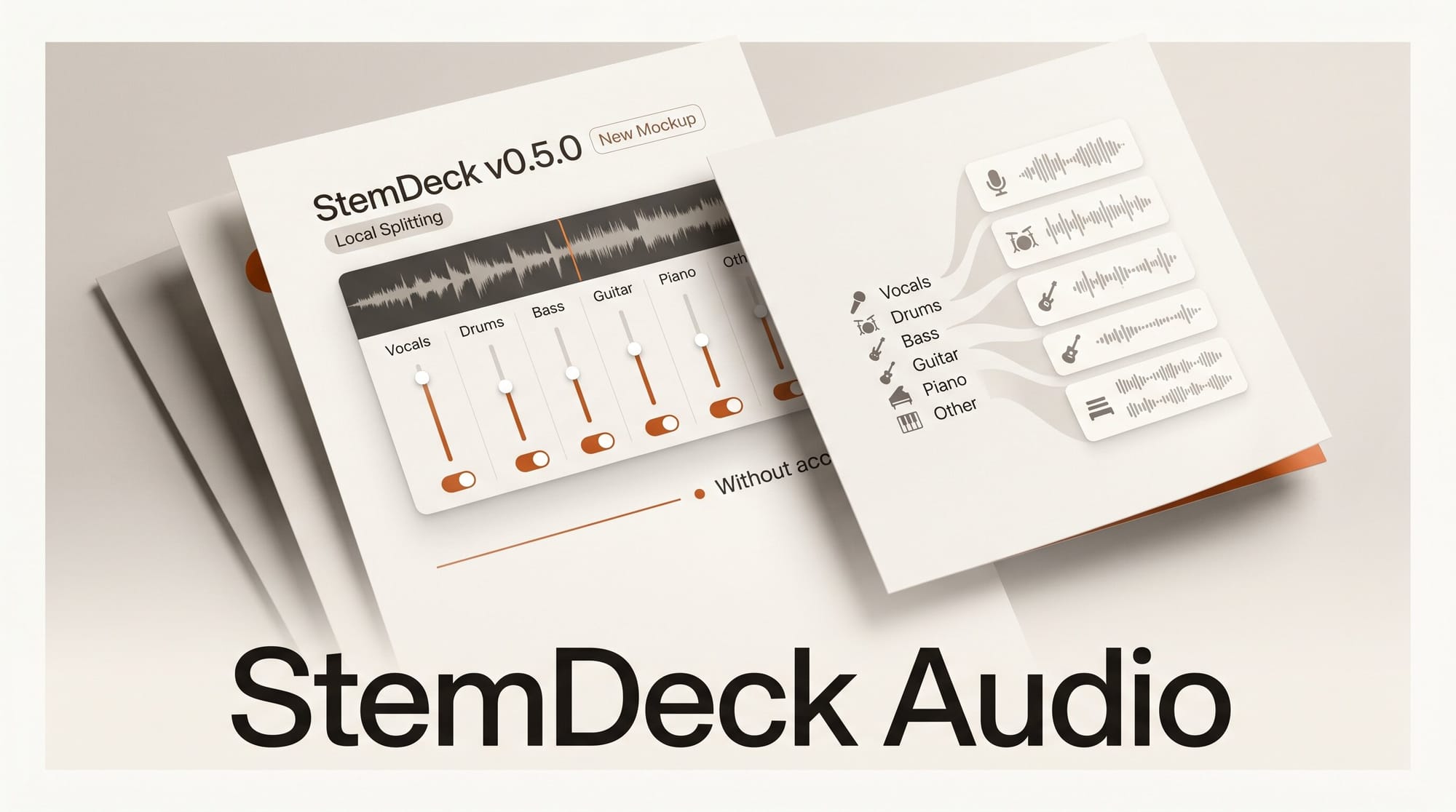
StemDeck v0.5.0 Alpha 1 arrived on May 18 as a free, open-source desktop app that splits any audio file into six isolated stems and mixes them on your local machine. No account, no file uploads, no subscription. Drop an MP3 or WAV onto StemDeck, or paste a YouTube URL, and it separates the track into vocals, drums, bass, guitar, piano, and a catch-all "other" channel using Meta's Demucs neural network. You get a DAW-style mixer with per-stem volume faders, solo and mute controls, waveform lanes, and loop regions.
The v0.5.0 release is the first major interface overhaul since the project launched, rebuilt around a flat dark DAW aesthetic that puts the mixer and waveform side by side. It also ships the first working export feature, letting you bounce your custom stem balance to WAV or MP3 directly from the app.
What StemDeck Does
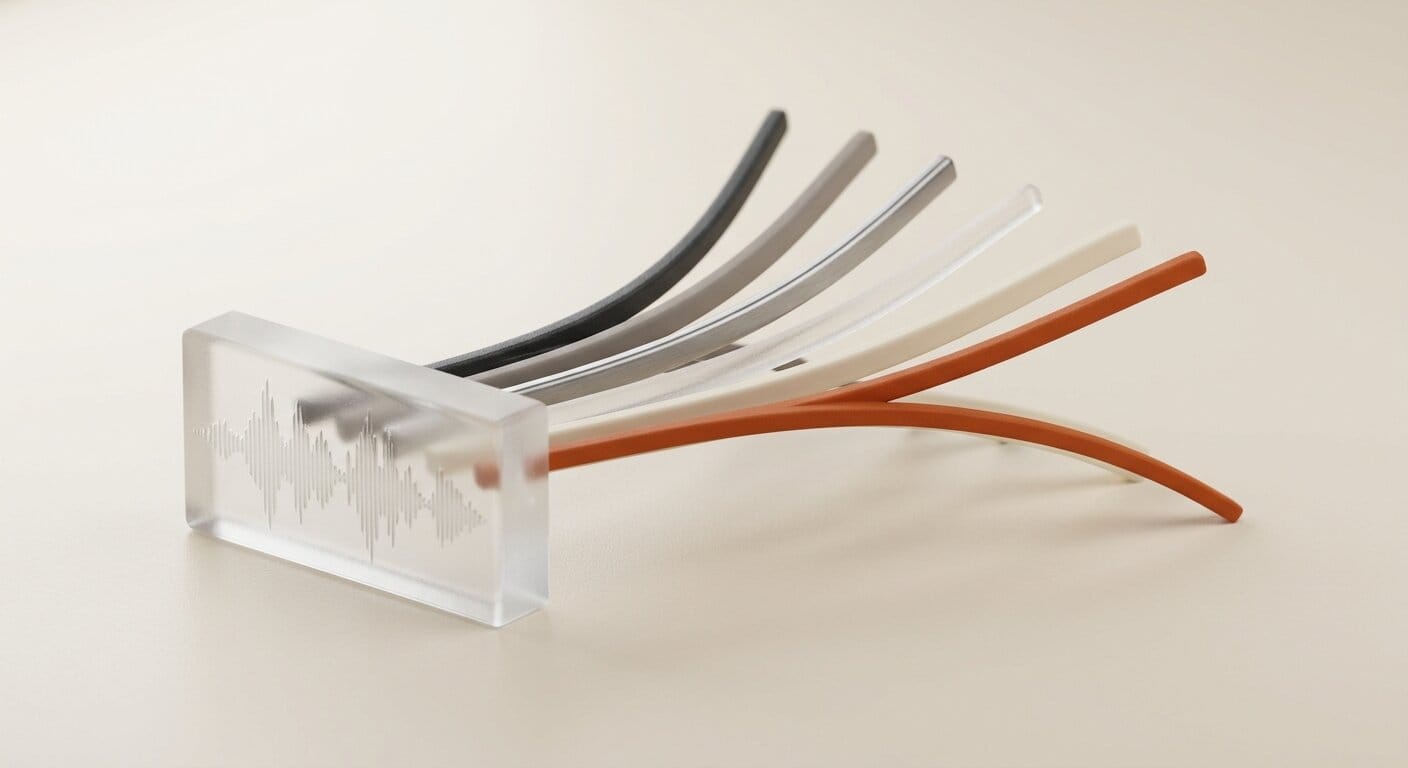
Stem separation takes a mixed audio track and attempts to recover the individual instrument layers combined during mastering. The underlying model is Demucs (htdemucs_6s), a deep learning architecture from Meta Research trained to decompose music into six independent sources: vocals, drums, bass, guitar, piano, and other. The "other" stem catches synthesizers, strings, and anything the first five categories do not cover.
Processing runs entirely on your CPU or GPU. On a modern laptop, separating a four-minute track takes roughly two to five minutes on CPU and under a minute with an NVIDIA GPU build. The result is not perfect isolation: bleed between stems is audible on complex dense mixes. But for practical creative use, the quality is comparable to commercial services that charge by the minute or month.
Beyond separation, StemDeck includes BPM and musical key detection, loudness measurement with a Dynamic Range score, waveform zoom with interactive loop region markers, and a library sidebar that organizes sessions with tags, favorites, and subfolder nesting.
What Changed in v0.5.0 Alpha 1
The 0.5.0 release is substantial enough that the developers recommend deleting your existing app data folders before installing because the database schema changed. Here is what is new:
- Rebuilt mixer layout. The mixer and waveform lanes now sit side by side in a two-column layout. Non-extracted stems are grayed out so you can see at a glance what was separated versus skipped.
- Export Mix. Previous versions had no export. You can now bounce your current fader balance as WAV or MP3. The output filename is auto-generated as
{title}_exported_mixwith no spaces or special characters. - Footer waveform fix. The footer waveform previously pulled from the first available stem, which produced a flat line on instrumental sections. It now uses the full reconstructed mix, so what you see matches what you hear.
- Library sidebar. New sections for Recent, Stem Collections, Tags, and Favorites. Drag-and-drop folder nesting with circular-nesting protection.
- Sections bar. An interactive bar above the waveform lets you add, rename, drag, and resize labeled sections of a track. Changes persist across restarts.
- Tag search with autocomplete. Type
#in the library search box to filter by tag. Tags are extracted automatically from YouTube metadata. - Analysis panel updates. Cards now include a Dynamic Range score with a descriptor label (Compressed, Moderate, High, Wide), Tempo Stability as a percentage, and a Key Confidence meter.
How to Get Started
StemDeck ships pre-built installers from the GitHub Releases page, so you do not need Python or Rust installed separately.
- Download the right build. Choose macOS arm64 or x64 DMG, Windows CPU portable, or Windows NVIDIA CUDA portable. The CUDA build significantly reduces processing time on compatible NVIDIA hardware.
- First-time setup on macOS. Open the DMG and move StemDeck to Applications. If upgrading from a previous version, delete the app data folders listed in the release notes before opening (the database schema changed in 0.5.0).
- Import a track. Drag and drop an MP3 or WAV file onto the import area, or paste a YouTube URL. StemDeck uses yt-dlp to download and queue YouTube audio automatically.
- Choose your stems. Select which of the six stems you want separated. Skipping stems you do not need reduces processing time proportionally.
- Wait for separation. The app moves through upload, analysis, and separation stages. A progress indicator shows each phase.
- Mix and export. Adjust fader levels, mute stems you want to remove, set loop regions for the section you need, then click Export Mix to download WAV or MP3.
StemDeck vs. Paid Alternatives
Several commercial services offer audio stem separation as a subscription or pay-per-minute product. Here is how StemDeck compares on the dimensions creators care about most.
| Feature | StemDeck | LALAL.AI | Moises |
|---|---|---|---|
| Price | Free | Paid (credits) | Free tier, then paid |
| Processing | Local | Cloud | Cloud |
| Stems | 6 | Up to 10 | 4+ |
| Account required | No | Yes | Yes |
| GUI mixer | Yes (desktop) | Browser-based | Mobile and browser |
| YouTube import | Yes | No | No |
| Offline use | Yes | No | No |
| License | Apache 2.0 | Proprietary | Proprietary |
LALAL.AI and Moises both produce high-quality stems and offer polished mobile and browser interfaces. They are the right choice if you need cloud access from multiple devices or process short clips occasionally where free tiers cover your volume. StemDeck is the better fit if you process frequently, work with files you cannot upload to third-party servers, or want a fully offline pipeline with no recurring cost.
Five Ways Creators Can Use Stem Separation
Remove vocals for background music. Pull the vocal stem, solo everything else, and export the instrumental for use in videos. The result avoids creating music beds that trigger content ID systems, as long as the original track carries an appropriate license.
Sample isolated instruments. Extract a guitar, piano, or bass stem from a reference track and use it as a starting sample or compositional reference in a DAW. The isolation is not clean enough for commercial release without additional processing, but it accelerates arrangement work considerably.
Study a professional mix. Mute each stem one at a time and listen to how the track changes. This is one of the fastest methods to understand how a commercial release is layered, compressed, and spaced, without access to the original multitrack session files.
Create karaoke or practice versions. Separate the vocal stem and remove it from the mix, then export the instrumental via Export Mix. Useful for tutorial videos, cover recordings, or live performance backing tracks where you already have rights to the source material.
Recover a recording with a music bed baked in. If a podcast or interview recording has background music mixed in, separating the vocal stem can recover a usable version of the speech even when the result has some artifacts. It is a last-resort technique, not a substitute for clean source recording, but it works well enough in many cases.
Related Tools for Audio Creators
Frequently Asked Questions
Does StemDeck need an internet connection?
No. Once installed and the Demucs model is downloaded on first run, StemDeck processes everything locally. The only feature requiring a connection is YouTube URL import, which uses yt-dlp to download audio before processing begins.
How accurate is the stem separation?
Quality depends on the source material. Acoustic recordings with clear instrument separation produce cleaner stems than dense electronic mixes with heavy compression and reverb. The Demucs htdemucs_6s model ranks among the top open-source separation models by standard benchmarks, but commercially trained models sometimes outperform it on challenging material.
Can I use StemDeck commercially?
The StemDeck software itself is Apache 2.0 licensed, which permits commercial use. Whether the stems you extract carry licensing restrictions depends entirely on the rights attached to your source audio, not on the tool. Only process content you own or that carries an appropriate license.
What GPU is needed for the Windows CUDA build?
The CUDA build targets NVIDIA GPUs. Modern NVIDIA cards from the GTX 1000 series onward generally work. If your GPU is not compatible, use the CPU build instead and expect longer processing times (two to five minutes per four-minute track on typical laptop hardware).
Is v0.5.0 stable enough for production use?
It is labeled alpha. The developers recommend opening issues for anything that breaks. If you need a more conservative option, v0.4.0-alpha.3 (released May 16) is available from the same releases page. The alpha label means the interface and database schema are still changing between releases, so do not rely on a single installation persisting across major updates without following the migration notes.
Does StemDeck support formats beyond MP3 and WAV?
StemDeck uses FFmpeg for audio decoding, which supports FLAC, AIFF, OGG, M4A, and most common formats. The interface primarily shows MP3 and WAV in examples, but any FFmpeg-compatible file should work through the same import path.