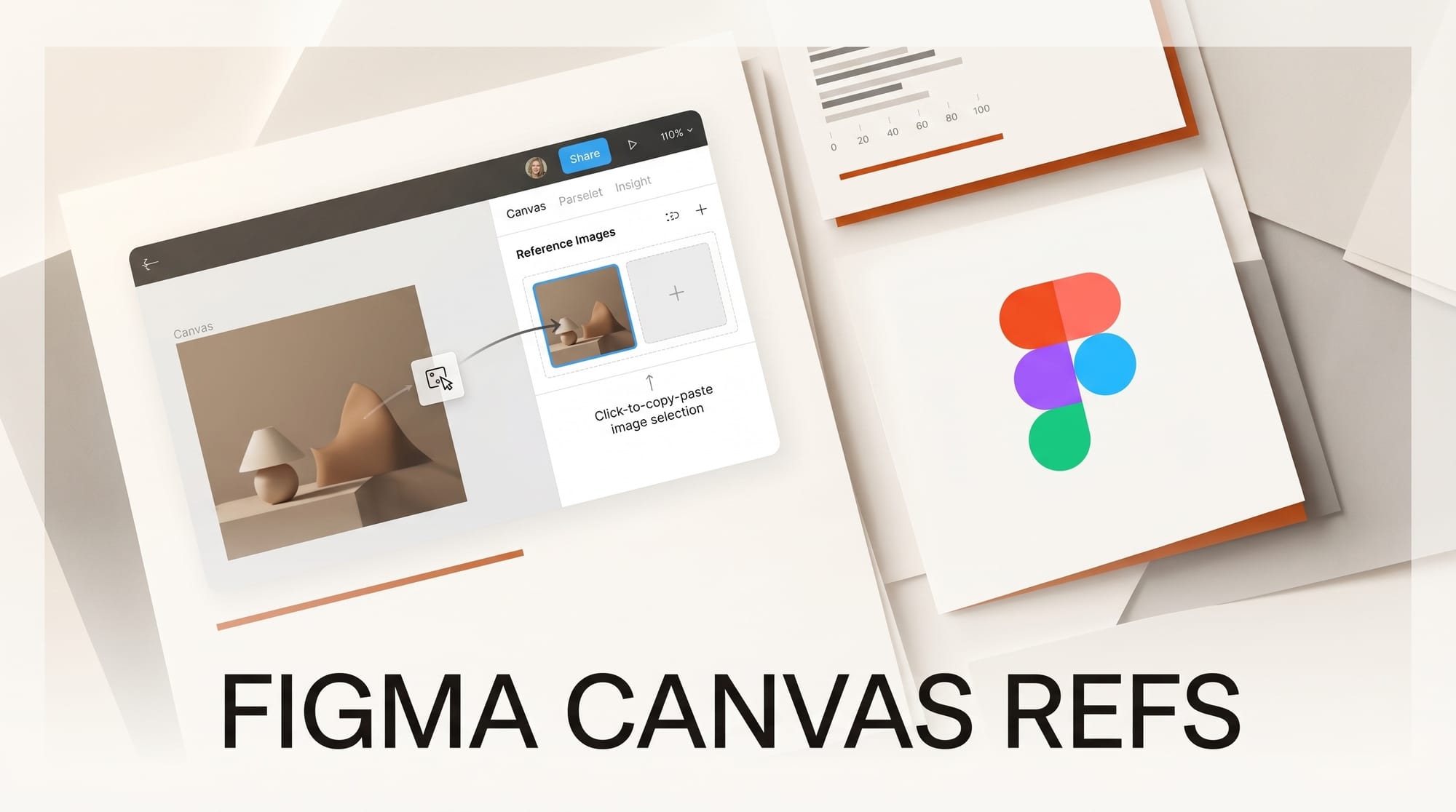
On April 28, Figma added multiple new ways for designers to supply reference images when using AI to generate or edit images inside Figma. Before this update, the only option was uploading a file from your computer through the "Attach image as reference" prompt. That single path created real friction in workflows where the visual references already exist on the canvas.
What Happened
Figma introduced three new methods for adding reference images alongside the existing upload option:
- Canvas click: An "Add reference" button now appears directly on almost any node on the canvas: frames, components, vectors, and imported images. Click it to feed that element to the AI as a visual reference without leaving your file.
- Copy/paste: Copy an image from the Figma canvas or from an external source and paste it directly into the AI prompt box.
- Drag and drop: Drop an image file onto the prompt box from your file system.
The update rolled out on April 28 and applies to all five Figma products that support AI image tools: Figma Design, Draw, Buzz, Slides, and FigJam. It covers both the "Make an image" generation workflow and the "Edit image with prompt" editing workflow.
Why It Matters
Reference images are one of the most reliable ways to anchor AI-generated output to a specific visual style. Text prompts alone frequently drift; the AI interprets words through its training data, not through your actual brand guidelines. When designers can point at a canvas element as a reference, the output is measurably closer to what already exists in the system.
The practical bottleneck before this update was the export cycle. If your reference was already in Figma as a component or a frame, you had to export it, navigate a file picker, and re-import it into the AI prompt. For teams whose brand assets live entirely in Figma, this round-trip added enough friction that many designers skipped references altogether. The April 28 update removes that friction entirely by making the canvas itself the source of truth.
This also has implications for design systems. Organizations that maintain approved components, color palettes, and style references in a shared Figma library can now feed those directly into AI generation without any export step. A designer working on a new marketing banner can click "Add reference" on the approved header component, and the generated image will reflect that visual language.
Key Details
- Three new input methods: canvas "Add reference" button, copy/paste into prompt, drag-and-drop files
- Original file upload option remains as a fourth path
- Available in Figma Design, Figma Draw, Figma Buzz, Figma Slides, and FigJam
- Works in both "Make an image" (generation) and "Edit image with prompt" (editing) workflows
- Requires a paid seat with edit access; AI image tools consume AI credits
- Credit allocations: 500/month (Starter), 3,000/month (Professional at $20/month), 3,500/month (Organization at $55/month), 4,250/month (Enterprise at $90/month)
- Rolling out to users over the week following April 28
What to Do Next
If your team maintains brand assets in a shared Figma library, this update is immediately usable. Open any "Make an image" or "Edit image" prompt, then use the new "Add reference" button on an existing approved component or style reference. The AI will use that canvas element as a visual anchor rather than interpreting your prompt from scratch.
For teams building presentation decks or marketing materials inside Figma Slides and Buzz, the ability to reference existing visual elements without leaving the product context removes one of the main barriers to consistent AI-generated imagery at scale.
Open any Figma file with AI image tools enabled and try the new "Add reference" button on a brand component this week to see how the canvas-as-reference flow changes your generation results.