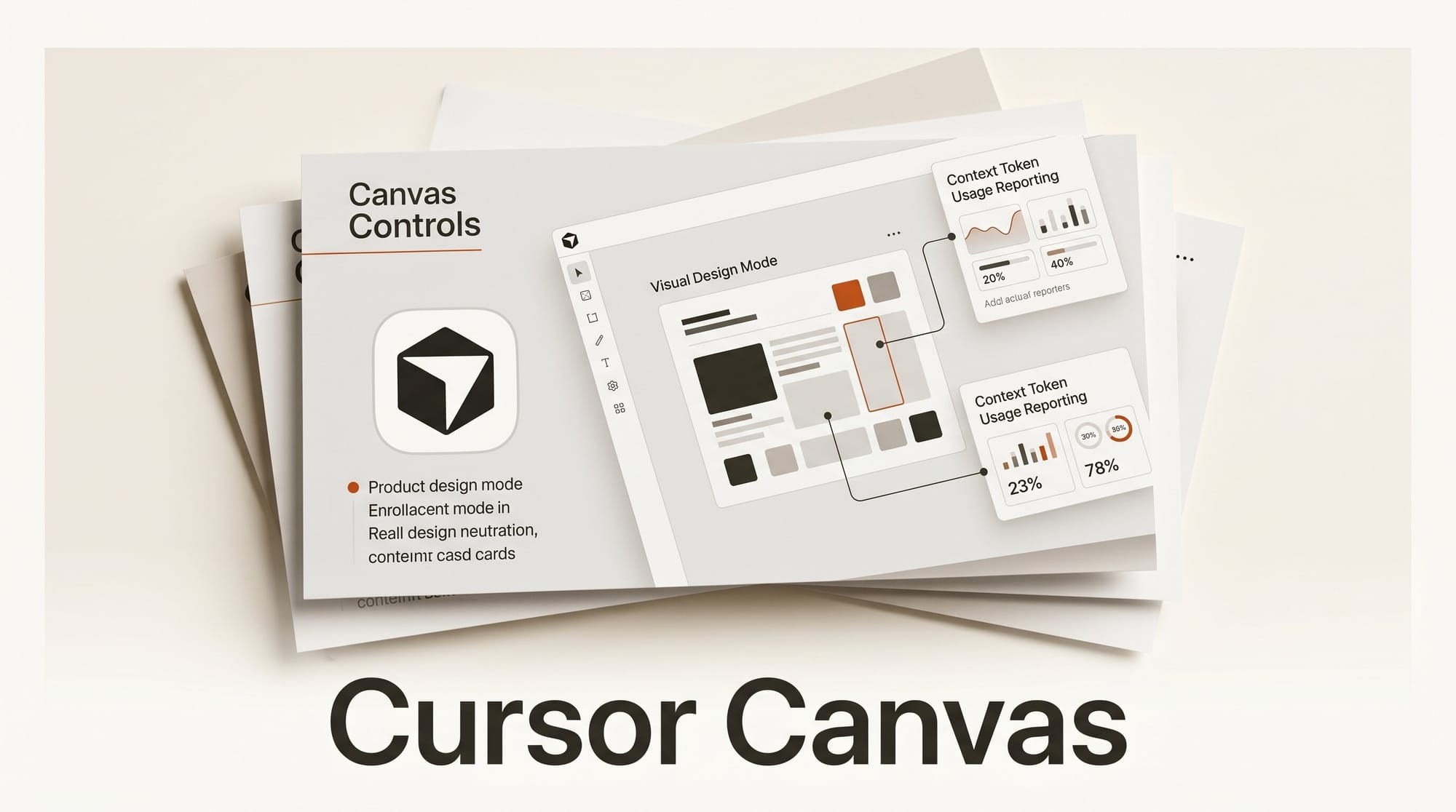
Cursor shipped two canvas features on June 4, 2026: a Design Mode that lets you select and annotate UI elements directly inside a canvas to guide the agent's edits, and a Context Usage Report that turns the agent's token consumption into an interactive, ask-followup-questions canvas. Both land on top of the canvas system Cursor introduced in version 3.1, which gave agents a place to render dashboards, reports, and custom UI alongside the chat.
How to Use Design Mode in Your Next Cursor Session
Open any canvas the agent generates, click into Design Mode, and point at the element you want changed. Instead of typing "make the chart's header smaller and move the legend to the right," you select the header, annotate it, select the legend, drop a pin on its new position, and ship that to the agent. The agent reads the annotations as structured edit instructions, which cuts the round-trip count on UI work where text descriptions are slower than direct manipulation. The official canvas docs cover the keyboard shortcuts and the supported chart and component library.
Why It Matters
Coding agents already handle the file-edit and refactor loop well. The remaining friction is the UI loop, where every iteration is a new screenshot, a new text description, and a fresh prompt. Direct annotation collapses that loop the same way Figma collapsed designer-to-developer handoff. For creators building internal tools, dashboards, or AI-rendered apps, this is the difference between a 6-prompt iteration and a 2-prompt iteration on the same fix.
Key Details
The Context Usage Report breaks down where tokens go across the system prompt, tool definitions, rules, skills, and chat history, and ships with a "Debug with Agent" button that asks the agent to identify which sections you can trim. Because the report renders as a canvas, you can ask follow-up questions like "which rule is eating the most context on TypeScript files" and the agent customizes the visualization to answer. Cursor also added four canvas-wide improvements in the same release: full-screen viewing for shared canvases, embedded buttons that execute prompts when clicked, improved error recovery, and richer chart styling. The full Cursor changelog lists the version number and rollout details.
What to Do Next
If you build agent-driven UI with Cursor, open Design Mode on your next canvas iteration and see how many prompts you save. If you hit context limits on long sessions, run the Context Usage Report on a recent thread and look at what's competing for the window. The token-debug pattern is reusable beyond Cursor itself, since the same context-budgeting questions apply to any agent stack you maintain.