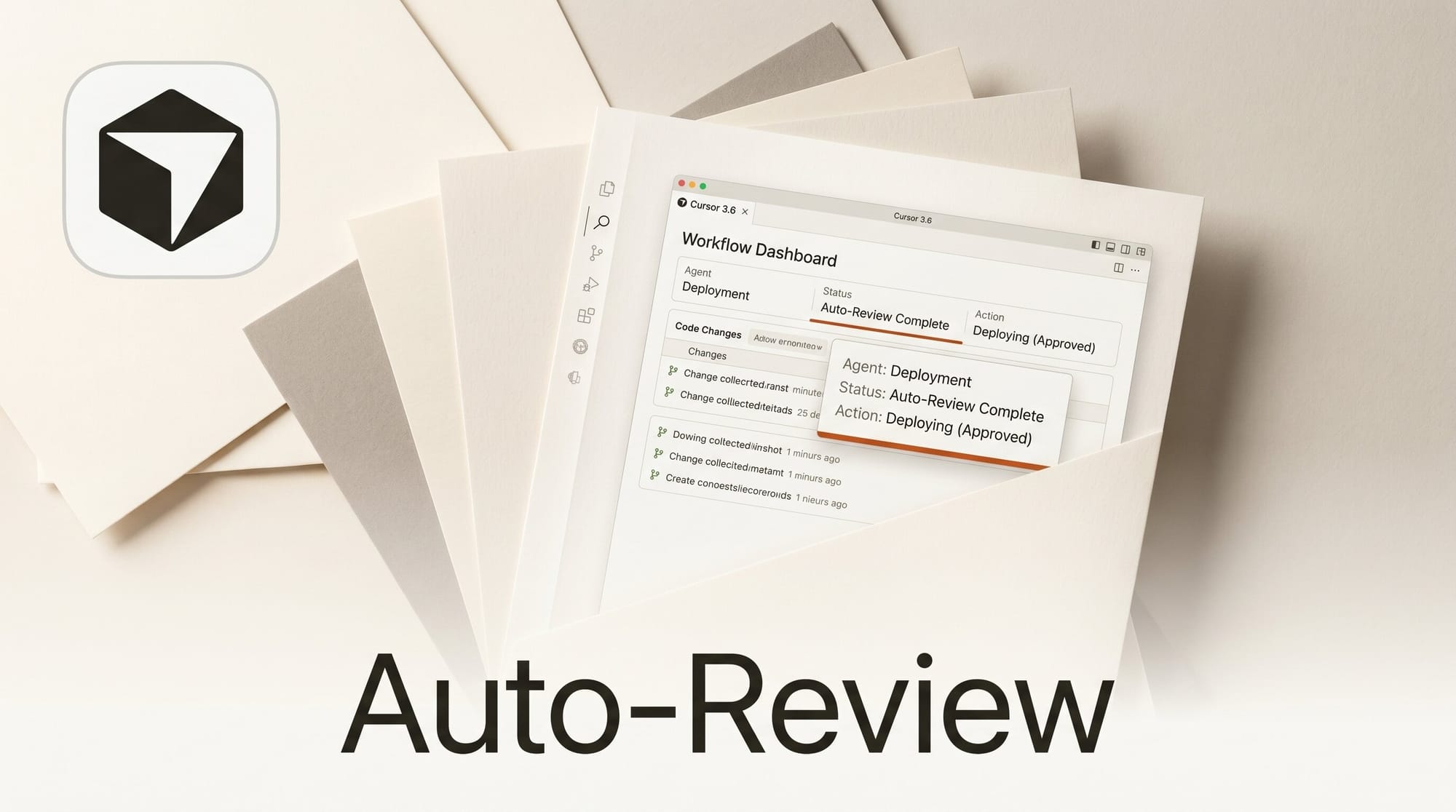
Cursor shipped auto-review mode today in version 3.6, a new run mode that lets the agent work for longer stretches with fewer approval prompts. The setting governs how Cursor handles Shell, MCP, and Fetch tool calls and routes each call through one of three execution paths: allowlist, sandbox, or a classifier subagent that decides what to do.
What this enables
A coder running Cursor in agent mode can hand off multi-step tasks like refactoring a service or running a test suite without sitting at the keyboard to approve every shell command. Open Settings, then Cursor Settings, then Agents, then Run Mode, and pick Auto Review. Allowlisted commands run immediately, sandboxable commands run in isolation, and anything risky still pauses while the classifier decides whether to allow it, sandbox it, or ask you.
Why It Matters for Creators
Agent autonomy has been gated by approval fatigue. Every Shell, MCP, or Fetch call in classic mode pops a confirmation dialog, which kills the productivity of long-running agentic sessions for designers building plugin tooling, indie devs shipping side projects, and technical artists wiring custom nodes. The Run Mode setting now triages those calls automatically. Per the Cursor terminal docs, allowlist rules let you whitelist deterministic operations like a project test runner so they execute without interruption, while anything that touches the network or rewrites files outside the workspace still needs sign-off.
Key Details
Three tool-call surfaces are covered: Shell for terminal commands, MCP for tool calls from connected Model Context Protocol servers, and Fetch for network requests. The classifier behavior is steerable through natural-language custom instructions, so teams can encode their own rules like always sandboxing database migrations or never auto-approving outbound API calls. The feature ships in Cursor 3.6 with no separate pricing tier or plan gate mentioned in the changelog. It is configuration only and active once toggled.
What to Do Next
Open Cursor, head to Settings, then Cursor Settings, find Agents, and switch Run Mode to Auto Review. Start with the default classifier behavior, then layer custom instructions once you see which commands you wish you could auto-approve. For teams shipping under a deadline, the practical win is letting the agent grind through a long task while you context-switch to design review or PR triage instead of clicking Approve every 30 seconds.