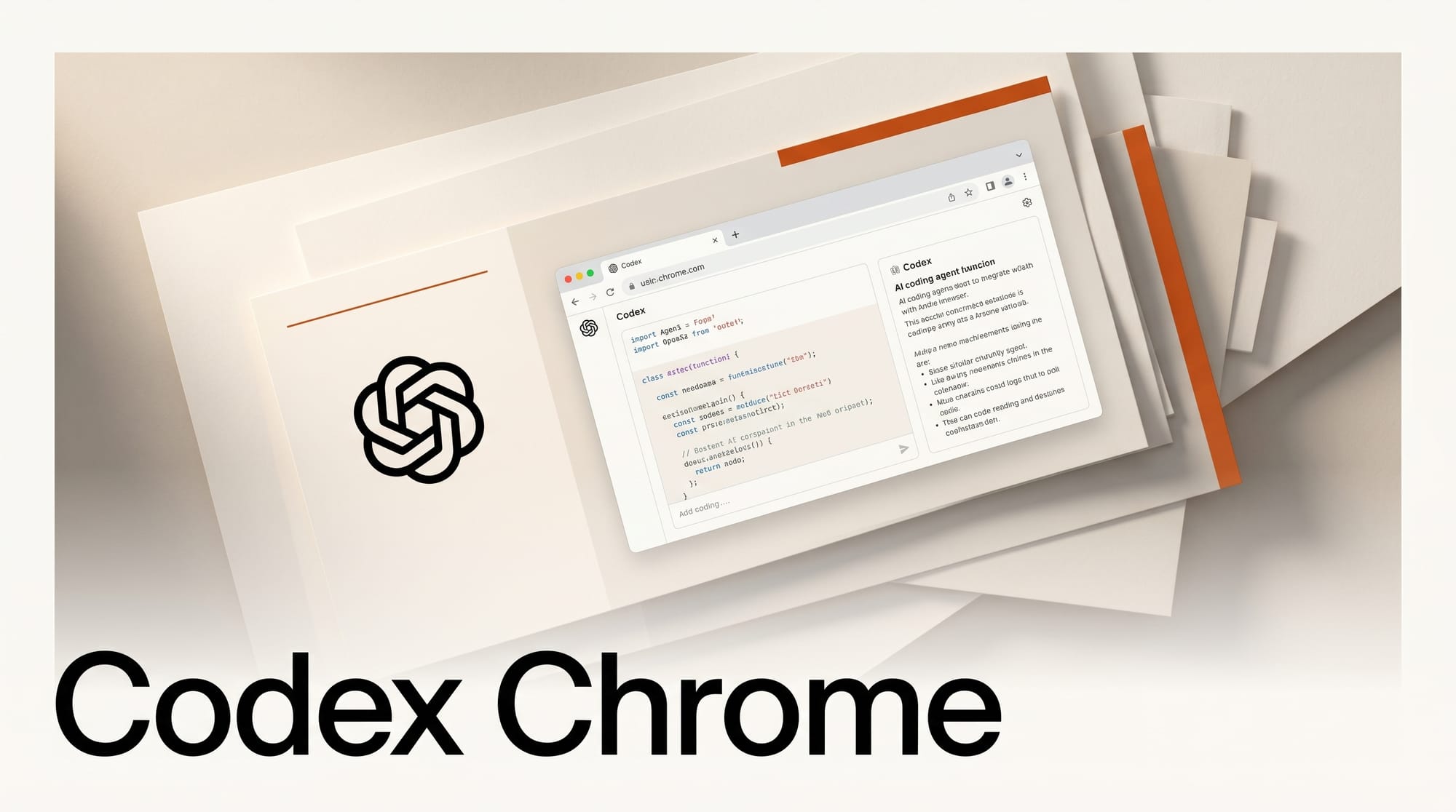
OpenAI shipped a Codex Chrome extension on May 7, 2026, putting its coding agent directly inside the browser on macOS and Windows. The extension runs in parallel across tabs in the background, can use Chrome DevTools, navigates pages that need a signed-in session, and stays out of the way while you keep working in the same window.
This is the second big posture shift for Codex in three weeks. The April rollout brought CLAUDE.md import and Pets to the CLI. Now MacRumors confirms the agent has 4 million weekly active users, an 8x jump since January 2026, and a $100/month Pro tier with 5x the usage of the $20 ChatGPT Plus plan. Yahoo Tech's syndicated coverage emphasizes that the extension organizes browser work into Chrome tab groups per Codex thread. The browser extension is the third surface (after CLI and IDE) where the same Codex session can act on your behalf.
How to integrate this into your workflow today
The extension is invoked from inside any Codex thread with the @Chrome handle. Example from the official documentation: "@Chrome open Salesforce and update the account from these call notes." Codex switches automatically between three tools: plugins for dedicated integrations like GitHub or Linear, the in-app browser for localhost and public pages, and Chrome for anything that requires authentication. You do not pick the tool yourself; the agent picks it based on the task.
For creators, the most useful pattern is letting Codex own the click-heavy parts of a publishing pipeline while you keep writing or editing in another window. A draft going from Notion to a CMS, a YouTube description being copied across multiple tools, a Figma comment thread that needs to be turned into a ticket queue: each of these is a long sequence of tab switches that Codex can now handle inside its own Chrome tab group, while you stay focused.
What happened
OpenAI's official docs page describes the extension as a plugin that gets installed from the Codex app's Plugins tab. Setup is four steps: open Codex, add the Chrome plugin, follow the setup flow, approve Chrome's permission prompts, and confirm the extension shows "Connected" in Chrome.

The permission list is broad and worth reading before installing. The extension requests page debugger access, the ability to read and change data on all websites, browsing history on signed-in devices, notification display, bookmark and download management, native messaging, and tab group management. Engadget's coverage notes that file uploads from your local computer require manually granting "Allow access to file URLs" in Chrome's extension settings page.
OpenAI says it does not store a separate complete record of Chrome actions. Storage only happens when browser activity becomes part of the Codex context, which means text, screenshots, tool calls, summaries, or conversation messages. Browser history access is optional and respects the existing Codex Memories setting.
Why it matters for creators
The Codex Chrome extension is not aimed at coders alone. The Engadget writeup explicitly calls out "casual users and professionals in non-coding fields" as a target audience, and OpenAI's framing in the announcement was that "most common workflows happened in the browser." For a creative AI publication, that line is the actual story. The agent that writes your code is now also the agent that drives your CMS, your social schedulers, your stock library, and your client portals.
The capability creators have been missing from multi-agent setups is durable session state. Most browser automation still falls over the moment a site forces a captcha, a 2FA prompt, or a cookie wall. Because the Codex extension uses your existing Chrome profile, every site you are already logged into is a site Codex can use without re-authenticating. That is the unlock for repetitive cross-tool publishing flows that no headless agent has been able to handle reliably.
Codex Chrome vs other browser agents
| Agent | Surface | Auth model | Tab handling | Pricing |
|---|---|---|---|---|
| OpenAI Codex Chrome | Chrome extension on macOS and Windows | Uses your live Chrome profile, no separate login | Tab groups per thread, parallel across tabs | Bundled with ChatGPT Plus $20 or Codex Pro $100 |
| ChatGPT Atlas browser | Standalone Chromium browser | Sign in once per site inside Atlas | Single browser window, no Chrome integration | Bundled with ChatGPT subscription |
| Anthropic Computer Use | API only, runs against a sandboxed Linux desktop | You provision and authenticate the sandbox | Single virtual screen, no real Chrome profile | API tokens, no consumer tier |
| Browser Use / Browser Base | Hosted headless Chromium | Cookie injection or fresh login per run | Multiple isolated sessions | Per-minute or per-session billing |
The differentiator is the auth model. Codex Chrome is the only one that piggybacks on your existing Chrome profile, which is why the documentation specifically lists LinkedIn, Salesforce, Gmail, and internal tools as the kinds of sites it is built for. Atlas requires a parallel browser; Computer Use requires sandbox provisioning; Browser Use requires session management. Codex inherits whatever is already logged in.

Getting started: a 10-minute setup walkthrough
- Open the Codex desktop app, go to Plugins, and add the Chrome plugin. The extension is also listed on the Chrome Web Store.
- Approve the Chrome permission prompts. Read the permission list carefully because the extension can read and change data on all websites.
- Confirm the extension shows "Connected" in your Chrome toolbar.
- Open Computer Use settings inside Codex and add an allowlist or blocklist for domains. Sites not on the allowlist will trigger a per-domain approval prompt the first time Codex visits them.
- If you need file uploads, open chrome://extensions, find Codex, and enable "Allow access to file URLs."
- Test the wiring with a low-stakes prompt: "@Chrome open my Ghost admin and list the last 5 drafts."
- Watch the Chrome tab group Codex creates for the thread. Every browser action stays in that group, so closing the group ends the session cleanly.
What this enables for creators
Three workflow patterns become realistic with this release. The first is cross-CMS publishing. If you draft in Notion, copyedit in Google Docs, and ship in Ghost or Webflow, the agent can now move the same draft through all three steps, including the "find this asset in my Drive" detour that breaks most automations. The second is metadata propagation: when you publish a video, the agent can update the YouTube description, push the post URL into Buffer or a Claude-driven scheduler, and tag the asset library entry. The third is research collation: signed-in research databases, paywalled trade outlets, and private Slack archives that Codex could not reach before are now in scope, because they are already in scope for your Chrome session.

The cost ceiling matters here. The $100/month Codex Pro tier gives 5x the usage of ChatGPT Plus, which is the difference between an agent that can finish one publishing run a day and one that can take over a Friday afternoon of busywork. Heavy users should plan to upgrade or split tasks across multiple Codex threads to stay under the Plus quota.
Frequently asked questions
Does the Codex Chrome extension work on Linux?
OpenAI explicitly lists macOS and Windows in the launch announcement. There is no mention of Linux support. MacRumors confirms the macOS and Windows scope.
Will Codex see my private tabs and history?
Browser history access is optional and disabled by default. It respects the existing Codex Memories setting. Storage only happens when browser activity becomes part of the Codex context, not as a separate audit log of every page you visit.
Do I need a Codex Pro plan to use the Chrome extension?
No. The extension is available on the $20/month ChatGPT Plus tier. Pro at $100/month exists for users who hit the Plus quota, and it gives roughly 5x the Codex usage allowance.
Can the agent log in for me if I am not signed in?
No. The extension uses whatever Chrome profile is active. If you are not signed in, the agent will hit the same login screen you would, and most flows will stop there. Pre-authenticating is part of the workflow.
How do I stop Codex from touching a specific site?
Open Computer Use settings inside the Codex app and add the domain to the blocklist. Codex will refuse to navigate to blocked domains and will surface the rule in the response.
What happens if a site requires 2FA?
Codex pauses and asks you to complete the 2FA flow in the same Chrome session. Once the session token is set, subsequent runs in the same browser profile do not need to re-prompt unless the cookie expires.
What to do next
Install the extension on a non-critical Chrome profile first. Codex requesting "read and change data on all websites" is not unusual for a browser agent, but it is broad enough that you should test the allowlist behavior before pointing it at your primary work profile. Once the allowlist is set, the most useful first job is mapping a single repetitive cross-tool publishing flow you already know well, so you can spot when the agent diverges. Save the prompt as a reusable Codex thread so the second run is one click away.