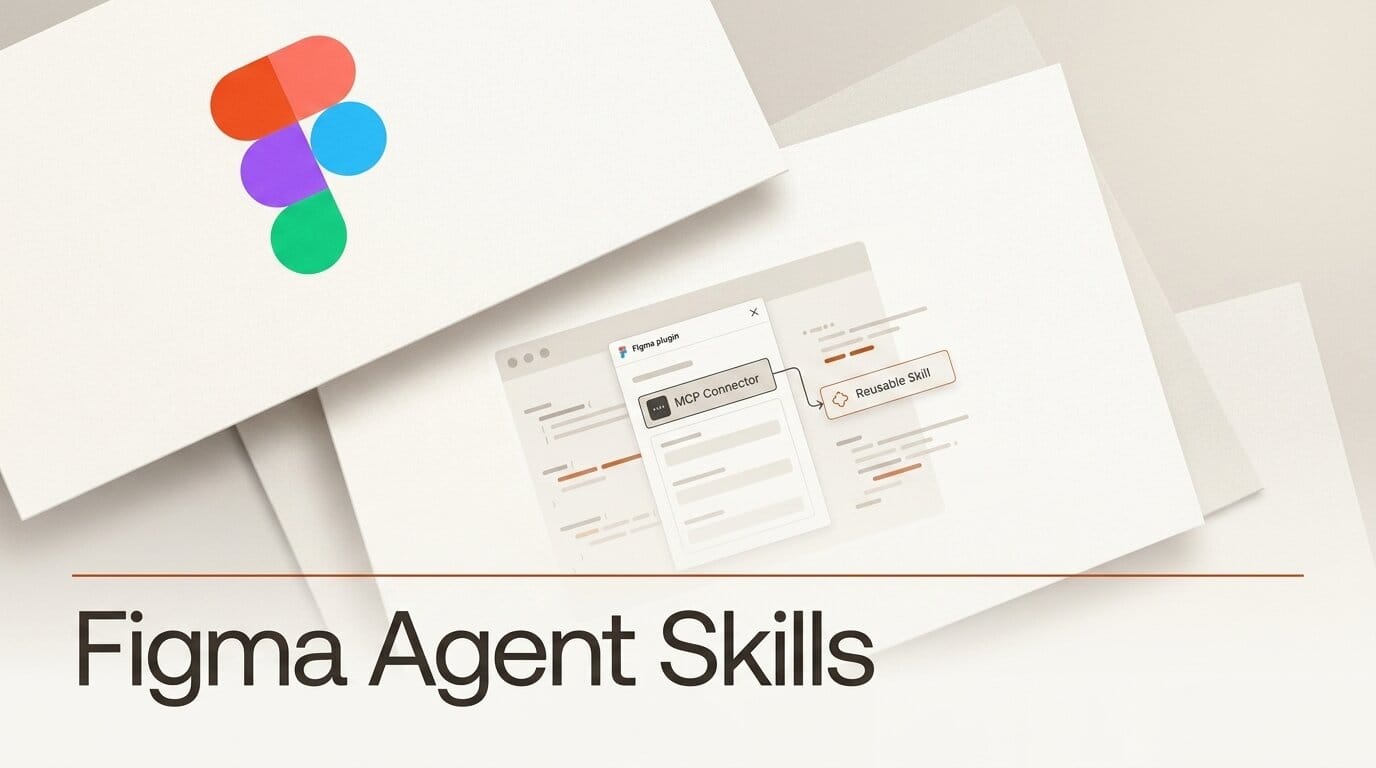
Building a reusable Figma agent Skill takes about ten minutes and no code, and it turns a one-off prompt into a repeatable, one-slash action your whole team can run the same way every time. This guide walks through creating your first Skill, triggering it in any chat, and connecting it to Slack, Notion, and Asana through the Model Context Protocol so the agent can pull in outside context. Skills are free while the Figma design agent stays in open beta, so the only cost is the time it takes to write good instructions.
What You Need
Before you start, make sure you have the following in place:
- A Figma account with a Full seat on a Professional, Organization, or Enterprise plan. Collab, Dev, and View seats can use the agent in drafts, but Skills authoring is a Full-seat feature during the beta.
- The Figma design agent enabled in your workspace. It debuted at Config 2026 and is free to use during the open beta.
- A single, repeatable task you want to standardize, such as a design-critique pass, a UX-writing check, or a stakeholder-feedback simulation. Skills work best when the task is narrow.
- Optional: admin access to authorize verified partner MCP connectors if you want a Skill to read from or write to Slack, Notion, or Asana.
Build Your First Skill Step by Step
A Skill is a reusable set of instructions, written in plain English, that you teach the Figma agent once and then reuse. There is no scripting involved. The workflow below produces a working design-review Skill in a few minutes.
Step 1: Open an agent chat in a file you own
Open a design file where you have edit access and start an agent chat. Because agent chats are shared by default in collaborative files, work in a file you own or a personal draft while you iterate, then move the finished Skill to a shared file once it behaves the way you want.
Step 2: Write the instructions in plain English
Describe the task exactly as you would brief a junior teammate. Be specific about the lens and the output. A strong first Skill reads like this: "Review the selected flow as a first-time user who has never seen this product. Flag the three steps most likely to cause confusion, name the exact screen and element for each, and suggest one concrete fix per issue." Vague instructions like "make this better" produce inconsistent results, so anchor the Skill to a clear point of view and a defined deliverable.
Step 3: Name and save the Skill
Give the Skill a short, memorable name you will recognize in a menu, such as new-user-review or ux-copy-check. Figma's custom skills documentation covers creating, editing, and organizing them. Save it, and the Skill becomes available across your files rather than living inside a single chat.
Step 4: Trigger it with a slash
In any agent chat, type a forward slash followed by the Skill name, select your target frame or copy, and run it. The agent applies your saved instructions to whatever you have selected. Figma ships several ready-made examples that show the range, including a UX Writing Standards check that enforces your style guide, a New User Perspective review, a /catch-me-up Skill that summarizes recent file activity, and a /create-tasks Skill that logs feedback as tasks.
Step 5: Share it with your team
Once a Skill works reliably, save it to a shared file so teammates can trigger it too. Since chats are visible in collaborative files, people can see which Skills others run and copy the approach, which is how a single good prompt becomes a team standard. This is the core shift the custom tools and Skills release introduced.

Connect External Tools with MCP
Skills become far more useful when they can reach beyond the canvas. Figma connects the agent to outside apps through verified partner MCP connectors, so a Skill can read a Slack thread for context, surface research from Notion, or log feedback as an Asana task without leaving Figma. Research tools such as HeyMarvin are also supported as connectors.
These connectors are built on the Model Context Protocol, the same open standard that Claude, Cursor, and other agents use. The practical upshot is that a Figma Skill and your coding agent can draw on the same connected sources, so context does not get siloed per tool. To wire one up, an admin authorizes the verified connector for your organization, then you reference the connected app inside a Skill, for example "summarize the feedback from the linked Slack thread and log each item as an Asana task." Figma has also said Skills will soon be available through Figma's own MCP server, which would let external agents call your Skills in return.
Troubleshooting
Most Skill problems trace back to instructions that are too broad or a setup step that was skipped. The fixes below cover the common failures.
- The Skill gives inconsistent results. The instructions are probably too open-ended. Narrow the task to one clear job with a defined output format, and specify the exact lens the agent should adopt. Split a broad "review everything" Skill into separate accessibility, copy, and flow Skills.
- The Skill does not appear in the slash menu. Confirm it was saved rather than left in a single chat, and that you are in a file where the Skill is shared. Authoring is a Full-seat feature, so check your seat type if the option is missing.
- A connector cannot reach your data. MCP connectors must be authorized as verified partner connectors by an admin before a Skill can use them. If a Slack or Notion reference returns nothing, the connector likely is not enabled for your organization yet.
- The agent ignores part of the instruction. Long, multi-part instructions get partially applied. Rewrite the Skill as an ordered list of discrete steps, or break one overloaded Skill into two focused ones that you chain.
What to Try Next
Once your first Skill works, expand in these directions:
- Build a critique kit. Create separate Skills for a first-time-user pass, an accessibility pass, and a UX-writing pass, then run all three before every design review.
- Simulate a stakeholder. Write a Skill that reviews work the way a specific reviewer would, so teams can pressure-test designs before the real feedback round.
- Close the loop with MCP. Pair a critique Skill with a connector Skill that logs each finding as an Asana task, turning review notes into tracked work automatically.
For context on where the agent came from, see our coverage of the Figma agent debut at Config 2026, and for how Skills fit the broader shift, read our state of AI design tools in 2026 analysis.
Frequently Asked Questions
Are Figma agent Skills free?
Yes. The Figma design agent, and Skills along with it, are free to use while the agent remains in open beta. There is no separate charge to create or run Skills during this period.
Which plans and seats support Skills?
Skills authoring is available to Full seat users on Professional, Organization, and Enterprise plans. Collab, Dev, and View seats can use the agent within drafts but do not get the full Skills authoring experience during the beta.
What is the difference between a Skill and a regular prompt?
A prompt is typed fresh each time and lives in one chat. A Skill is a named, saved set of instructions you write once and trigger with a slash in any chat, which makes the agent's output consistent and lets a whole team run the same task the same way.
Which apps can Skills connect to through MCP?
Through verified partner MCP connectors, Skills can work with apps including Slack, Notion, Asana, and research tools such as HeyMarvin. Because the connectors use the Model Context Protocol, they share the same standard as other agents like Claude and Cursor.
Can I reuse one Skill across multiple files?
Yes. Once saved, a Skill is available across your files rather than being tied to the chat where you created it. Saving it to a shared file lets teammates trigger the same Skill, which is how a single prompt becomes a repeatable team standard.