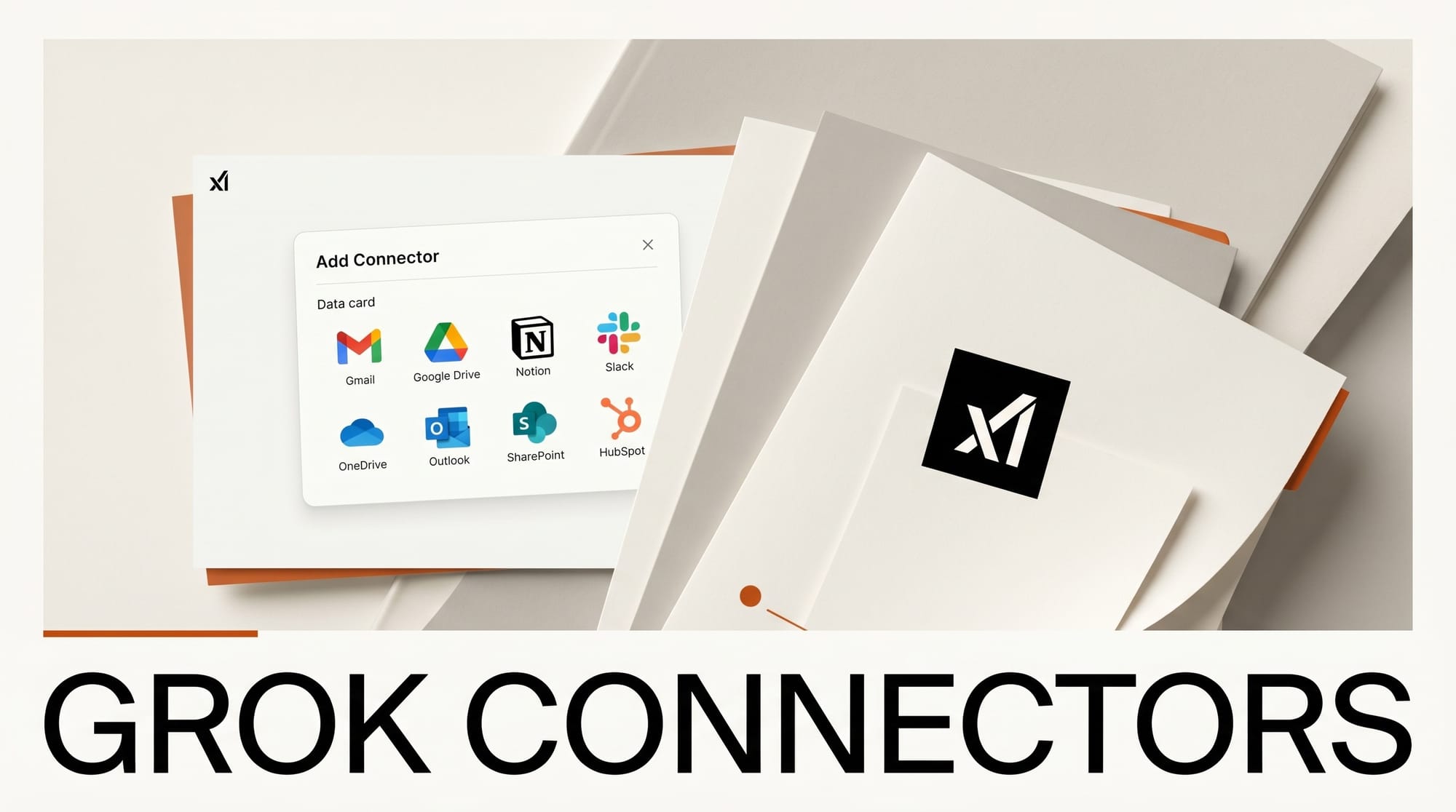
xAI launched Grok Connectors on May 7, 2026, giving Grok direct read access to Gmail, Google Calendar, Google Drive, OneDrive, Outlook, SharePoint, Notion, Slack, and HubSpot. The update turns Grok from a standalone chat model into an assistant that can search your inbox, pull files from Drive, check your calendar, and query your Notion workspace without tab-switching. Setup is at grok.com/connectors and takes under two minutes per service via standard OAuth.
To set up Grok Connectors, visit grok.com/connectors, sign in, select a connector, click Authorize, and grant permissions; each service takes under two minutes via standard OAuth. xAI launched the feature on May 7, 2026 with nine connectors including Gmail, Google Calendar, Google Drive, OneDrive, Outlook, SharePoint, Notion, Slack, and HubSpot.
What Grok Connectors Actually Do
Connectors give Grok authorized access to external data sources. When you ask a question that touches a connected service, Grok pulls the relevant context automatically. Ask "what meetings do I have Thursday?" and Grok checks your Google Calendar. Ask "find my Q2 content brief" and Grok searches your Google Drive. Ask "what is the open PR count in my repo?" and Grok queries your connected version control system via a custom MCP server.
There are three connector types, per the official xAI Connectors documentation: built-in connectors maintained by xAI, catalog connectors for popular third-party services, and custom MCP connectors for anything not in the standard catalog. Built-in connectors require only a one-time OAuth sign-in.
Grok Connectors: Full Supported Apps List (2026)

| Connector | Type | What Grok can access | Best for creators who use... |
|---|---|---|---|
| Gmail and Google Calendar | Built-in | Email threads, sent mail, calendar events | Google Workspace for outreach and scheduling |
| Google Drive | Built-in | Files, Docs, Sheets, Slides | Drive to store briefs, scripts, and brand assets |
| OneDrive | Built-in | Personal storage files | Windows or Microsoft 365 environments |
| Outlook Mail and Calendar | Built-in | Email and calendar events | Microsoft 365 rather than Google Workspace |
| SharePoint | Built-in | Sites and document libraries | Enterprise SharePoint for shared team assets |
| Notion | Catalog | Pages, databases, wikis | Notion for content calendars, briefs, and project tracking |
| Slack | Catalog | Channel messages and threads | Slack for team coordination on creative projects |
| HubSpot | Catalog | CRM contacts, deals, notes | HubSpot to cross-reference client briefs while working |
| Custom MCP server | Custom | Any MCP-compatible service | Proprietary tools, self-hosted systems, or niche platforms |
xAI describes the catalog as growing, with additional third-party connectors expected in the coming months. Per Phemex coverage of the launch, GitHub is also available through the catalog for code repository access.
How to Connect Your First Service in Three Steps

The setup flow is the same for built-in and catalog connectors:
- Go to grok.com/connectors. Sign in to your xAI account and open the Connectors page.
- Select a connector and click Authorize. Choose the service from the built-in list or catalog. Grok opens an OAuth window for that service.
- Grant permissions and finish. Grok requests only the permissions it needs for that connector. The connection stays active across sessions until you revoke it.
For custom MCP connectors, enter a server URL and manage authentication separately. A practical connector setup guide recommends starting with read-only scope during testing before granting write access.
Three Workflows Creators Can Build Today
The practical value depends on which tools you already use. Here are three setups for active creative work.
1. Content creator with Notion and Google Drive
Connect both your Notion workspace and Google Drive. Store your content calendar in Notion and your drafts in Drive. Ask: "What pieces are due this week per my Notion calendar? Pull the brief for the video tutorial and write a script outline." Grok reads both sources in one query. For creators who already use Notion for editorial planning, this removes the copy-paste step before every prompt.
2. Designer or developer with version control
Connect a GitHub repository via custom MCP. Ask Grok to summarize open pull requests, generate release notes from recent commits, or explain what changed in the last merge. This covers similar ground to what Claude for Creative Work Connectors introduced earlier this year, now available inside the same Grok interface where you may already be running Grok Imagine for visual assets. For the current state of Grok 4.3 creative API tools, see our Grok 4.3 and Custom Voices roundup.
3. Newsletter writer with Gmail and Google Calendar
Connect Gmail and Google Calendar. Ask Grok to scan your inbox for reader replies from the past week, identify recurring questions, and suggest newsletter topics based on what your audience is actually writing to you about. Add a calendar check to confirm your next send date and you have a research assistant running on data you already own. No exports, no new subscriptions.
Grok vs Claude vs ChatGPT: How the Integration Models Compare
| AI assistant | Integration approach | Connector depth for creators |
|---|---|---|
| Grok | Built-in OAuth connectors, catalog integrations, custom MCP | Strongest Google and Microsoft coverage; Notion, Slack, HubSpot in catalog; unlimited via MCP. Web-only at launch. |
| Claude | Claude Connectors via Claude.ai Projects | Deep Google Workspace and developer tool support. Strong for document-heavy and code workflows. See our Claude Connectors breakdown. |
| ChatGPT | GPT Store and Custom GPTs | Broad ecosystem via GPT Store but variable depth by GPT. Less standardized than Grok or Claude Connectors. |
Per xAI release notes for May 2026, Connectors launched the same week as Grok Imagine Quality Mode. For the latest on Grok image generation, see Grok Imagine Pro retiring May 15 in favor of Quality Mode.
Frequently Asked Questions
Is Grok Connectors free or paid?
xAI has not published separate pricing for Connectors. The feature launched May 7, 2026 on Grok Web. Check grok.com/connectors after signing in to see which tiers have access.
When is mobile support coming?
xAI confirmed iOS and Android support is in development as of the May 7 launch. No specific release date has been announced. The current rollout is web-only.
What is MCP and do I need it?
Model Context Protocol is an open standard for connecting AI models to external data sources. If your tools are not in the built-in or catalog list, you can run an MCP server and point Grok to it. Most creators will not need custom MCP: Gmail, Drive, Notion, and Slack cover the majority of common creative workflows. The Grok-Notion integration page covers how database and page queries work in practice.
What data does Grok access when a connector is active?
Grok requests only the permissions required for each connector and only queries connected services when your question involves that service. All built-in connectors use standard OAuth. You can revoke access at any time from grok.com/connectors. The exact permission scope is shown in the OAuth window before you confirm.
Should I use Grok Connectors or Claude Connectors?
If you already use Grok for image generation or X-platform work, adding Connectors keeps everything in one interface. If Claude is your main writing assistant, its connector suite is already integrated there. The two systems are not mutually exclusive and most creators will find value in connecting whichever AI they use most to the tools they rely on daily.
Does this affect Grok Imagine image generation?
No. Connectors handle data access from external apps and operate separately from Grok Imagine. You can reference a file in your connected Drive when writing an image prompt, but Connectors do not change how Grok Imagine generates media. For image generation updates, the Grok Imagine Quality Mode transition takes effect May 15, 2026.
How do I remove a connector?
Go to grok.com/connectors, find the integration you want to remove, and revoke access. Grok disconnects immediately. You can reconnect at any time by repeating the OAuth flow. Revoking access does not delete any data from the connected service itself.
Related deep dives
- Anthropic Launches Claude for Creative Work Connectors
- xAI Grok 4.3 + Custom Voices: What It Means for Creators
- Grok Imagine Quality Mode: Pro Retires May 15
What to Do Next
If you use Grok regularly, open grok.com/connectors and connect the one service you use most often. Gmail and Google Calendar is the fastest win for anyone managing their own schedule and inbox. Notion is the right first connector if your editorial planning already lives there. Start with one service, ask it a specific question about your real data, and verify the response accuracy before adding more integrations.