LTX Studio released Flows on May 7, 2026. It is a visual, node-based system for connecting prompt, image, video, and upscaling steps into a pipeline you can run in one click and reuse across every project. For creators who generate video at scale, this changes how you structure repetitive production work.
Node-based workflows have been a staple of open-source image generation through ComfyUI, but native integration inside a managed video studio is new territory. Flows brings that paradigm into LTX Studio's existing toolset alongside LTX-2.3, Veo 3.1, FLUX.2 Pro, Seedance 2.0, and Kling 3.0.
What Is LTX Studio Flows?
Flows is a visual canvas inside LTX Studio where you connect discrete generation nodes into a repeatable sequence. Instead of manually running each step in a session and copying outputs between tools, you define the graph once and execute the entire pipeline with a single action.
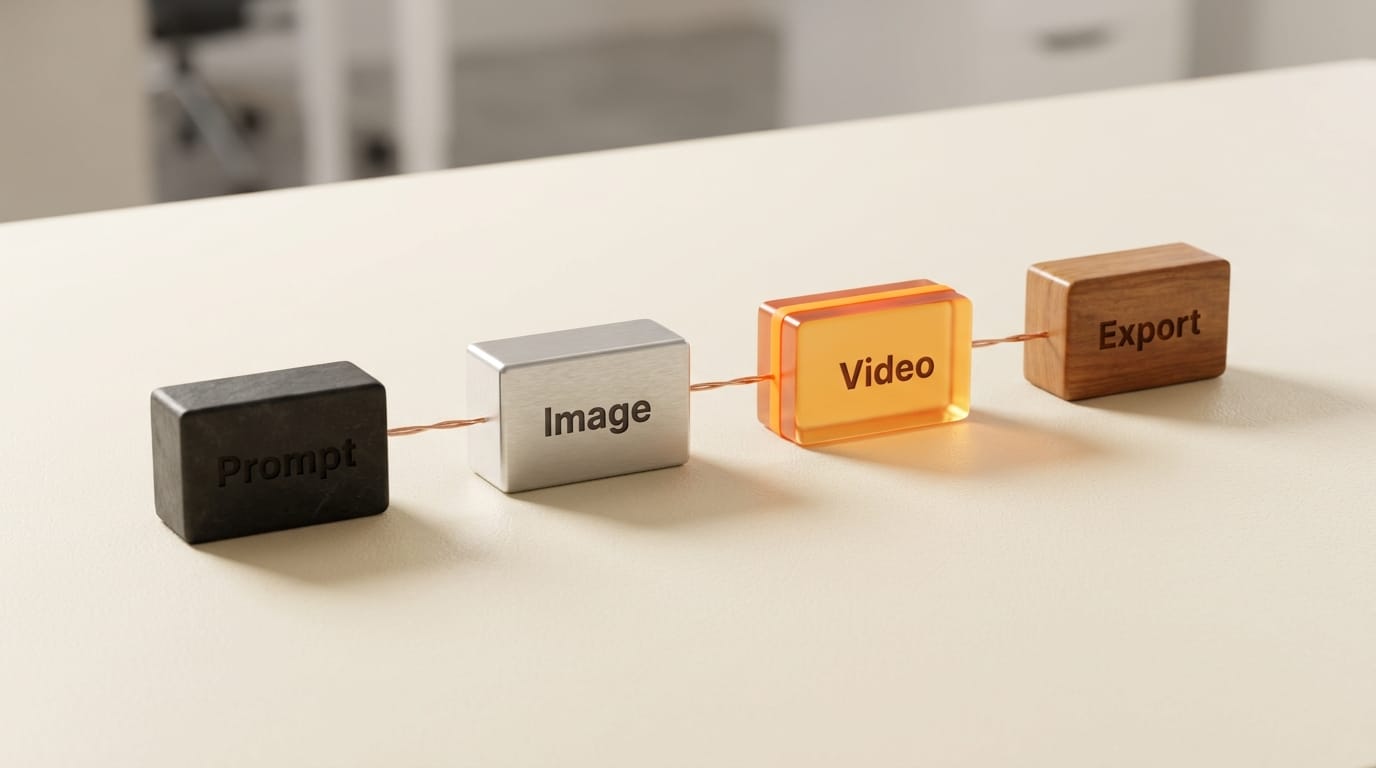
The four node types available at launch:
- Prompt node: text input that feeds downstream generation nodes. You parameterize the prompt here, so you can swap subjects or styles without rebuilding the graph.
- Image node: accepts an image (uploaded or generated by an upstream node) and feeds it to image-to-image or image-to-video operations.
- Video node: generates video from a text prompt or image input. Connects to LTX Studio's full model roster including LTX-2.3 and the partner models.
- Upscaling node: runs the output through LTX Studio's resolution enhancement pipeline (up to 4K) before final export.
Connections are directional: prompt feeds image, image feeds video, video feeds upscaling. You can branch nodes (one prompt driving multiple video nodes in parallel) or chain them linearly for a strict pipeline. Once built, the flow saves to your library and reruns without reconfiguration.
Why This Matters for Creators
The problem Flows solves is not generation speed. It is setup overhead. Every batch of social content, every ad variant, every product video in a campaign requires the same sequence of steps. Creators who work in LTX Studio manually have been rebuilding that sequence each session or keeping notes on the exact configuration to replicate. Flows replaces that with a saved graph.
The "reuse at any scale" framing in LTX Studio's release notes points at the use case clearly: content teams producing 20 variations of a product video each week should define the workflow once, then swap the product prompt and run it. The generation model selection, resolution target, and output format stay locked in the graph.
This also matters for brand consistency. LTX Studio already has Elements (reusable brand assets that propagate updates across projects) and Persistent Character Profiles (character definitions that stay consistent across scenes). Flows adds the procedural layer: you can wire a Character Profile into a video node and guarantee that every flow run produces output using that character's specs.
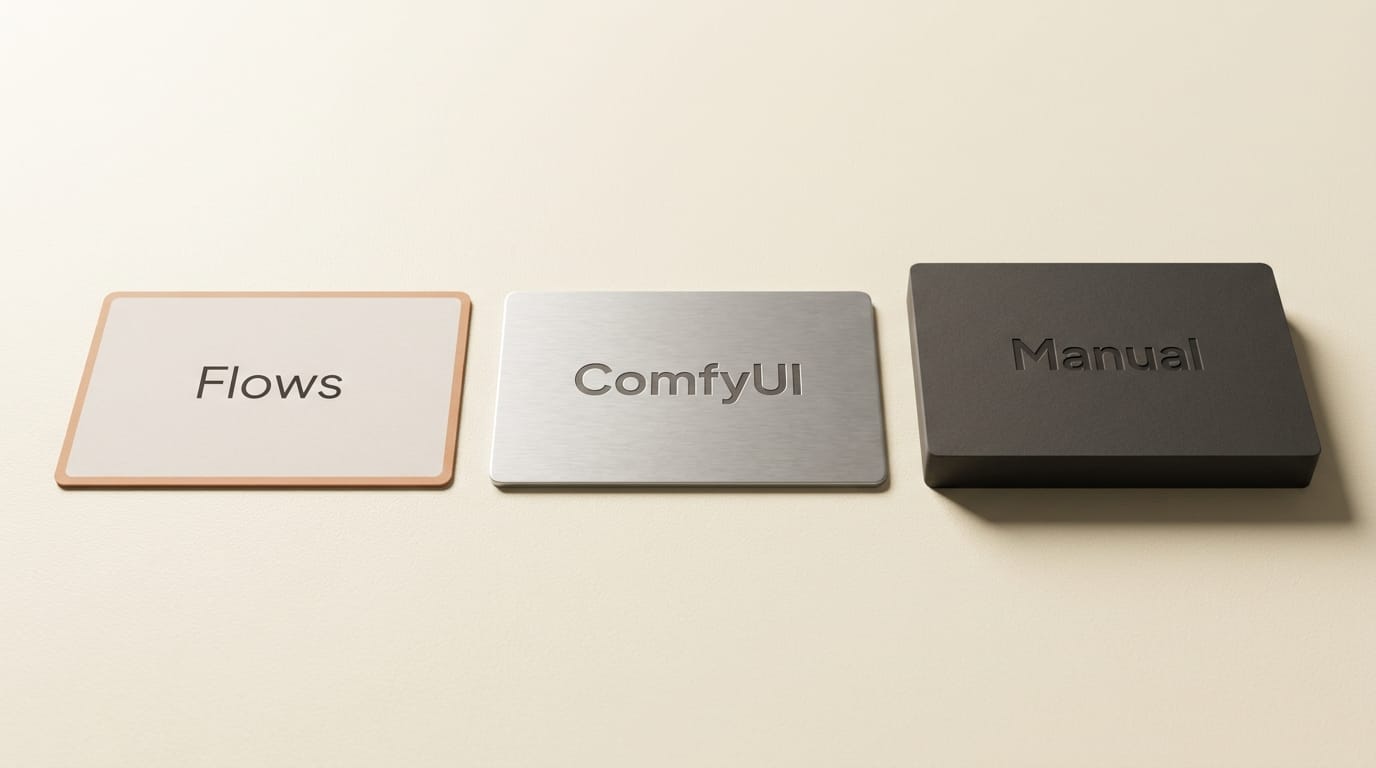
LTX Studio Flows vs. ComfyUI vs. Manual Production
| Capability | LTX Studio Flows | ComfyUI | Manual Session |
|---|---|---|---|
| Setup required | None (browser-based) | Local install, model downloads | None |
| Node-based graph | Yes | Yes | No |
| Saves and reruns | Yes | Yes (JSON export) | No |
| Model variety (video) | LTX-2.3, Veo 3.1, FLUX.2 Pro, Seedance 2.0, Kling 3.0 | LTX-2.3, Wan 2.7, others via custom nodes | One tool at a time |
| Upscaling integrated | Yes (node in graph) | Yes (custom node) | Separate tool |
| Collaboration | Shared via Projects/Canvas | Share JSON file | Verbal instructions |
| GPU requirement | Cloud (no local GPU) | Local GPU needed | Cloud or local |
The core advantage of Flows over ComfyUI is zero local setup and direct integration with LTX Studio's model ecosystem. ComfyUI remains the stronger option for teams running on their own hardware or needing fine-grained node control not yet in the Flows canvas. For teams that already use LTX Studio for video production, Flows is the path of least resistance to workflow automation.
How to Build a Batch Video Flow
Here is a concrete starting workflow: a repeatable pipeline for generating product videos from a text brief.
- Open Flows from the LTX Studio sidebar. The canvas loads with an empty workspace and a node palette on the left.
- Add a Prompt node. Write your base product description in the text field. Leave the product name as a variable you will swap per run.
- Connect a Video node. Drag a connection from the prompt node's output port to the video node's prompt input. Select your model. LTX-2.3 for fast iteration, Veo 3.1 Lite for longer clips at lower cost, Kling 3.0 Omni if you need multi-shot storyboard control.
- Add an Upscaling node. Connect the video node's output to the upscaler. Set target resolution to 4K if delivering for broadcast or high-resolution social formats.
- Save the flow. Give it a descriptive name. It appears in your Flows library for immediate reuse.
- Run the flow. Click execute. The pipeline generates the video and upscaled export in one pass. Swap the prompt variable and run again for the next variant.
This six-step build becomes a one-click operation for every subsequent project using the same pipeline structure.
Creator Outcomes: What You Can Build
Social content batches. Define a flow that generates a short lifestyle clip plus an upscaled export for each product in a catalogue. Run it once per SKU. The same visual style, same model settings, consistent output format, without repeating the configuration.

Ad variant testing. Wire a prompt node to three parallel video nodes, each using a different model or camera motion preset. A single run produces three variants for A/B testing without three separate manual sessions.
Brand-consistent character series. Connect a Persistent Character Profile into a video node and lock in the character spec at the graph level. Every flow run produces a clip using that character without re-entering the profile details each time.
What to Do Next
Flows is available now in LTX Studio. Open the platform and look for Flows in the left sidebar alongside Gen Space, Storyboard, and Timeline.. Plan details at ltx.studio/pricing
If you are coming from ComfyUI workflows, the node paradigm translates directly. Prompt and conditioning nodes map to LTX Studio's prompt node, sampling nodes map to the video node, and upscaler custom nodes map to the upscaling node. The main adjustment is working with LTX Studio's managed model roster instead of locally installed checkpoints.
For context on LTX Studio's model layer, see the LTX-2.3 model documentation. The full release notes cover all platform changes since April 2026 alongside the Flows launch.
If you are building a multi-model workflow outside a managed studio, the ComfyUI production workflows guide covers the most reliable open-source setups for image and video generation. And for comparison on the managed video studio landscape, the Runway production workflow guide outlines where Runway sits on timeline-based editing vs. LTX Studio's approach.
Frequently Asked Questions
Does Flows work with all LTX Studio models?
Yes. The video node in a flow lets you select any model available in your plan, including LTX-2.3, Veo 3.1, FLUX.2 Pro, Seedance 2.0, and Kling 3.0. The model selection is saved in the graph and stays consistent across runs.
Can I share a flow with a team?
Flows live inside your LTX Studio Projects workspace. Any project collaborator with access can view and run saved flows. Canvas (LTX Studio's collaborative workspace released April 27) lets teams view and comment on flow outputs in real time.
How is Flows different from the Storyboard feature?
Storyboard is for planning and structuring a narrative. It generates shot descriptions from a script and produces visual references per scene. Flows is for executing a production pipeline repeatedly at scale. Storyboard is ideation; Flows is automation. You can Storyboard your concept and then build a Flow to generate the final video for each shot in bulk.
Do I need a paid plan to use Flows?
LTX Studio has not published tier-specific restrictions for Flows in the May 7 release notes. Check the pricing page at ltx.studio for current plan details.
What is the maximum output resolution from a Flows pipeline?
With the upscaling node at the end of a flow, outputs can reach 4K resolution. LTX Studio supports 4K export starting from the Lite plan for standard video generation.
Can I branch a flow to generate multiple outputs from one prompt?
Yes. The node canvas supports branching connections, so one prompt node can connect to multiple parallel video nodes. Each branch runs with its own model or settings, producing multiple variants from a single execution.