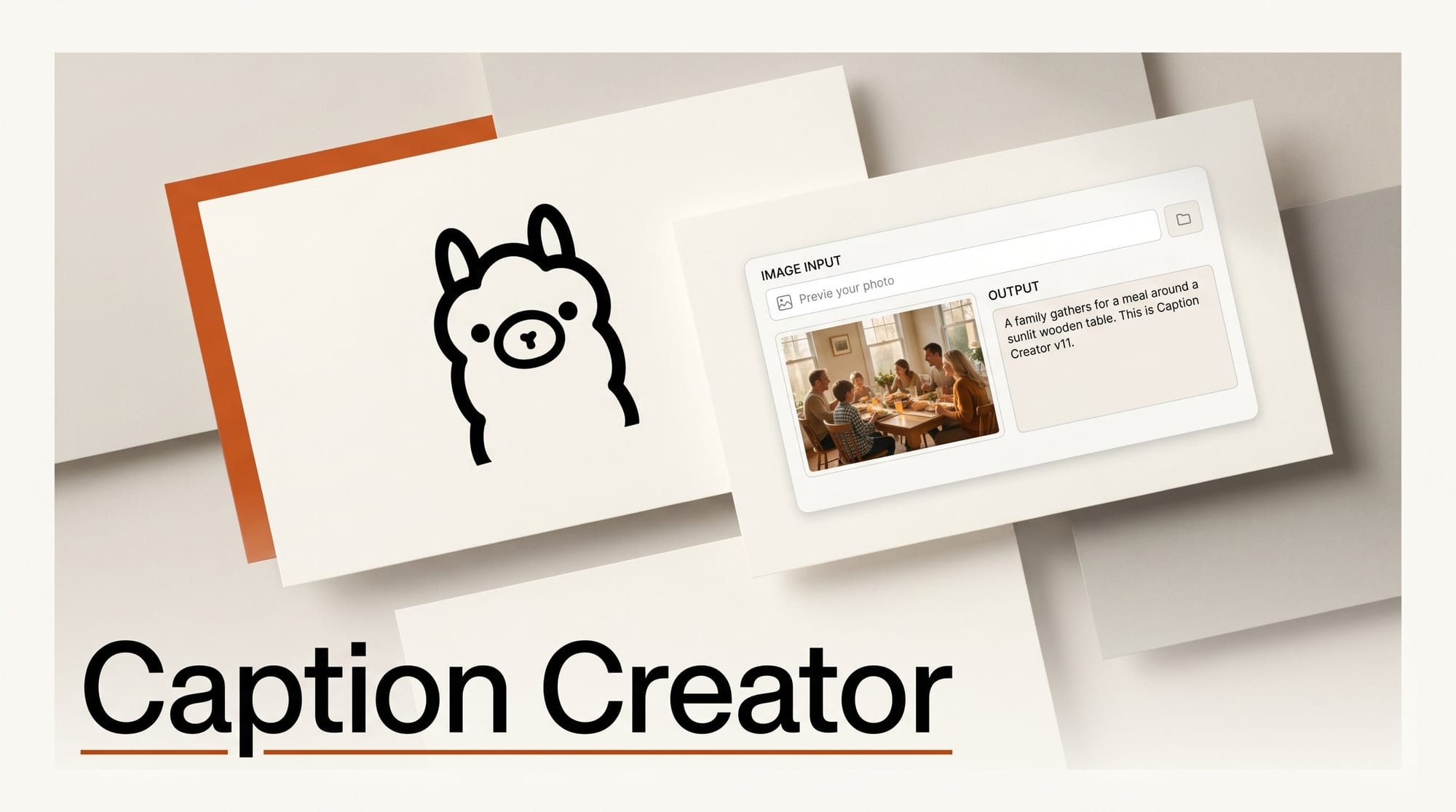
Caption Creator v11.0, released May 28, 2026, brings structured output support and full integration with both Ollama and LM Studio to one of the few portable Windows tools built specifically for generating image captions and tags for AI training datasets. If you build LoRA models, fine-tune image generation checkpoints, or maintain labeled image datasets for any diffusion model workflow, this update changes how you can approach the labeling step.
The tool is available free from the GitHub releases page and runs entirely offline. No cloud upload, no API key, no subscription.
What Caption Creator Does
Caption Creator is a portable Windows application that uses local vision-language models to generate text descriptions from images. You point it at a folder of images, configure your output format and model, and it produces caption files alongside each image. Those files feed directly into standard dataset preparation pipelines for tools like Stable Diffusion, FLUX, SDXL, and any framework that accepts image-text pairs for fine-tuning.
The core problem it solves is the bottleneck between gathering raw images and having a labeled dataset ready for training. Manual captioning at scale is slow. Cloud-based captioning tools raise privacy concerns and incur ongoing costs. Caption Creator puts that process on your local machine using the same vision models available through Ollama and LM Studio.
What Changed in v11.0
Version 11.0 adds three capabilities that significantly expand the tool beyond basic description generation:
Structured output formats. Beyond plain-text captions, v11.0 supports JSON and YAML output, enabling you to generate machine-readable labels rather than just human-readable descriptions. This matters for pipelines that ingest structured metadata rather than raw text strings, such as dataset curators that need tagged attribute dictionaries or training frameworks that accept multi-field annotations.
Full Ollama integration. You can connect Caption Creator to any vision-capable model served locally through Ollama. This includes models like LLaVA, Qwen-VL, Llama 3.2 Vision, and any other OpenAI-compatible vision endpoint Ollama exposes. The integration means you can switch captioning models without reinstalling software, and you can use models you have already pulled for other local AI work.
LM Studio support. LM Studio users can connect their existing local server directly to Caption Creator. If you already use LM Studio for text generation or chat tasks, the same application now doubles as your image captioning backend. This is particularly useful if your workflow already has LM Studio running and you want to avoid spinning up a separate Ollama instance.
Output Formats Supported
Caption Creator v11.0 supports six output types:
| Format | Use Case |
|---|---|
| Captions | Standard text descriptions for training pairs |
| Tags | Comma-separated keyword tags (common in Danbooru-style datasets) |
| JSON | Structured labels for programmatic dataset pipelines |
| YAML | Human-readable structured metadata |
| Illustrious | Format compatible with Illustrious model training |
| Custom | User-defined prompt templates for specialized output |
The tag output format is worth highlighting for anyone working with anime or illustration-style models. Many fine-tuning pipelines for Pony Diffusion, NovelAI, and Illustrious use tag-based datasets rather than natural language captions. Having a dedicated tag mode in a local, offline tool fills a gap that was previously only covered by cloud-based taggers or manual annotation.
How to Set Up Caption Creator with Ollama
This workflow assumes you already have Ollama installed. If not, download it from ollama.com first.
- Pull a vision model. In your terminal, run
ollama pull llavaorollama pull qwen2.5vl:7bdepending on your VRAM. LLaVA works on most consumer GPUs with 8GB VRAM. Qwen2.5-VL produces more detailed descriptions but needs 12GB or more. - Start Ollama. Ollama runs as a background service on most systems. Verify it is running with
ollama list. The default endpoint ishttp://localhost:11434. - Download Caption Creator. Grab the latest release ZIP from the GitHub releases page. Extract to any folder. No installer needed.
- Connect to Ollama. In Caption Creator, open Settings and select Ollama as your model source. Enter the local endpoint URL and choose the vision model you pulled.
- Configure output format. Select your target format from the output dropdown. For a standard LoRA training dataset, Captions is the most compatible starting point.
- Add your image folder. Drag and drop your image folder into Caption Creator, or use the folder picker. Set a maximum word limit if you want concise captions, or leave it open for detailed descriptions.
- Run batch captioning. Click Generate. Caption Creator processes images sequentially, writing output files alongside each image. The default behavior preserves original filenames, so a file named
portrait_001.pnggets a companionportrait_001.txt(or.jsonfor structured formats).
How to Set Up Caption Creator with LM Studio
If you already use LM Studio for local AI, the setup is even simpler:
- Load a vision model in LM Studio. Download a vision-capable GGUF model through LM Studio. Search for models tagged with "vision" or "multimodal". Qwen2-VL and LLaVA-1.6 have GGUF versions available.
- Start the local server. In LM Studio, go to Local Server and click Start Server. The default port is 1234. The endpoint becomes
http://localhost:1234/v1. - Configure Caption Creator. In Settings, select LM Studio as the model source and enter your server URL. Caption Creator connects through the OpenAI-compatible API that LM Studio exposes.
- Select output format and run. The rest of the workflow is identical to the Ollama setup above.
The main advantage of LM Studio over Ollama for this use case is GGUF model flexibility. LM Studio supports finer quantization options (Q4_K_M, Q5_K_M, Q8_0), which can help you fit larger vision models into constrained VRAM. For an 8GB GPU, a Q4_K_M quantized Qwen2.5-VL-7B often runs where the full Ollama version struggles.
Creator Outcome: Building a LoRA Training Dataset
Here is a concrete end-to-end workflow using Caption Creator v11.0 to prepare a LoRA training dataset for FLUX or SDXL:
- Collect 50-200 images of your subject. Aim for variety in pose, lighting, and composition. Resolution at or above 512x512.
- Run Caption Creator in Captions mode with Ollama and a LLaVA or Qwen-VL model. Use a custom prompt: "Describe this image in detail. Include subject, style, colors, lighting, and composition. Be specific and factual." Set a word limit of 75-150 words per caption.
- Review generated captions in the Caption Creator gallery view. Edit any inaccurate descriptions. The non-destructive version tracking means rollback is available if a bulk edit goes wrong.
- Add trigger words. Use the trigger word feature to prepend a unique token to every caption automatically. This creates the association your LoRA model needs to respond to your trigger during inference.
- Export as ZIP. Caption Creator packages your images and caption files together in a ZIP export ready for upload to training tools like Kohya, OneTrainer, or the Hugging Face autotrain interface.
This workflow replaces what used to require either paying for a cloud captioning service, running a Jupyter notebook, or captioning manually. It runs entirely on your machine in under 30 minutes for a 100-image dataset on a mid-range GPU.
Comparison with Alternative Local Captioning Tools
| Tool | Ollama Support | LM Studio Support | Structured Output | GUI | Batch Processing |
|---|---|---|---|---|---|
| Caption Creator v11.0 | Yes | Yes | JSON, YAML, Tags | Yes (Windows) | Yes |
| CaptionFoundry | Yes | Yes | Limited | Yes (cross-platform) | Yes |
| ComfyUI-Ollama-Describer | Yes | No | JSON (node output) | ComfyUI only | Via workflow |
| AutoDescribe-Images | Yes | No | No | Web + CLI | Yes |
| Manual + JoyCaption | No | No | No | No | CLI |
Caption Creator distinguishes itself through the combination of LM Studio support, multiple structured output formats, and a standalone Windows GUI that does not require ComfyUI or a Python environment. For creators who want a simple tool that works without configuring a workflow graph, it fills a real gap.
What to Do Next
Download Caption Creator v11.0 from the GitHub releases page. It runs as a portable application with no installation required on Windows. If you are new to local AI model serving, start with Ollama since it handles model management automatically. If you already run LM Studio for other tasks, connecting Caption Creator to your existing server adds zero overhead.
For context on choosing between Ollama and LM Studio as a local AI backend, see our comparison of llama.cpp vs LM Studio for local AI workflows. The tradeoffs discussed there apply directly to which backend you run Caption Creator through.
Frequently Asked Questions
Does Caption Creator work on Mac or Linux?
No. Caption Creator v11.0 is a Windows-only portable application. Cross-platform alternatives like CaptionFoundry or the AutoDescribe-Images web interface cover Mac and Linux use cases.
Which vision model produces the best captions for LoRA training?
Qwen2.5-VL-7B consistently produces more detailed and accurate captions than LLaVA-1.6 for most subjects, but requires more VRAM (10-12GB at Q4 quantization). For 8GB VRAM, LLaVA-1.6-mistral-7b is a reliable starting point. Model quality matters more for character detail and style descriptions than for simple object tagging.
Can I use Caption Creator to caption images for training FLUX models?
Yes. FLUX training pipelines accept standard text caption files alongside images. Caption Creator's Captions output format produces compatible text files. Use natural language descriptions rather than tag lists for FLUX, since the FLUX training data used dense natural language captions.
What is the Illustrious output format?
Illustrious is an anime-style image generation model that uses a specific tag and attribute notation in its training data. Caption Creator's Illustrious mode generates captions in this specific format, making it directly compatible with Illustrious fine-tuning workflows without manual reformatting.
How accurate are the generated captions?
Accuracy depends heavily on the vision model and your subject matter. For photographic images of objects and scenes, LLaVA-1.6 and Qwen2.5-VL perform well. For illustration styles or unusual visual compositions, you may need to review and edit a portion of generated captions manually. Caption Creator's gallery view and version tracking support this review step.
Is there an online version?
Yes. Caption Creator also offers an online version at caption-creator.merserk.com, though the local offline application is recommended for dataset creation where you want to keep images private.